Maintenance
Keeping ITFlow running - cron and its jobs, backups and the encryption key, updates, the starter content library, and Debug's checks.
Cron
Much of ITFlow happens in the background: sending email, reading the support mailbox, SLA alerts, recurring invoices and tickets, payment reminders, looking up domains and certificates, and backups. A single cron entry on your server runs it all, every minute:
* * * * * php /var/www/itflow/cron/cron.php >/dev/nullAdmin > Cron says whether cron is running, and how each job is doing.
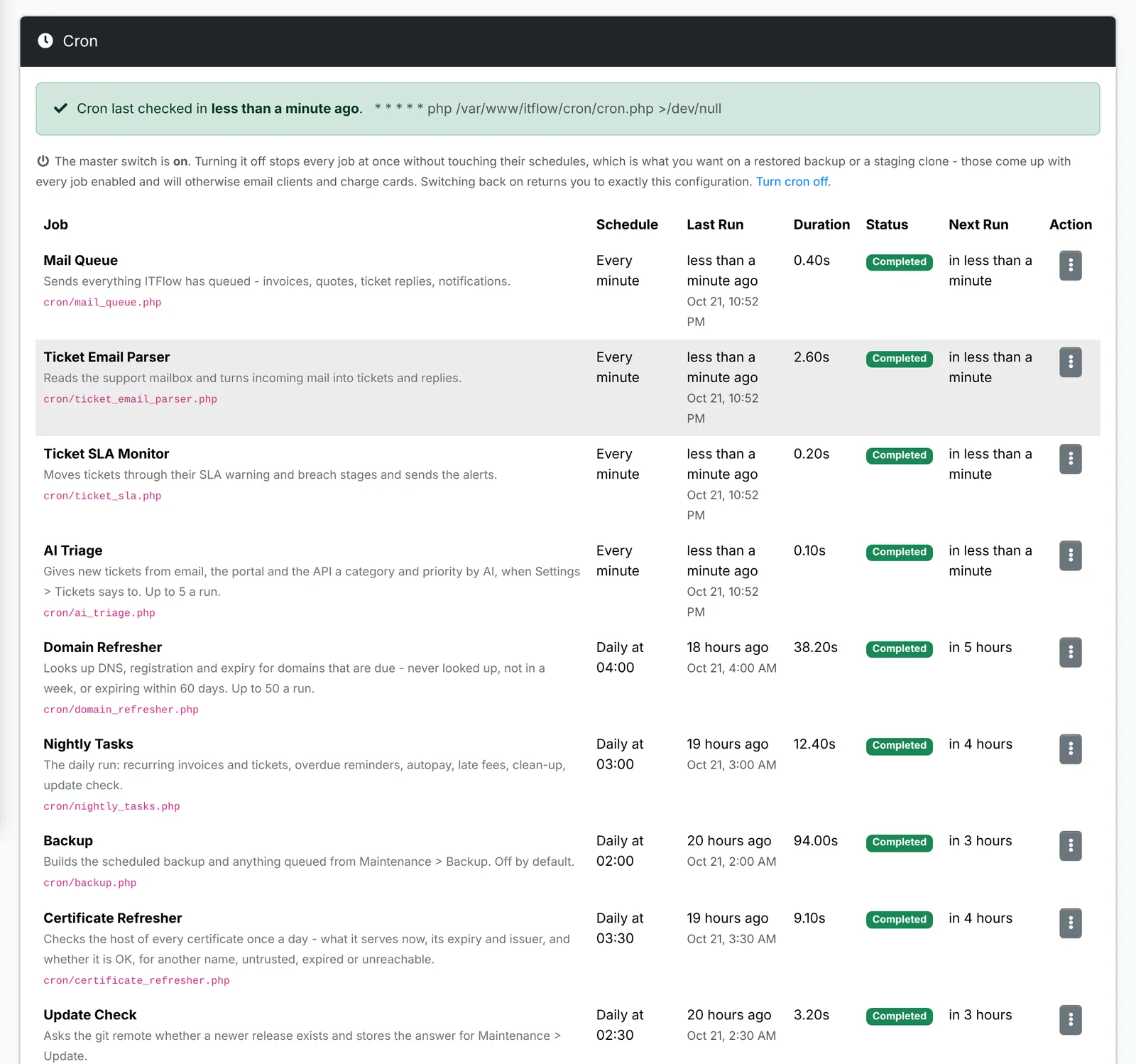
The top of the page says when cron last ran, how many jobs are on, and which runs next. When something needs you, it says that instead:
- Cron hasn't run yet, or Cron has stopped - the cron entry is missing or failing. The line for your server is there, with a button that copies it, and the page says so by itself once cron runs.
- Cron is switched off - every job stops itself until you click Turn cron on.
- A job failed - the top of the page names it, and what went wrong is under the job.
Jobs lists each job with what it does, its schedule and when it next runs, when it last ran and how long that took, and how it went:
- Completed - it ran.
- Skipped - it had nothing to do, or what it works with isn't set up. It says why under its name - texting isn't set up, say.
- Failed - it stopped with an error, shown under the job. The error stays until you click Dismiss, and once the job has run again it says so. A run cut off part way - by a restart, say - reads Didn't finish.
- Queued or Running - it's on its way, and the page keeps itself up to date until it's done.
The list starts in the order the day runs - the every-minute jobs, then the nightly ones by time - and sorts by its headings.
| Job | Runs | Does |
|---|---|---|
| Mail Queue | every minute | Sends invoices, quotes, ticket replies and notifications |
| Text Messages | every minute | Sends the texts waiting to go, texts reminders of visits and calls coming up, and tidies the text log. Does nothing until text messaging is set up. |
| Ticket Email Parser | every minute | Turns email to your support mailbox into tickets and replies |
| Ticket SLA Monitor | every minute | Warns about SLAs close to a breach, and records breaches |
| AI Triage | every minute | Triages new tickets, when that's switched on |
| Payment Provider Fees | every 15 minutes | Records Stripe's fee on each card payment as an expense, when that's switched on |
| RMM Sync | every 15 minutes | Brings in the devices of the clients linked to your RMM, and keeps their assets up to date. Does nothing until an RMM is set up. |
| RMM Alerts | every minute | Opens a ticket for each new alert from an RMM whose alerts open tickets, and resolves it when the alert clears. See RMM providers. |
| Manager Check-in | every minute | Checks in with the ITFlow that manages this one. Only there when managed mode is turned on. |
| Managed Instances | every 5 minutes | Notices instances you manage that have stopped checking in. Only there when managed mode is turned on. |
| Backup | daily | Makes the scheduled backup, and any started from Backup. Off until the schedule is turned on. |
| Update Check | daily | Checks for a new version |
| Application Update | when asked | Runs an update started from Update. Off, as there's nothing for it to do until then. |
| Nightly Tasks | daily | Recurring invoices and tickets, reminders, autopay, late fees, clean-up |
| Certificate Refresher | daily | Checks every certificate |
| Domain Refresher | daily | Looks up domains that are due |
| Demo Reset | daily | Puts a public demo back to fresh demo data. Only there in demo mode, where the domain and certificate refreshers aren't. |
Each job's menu has:
- Run now - cron picks the job up within a minute, even when it's turned off.
- Change the schedule - every so many minutes, or once a day at a time you choose. Nightly Tasks, Backup and Application Update only run once a day.
- Copy the command to run it - the command that runs that one job on the server, where it shows what it does as it goes.
- Turn off - it no longer runs on its schedule, and shows Off. Turn on puts it back.
Beside the list, At a glance has whether cron is running, when it last ran, how many jobs are on and off, any that failed, the next job due, and the time zone the schedules are in. The cron job has the line for your server. Turn cron off stops every job at once without touching their schedules - what you want on a restored backup or a test copy, so it doesn't email clients or charge cards.
If cron stops, email stops going out, recurring invoices aren't made and SLAs aren't watched. ITFlow warns on the Cron, Mail Queue and Backup pages when it hasn't run for a few minutes.
Backup
Admin > Backup says whether ITFlow is backed up, makes a backup when you want one, keeps the nightly schedule, and holds the encryption key backups need.
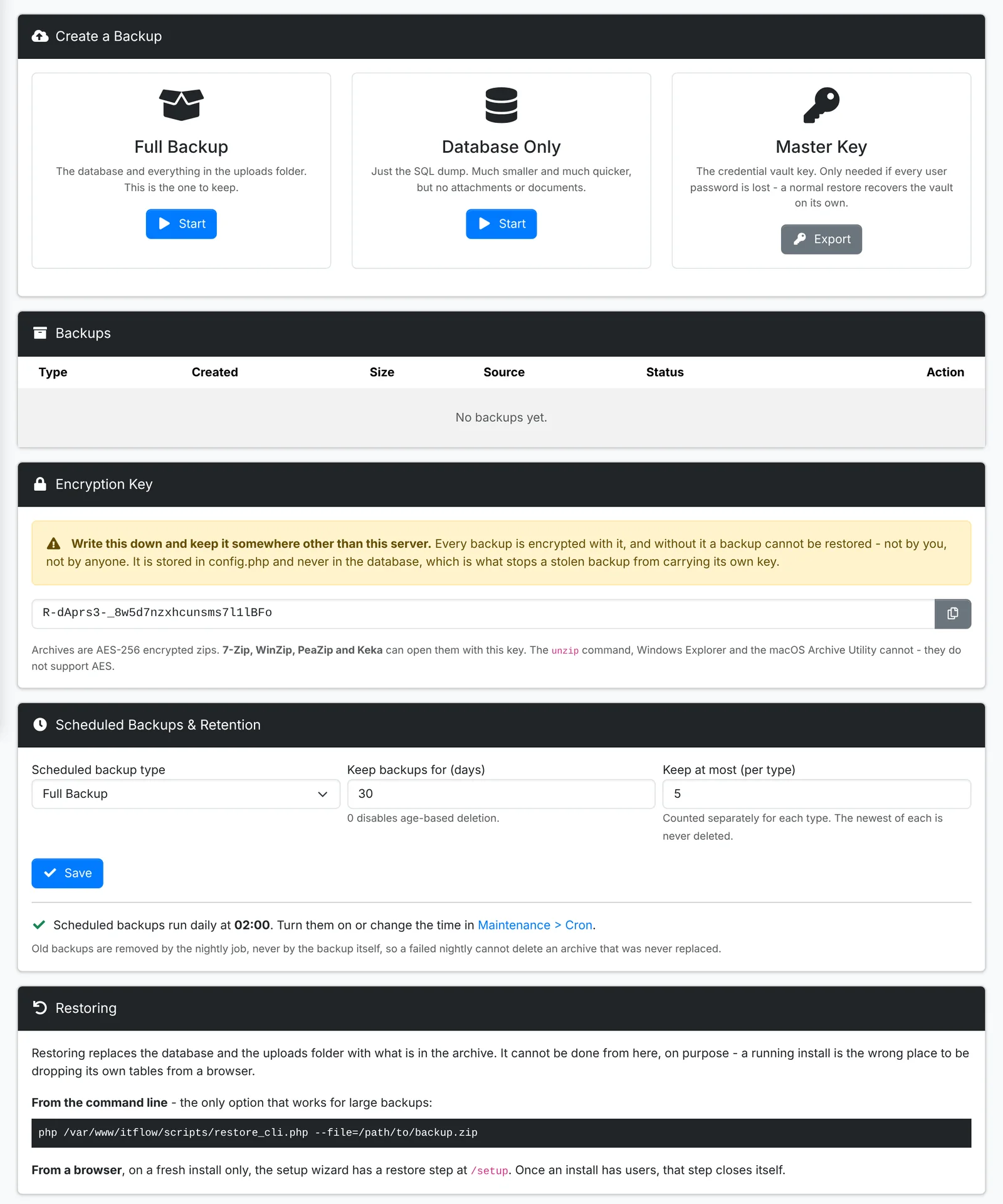
The top of the page says when the last backup was made, what kind it was, and when the next scheduled one is due. When something needs you, it says that instead: a backup is being made, the last one didn't finish and why, there hasn't been one for a week, none has been made yet, or one is waiting because cron isn't running.
- Back up now makes a Full Backup - the database and everything uploaded. This is the one to keep.
- Database only is just the database. Much smaller and quicker, but no files or documents.
Cron makes it within a minute, so cron needs to be running. The page keeps itself up to date while it does, the backup appears in the list when it's done, and you get a notification.
Backups lists those kept, newest first: who made each one or that the schedule did, its size, and when it was last downloaded. A failed one says why. Download saves one. Each backup's menu copies its path on the server, which restoring from the command line asks for, and its SHA-256 checksum, to check a copy kept somewhere else. The same menu deletes a backup, or takes one still waiting to be made off the queue.
Schedule and retention says whether a backup is made every night, and at what time. Change the time is beside it, and Turn on when the schedule is off - the same as the Backup job's menu in Cron. Below that are the type made each night, how many days to keep backups, and the most to keep of each type. Old backups are removed by the nightly job, never by a backup itself, so one that fails never costs you the one before it.
At a glance has the last Full Backup and Database Only, how many backups are on the server and the room they take, the space left there, whether cron is running, and the folder they're kept in - inside ITFlow's own folder unless $config_backup_path in config.php puts them somewhere else.
Every backup is an encrypted zip, and the Encryption key opens it. It's hidden until you click the eye, and the button beside it copies it. Keep a copy somewhere other than the server - without it, a backup can't be restored, by anyone.
Export the master key, under Credential vault key, gives you the key to the credential vault, for when every user's password is lost - a restore brings the vault back by itself as long as one user still knows theirs. It asks for your password, shows the key once, and files an encrypted copy with the backups. Every agent is notified that it was exported.
To restore, use scripts/restore_cli.php on the server - Restoring has the command to copy. On a brand new install, the setup wizard also has a restore step. Moving to a new server goes through both.
Update
Admin > Update says where your install stands - up to date, an update available, an update running, or the database still to update - with the one button for it. Alongside are this install's version, the branch it updates from, its database version and commit, when it last checked for updates and last updated, and whether cron is running.
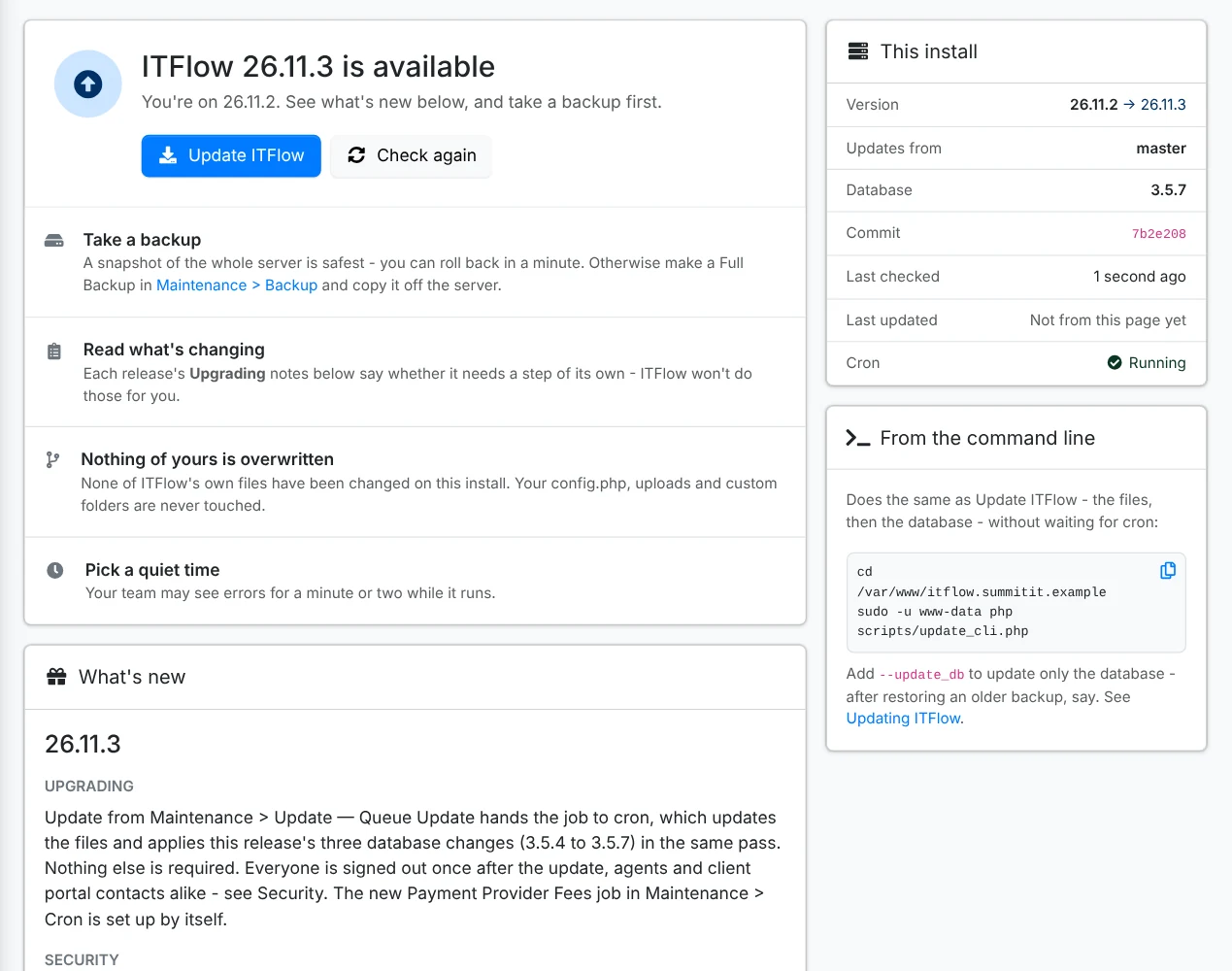
The Update Check job looks for updates once a day; Check now looks straight away. When a newer version is waiting, the page shows:
- What's new - each release's notes from the changelog, newest first, with any step of its own under Upgrading. The notes for developers and the commits behind them are folded away.
- What to do first - take a backup, read what's changing, pick a quiet time - and whether any of ITFlow's own files have been changed on this install. Updating puts back the released versions, so those changes would be lost. Your
config.php,uploadsandcustomfolders are never touched.
Update ITFlow hands the update to cron, which updates the files and then the database within a minute. The page shows it running and refreshes itself, then says when ITFlow was updated - or, if it stopped, what stopped it. When the database is behind ITFlow's files - after the files were put in place by hand, say - the button is Finish updating.
From the command line has the command to run the same update in a shell, with this server's folder and user filled in. See Updating ITFlow.
An ITFlow managed by another is updated from there, so it has no Update ITFlow button - the page says who updates it, and whether automatically.
Take a backup before updating - a snapshot of the server is safest - and read the changelog first: some releases need steps of their own.
Starter content
Admin > Starter Content is a library of defaults for a typical MSP: categories, tags, ticket and project templates, canned responses, vendor templates, document templates, products and services, and license templates. Add whichever packs are useful - on a new install, or one that's been running for years.
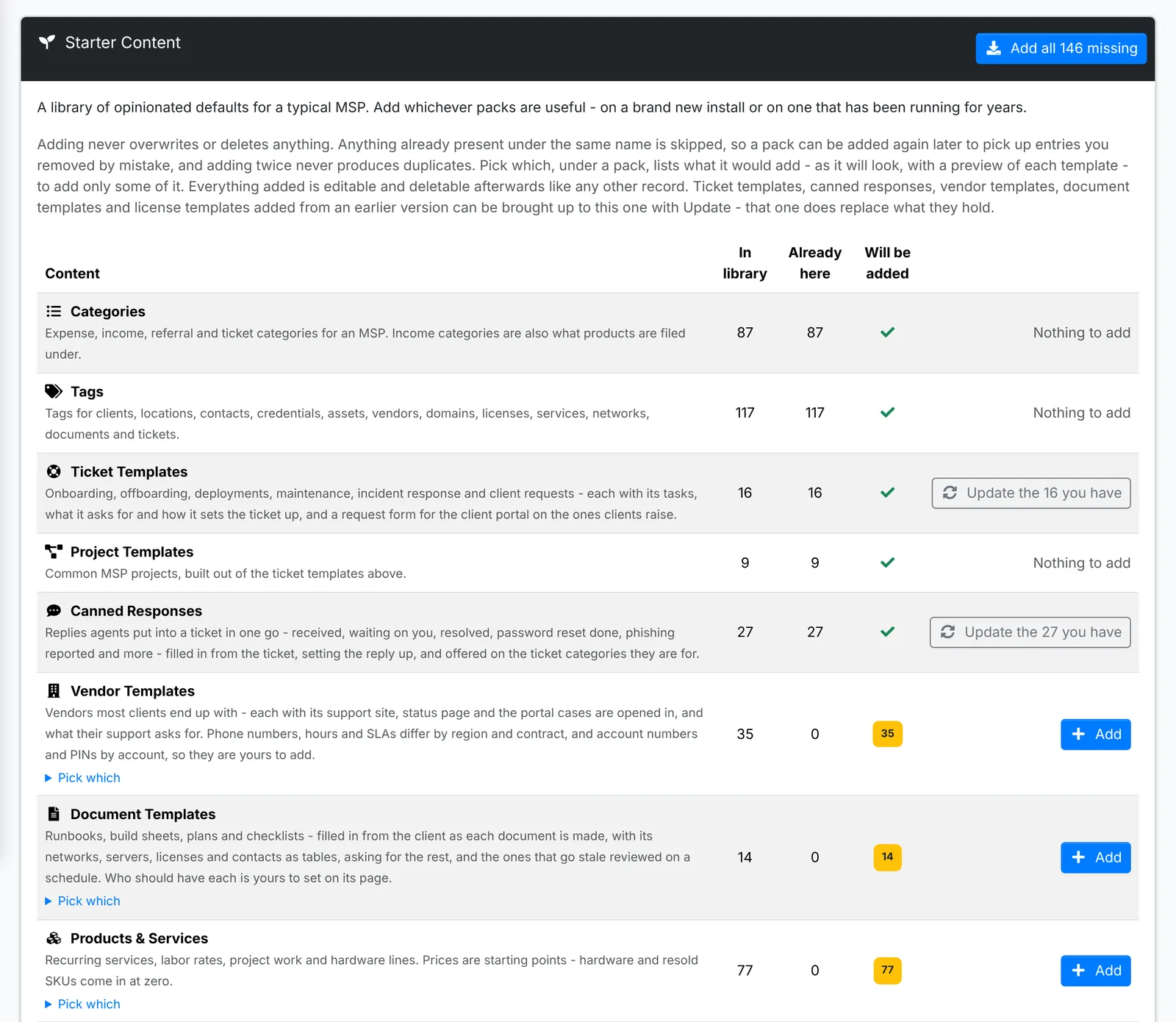
Each pack shows how many are in the library, how many you already have, and how many Add would bring in. Add all at the top adds every pack at once.
Adding never overwrites or deletes anything: what you already have under the same name is skipped, so adding twice never makes duplicates. When a newer version of ITFlow brings improved templates, Update the ones you have brings yours up to date.
Pick which
To add only some of a pack, open Pick which under it. It lists what the pack would add - only what you don't have yet - each as it will look: a category or tag with its colour and icon, a product with its price and how it's billed, a template with what it's for.
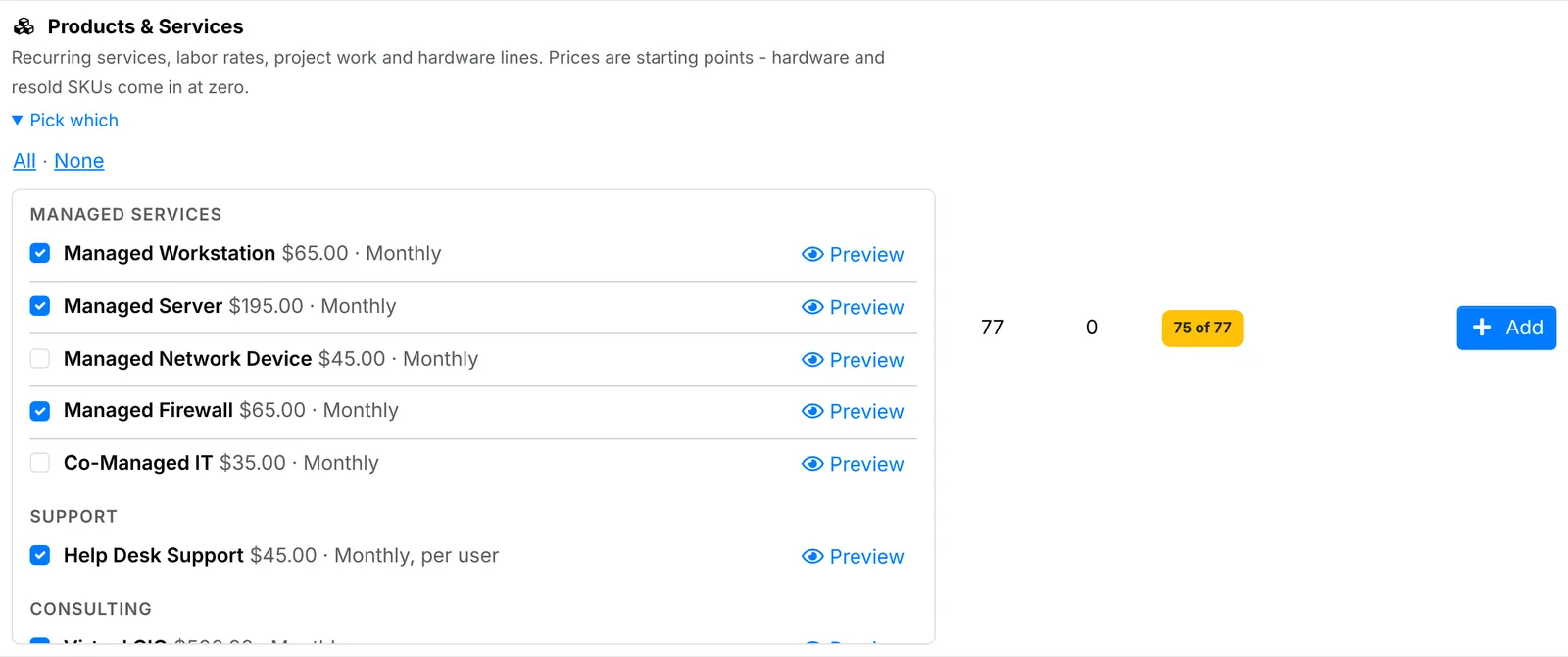
Everything is ticked to start with. Untick what you don't want, or use All and None. The count under Will be added follows - "75 of 77" - and Add adds only the ones ticked.
Preview shows a template in full before you add it - a ticket template's subject, category, tags, what it says and what it asks for; a document template's fill-ins and the document itself; a product's price and how it's billed.
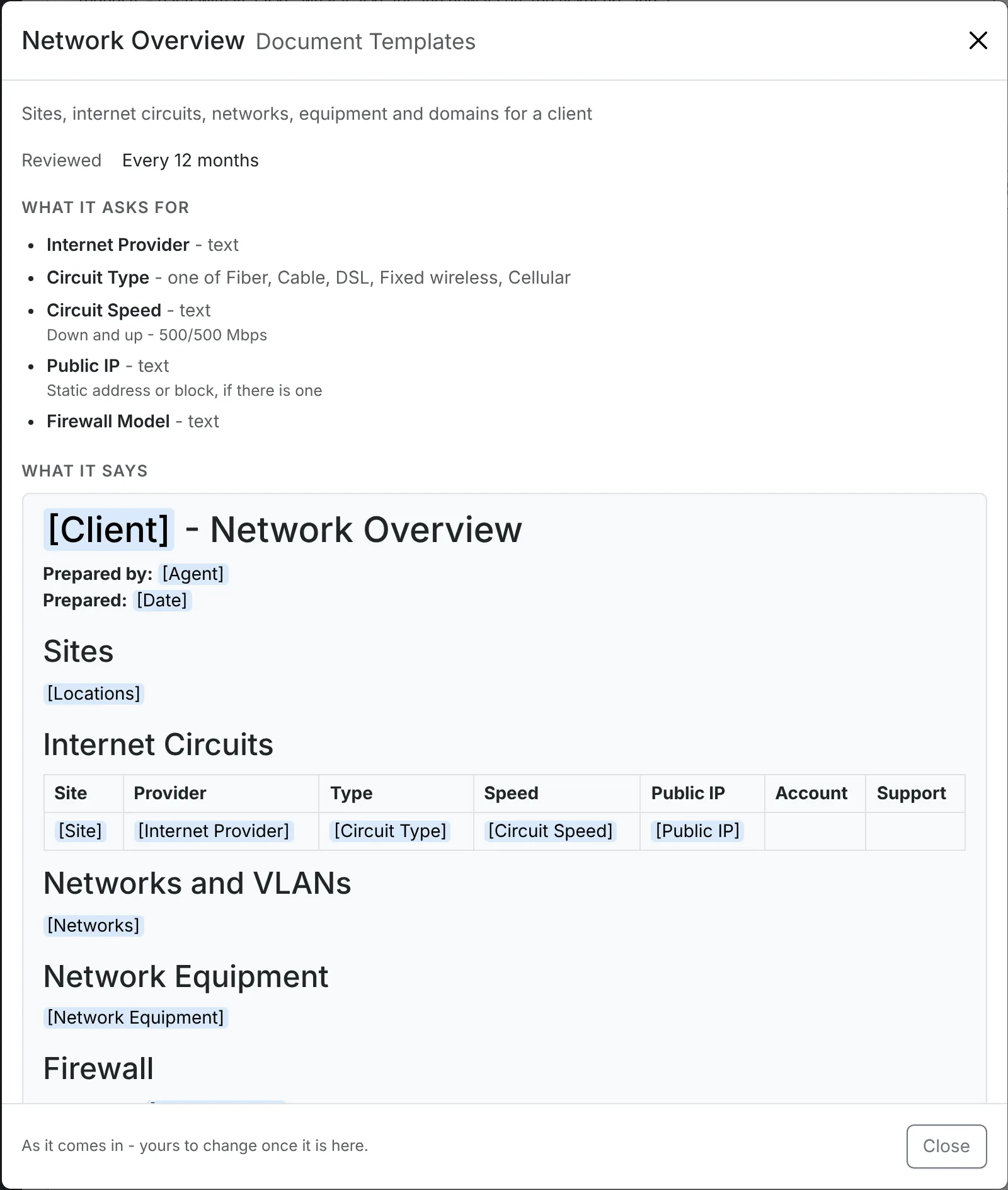
The Starter content step of Get started has the same packs, with Pick which and Preview.
Request forms come with the ticket templates, turned off - turn each on in its template's Client portal card. Products come priced as starting points: hardware and resold licensing at zero, because they're quoted per deal.
Demo Data removes the sample clients and records from a demo install, ready for your own.
Debug
Admin > Debug checks the install and the server it runs on. It says first what needs putting right - problems, then warnings - each with what it found, what to do and a link to where to do it. When nothing does, it says everything looks good.
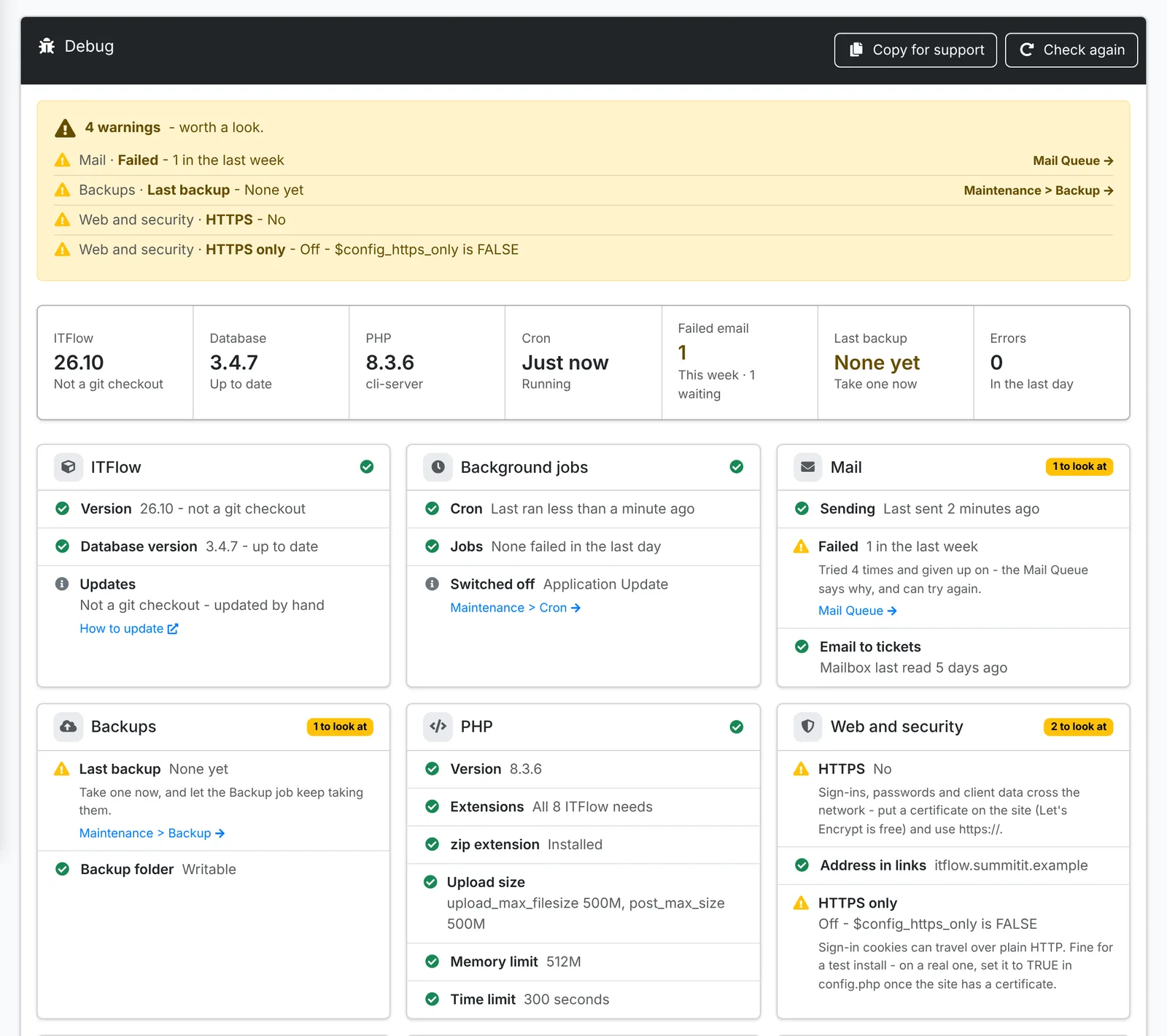
Along the top are the version and the database's version (with an update waiting), PHP, when cron last ran, failed email this week, the last backup and errors logged in the last day - each a link to its page. Below them, every check by section:
- ITFlow - the version, the database's version against the one the code expects, and whether updates can run here
- Background jobs - cron running and switched on (with the crontab line when it isn't), jobs that failed in the last day, and jobs switched off
- Mail - sending, email given up on or waiting to be tried again, and when the ticket mailbox was last read
- Backups - the last one, one that failed, and the backup folder
- PHP - the version, the extensions ITFlow needs, and the upload size, memory and time limits
- Web and security - HTTPS and the certificate, the address in ITFlow's emails against the one in use, and HTTPS only
- Files and disk, Server and Errors logged - the uploads folder, free space, the web and database servers, the time zone, and the latest errors
Further down are the database - its tables and size, the biggest tables, and any difference from a fresh install's tables and columns - and the uploads folder by size. Count exactly counts every table's rows, where the page shows the database's own estimate.
Copy for support puts the whole report on your clipboard as plain text, for a forum post or a support email: versions, what needs a look and the size of things, without host names, paths, addresses or keys. The same report is on the page, to read before you post it.
The page still opens when the database is behind the code - which is when you most need it.
Other maintenance pages
- Admin > Mail Queue - every email sent or waiting. See Mail.
- Admin > Text Messages - every text sent and received, once texting is set up. See Text messaging.
- Admin > Audit Logs and App Logs - see Logs.