RMM providers
Bring your RMM's devices into ITFlow as assets and keep them up to date, see whether each is online, have its alerts open tickets, and bill per managed device - with Tactical RMM.
ITFlow reads your RMM, so the devices it looks after are your clients' assets without typing them in. Tactical RMM is the RMM it knows. Once it's set up:
- Each client you link has its devices as assets - matched to the ones you already have, and kept up to date. See What comes in.
- An asset shows whether the device is online, who's signed in and what needs attention, with Take Control to open a remote session. See On the asset.
- Alerts can open tickets, and resolve them when they clear. See Alerts open tickets.
- A recurring invoice can bill per managed device. See Bill per managed device.
Before you start
ITFlow reads Tactical's API with an API key. In Tactical RMM:
- Make a user just for ITFlow, with a role that has List Clients and List Agents - and List Alerts, if alerts are to open tickets. ITFlow only reads, so it needs nothing more. A role limited to some clients shows ITFlow only those.
- In Settings > Global Settings > API Keys, add a key for that user, and copy it.
You also need the address of Tactical's API. Tactical's install puts it at an address starting api. on your domain - https://api.example.com - beside the dashboard at rmm.. ITFlow's server has to be able to reach it.
The key can do whatever its user can in Tactical, so give that user no more than ITFlow needs.
Add Tactical RMM
- In Admin > RMM Providers, click Add Provider.
- RMM is Tactical RMM. Leave the Name as it is, unless you have more than one Tactical - see More than one.
- Enter the API address and the API key. The Dashboard address can stay empty when it's the API's address with
rmm.forapi.. - Click Add. ITFlow tries the key, brings in Tactical's clients and opens its Clients page. If something is wrong, it says what - a key Tactical turned away, or an address that isn't Tactical's API.
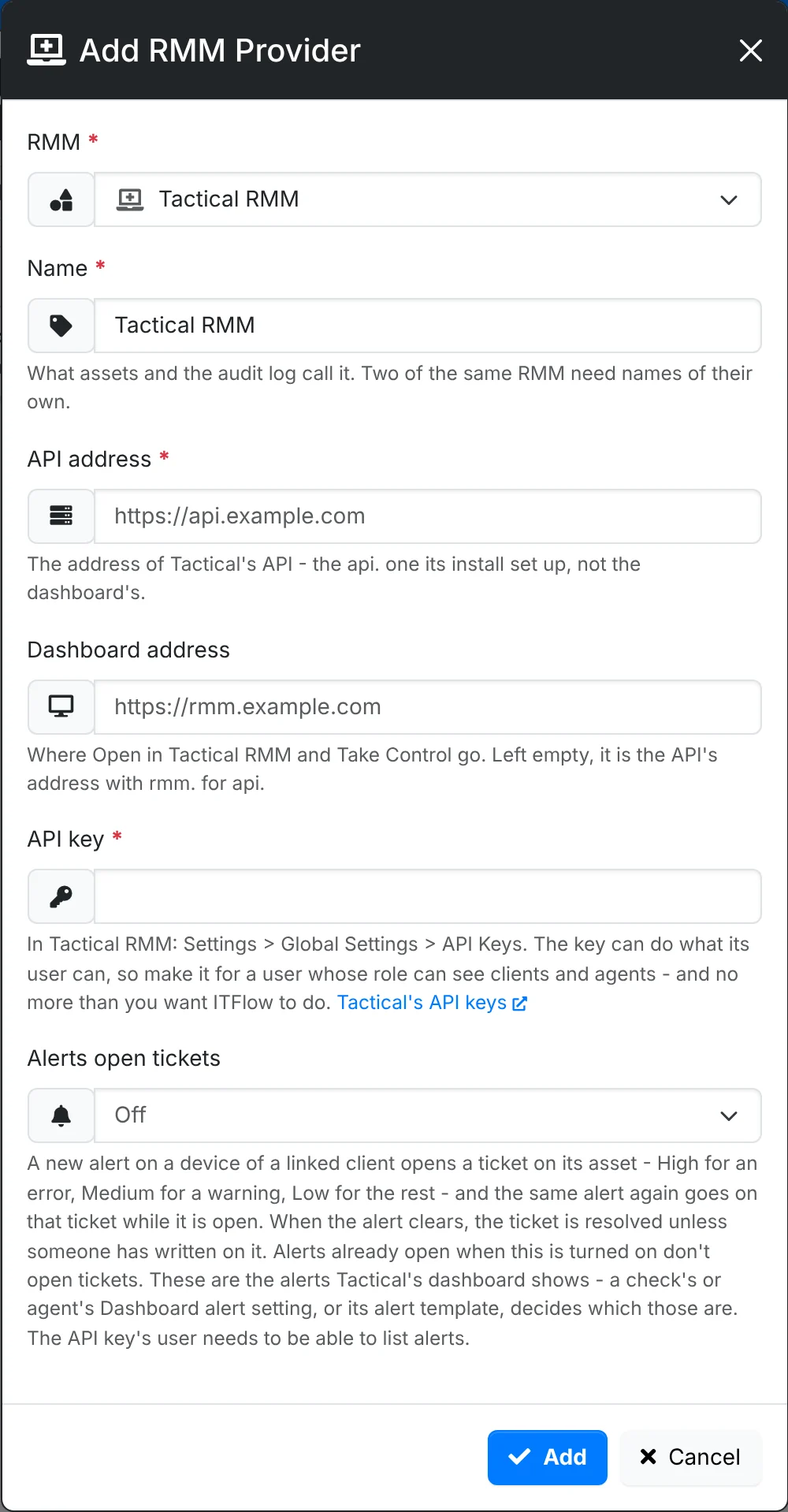
No devices come in yet. They come in once you link their client.
Link its clients
A provider's Clients page lists the RMM's clients and the ITFlow client each is linked to. A client's devices come in once it's linked, and not before.
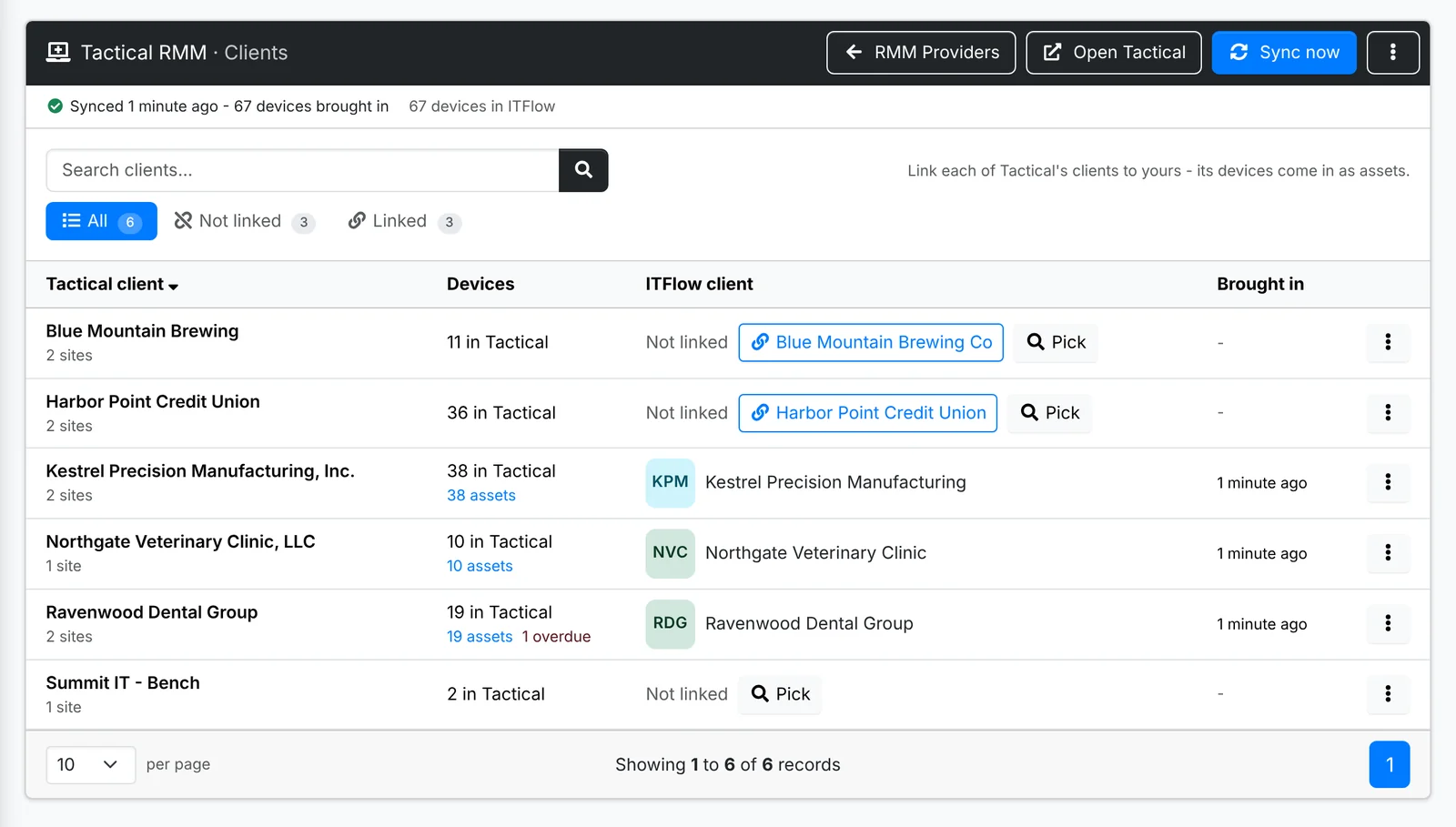
- A client with the same name in ITFlow is suggested - "Blue Mountain Brewing" for your Blue Mountain Brewing Co. Click the suggestion to link it.
- Pick links it to any of your clients.
- ⋮ > Link the suggested, at the top, links every suggestion at once.
Linking brings the client's devices in straight away, and says how many came in and how many matched assets you had. After that they're kept up to date every 15 minutes, or with Sync now.
The tabs show All, Not linked and Linked - and Gone from Tactical once a client Tactical had is no longer there.
Leave a client unlinked - your own bench machines, say - and its devices stay out of ITFlow.
What comes in
Each device becomes one of its client's assets. When the client has the asset already, it's matched:
- by serial number,
- or by name, when only one of the client's assets has it.
A matched asset keeps what it has - only what it's missing is filled in. Otherwise a new asset is made, with its name, type, make and model, serial number, operating system, IP address, CPU and storage. Its type is worked out from what Tactical says: virtual machine, server, laptop or desktop. Its location is the client's location named like its site in Tactical, if there is one.
After that, each of those details follows Tactical - a device renamed in Tactical is renamed here - until you change it in ITFlow. A detail you've changed stays as you set it, and an empty detail in Tactical never empties one here. The asset's History tab says what Tactical changed.
On the asset
An asset from Tactical shows whether the device is Online, Offline or Overdue beside its status. Its Tactical RMM card has when it was last seen, who's signed in, how long it's been up, its public IP, its site and its agent, and what needs attention: a reboot waiting, patches waiting, checks failing, and alerts with their tickets.
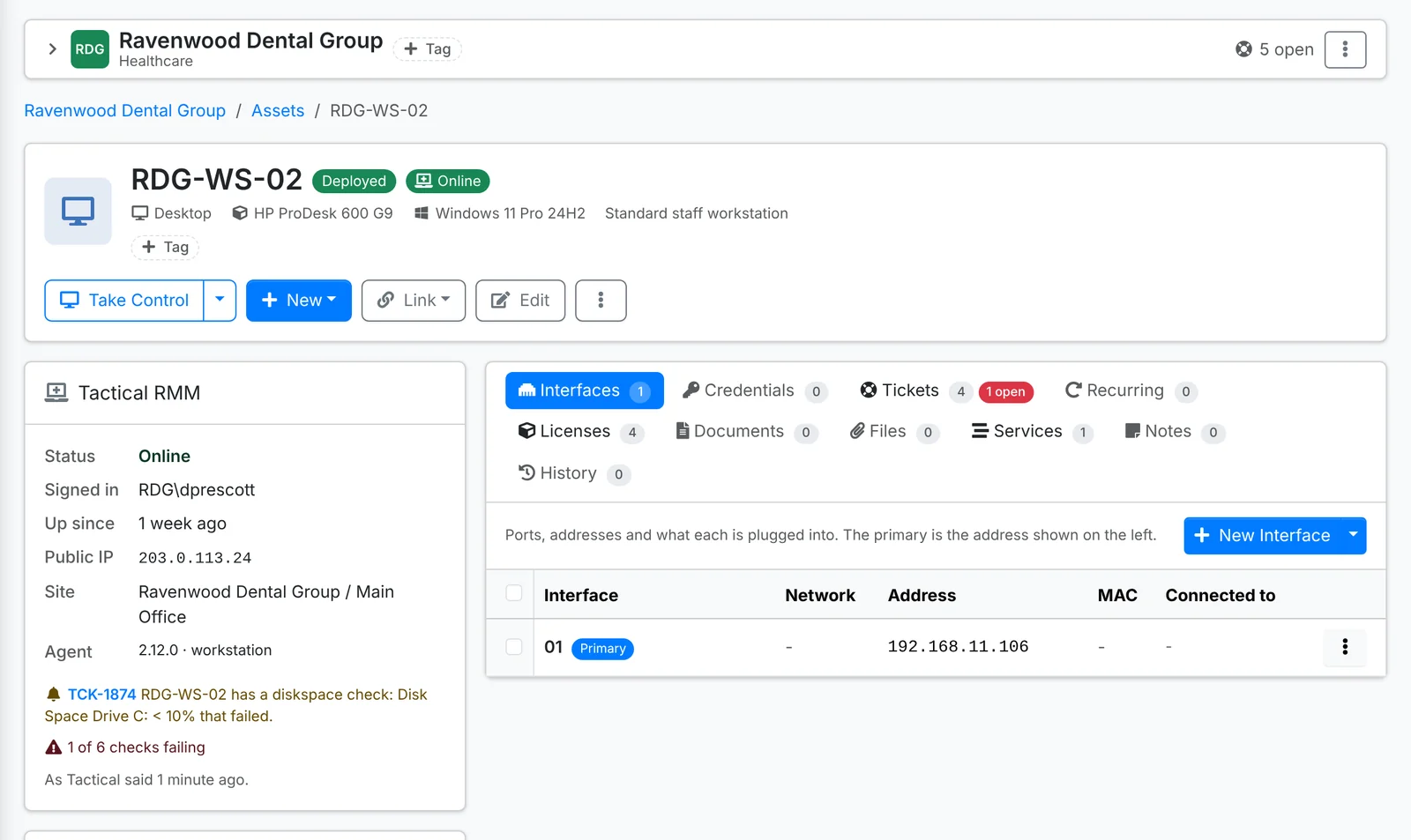
- Take Control opens Tactical's remote session for the device, in a new tab. Its menu has Open in Tactical RMM and Remote Background.
- The asset's quick look has the same state, and Take Control.
- On the assets list, a dot after a device's name says how it is - green online, grey offline, red overdue. The Tactical RMM filter shows the ones online, offline or overdue, every device in Tactical, or the assets that aren't in it.
The card shows what Tactical said at the last sync, and says when that was.
When devices come and go
- A device Tactical no longer has keeps its asset, marked No longer in Tactical RMM - its agent was removed, or it moved to a client that isn't linked. If it comes back, it picks up where it was.
- An asset you delete in ITFlow isn't made again by the next sync. To have it back, use ⋮ > Bring back on its client's row on the Clients page.
- Linking a client to another of yours brings its devices in there. The assets made for the first client stay with it, no longer kept up - archive them if they were never theirs.
- Unlink stops its devices coming in. Their assets stay, with what Tactical last said.
- An archived client's devices aren't brought in.
Alerts open tickets
Tactical's alerts can open tickets. In the provider's Edit, set Alerts open tickets:
| Setting | Opens tickets for |
|---|---|
| Off | nothing |
| Errors | errors |
| Errors and warnings | errors and warnings |
| Every alert | errors, warnings and informational alerts |
and, if you like, the Ticket category they go in.
ITFlow looks for new alerts every minute. A new alert on a device of a linked client opens a ticket for that client, on the device's asset:
- High priority for an error, Medium for a warning, Low for the rest.
- The alert's message is the subject. The description has its severity, when it was raised, the device and its site, and a link to the device in Tactical.
- It has no contact, and nothing is emailed to the client. The address in Email new tickets to hears about it, as about any new ticket - see Ticket settings.
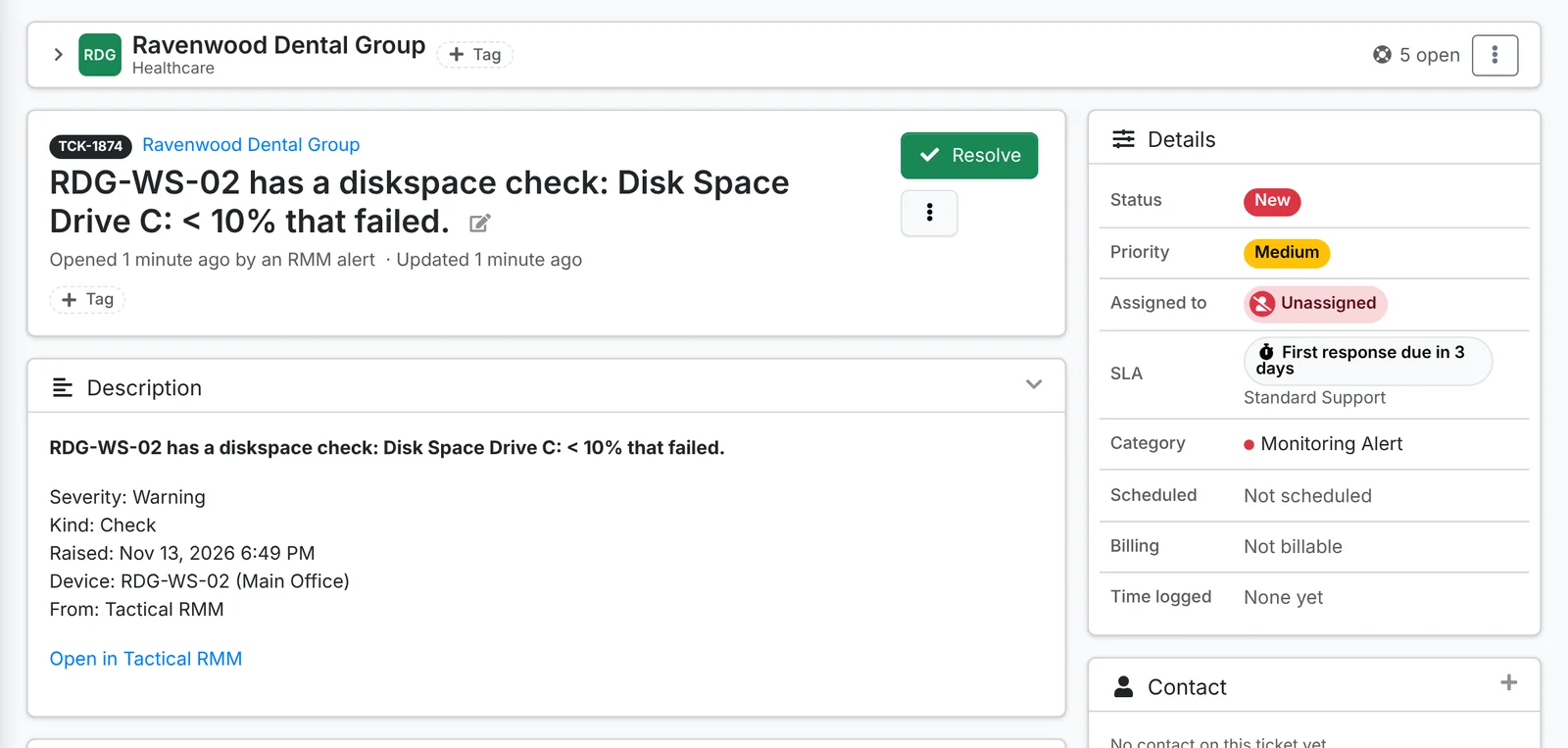
The same alert again - the same check failing on the same device - goes on the ticket it opened, as a note, while that ticket isn't closed. A resolved one is reopened. A check that keeps failing doesn't fill your queue.
When the alert clears, its ticket gets a note and is resolved - unless:
- someone has replied on it or written a note,
- someone moved it to another status, such as On Hold,
- or another alert on it is still open.
Then it gets the note and is left as it is, for whoever is working on it.
The alerts ITFlow sees are the ones in Tactical's dashboard. Each check's and agent's alert settings, or its alert template, decide which those are.
Alerts already open when you turn this on don't open tickets - nor do ones raised before their client was linked, or while the provider was off. Only new ones do.
Bill per managed device
A recurring invoice line can count the client's devices in Tactical: set its Quantity from to Managed devices. It can count only some types - Desktop and Laptop for a managed workstation, Server and Virtual Machine for a managed server - or only those with a tag. A device Tactical no longer has stops counting at the next invoice. See Recurring invoices.
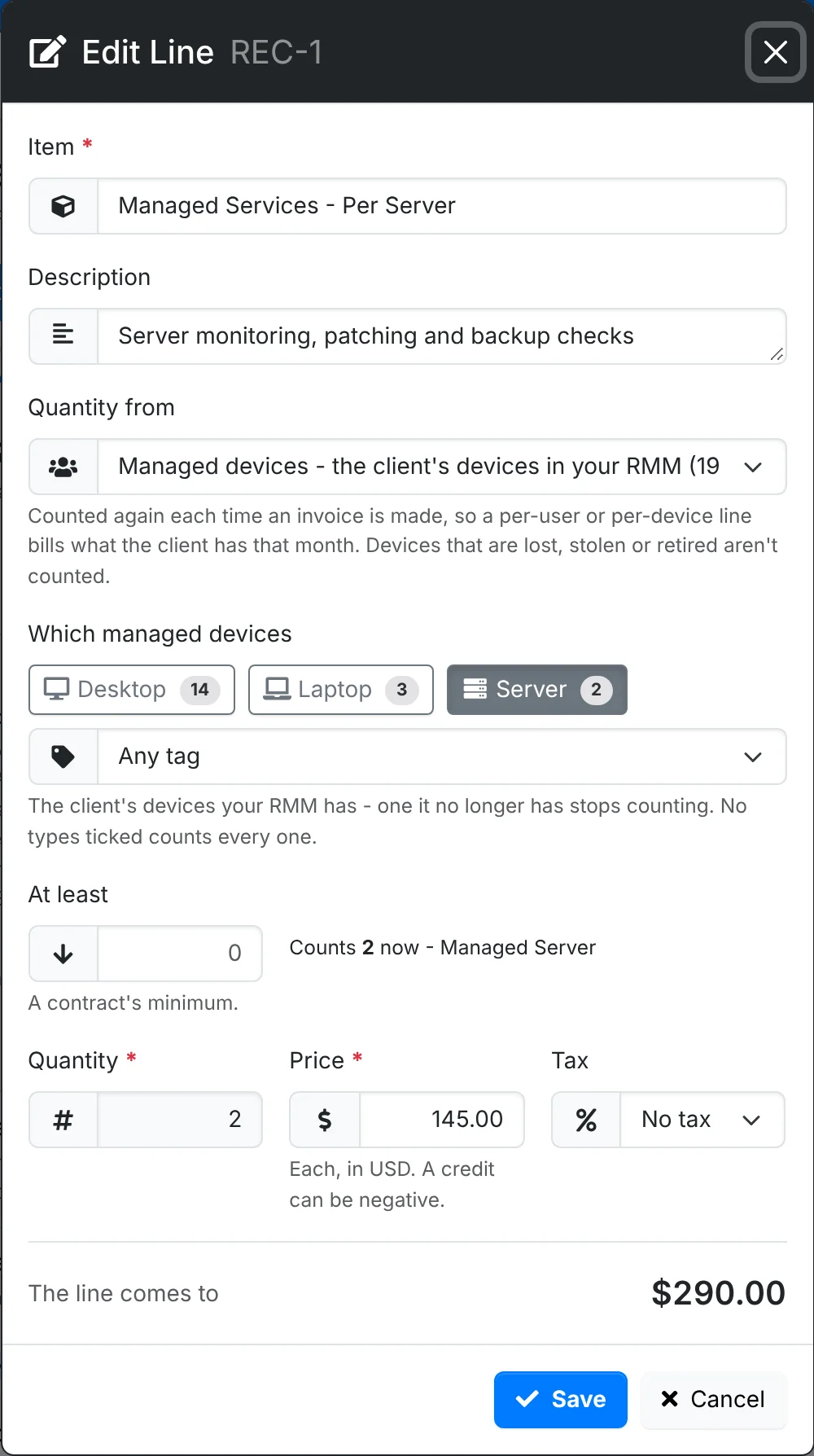
A product counted Per managed device bills that way on any recurring invoice you add it to.
The provider
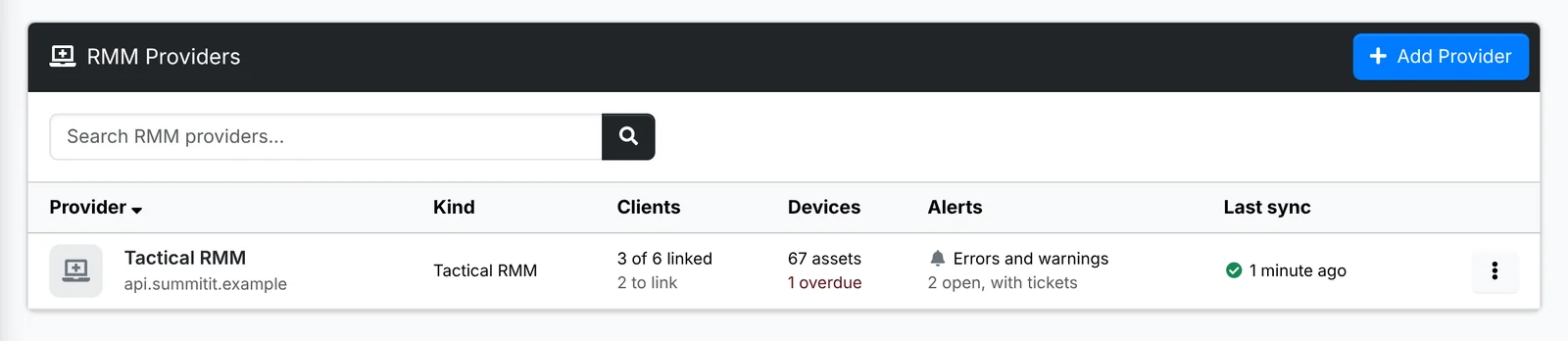
The list shows each provider, how many of its clients are linked and how many have a suggestion waiting, how many of its devices are assets here and how many are overdue, which alerts open tickets, and when it last synced. Hover over the sync to see what it brought in.
From a provider's menu:
- Clients - its Clients page.
- Edit - its name, addresses, key and alerts. Leave the key empty to keep the saved one. Which RMM it is can't be changed.
- Sync now - bring in its linked clients' devices now.
- Test the connection - whether Tactical takes the key, and how many clients and devices it sees.
- Open Tactical - its dashboard.
- Turn off - nothing is brought in, and its alerts don't open tickets. Assets keep what it last said. When it's on again, alerts that came up while it was off don't open tickets.
- Delete - the links between its clients and yours are forgotten, and assets no longer show what it says. The assets and tickets stay. If recurring invoice lines bill its devices, it says how many first - look at them after.
More than one
Add each Tactical server as a provider of its own, with a name of its own - "Tactical - East" and "Tactical - West", say. A device both have is one asset, with a card for each. A managed-device line can count every provider's devices, or one's.
Syncing
Two jobs in Maintenance > Cron do the work:
| Job | Runs | Does |
|---|---|---|
| RMM Sync | every 15 minutes | Brings in the devices of every linked client, and keeps their assets up to date |
| RMM Alerts | every minute | Opens tickets for new alerts, and resolves them when the alerts clear |
A sync stops after two minutes and picks up where it left off next time, so a large RMM takes a few runs to bring in at first. If one client's devices can't be fetched, the rest still come in, and that client's devices aren't marked as gone.
When something doesn't work - Tactical can't be reached, or the key is turned away - the provider's row says so, and so do App logs and the job in Maintenance > Cron.