Invites and signing up
Invite people to a client's portal by email without making them contacts first, let the people at a client sign up for themselves, and see who's still to join.
You don't have to make someone a contact before they can use the portal. Invite them by email, and they fill in their own name, job title, phone and password when they join. Or let the people at a client sign up for themselves, with their work email address.
Invite people
- Open the client's Contacts and click Invite to the portal on the New Contact menu - or Invite people on the Invites tab.
- Put in their Email addresses - several at once, one to a line or separated by commas, with a name in front if you like:
Dana Whitlock <dwhitlock@ravenwooddental.example>. - Under What else they see, switch on Technical or Billing for what they should see beyond their own tickets. See What each contact can see.
- Click Send invites.
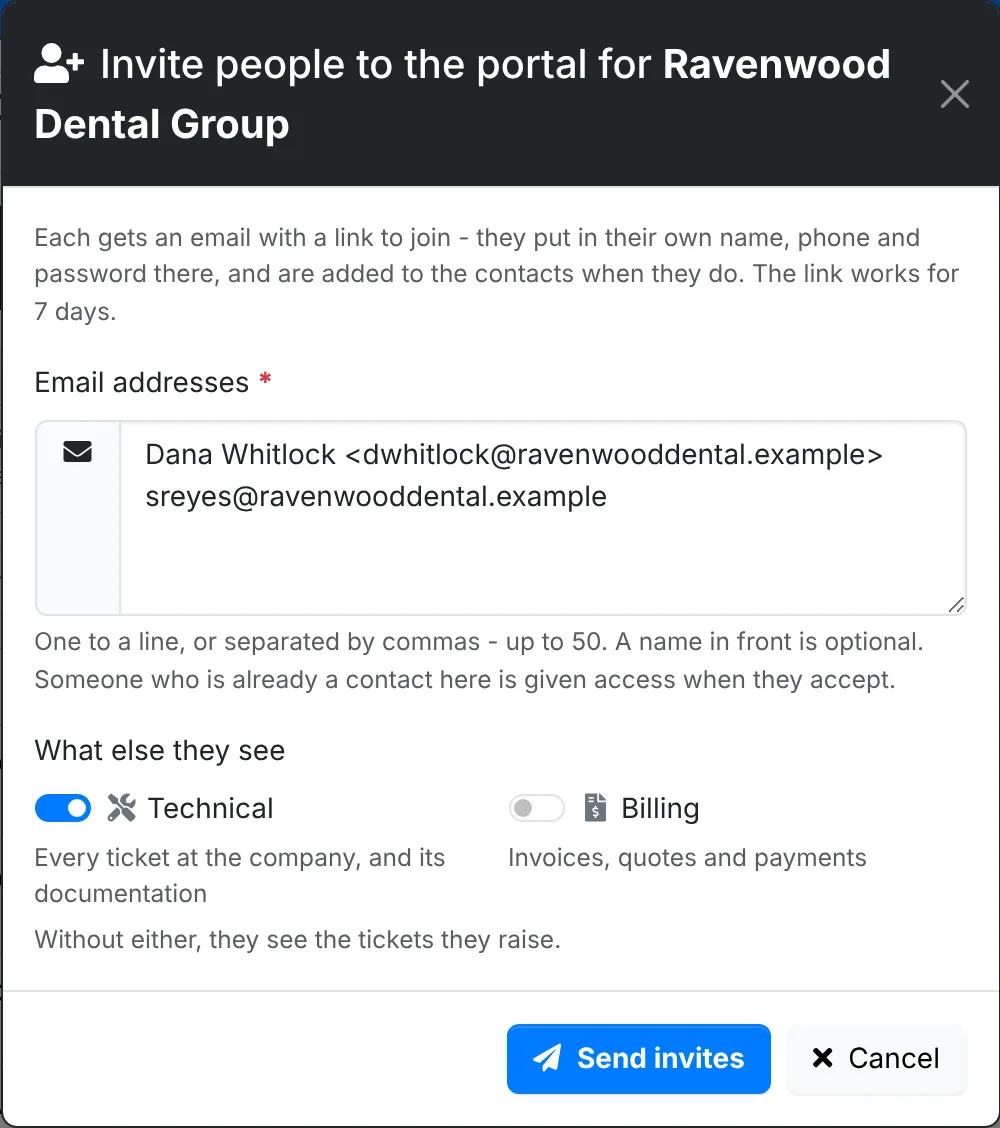
Each gets an email from you with a link to join. The link works once, for 7 days.
- Someone already invited is sent it again, with a new link.
- Someone who signs in already, or whose address an agent or another client's contact signs in with, is left out, and you're told why.
- When the client already has a contact with that address, that contact is given access when they join, keeping what you'd filled in.
Joining
The link opens a page in the portal's look. They put in their name, Job title, Phone and a password - or, when single sign-on is set up, choose their Microsoft 365 account instead - and click Join.
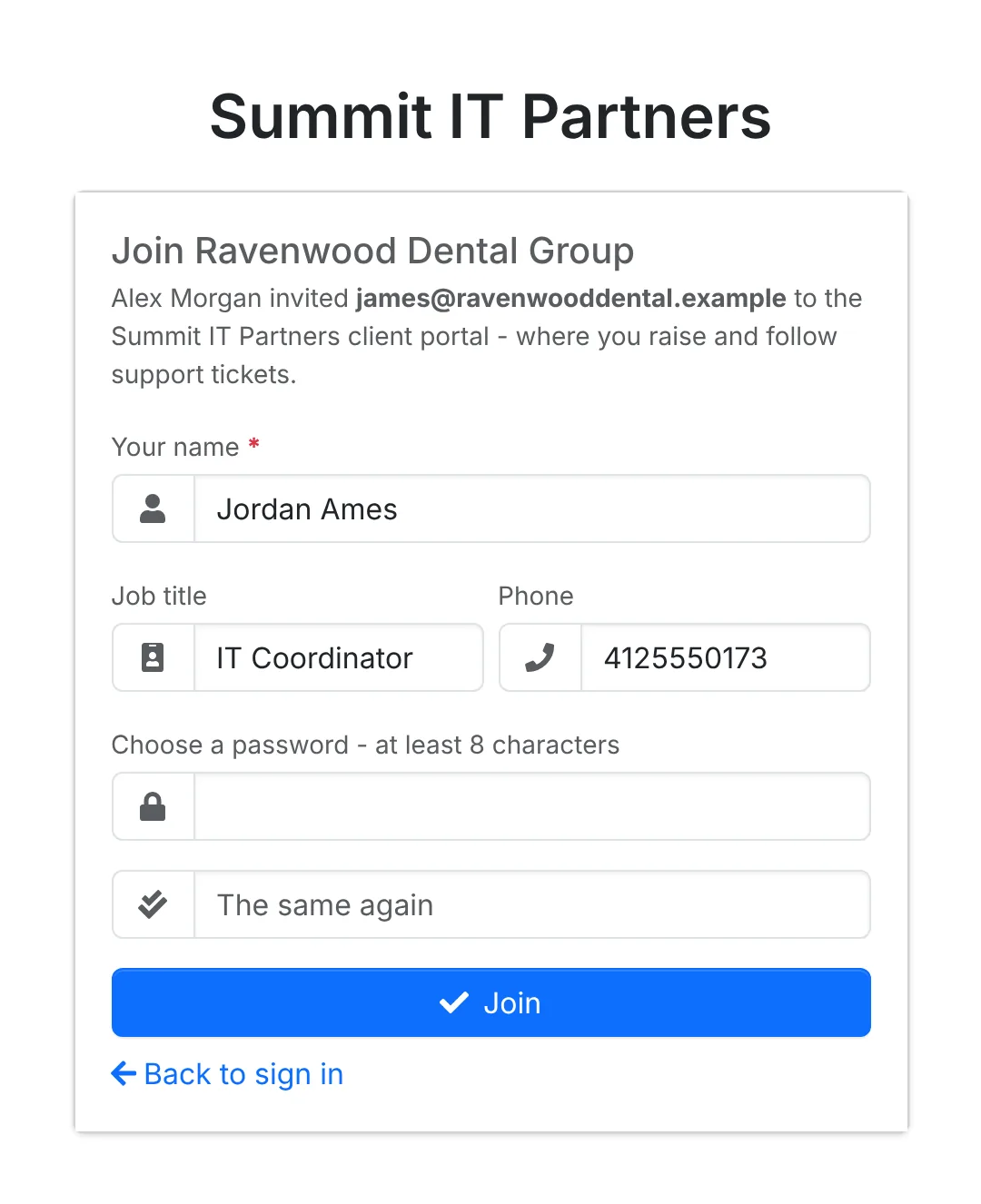
They're a contact from then on, with the roles you gave them, and signed in straight away. You're notified in ITFlow, and the contact's page says whose invite they joined from.
Invites waiting
The client's Contacts has an Invites tab with the invites still to be used - who, what they'll see, when and by whom it was sent, and whether the link is still good or has Ran out. Across all clients, the tab shows while any are waiting.
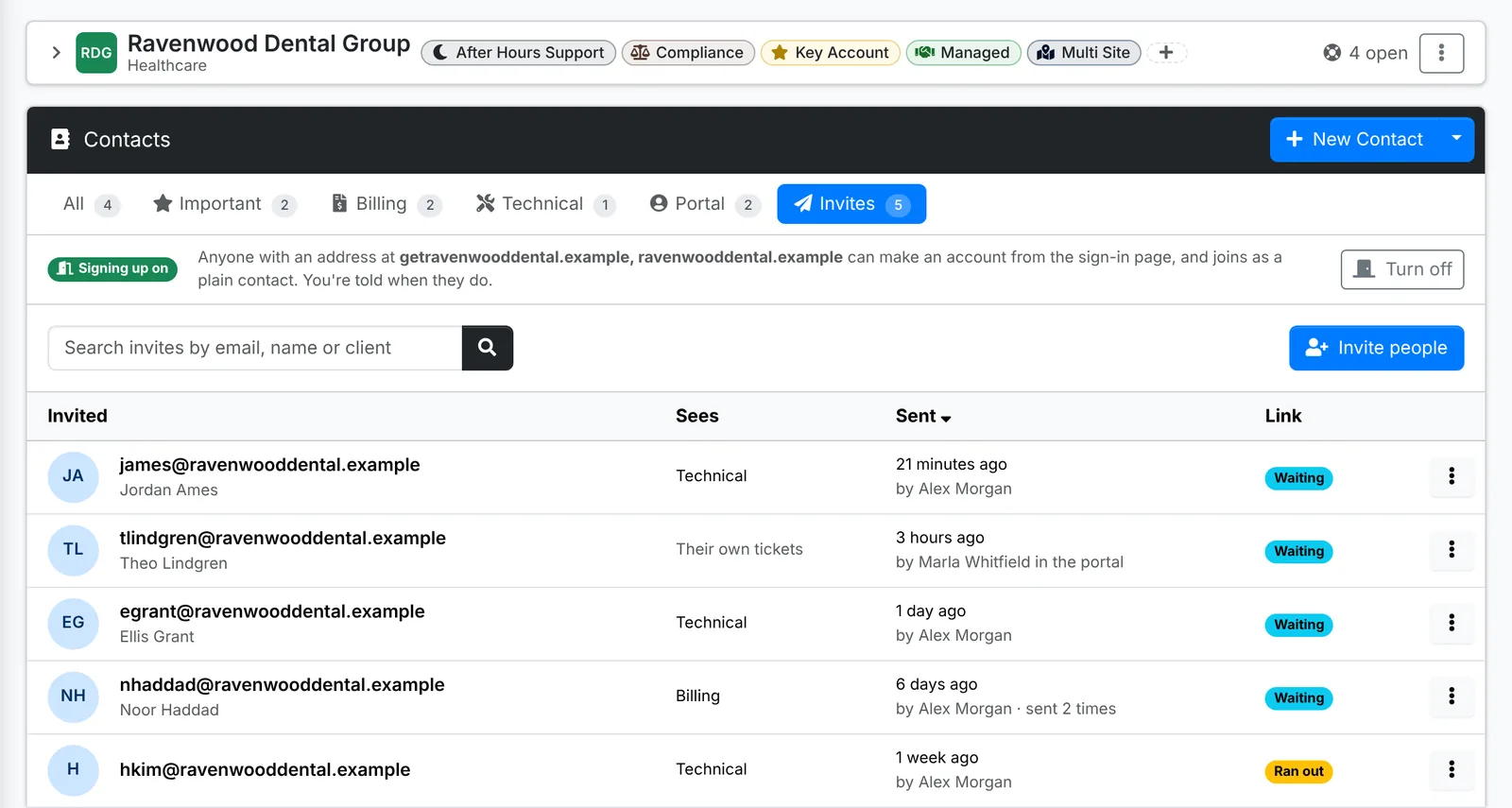
- Send again emails a new link. The old one stops working.
- Cancel invite stops the link working.
The primary contact invites people
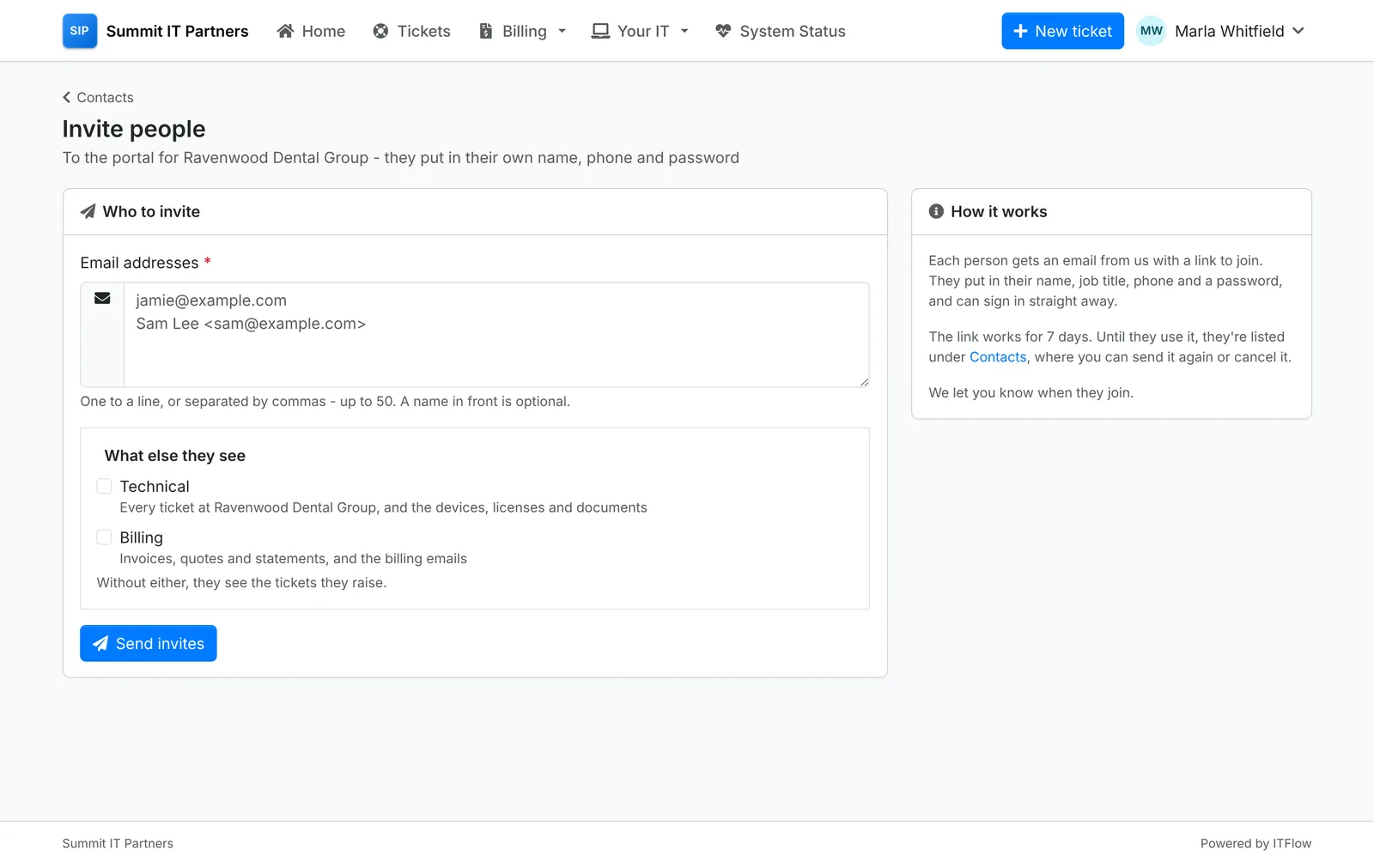
A client's primary contact can invite their own people from Contacts in the portal, in the same way. Waiting to join lists their company's invites, with Send again and Cancel. They're emailed when someone they invited joins, and every agent is notified.
Let people sign up
You can let the people at a client make their own account, instead of being invited. It needs the client's email domain under its Domains.
- On the client's Contacts, open the Invites tab and click Let them sign up.
- Signing up also has to be on for the portal as a whole, in Admin > Settings > Client portal. That page also lists the clients that let people sign up, and their domains.
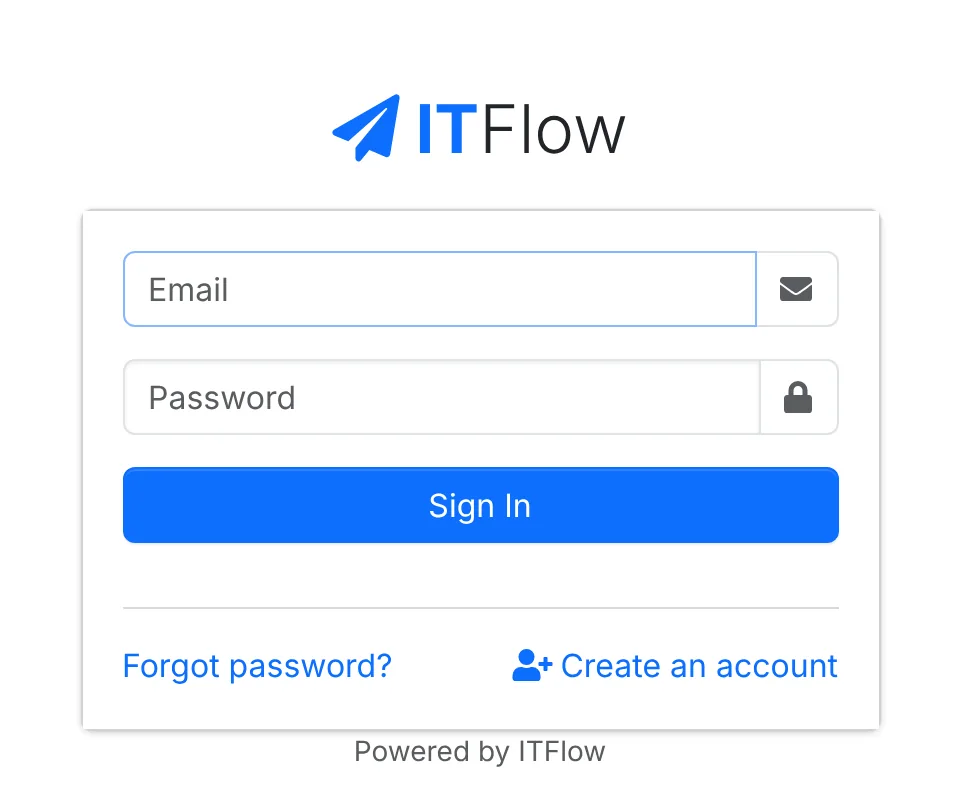
The sign-in page then shows Create an account - while signing up is on, at least one client lets people, and outgoing mail is set up.
They put in their work email address and click Email me a link. When the address is at one of the client's domains, they're emailed a link to finish - their name, job title, phone and password, as with an invite. The link lasts 24 hours.
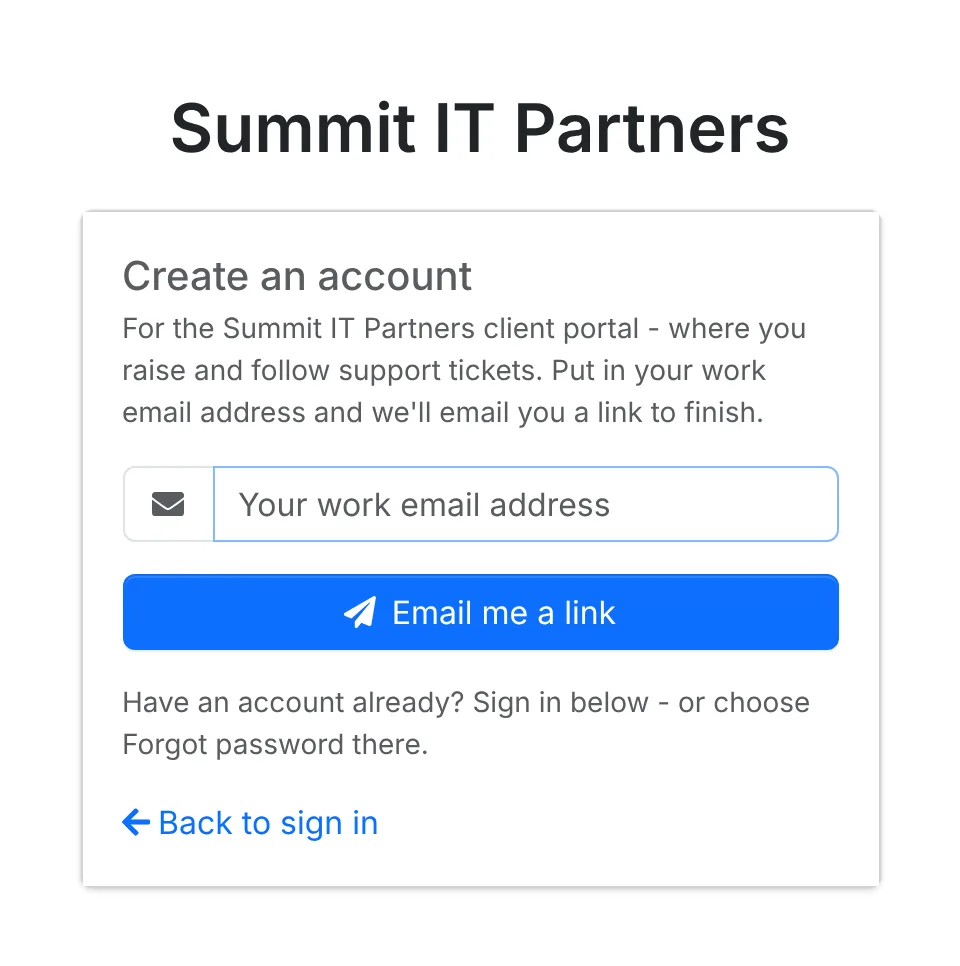
A verified address is all it takes: they join as a plain contact, who sees the tickets they raise. Every agent is notified, and the client's primary contact is emailed with a link to them. Someone who's already a contact at the client signs up as that contact. Turn off, on the Invites tab, stops it again - and stops the links already sent.
The page says the same whatever address is put in - it never says whether someone has an account, or which client a domain belongs to. Someone who signs in already is emailed that they have an account, with a link to set a new password. Nothing is sent for an address at no client that lets people, one whose portal access was turned off, or a domain two such clients share. One email per address every 5 minutes, at most 20 sign-ups from one internet address in 10 minutes, and every ask is in the audit log under sign-ins.
The emails - Invite to join, Invite accepted, Finish signing up, Signing up with an account already and Someone signed up - are in Admin > Mail > Previews.