Banners for your team
A note along the top of your agents' pages - for one client, such as a credit hold, or for every client - with an Urgent kind that's big, red and can't be hidden.
A banner is a note your team sees along the top of their pages - "On credit hold, no work without approval", "Call before going onsite", an outage everyone should know about. Clients never see banners. For a note on the client portal instead, see announcements.
A banner is for one client or for every client:
- One client - along the top of the client's pages, and of its tickets, invoices, quotes, recurring invoices and projects, however they're opened. A ticket opened from the main tickets list still shows it.
- Every client - along the top of every page.
How loud it is
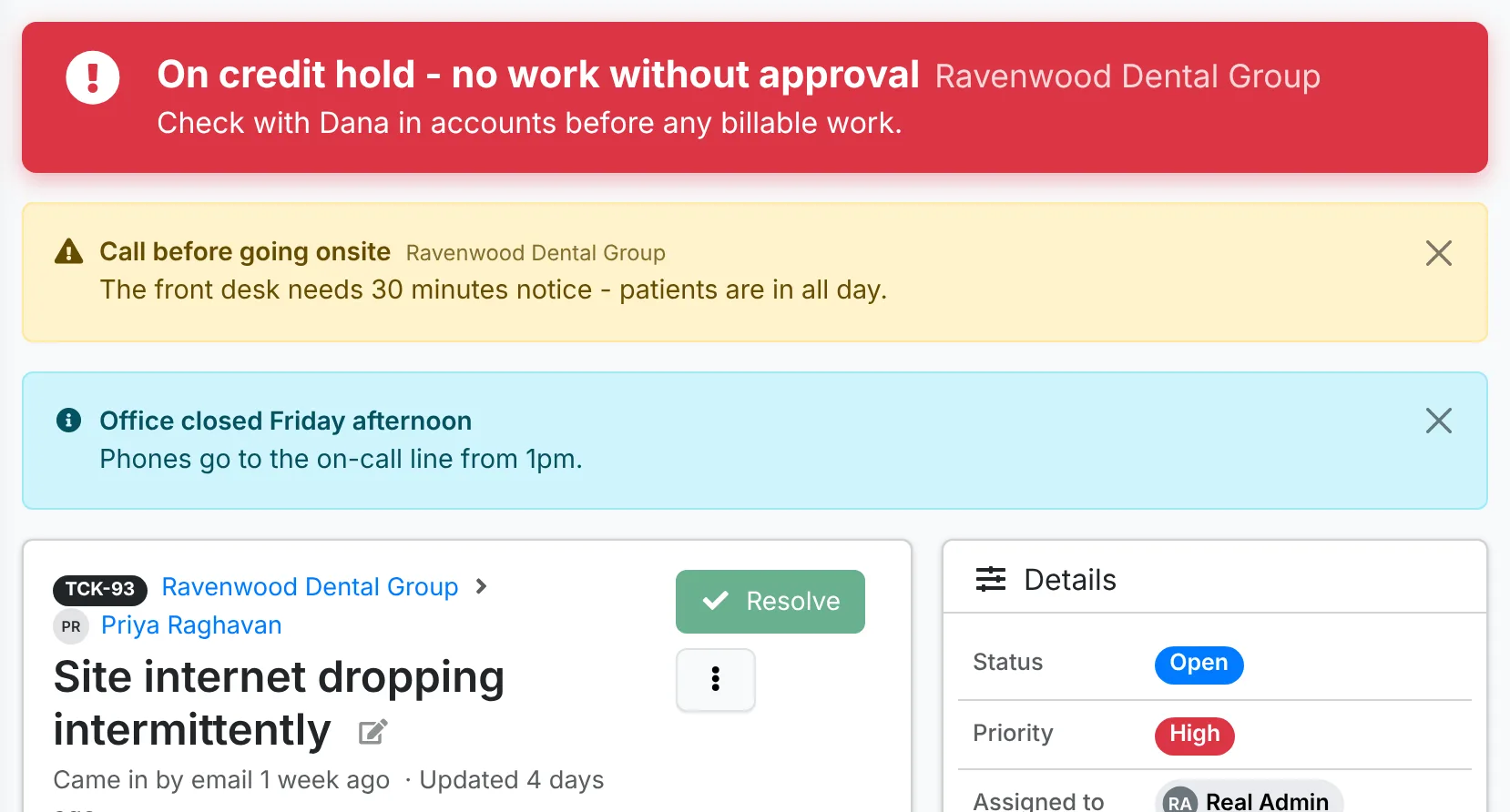
Each banner is shown as one of three:
- Notice - blue
- Heads up - yellow
- Urgent - big and red, always first
Anyone can hide a Notice or Heads up with its ×. It stays hidden for them until someone changes the banner, then it comes back. Nobody can hide an Urgent banner - it shows on every page it's for until it ends or is archived.
Add a banner for a client
- Open the client and click ⋮ > New Banner.
- Give it a Title and, if it needs one, a Message - who to ask, what to check. Web addresses become links.
- Pick how it's Shown: Notice, Heads up or Urgent.
- Set when to Show from and Until. Empty, it shows straight away and until you archive it.
- Click Post Banner.
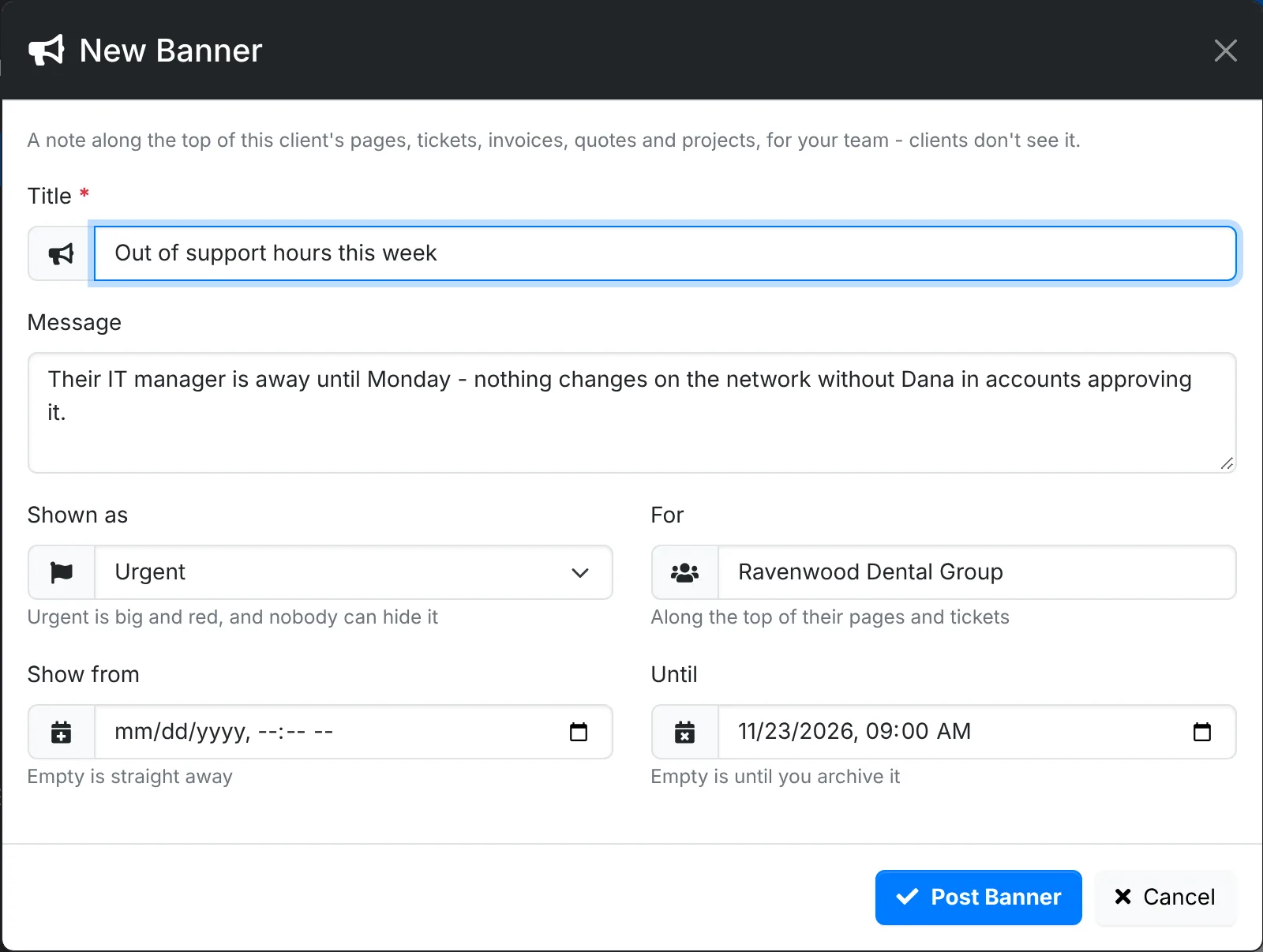
Anyone whose role can change clients can add a banner for a client they have access to.
Change, archive or delete one
The client's ⋮ menu lists its banners under New Banner - the ones showing now, and any still to come, marked (scheduled). Click one to change it. At the bottom of the window:
- Archive - nobody sees it, and it moves to Archived in Admin > Agent Banners, where Restore brings it back
- Delete - it goes for good
A banner that has ended stops showing by itself.
Every client's banners
Admin > Agent Banners lists every banner - for every client and for each client - with how loud it is, whether it's Showing, Scheduled or Ended, who it's for, and when. Search by title or message, or pick a client, or Every client, to see just theirs. Archived has the ones that are over.
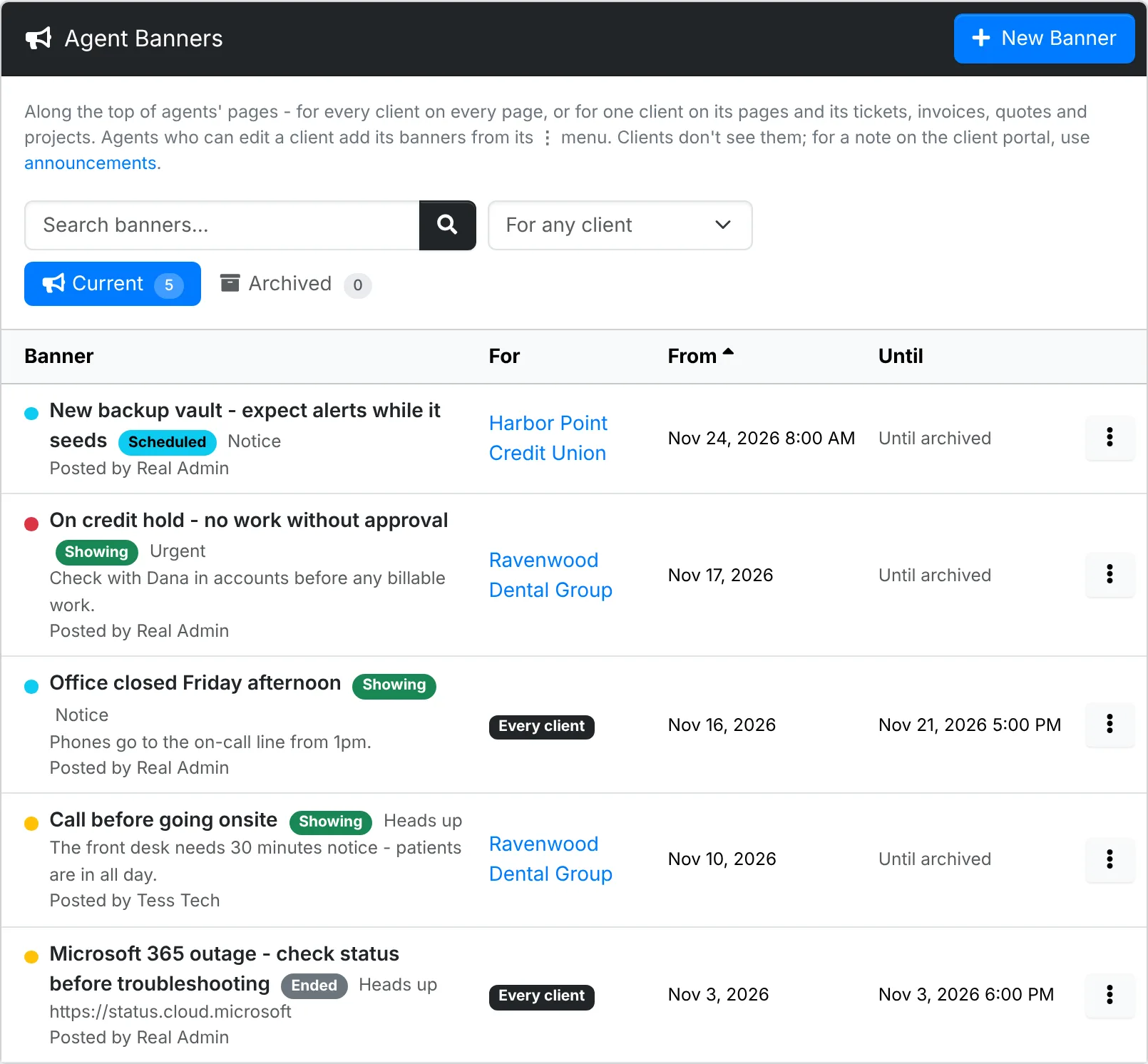
Only admins can add a banner for every client. Click New Banner and leave For on Every client, or pick a client. The ⋮ on each row has Edit, Archive or Restore, and Delete.
Using a tag to warn your team about a client? A banner can't be missed - make it Urgent and it's at the top of every page for that client, tickets included.