The client overview
One page that tells you where a client stands - what needs attention, their open work, the people to call, what's coming up and what they owe.
Opening a client takes you to its Overview. It's built to answer "what do I need to know about this client right now?" before you pick up the phone or start on a ticket.
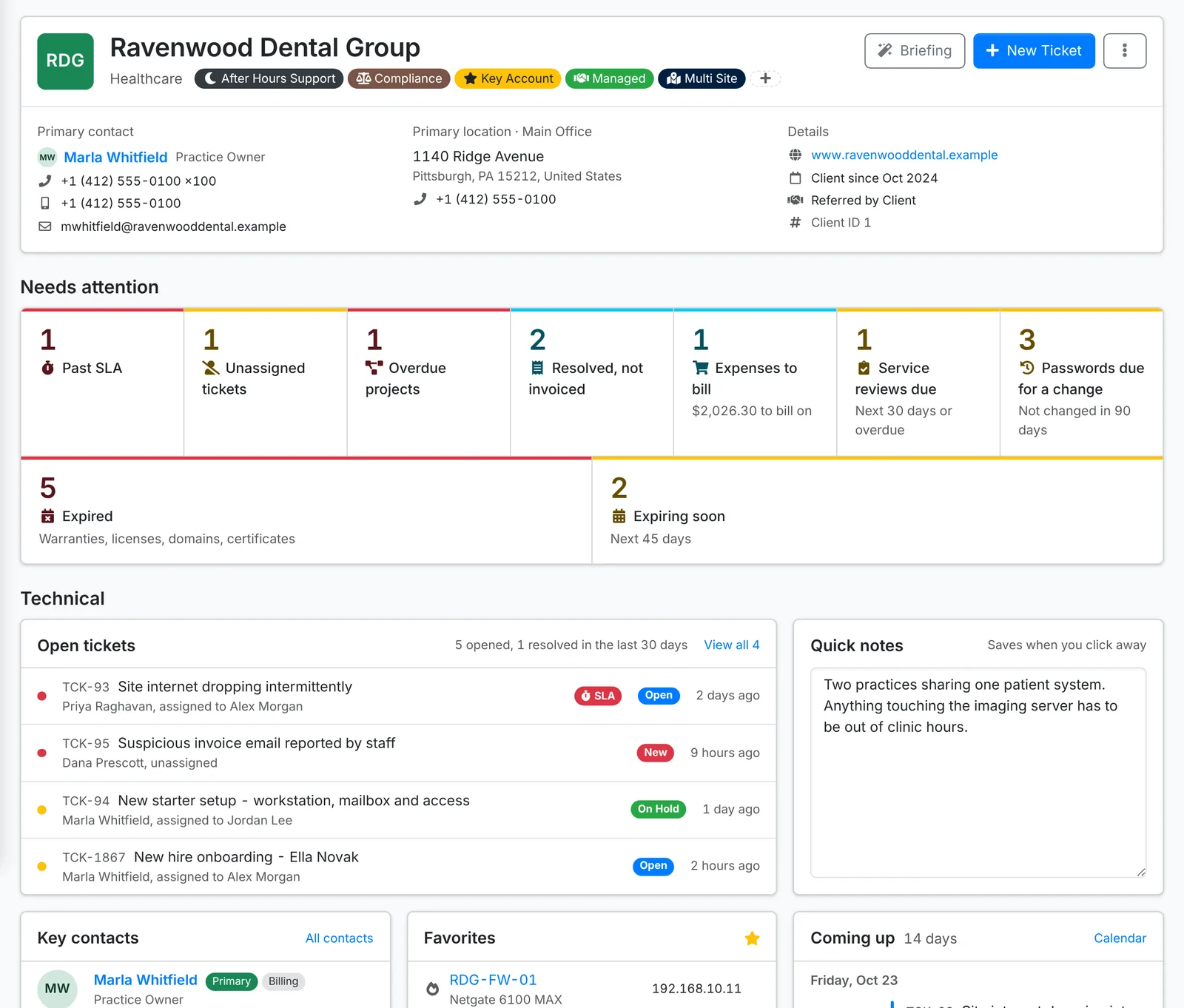
The header
Along the top: the client's initials, name, industry and tags, their primary contact with phone and email, their primary location, and details such as their website, how long they've been a client and who referred them.
New Ticket raises a ticket for this client. The ⋮ menu has New Project, Edit Client, Onboard, Export Data, Client Review and Archive Client.
While the client is being onboarded, Finish onboarding shows under the header, with how far it has got and Carry on.
Needs attention
A row of tiles counting what needs doing for this client. Each one opens a list of exactly those. Only the ones that apply show up, such as:
- tickets past their SLA, unassigned tickets and overdue projects
- work resolved, not invoiced and expenses to bill
- service reviews due, passwords due for a change, licenses over seats and certificate problems
- documents, licenses or vendors the client should have and doesn't
- warranties, licenses, domains and certificates expired or expiring soon
- contracts ending or renewing soon
Technical
- Open tickets - the client's open tickets, with how many were opened and resolved in the last 30 days.
- Quick notes - anything the next person should know: gate codes, quirks, who to ask for. Type in it and it saves when you click away.
- Key contacts - the client's contacts with a role (primary, important, billing or technical), primary first, with their phone numbers and email.
- Favorites - the assets and logins you've starred for this client, with a login's password and 2FA code a click away.
- Coming up - the next 14 days: scheduled tickets, events and recurring work.
- Projects and Services, with what needs a look.
- Renewals - domains, certificates, licenses and warranties expired or due in the next 45 days.
- Assets - how many of each kind, and how many warranties are covered or expired.
- Shared links that are still open, and Recent activity - the latest changes, with a link to the client's audit log.
Financial
If your role covers billing, the overview ends with the client's money:
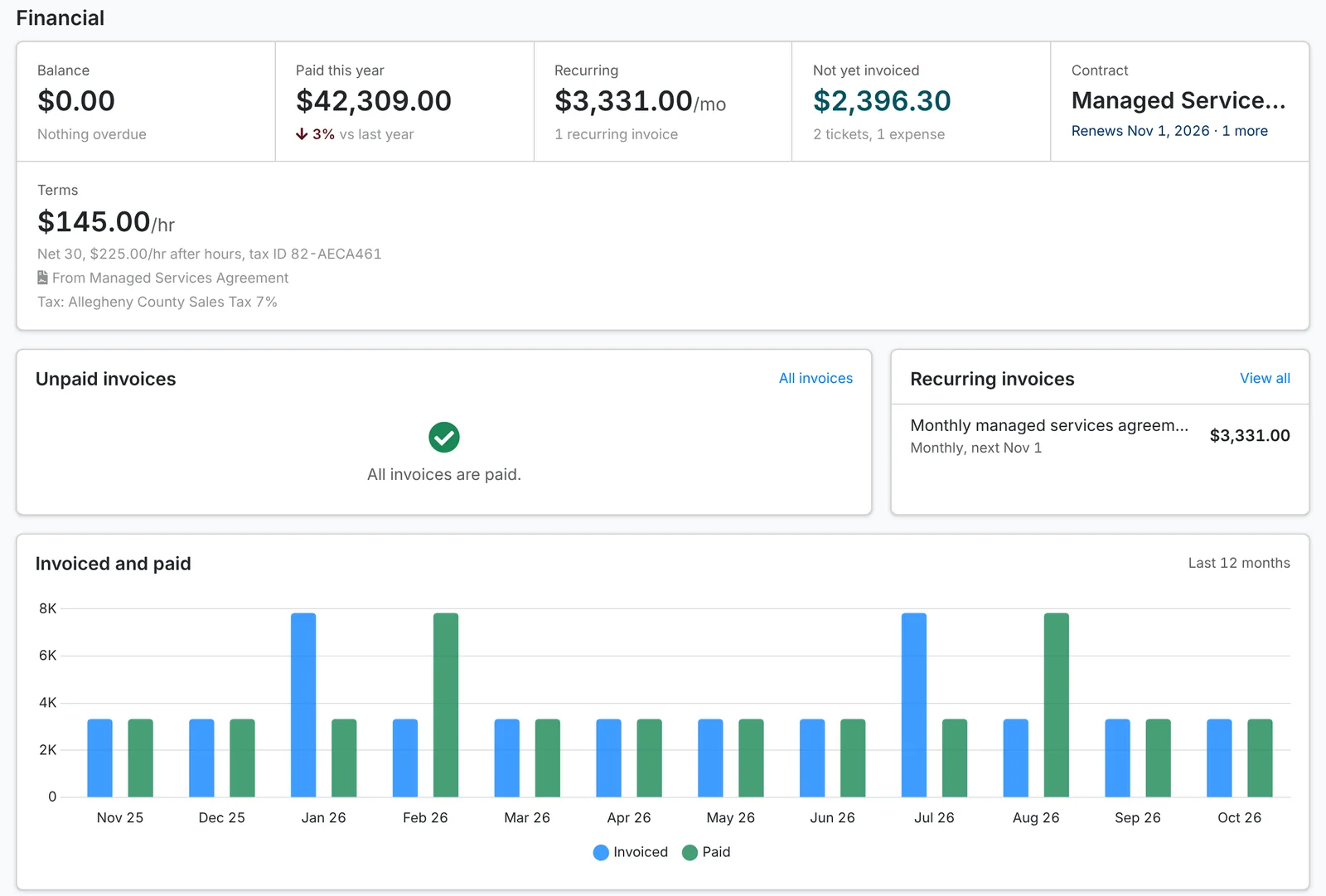
- Balance - what they owe, and how much of it is overdue.
- Paid this year, against last year.
- Recurring - what their recurring invoices bring in a month.
- Not yet invoiced - billable tickets and expenses waiting to be billed, and what they come to. Click it to open Unbilled time for this client.
- Contract - the contract in force, and the prepaid hours left across their contracts.
- Terms - the hourly rate, after-hours rate and payment terms they're billed on, and whether those are their contract's or your defaults, with their tax ID and tax rate, or that they're tax exempt.
- Unpaid invoices, Recurring invoices and a chart of what was invoiced and paid each month for the last year.
Before a call or a quarterly review, Briefing on the overview has AI sum the client up - how things stand, what keeps coming up, renewals and what to raise with them. It's there when your admin has set up AI. See Using AI.