Calls
Every call from your phone system with the contact it was with, the extension that took it and how long you talked, calls on your desk phone popping up as they ring, and putting a call on a ticket with its talk time.
Calls lists the calls your phone system sends ITFlow. It's under Support once an admin has set up a phone system, and each client has its own Calls once it has had a call. The number beside Calls in the menu is the calls missed today that aren't on a ticket.
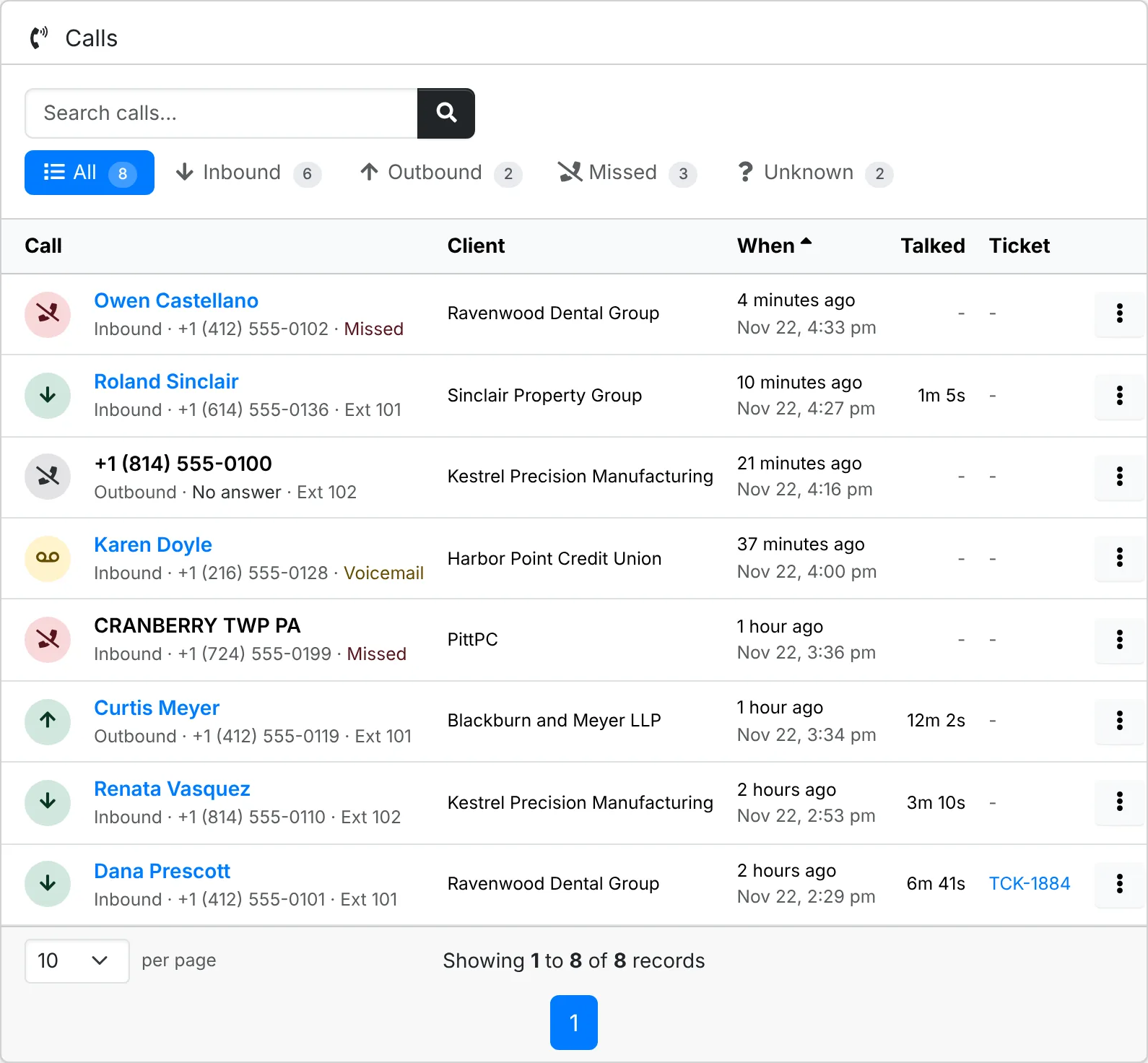
Each row shows:
- Call - who it was with: the contact, matched by their number, else the caller ID name or the number. Under it, which way it went and, when nobody answered, Missed, Voicemail, Busy or No answer.
- Client - the contact's client, or the client whose main number it is.
- Taken by - the extension, and the agent whose desk phone it is.
- When and Talked - when it started and how long you talked.
- Ticket - the ticket it went on.
The tabs show Inbound, Outbound, Missed (missed and voicemail) and Unknown - numbers that aren't a contact's. Search finds a call by the contact, the caller ID name, the client, the extension, the agent or part of the number.
The menu at the end of a row has Add to Ticket and Open in FusionPBX - the call's page there, with its recording.
Put a call on a ticket
In the call's menu, click Add to Ticket.
- Pick one of the client's open tickets. The contact's own tickets come first, and the one they're on is picked to start with. For a caller ITFlow doesn't know, any client's open ticket can be picked.
- Leave Count the call as time worked on to log its talk time, rounded up to the minute, with when the call started and ended.
- Add a note about what the call was about, if you like.
- Click Add to Ticket.
An internal note on the ticket says what the call was - Inbound call from Marla Whitfield (+1 (412) 555-0100) on ext 101, 4m 12s. - followed by your note. A call to a voicemail box logs no time.
New Ticket in the same window opens New Ticket with the client, the contact and the call filled in. The ticket is made with the call on it, its talk time logged, and its source set to Phone.
A caller ITFlow didn't know becomes the ticket's client and contact, so their next calls are easier to place - add their number to the contact to have ITFlow know them.
Calls on your desk phone
Set your desk phone and its calls pop up at the bottom right of the page as they ring, wherever you are in ITFlow - apart from Admin and your account's pages. In Your account > Preferences, pick your extension under My desk phone. The list has the extensions your phones and calls have shown ITFlow, each with its client and phone; two agents who share a desk phone can both pick it.
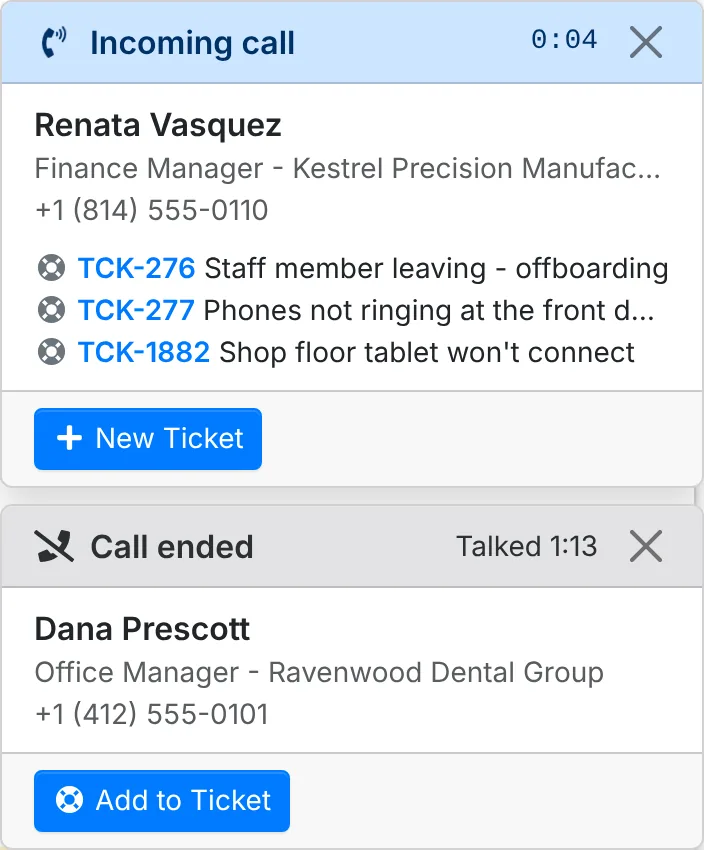
- Ringing - who's calling: the contact and their client, or the name and number the phone shows, and their open tickets, the contact's first. New Ticket opens Quick Ticket - or New Ticket, if Quick Ticket is off - with the client and contact picked. Its timer doesn't start, because the call's talk time can go on the ticket when the call ends.
- On a call - once you answer, it counts how long you've been talking.
- Call ended - once the phone system has sent the call's record, Add to Ticket opens Add to Ticket for the call, with the ticket you made from the pop picked. It stays for ten minutes.
- The x puts a call away, in every tab you have open.
The pops come from the desk phone itself, so the phones need the lines from the phone system's Setup window. Calls between extensions don't pop up, and a page that's in the background catches up as soon as you look at it.
On a contact
A contact's page has a Calls tab with their latest calls, each with Add to Ticket. All opens Calls with just theirs.