Network platforms with UniFi
Bring your clients' UniFi gateways, switches and access points into ITFlow as assets, with their networks and VLANs, where each device plugs in, and a ticket when one goes offline - from a controller you host, a UniFi console, or UniFi's Site Manager.
ITFlow reads the platform that manages your clients' networks, so their gateways, switches and access points are assets without typing them in. UniFi is the platform it knows. Once it's set up:
- Each site you link to a client has its devices as that client's assets - matched to the ones you already have by their MAC address, and kept up to date. See What comes in.
- An asset shows whether the device is online, how long it's been up, its public IP and whether a firmware update is waiting. See On the asset.
- The site's networks and VLANs are the client's networks, with their subnet, gateway, DNS and DHCP range kept up to date. See Networks and VLANs.
- Each of the client's assets shows where it plugs in - the switch and port, or the access point - and each switch and access point what's on it. See Where things plug in.
- A device that goes offline can open a ticket, resolved when it's back. See Offline alerts.
It works like an RMM provider, and uses the same sync - but network platforms have a page of their own, and their devices don't count as managed devices.
Which UniFi
ITFlow reaches UniFi in one of three ways. Pick the one that fits how you run it:
| Platform | For | Needs |
|---|---|---|
| UniFi controller (sign-in) | A UniFi Network Application you host yourself - a classic controller on a server or a VM. It also signs in to a UniFi OS console. | The user name and password of a local admin |
| UniFi console (API key) | A UniFi OS console - a Dream Machine, Cloud Gateway or Cloud Key - that ITFlow's server can reach | An API key made in UniFi Network |
| UniFi Site Manager (cloud) | Every console on your UI account, reached through UniFi's cloud - nothing to open up on the clients' networks | A Site Manager API key |
One platform can have many sites - a controller with a site for each client, or Site Manager with a console at each. Add one for each controller or account.
Before you start
A controller
ITFlow signs in to a classic controller the way its web page does, with a user name and password. Give it an account of its own:
- In the controller's settings, under its admins, add an admin just for ITFlow, restricted to local access. View-only access is enough - ITFlow reads and never changes anything.
- Note its user name and password.
It has to be a local account. A UI account with two-step sign-in can't be used - ITFlow says so if you try one.
You also need the controller's address as you open it in a browser, with its port - https://unifi.example.com:8443 on a classic controller. A self-hosted controller usually has a certificate it made for itself, which nothing trusts: turn on Accept the certificate it made for itself for it.
The password - and a console's or Site Manager's API key - is kept encrypted, with the key ITFlow keeps for its backups. If ITFlow doesn't have that key yet, it makes it, which needs config.php to be writable by the web server that once - if it can't, it says so and doesn't save it. A backup restored with that key keeps them readable.
A console
In UniFi Network on the console, open Settings > Control Plane > Integrations and create an API key. Copy it - it's shown once. You also need the console's address, such as https://192.168.1.1, and ITFlow's server has to be able to reach it. A console reached by its IP address has a certificate it made for itself: turn on Accept the certificate it made for itself.
Site Manager
At unifi.ui.com, signed in as the account your clients' consoles are on, open API and create a key. Copy it.
Site Manager reaches each console through UniFi's cloud, so ITFlow needs no address and nothing on the clients' networks has to be opened. Each console has to be online and on recent firmware for Site Manager to reach its network. A self-hosted controller linked to the account can't be reached that way - ITFlow leaves it out and says so; add it as a UniFi controller (sign-in).
Add UniFi
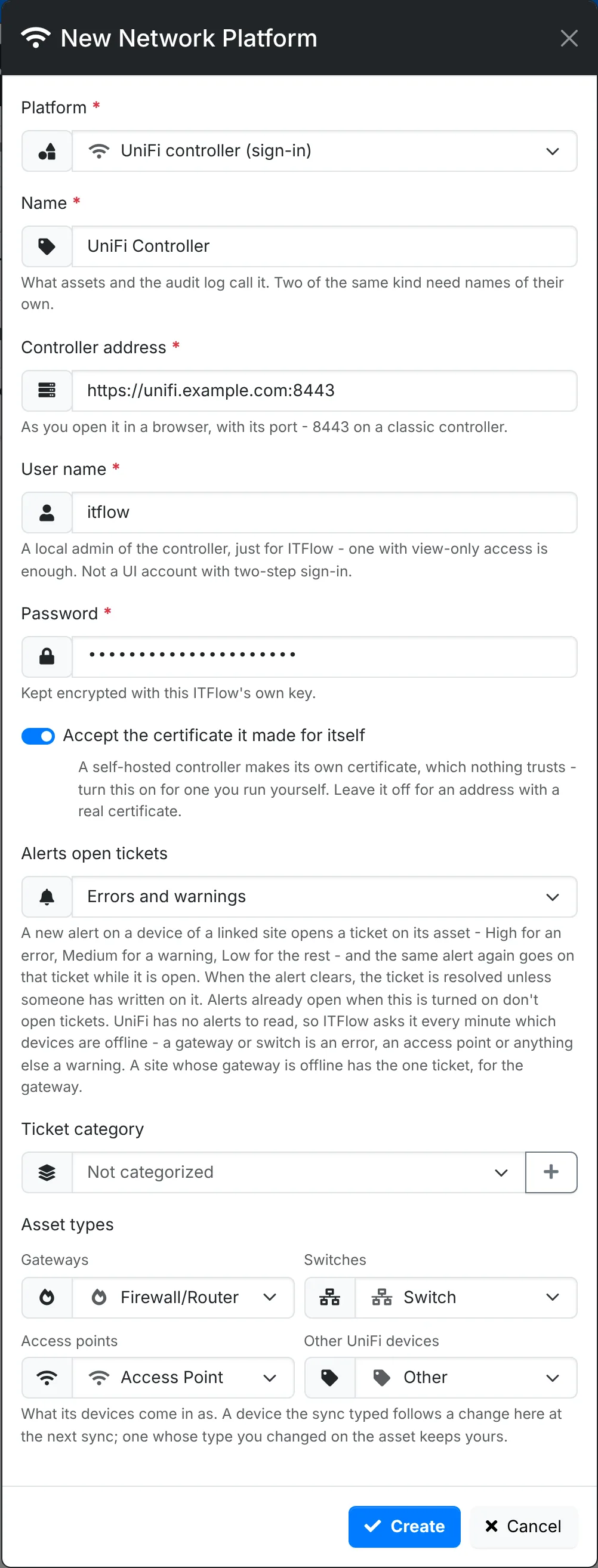
- In Admin > Network Platforms, click New Platform.
- Pick the Platform - see Which UniFi. Give it a Name of its own, such as the controller's or the client's.
- Fill in what that platform asks for: its address, and the user name and password or the API key.
- Under Asset types, pick what Gateways, Switches, Access points and Other UniFi devices come in as - ITFlow's own types, or one of your own. Leave them as they are to keep ITFlow's.
- Click Create. ITFlow signs in, brings in its sites and opens its Sites page. If something is wrong, it says what - a password or key UniFi turned away, an account with two-step sign-in, or a certificate that needs Accept the certificate it made for itself.
No devices come in yet. They come in once you link their site to a client.
Link its sites
A platform's Sites page lists its sites and the client each is linked to. A site's devices come in once it's linked, and not before.
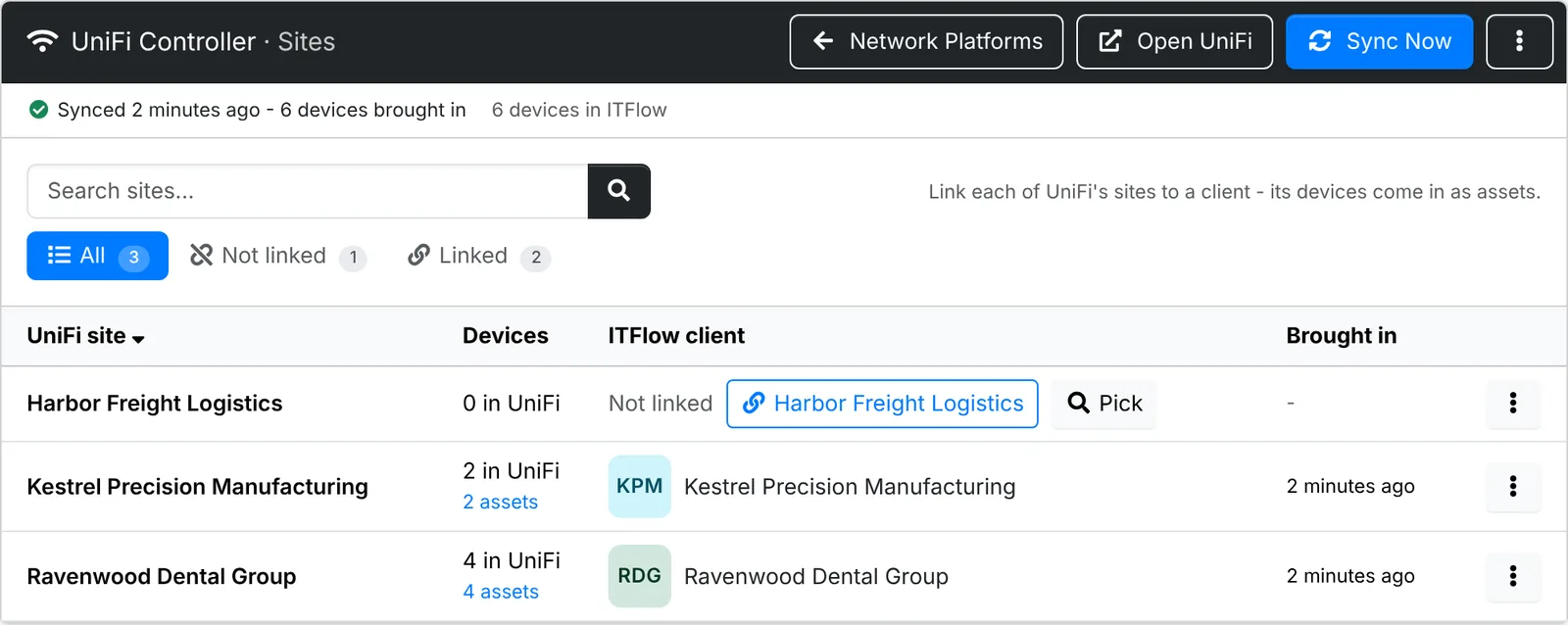
- A site with the same name as one of your clients is suggested. Click the suggestion to link it.
- Pick links it to any of your clients.
- ⋮ > Link the suggested, at the top, links every suggestion at once.
Linking brings the site's devices in straight away. After that they're kept up to date every 15 minutes, or with Sync Now. Leave a site unlinked - your own office, say - and its devices stay out of ITFlow.
A console's only site is named after the console. Through Site Manager, a console with more than one site has each named with the console's name after it - "Harbor Freight Logistics (MSP Gateway)" - and the suggestion goes by the site's own name.
What comes in
Each adopted device on a linked site becomes one of its client's assets. When the client has it already, it's matched:
- by its MAC address, against the MAC addresses on the client's assets' interfaces,
- by serial number,
- or by name, when only one of the client's assets has it.
A matched asset keeps what it has - only what it's missing is filled in. Otherwise a new asset is made, with its name, type, make, model, serial number, firmware, IP address and MAC address - the last two on its primary interface. Its type is the one the platform's Asset types has for a gateway, a switch, an access point or anything else.
After that, each detail follows UniFi - a device renamed in UniFi is renamed here - until you change it in ITFlow. The asset's History tab says what UniFi changed. A device that's still waiting to be adopted doesn't come in.
Through an API key - a console or Site Manager - UniFi gives no serial numbers, so devices are matched by MAC address or name.
On the asset
An asset from UniFi shows whether the device is Online or Offline beside its status. Its card, named after the platform, has how long it's been up, its public IP when it's a gateway, its site, and Firmware update available when UniFi has one for it.
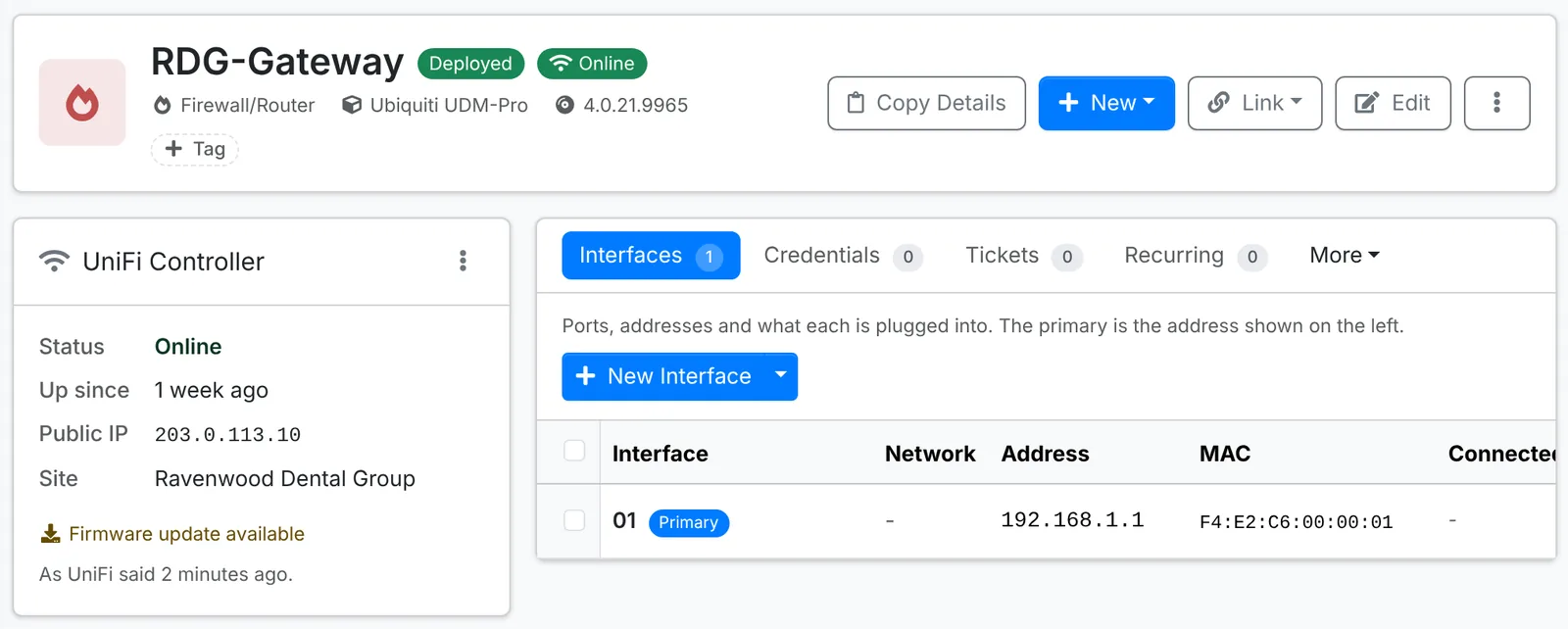
On the assets list, a dot after a device's name says whether it's online. The filter is named after the platform when it's the only one, and is called Monitoring once there's another platform or an RMM beside it. Its patches waiting shows the UniFi devices with a firmware update.
If a device was matched to the wrong asset, use ⋮ > Link to another asset on its card - see Link to another asset.
Networks and VLANs
Each linked site's networks come in as its client's networks, after its devices. When the client has a network with the same subnet already, it's matched; otherwise a new one is made, with its name, type, VLAN, subnet, gateway, DNS servers and DHCP range.
- Its type is Guest for a guest network, VPN for a remote access VPN, and otherwise worked out from its name, as the form does - "Cameras" is IoT.
- Its DNS servers are the ones UniFi's DHCP hands out - the gateway, unless the network names others.
- The default network has no VLAN written down. UniFi calls it VLAN 1, which is untagged.
- What isn't a network here doesn't come in: WAN connections, site-to-site VPNs, VLANs with no subnet of their own, and networks that are turned off.
As with an asset, each detail follows UniFi until you change it in ITFlow - a DHCP range widened in UniFi is widened here - and a matched network keeps what it had, getting only what it was missing. The DNS servers go together: change one here and UniFi changes neither. The network's History says what UniFi changed.
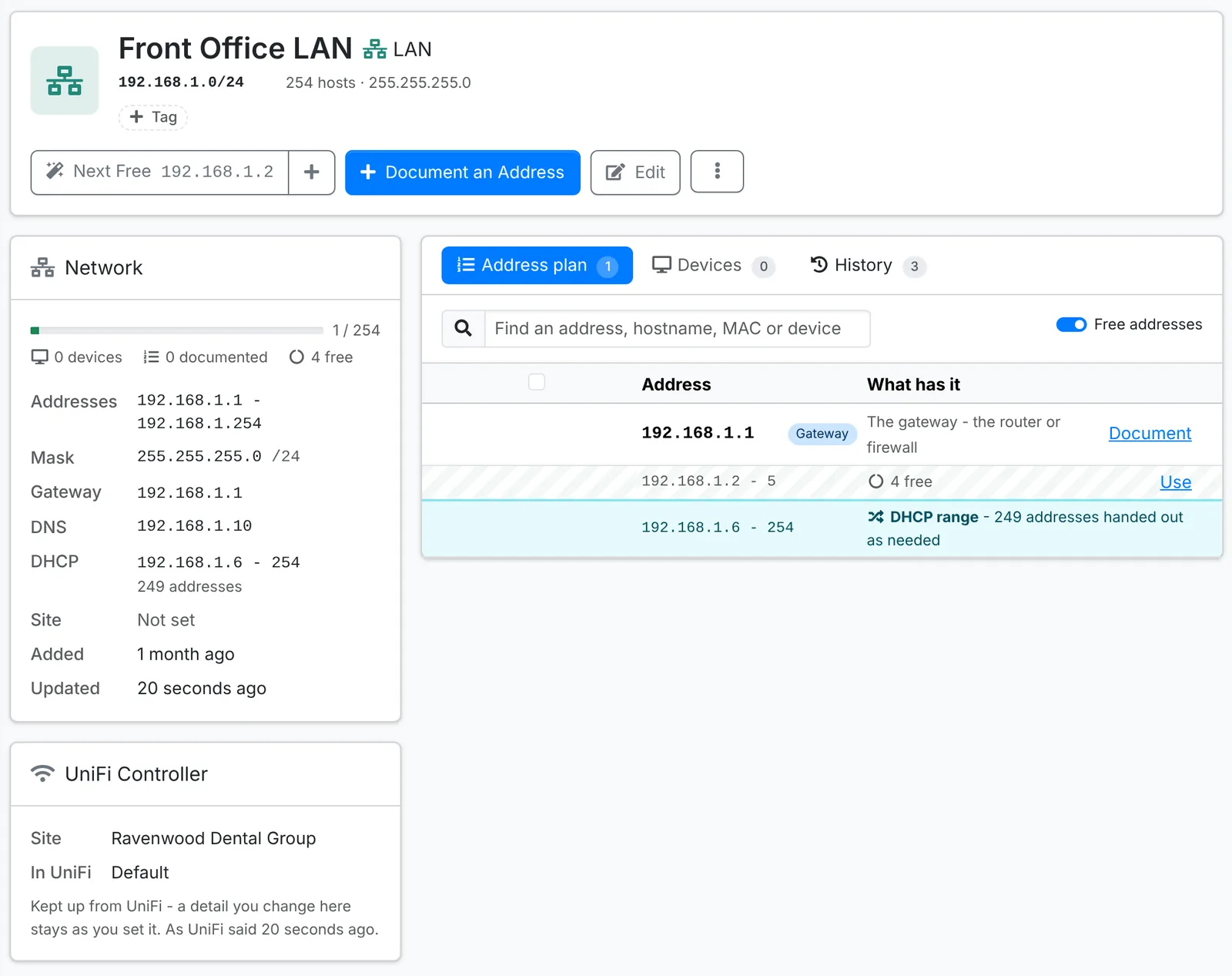
The network's page has a card for the platform, with the site and what UniFi calls the network.
- A network UniFi no longer has stays, and its card says when UniFi stopped listing it.
- A network you delete in ITFlow isn't made again. ⋮ > Bring back on its site's row brings deleted networks back with deleted devices.
- A network you archive is left as it is.
- Unlink the site and its networks stay, no longer kept up.
Through a console or Site Manager, networks come from UniFi Network's API, which only lists them in recent versions. On an older one, devices still come in, without their networks - update UniFi Network to have them.
Where things plug in
With each sync, ITFlow asks UniFi what's connected to the site's switches and access points, and keeps it for the devices that are the client's assets - a workstation from your RMM, a printer or a server you entered. A device is one of its assets when one of the asset's interfaces has its MAC address or, failing that, when only one of the client's assets has its name. Everything else that's connected - phones, visitors' laptops - isn't kept.
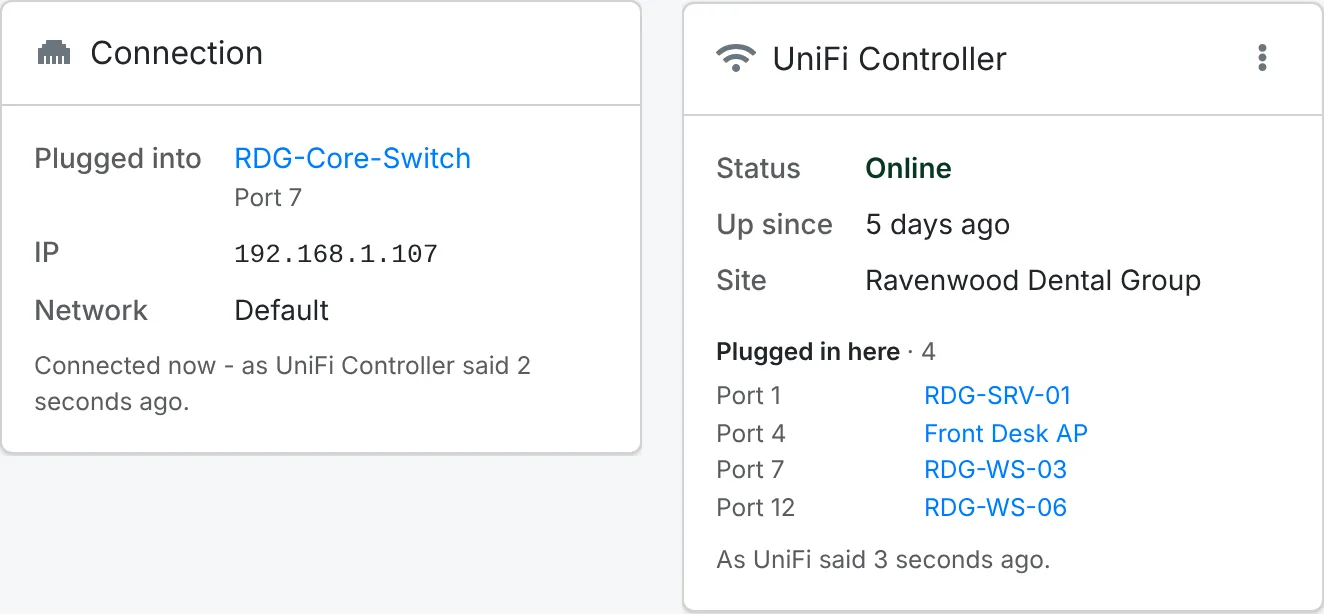
- An asset's Connection card says what it's plugged into and which port, or which access point and Wi-Fi network it's on, with its IP address and network as UniFi saw it. The switch or access point links to its asset. It says Connected now while UniFi still sees it, and when it was last seen there once it doesn't.
- A switch's or access point's card lists the client's assets on it - Plugged in here, by port, or On its Wi-Fi - over the last 30 days. One that isn't there now is greyed.
- UniFi's own switches and access points show what they're plugged into too - a switch's uplink port on the gateway, or the access point a meshed one connects through.
What a site saw of a device is kept for 90 days after it was last seen. Moving a device to another port shows at the next sync.
Through a console or Site Manager, UniFi's API says which switch or access point a device is on, but not the port or Wi-Fi network, nor what UniFi's own devices are plugged into. A controller signed in to with a user name says all of it.
Offline alerts
A device that goes offline can open a ticket. UniFi has no alerts for ITFlow to read, so ITFlow asks it every minute which devices of the linked sites are offline, and makes them alerts:
| Device | Alert |
|---|---|
| A gateway or switch | an error - a High priority ticket |
| An access point, or anything else | a warning - a Medium priority ticket |
Turn them on in the platform's Edit, with Alerts open tickets - Errors for gateways and switches only, Errors and warnings for every device - and, if you like, the Ticket category they go in. From there they work as an RMM's alerts do:
- The ticket is on the device's asset, with no contact. The device going offline again while that ticket isn't closed goes on it as a note.
- When the device is back online, its ticket gets a note and is resolved - unless someone has written on it or moved it to another status.
- Devices already offline when you turn this on don't open tickets.
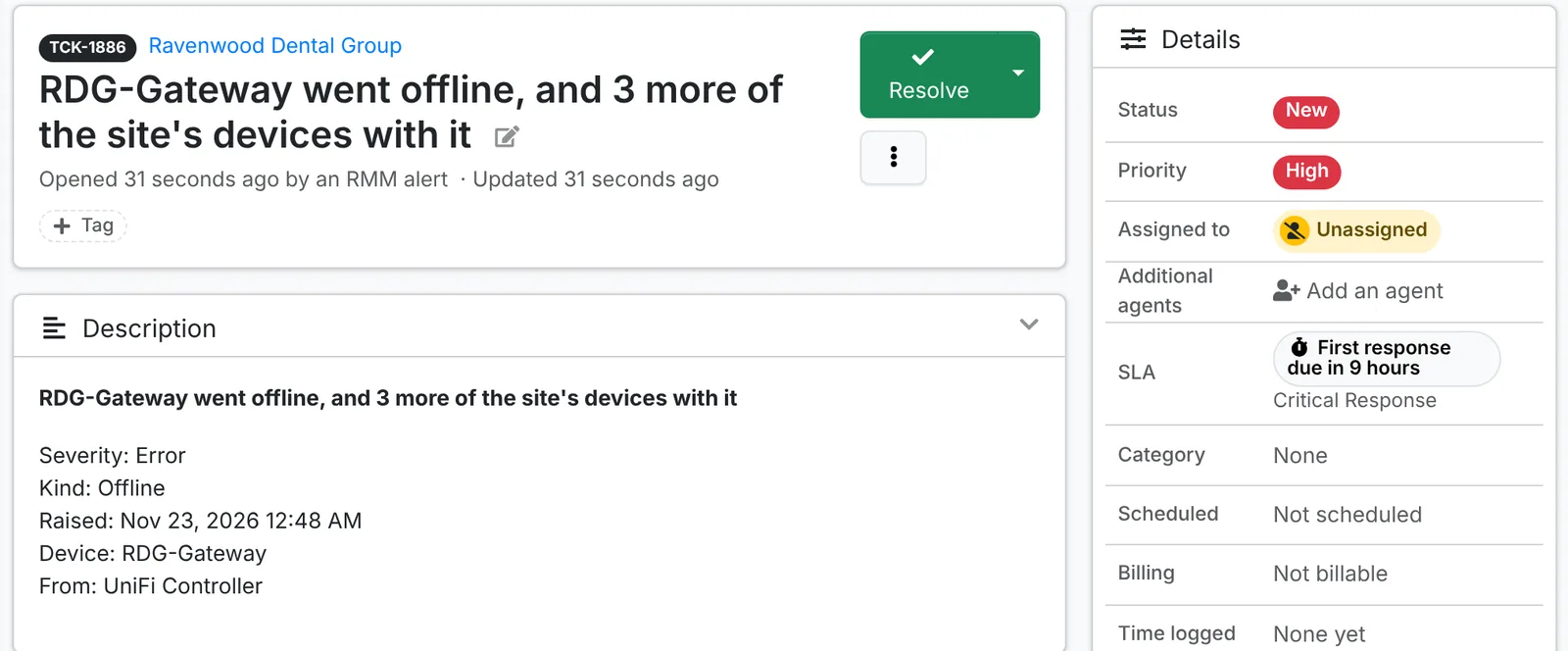
A site whose gateway goes offline gets the one ticket, for the gateway, saying how many of the site's other devices went offline with it - not a ticket for every switch and access point behind it.
Through Site Manager, a console that's offline can't be asked about its devices at all. When Site Manager says the console isn't connected, its site gets an alert on its gateway - "RDG UDM Pro went offline - Site Manager can't reach it" - resolved once the console is back.
UniFi decides when a device is offline. One that reboots can be offline for a minute or two - long enough to open a ticket, which is resolved when it's back.
When devices come and go
Devices come and go as they do from an RMM - see When devices come and go. A device removed from UniFi keeps its asset, marked as no longer there; most of a site's devices gone at once are held for a day; and a deleted asset comes back with ⋮ > Bring back on its site's row.
A device that moves to another site is matched or made at that site's client, by its MAC address.
The platform
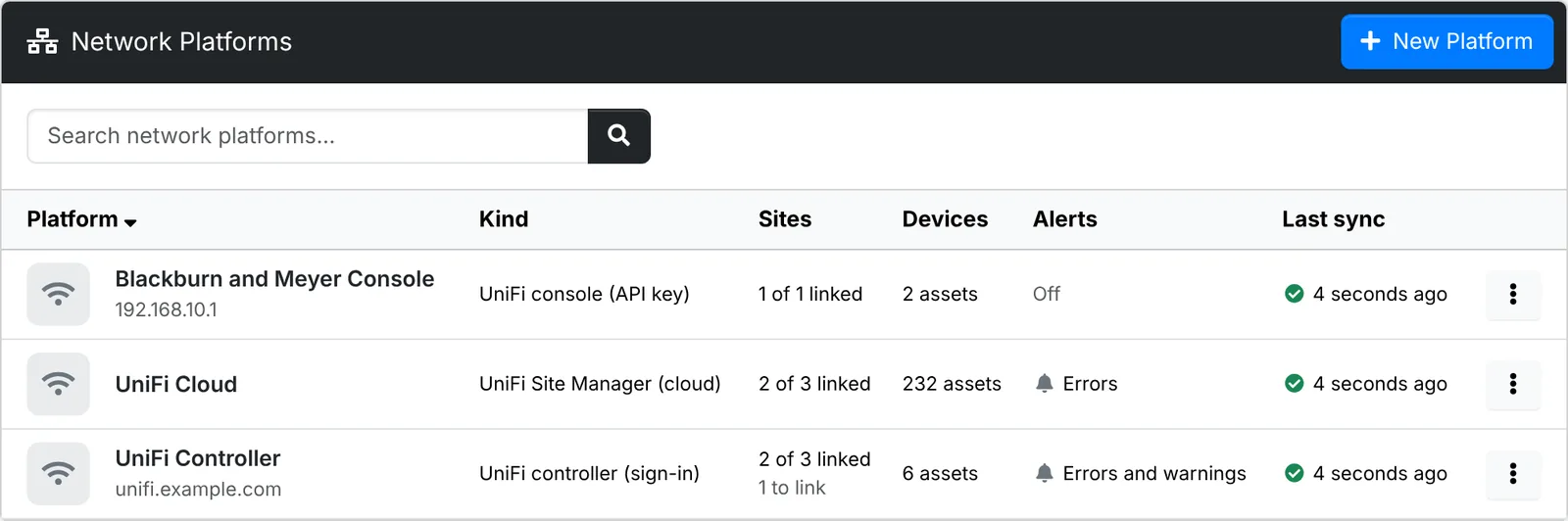
The list shows each platform, which kind it is, how many of its sites are linked and how many have a suggestion waiting, how many of its devices are assets here, which offline alerts open tickets, and when it last synced. Hover over the sync to see what it brought in.
From a platform's menu:
- Sites - its Sites page.
- Edit - its name, address, sign-in or key, and its alerts. Leave the password or key empty to keep the saved one. Which kind of UniFi it is can't be changed.
- Sync Now - bring in its linked sites' devices now.
- Test the Connection - whether UniFi lets ITFlow in, how many sites and devices it sees, and - through Site Manager - any console it couldn't reach.
- Open UniFi - the controller or console, or unifi.ui.com for Site Manager.
- Turn Off - nothing is brought in, and devices going offline don't open tickets. Assets keep what it last said.
- Delete - the links between its sites and your clients are forgotten, and assets no longer show what it says. The assets stay.
Syncing
The RMM Sync job in Maintenance > Cron brings in network platforms' devices too, every 15 minutes. A sync stops after two minutes and picks up where it left off next time. If one site's devices can't be fetched, the rest still come in, and that site's devices aren't marked as gone. A controller that signs ITFlow out is signed in to again.
When something doesn't work - UniFi can't be reached, or the password or key is turned away - the platform's row says so, and so do App logs and the job in Maintenance > Cron.