Phone systems with FusionPBX
Keep every call with the contact it was with, put calls on tickets with their talk time, have desk phones show who's calling and keep them as assets - from FusionPBX, without its API or its database.
ITFlow keeps your phone system's calls with the people they were with. FusionPBX is the phone system it knows. ITFlow doesn't connect to it - nothing is asked of its API, which FusionPBX only offers to paying members, or of its database. Instead FreeSWITCH, underneath it, is set up to send ITFlow what happens:
- Each call's record, as it hangs up. It shows on Calls and the contact's page, with who it was with and how long you talked, and can go on a ticket with its talk time.
- A question as each call comes in: who is this? ITFlow answers with the contact and their client, so your desk phones show Marla Whitfield - Ravenwood Dental as they ring. See Caller ID.
- The desk phones themselves, as they start up and register: each becomes an asset of its client, with its model, firmware, IP address and extension. See Phones.
- What happens on each desk phone as a call rings, is answered and ends, so a call on an agent's desk phone pops up in ITFlow with who's calling.
Add FusionPBX
- In Admin > Phone Systems, click New Phone System.
- Phone system is FusionPBX. Leave the Name as it is, unless you have more than one.
- Enter its Address - where you sign in to it, such as
https://pbx.example.com. It's only for links: to FusionPBX, and to each call's page there with its recording. - Click Create. Its Domains page opens with the Setup window.
Set it up
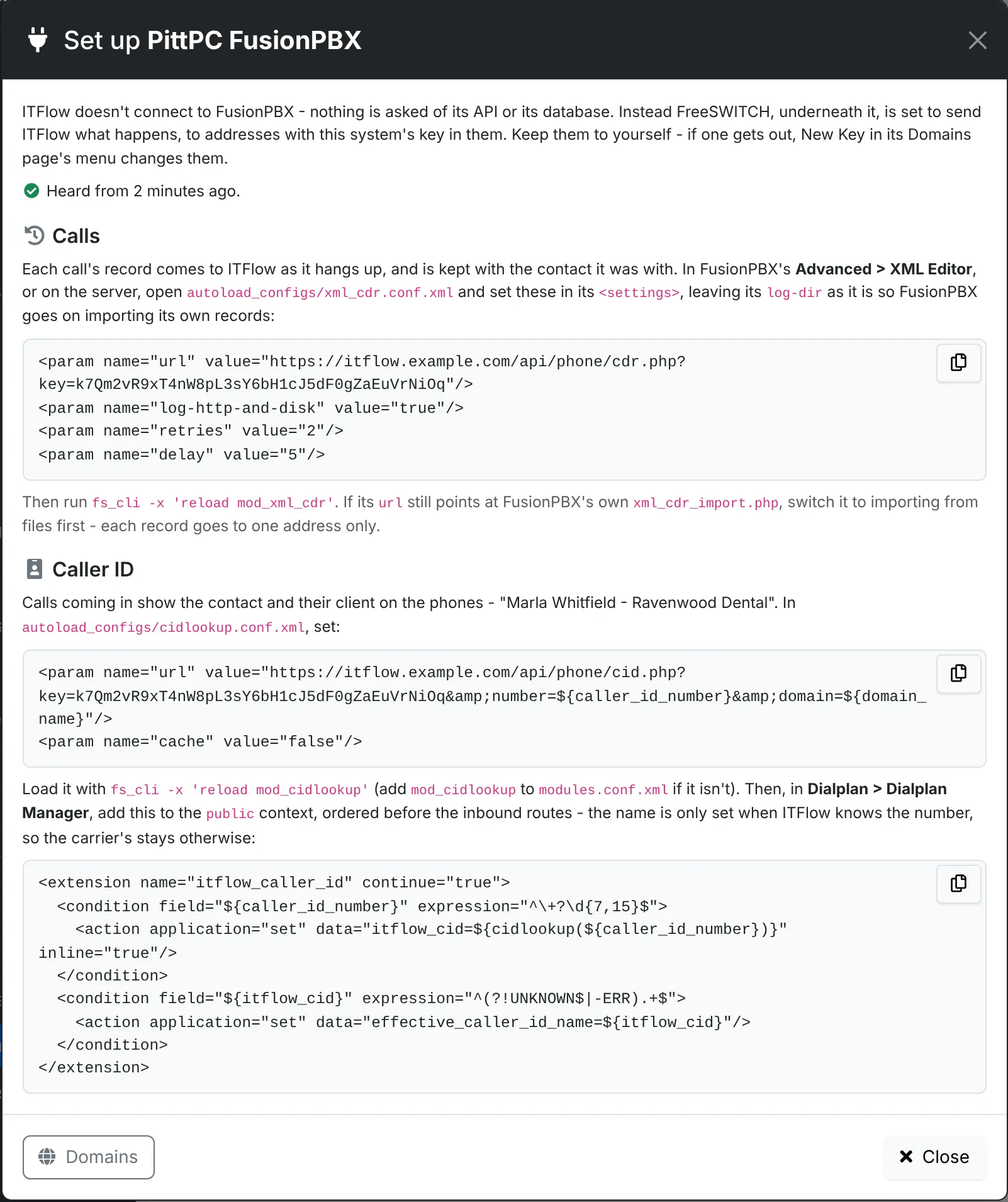
The Setup window gives the lines to paste into FreeSWITCH's configuration, with this system's addresses in them. Each block has a copy button. The addresses carry the system's key, so keep them to yourself - New Key in the Domains page's menu changes them if one gets out, and the old ones stop working.
Calls
In FusionPBX's Advanced > XML Editor, or on the server, open autoload_configs/xml_cdr.conf.xml and set the four lines from the window in its settings - the url, log-http-and-disk, retries and delay. Leave its log-dir as it is: with log-http-and-disk on, FreeSWITCH writes each record to disk for FusionPBX as well as sending it to ITFlow. Then run fs_cli -x 'reload mod_xml_cdr'.
Each record goes to one address. If the url there still points at FusionPBX's own xml_cdr_import.php, switch FusionPBX to importing from files first, as its Call Detail Records documentation says - otherwise FusionPBX's own call records stop.
A call made after that shows on Calls within seconds of hanging up, and the Domains page says when the system was last heard from.
Caller ID
- Open
autoload_configs/cidlookup.conf.xmland set the two lines from the window - itsurlandcache. Runfs_cli -x 'reload mod_cidlookup'. If FreeSWITCH says it doesn't know the module, addmod_cidlookuptomodules.conf.xmlfirst. - In Dialplan > Dialplan Manager, add the dialplan from the window to the
publiccontext, ordered before your inbound routes.
The name is only set when ITFlow knows the number, so a caller ITFlow doesn't know keeps the name the carrier sent.
Phones
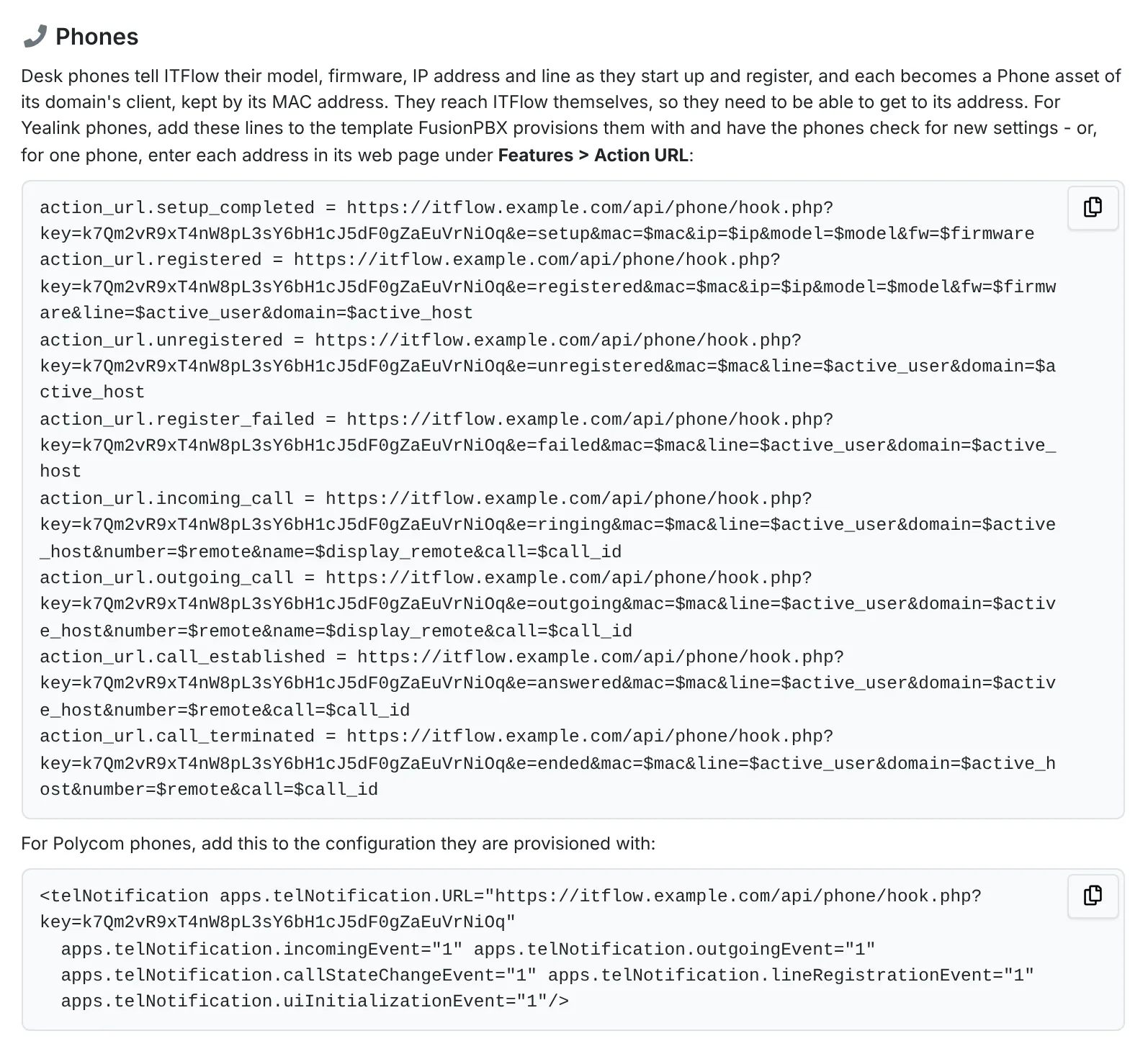
Desk phones tell ITFlow about themselves - they reach ITFlow's address directly, so they need to be able to get to it. The window's Phones part has the lines for each make:
- Yealink - add the
action_urllines to the template FusionPBX provisions your Yealink phones with, then have the phones check for new settings. For a single phone, you can instead enter each address in its own web page under Features > Action URL. - Polycom - add the
telNotificationline to the configuration your Polycom phones are provisioned with.
Each phone is kept by its MAC address. Once its domain is linked to a client, it becomes a Phone asset of that client, named after its extension - PH-104 - with its make, model, firmware, IP and MAC address and its extension. If the client already has an asset with that MAC address, the phone uses it instead of making another.
- What the phone says keeps the asset up to date - a new firmware, a new IP address - unless you changed that field in ITFlow, which is then left as you have it. Its history says what changed.
- The asset has a card for the phone system, saying whether the phone is registered and since when, and its extension. A phone only says something when it starts up, registers or has a call, so the card says how long ago that was.
- A phone asset you delete isn't made again. If you add one by hand with its MAC address, the phone uses that.
- If you link the domain to a different client, the old asset stays where it is and the phone becomes an asset of the new client.
The Domains page counts the Phones on each domain, so you can see them reporting before you link it.
The same lines send what happens on each phone as a call rings, is answered and ends. Agents who pick their extension in Your account > Preferences get those calls popping up in ITFlow.
Link its domains
Each domain - a FusionPBX tenant - shows on the system's Domains page with its first call. Link it to the client it is:
- The client it looks like - a button with the client's name, when the domain is one of the client's own domains or under it, starts with the client's abbreviation, or starts with the start of its name. Link the suggested in the menu does them all.
- Pick - choose the client yourself.
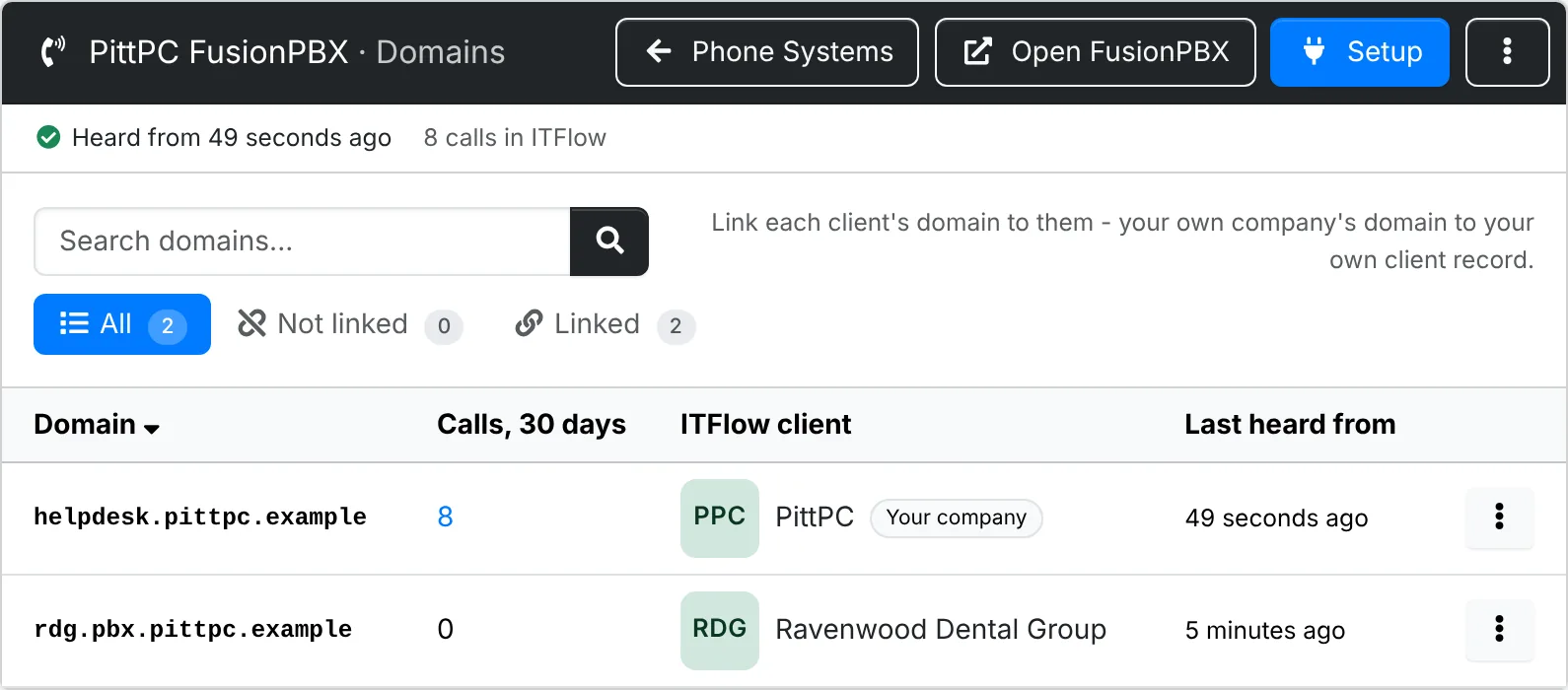
Link your own company's domain - your helpdesk line - to your own client record, the one set in Settings > Company. Calls there are different:
- On a client's domain a call is that client's, and the other party is matched among that client's contacts.
- On your own company's domain, or one that isn't linked, a call goes to whoever called: their number is matched among every client's contacts, then the clients' main numbers.
A domain's calls so far are matched again when you link it or unlink it.
How numbers are matched
A number is matched to a contact by their mobile or phone. A mobile wins over an office number several contacts share. When no contact has it, a client whose location has it is the client. A number more than one client has is nobody's - better no name than the wrong one. Calls with numbers nobody has are in the Unknown tab on Calls.
Turn it off, or delete it
- Turn Off, in its menu, turns away what it sends - calls aren't kept and caller ID gets no names - until it's on again.
- Delete removes it, its domains, its calls and what its phones said. Notes already on tickets and the phones' assets stay.
Calls over 400 days old that aren't on a ticket are deleted each night.