Managing other ITFlow installs
Run other ITFlow installs from your own - see how each is doing, update them, set their seat limit and white label, sign in as support, and make one read-only or suspend it.
One ITFlow can manage others: your clients' own ITFlows, a reseller's, or the ones you host. Each one checks in with yours every minute, so you see how they're all doing in one list, and from there you can update them, set how many agents they can have and their white-label key, sign in to one as support, and make one read-only or suspend it.
The ITFlow that manages is the manager; the ones it manages are instances. Any ITFlow can be either, or both - a reseller's ITFlow can be managed by its provider and manage its own clients'.
Turn it on
Managed mode is off on every ITFlow until a line in its config.php turns it on - see config.php. Each side has its own line, added to the end of the file:
| On | Add | And it gets |
|---|---|---|
| The manager | $config_enable_managed_instances = true; | Admin > Managed Instances and the Managed Instances cron job |
| Each instance | $config_enable_managed_by = true; | Admin > Managed By, the Manager Check-in cron job and support sign-in |
A reseller's ITFlow that is managed and manages others has both lines. An ITFlow with neither shows nothing of managed mode - no menu entries, pages or cron jobs.
Taking a line out again keeps what's there. An instance stays connected but stops checking in, so its manager sees it go offline, and nothing the manager set is locked any more - read-only and suspended included. A manager keeps its instances: their check-ins are turned away until the line is back, and then they carry on.
Add an instance
- Go to Admin > Managed Instances and click Add Instance.
- Give it a Name, and pick the Client it belongs to, if it's a client's.
- On Seats & updates and Access, set what you want to control now - you can change it any time.
- Click Add. Its page opens with a connection code.
- Copy the code. It's shown this once, and works once, for a week.
- On the other ITFlow - with managed mode turned on there too - an admin goes to Admin > Managed By, pastes the code and clicks Connect.
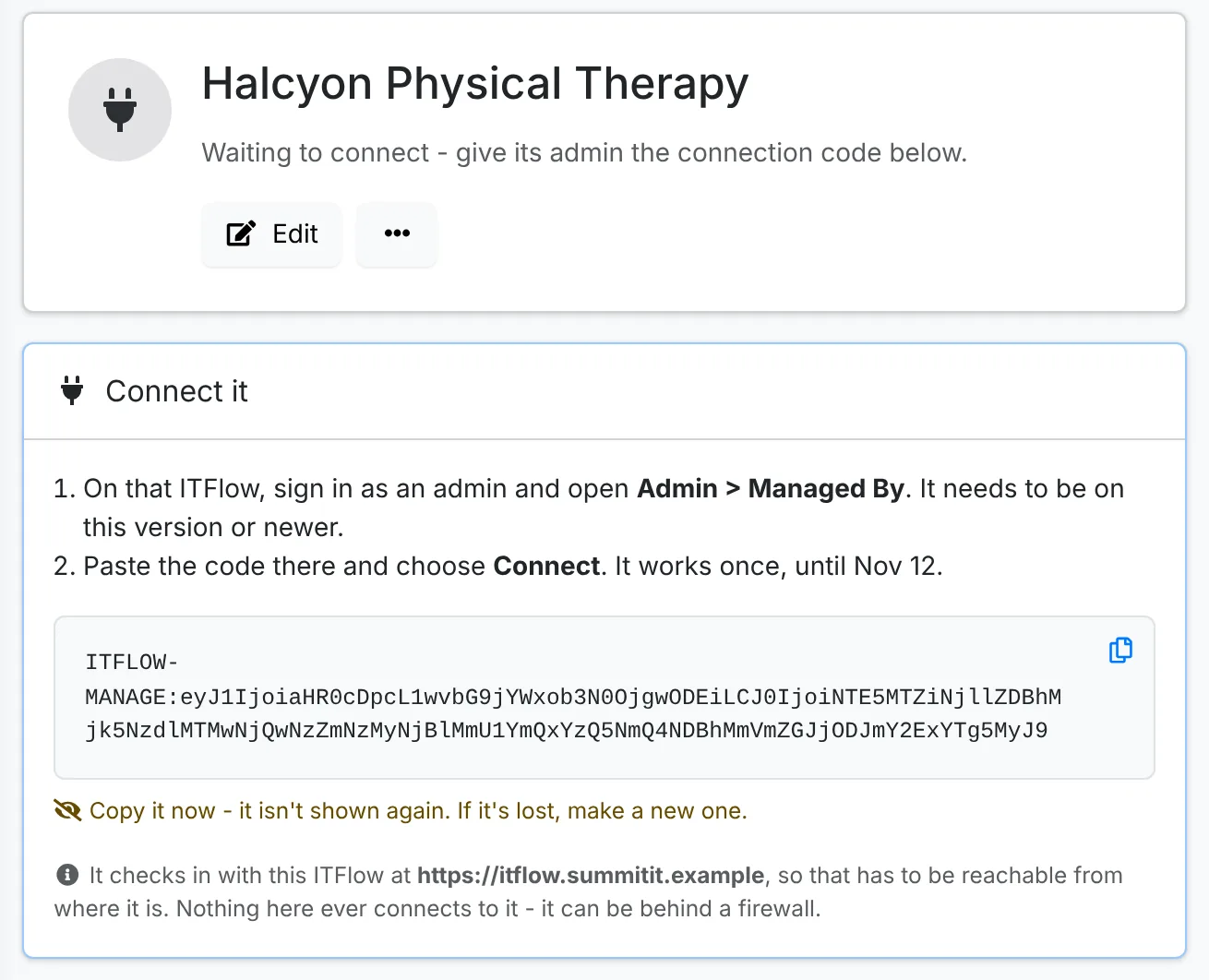
The instance needs to be on the same version of ITFlow or newer, with cron running - it checks in from cron. It calls your ITFlow at its address, so that has to be reachable from where the instance is; nothing ever connects to the instance, so it can sit behind a firewall.
Lost the code, or moving the instance to a new server? New connection code in its menu makes another; the old one stops working, and whatever connects with the new one takes the place of what was connected.
See how they're doing
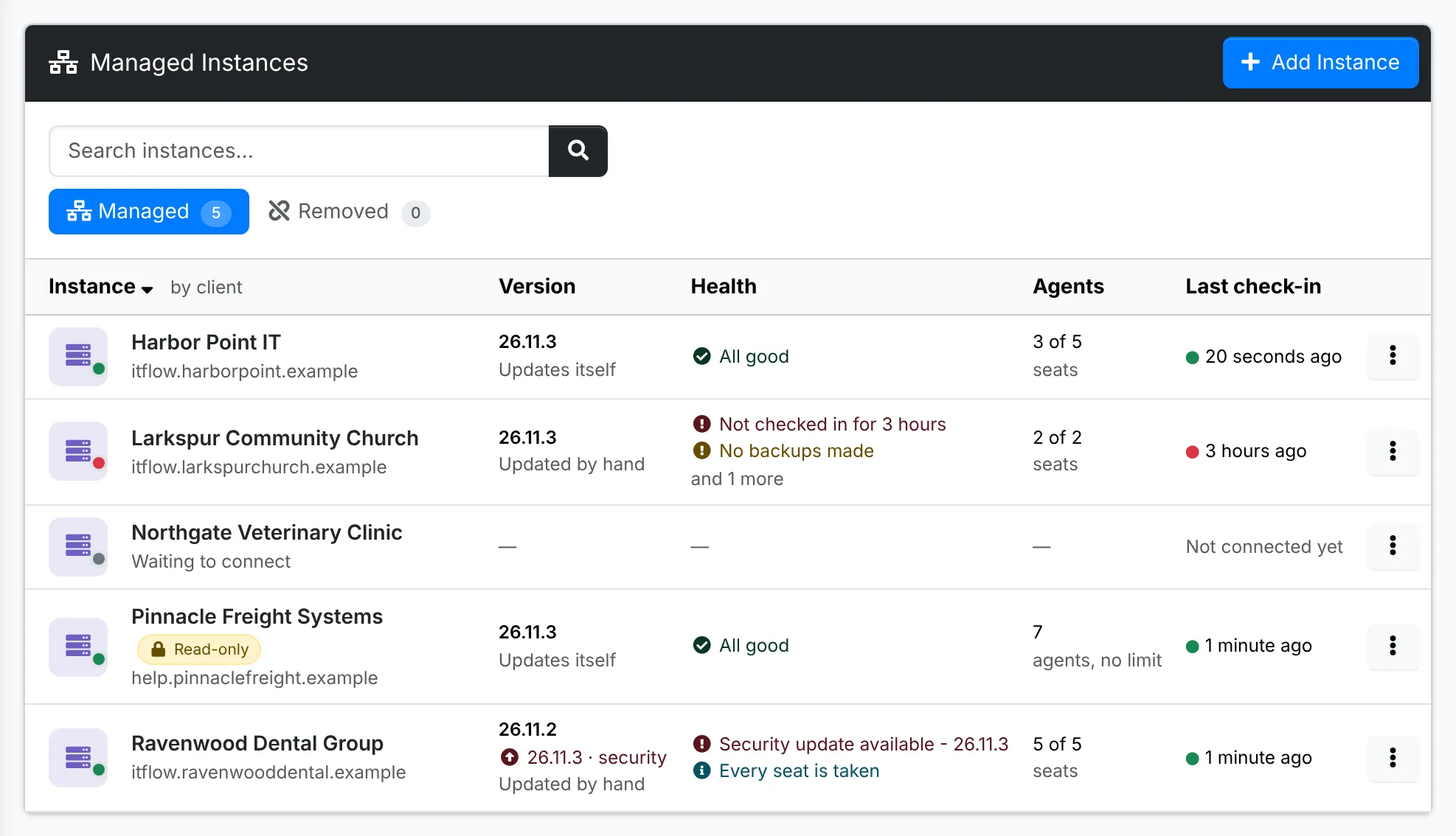
The list shows each instance with its version and whether an update is waiting - a security update stands out - and whether it updates itself; what needs a look; its agents against its seat limit; and when it last checked in. A green dot is checking in, a red one has stopped.
Click an instance for everything it reported:
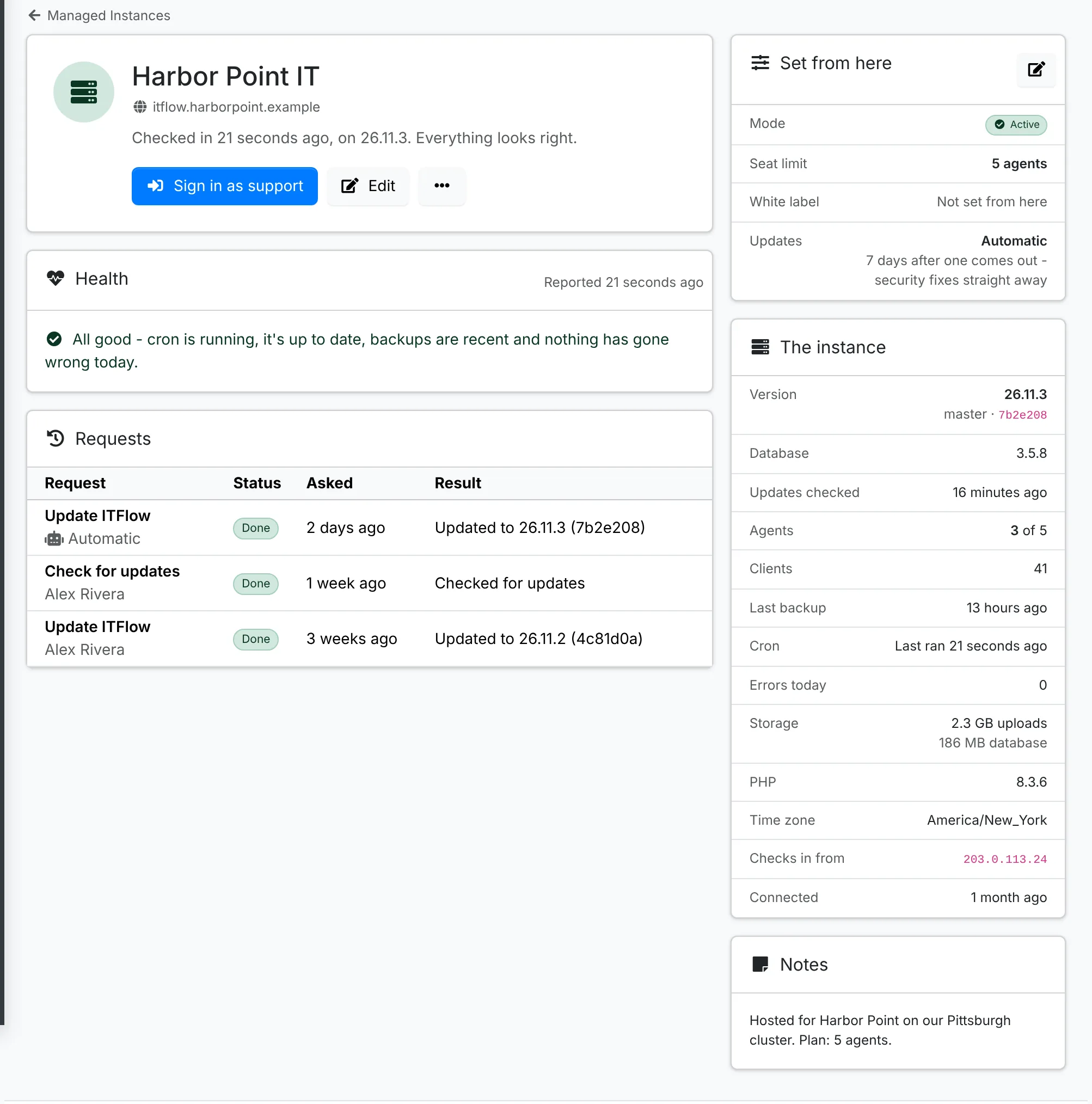
- Health lists what needs a look: cron switched off or not running, a database update not applied, the last update failed, an update or security update waiting, the last backup failed or none for three days, errors logged today, every seat taken - or All good.
- Requests is what you've asked it to do - updates and checks for updates, yours and automatic ones - and how they went.
- The instance has its version, branch and database, when it last checked for updates, its agents and clients, last backup, cron, errors today, storage, PHP, time zone and where it checks in from.
You're notified when an instance stops checking in for ten minutes, and again when it's back, and when an update on one fails.
Instances send how they're doing - never tickets, documents, credentials, invoices or contacts. Their admins can see exactly what's sent on Admin > Managed By.
Update instances
When an update is waiting, Update to on its page (or Update now in its menu in the list) updates it: it picks the request up at its next check-in, then updates its files and database in the background, the same as Update ITFlow on its own Update page. The page shows it updating and refreshes itself until it's done. Check for updates in its menu has it check straight away.
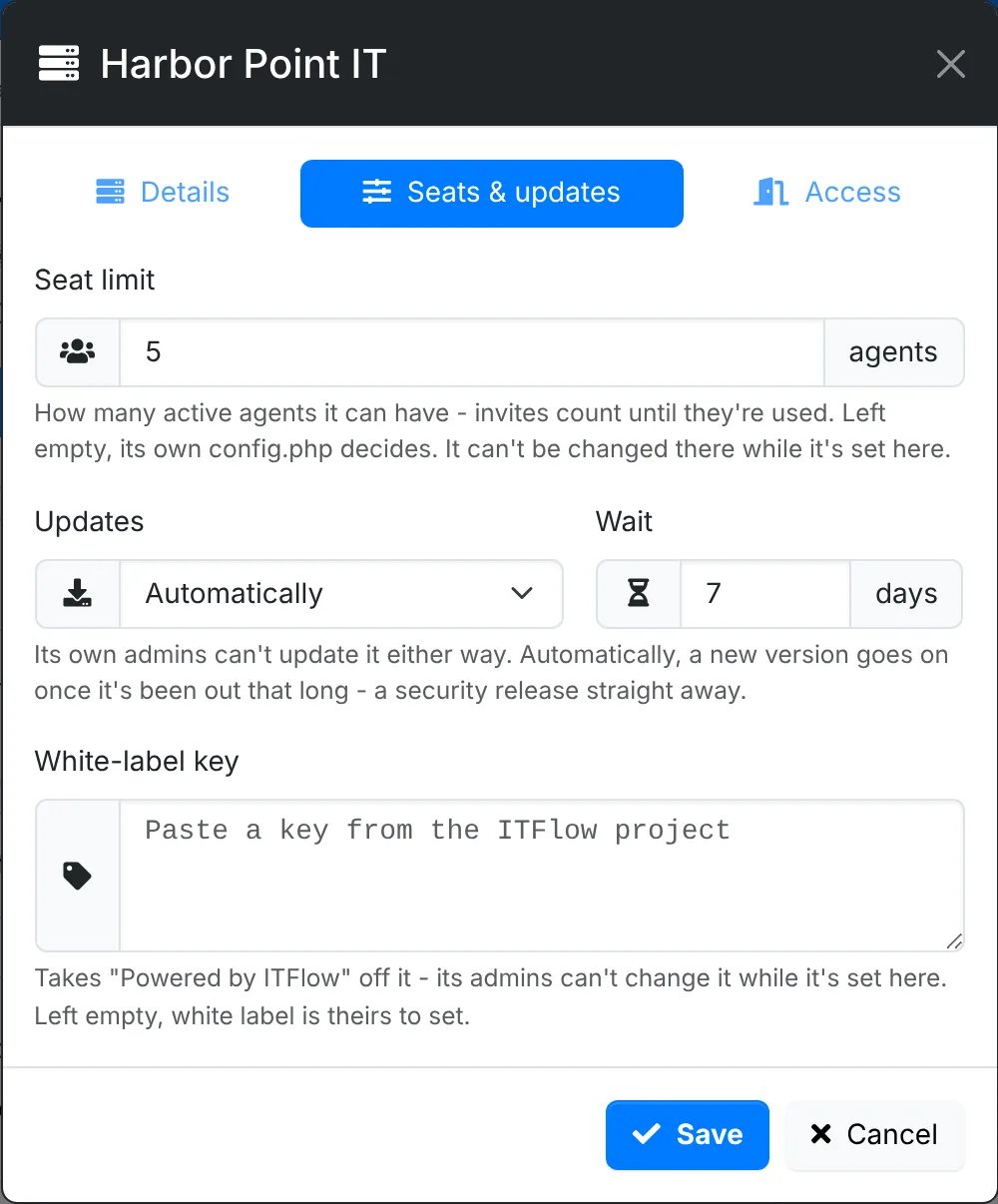
Or let it update itself: on Seats & updates, set Updates to Automatically and how many days to Wait after a release comes out. A release with security fixes goes on at its next check-in, without waiting. If an automatic update fails, it isn't tried again for six hours.
Either way, the instance's own admins can't update it - its Update page says it's updated from you.
Seats and white label
On Seats & updates:
- Seat limit - how many active agents it can have. Invites waiting count, so a seat is there when they join. Its admins can't add agents past it. Left empty, its own
config.phpdecides, as on any ITFlow. - White-label key - a key from the ITFlow project that takes "Powered by ITFlow" off it. While it's set here, its admins can't change it; take it out and white label is theirs to set again.
Read-only and suspended
On Access, or from ⋯ on its page:
- Read-only - its people can sign in, look around, export and download, but nothing can be changed: agents, the client portal and guest links alike. Mail still goes out, and backups and updates still run. Every page says so.
- Suspended - nobody can use it. Agents, the client portal, guest links and the API get a notice instead, with your email and phone. Its data stays as it is, and backups and updates still run.
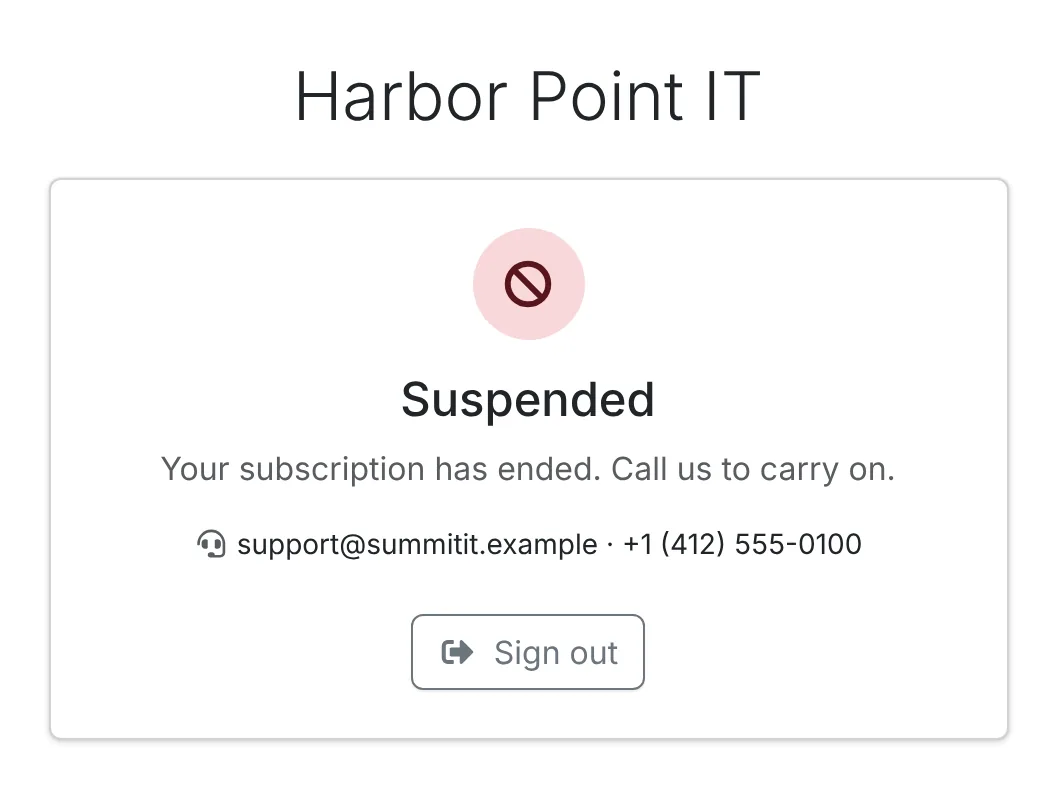
Add a Message to say why - "Your subscription has ended - call us to carry on". Make it active puts it back. Each change takes effect at its next check-in, within a minute. While it's read-only or suspended, its other background jobs wait, and run once it's active again.
Sign in as support
Sign in as support opens the instance in a new tab, signed in as its support user - an admin, so you can see what its people see and put things right.
- No password is involved: the link is signed by your ITFlow, works once, and only for two minutes.
- The session lasts two hours. A banner across every page says it's a support session, from whom, and when it ends.
- It works when the instance is read-only or suspended too.
- The support user doesn't take one of its seats, and can only be signed in to from your ITFlow.
- It can't open saved passwords - that takes a user's own password - so a support session can't see or change them, set anyone's password or make API keys. Invite people instead, or ask one of its admins.
- Each sign-in is in its audit log with your name, and its agents are notified. Yours records it too.
Remove an instance
Remove, in its menu, stops managing it. At its next check-in it lets go: what you set comes off it - the seat limit and white-label key - its support user is archived, and it's an ordinary ITFlow again. Its data stays where it is. Removed instances are under Removed, where they can be deleted.
Being managed
Admin > Managed By is the instance's side. Before it's connected, it's where the connection code goes. After, it shows who manages it and how to reach them, when it last checked in - or why it couldn't - and what the manager sets, with everything else still yours.
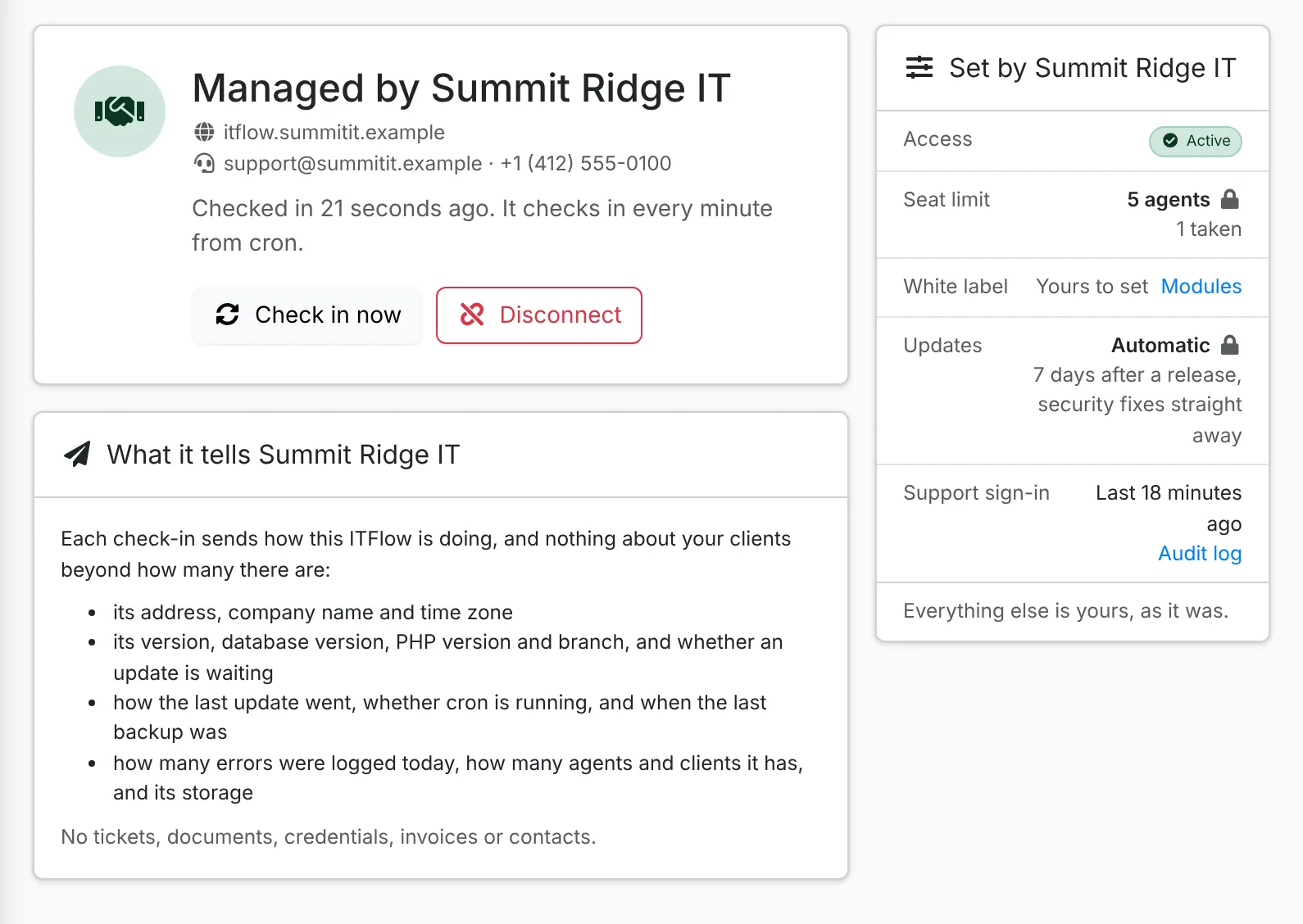
Check in now checks in straight away rather than waiting for cron - after the manager makes it active again, say. Disconnect stops it being managed: the manager is told, its support sign-ins stop, and what it set comes off.
For an ITFlow you host for a customer, add $config_manager_required = true; to its config.php. It turns Managed By on, as $config_enable_managed_by does, and its admins then can't disconnect it.