Dispatch
Hand out tickets and book the work - each technician's day beside the tickets still waiting, their workload, and how the week is going.
Dispatch puts each technician's booked work beside the tickets that still need someone. Drag a ticket onto a technician and a time to give it to them and book it; drag booked work to someone else, or back to the queue, when plans change. Underneath, This week shows whether the team is keeping up.
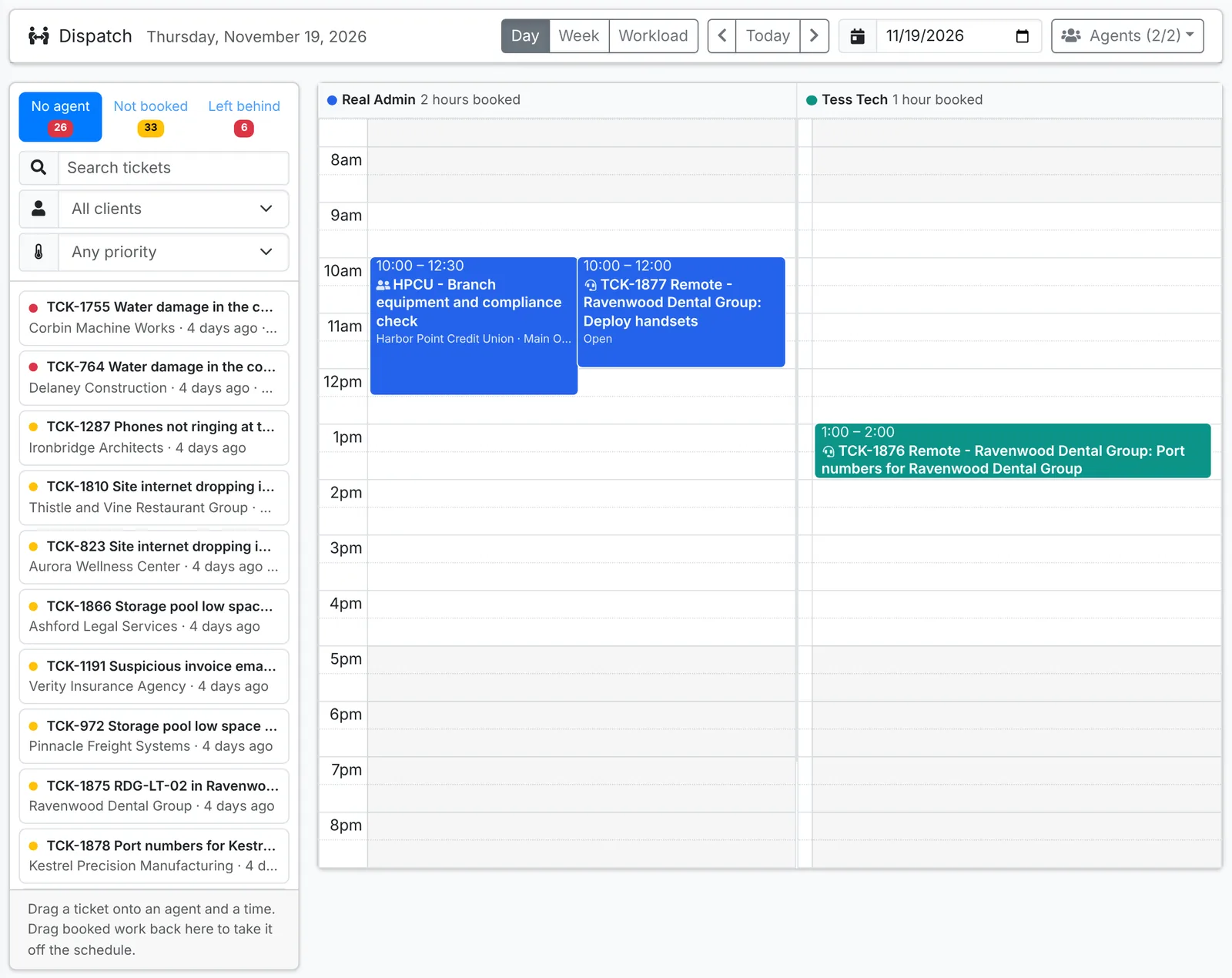
Find your way around
- Day, Week and Workload at the top right switch the board. The arrows move a day (or a week) at a time, Today brings you back, and the date box jumps to any day.
- Agents picks which technicians are on the board - untick anyone who isn't dispatched to. Weekends in Week adds Saturday and Sunday to the Week view.
- The board, the technicians you show and weekends are kept to your account, so Dispatch opens the same way on every computer.
If you work in another time zone and have set My time zone under Account > Preferences, Dispatch is on your clock, with a note at the top saying so. Anything you book is kept in the company's time for everyone else.
The queue
The queue on the left has three tabs, most urgent first:
- No agent - open tickets nobody is assigned to.
- Not booked - tickets with a technician but no time booked.
- Left behind - open tickets booked on a day that has gone, longest left first - as on the calendar, for everyone.
Narrow it with Search tickets (a subject, a client or a ticket number), a client and a priority. Click a ticket for its quick look.
Book a ticket
The Day view has a column for each technician, through the day. Hours outside your business hours are shaded grey, and each column's header shows how much is booked.
- Drag a ticket from the queue onto a technician's column, at the time you want. Drop it at the top of the column, above the hours, to book it for the start of the working day.
- The Schedule window opens with the Agent, Date and time, How long and Visit (Remote or Onsite) filled in. Change anything you need.
- Leave Email the contact and watchers the time on to tell the client, or switch it off to book it quietly. (It's only there when emails to clients are on in ticket settings.)
- Click Schedule it.
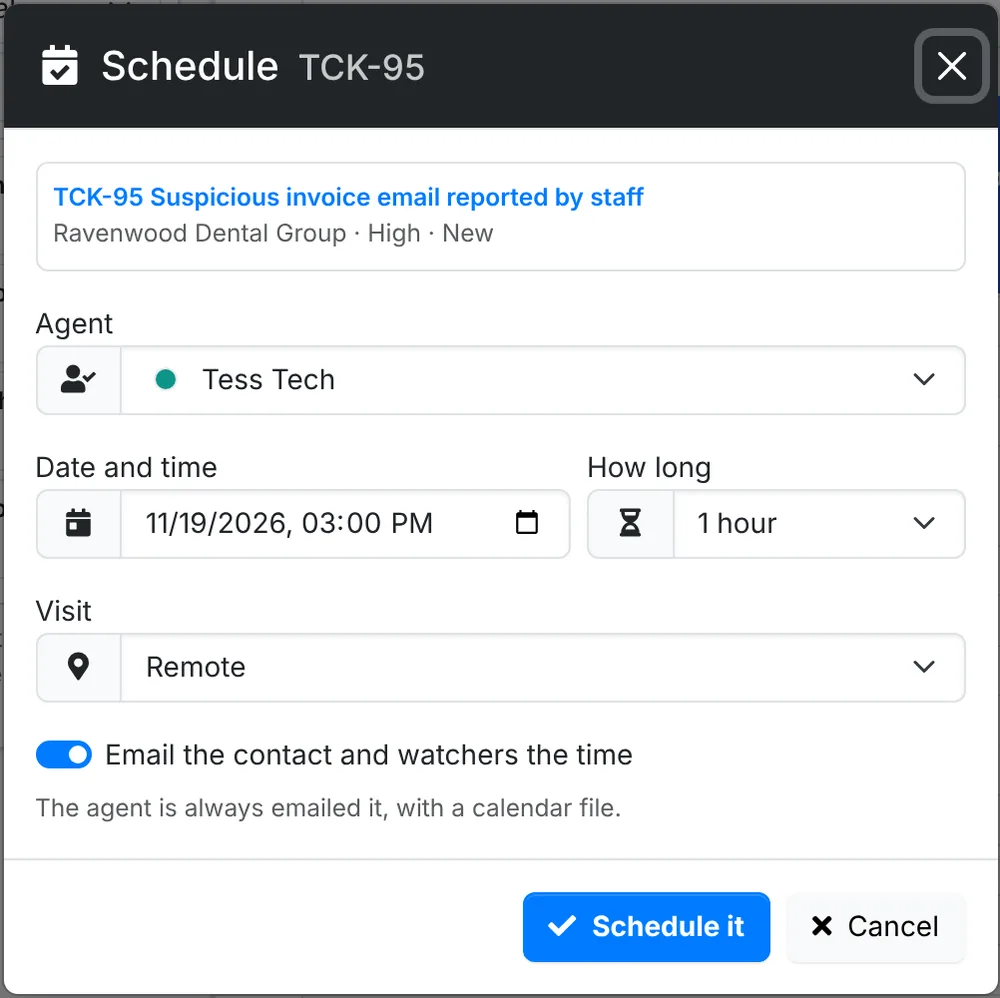
If the ticket's contact has other tickets open, the Schedule window lists them under the ticket - who has each, and when it's booked - so a duplicate gets noticed before anyone drives out for it. Merge beside one keeps one ticket and closes the other with a note pointing to it: pick which to keep, say why if you like, and choose whether to Move its replies over too. A booking on the ticket that's closed is taken off first, and its technician and client are sent the cancellation. Close the ticket you were booking and the window closes with it.
The ticket is assigned to that technician and booked. They're emailed the time with a calendar file, and if it was someone else's, the technician who had it is sent the cancellation. If the technician - or anyone helping on the ticket - already has something at that time, ITFlow tells you what. A technician who can't see the ticket's client can't be given it, and ITFlow says so.
Raise a new ticket from the board
For work that isn't a ticket yet - a call that's just come in, say - drag down a technician's column over empty time on the Day view. New Ticket opens assigned to that technician, with the Schedule filled in from the time you dragged over. Pick the client, add the subject and details, and click Create Ticket: it's booked as from the Schedule window, and you're back on Dispatch on that day. A plain click on the board does nothing, so you won't open it by accident.
Move or take off booked work
- To another time or technician - drag a booking to the new time, or across to another technician's column. The Schedule window opens so you can check it; Cancel puts it back where it was. Drag a booking's bottom edge to make it longer or shorter.
- Off the schedule - drag a booking back onto the queue and click Take it off. The technician, and the client when emails to clients are on, are sent the cancellation, and the ticket goes back to Not booked.
- Events - a one-off event moves the same way, to another time or to another technician. The people with the invitation are sent the new time; a technician taken off it is sent the cancellation. A repeating event is moved from its Edit, so the whole series moves together.
Bookings for technicians helping on a ticket, and holidays, are on the board to plan around, but don't move from here.
An onsite booking has an orange Onsite strip with a car across the top, as on the calendar - on the Week view, an orange line along the top of it.
Week
The Week view has a row for each technician and a column for each day, with their bookings and events in their colour and the hours booked that week under each name. Drag a ticket from the queue onto a technician and a day to book it at the start of the working day, drag a booking to another day or technician (it keeps its time), or drag it back onto the queue to take it off. The Schedule window opens each time, as in Day.
Workload
Workload shows how much each technician is carrying:
- Open - their open tickets, as the lead and helping.
- SLA - tickets past their SLA, then those close to it.
- Past due - tickets past their due date.
- Not booked - tickets they lead with no time booked.
- Quiet - tickets with no reply or note from your team for three days or more, not counting those on a status that pauses the SLA, such as waiting on the client.
- Booked today and Booked this week - against your business hours (eight hours a weekday when you have none).
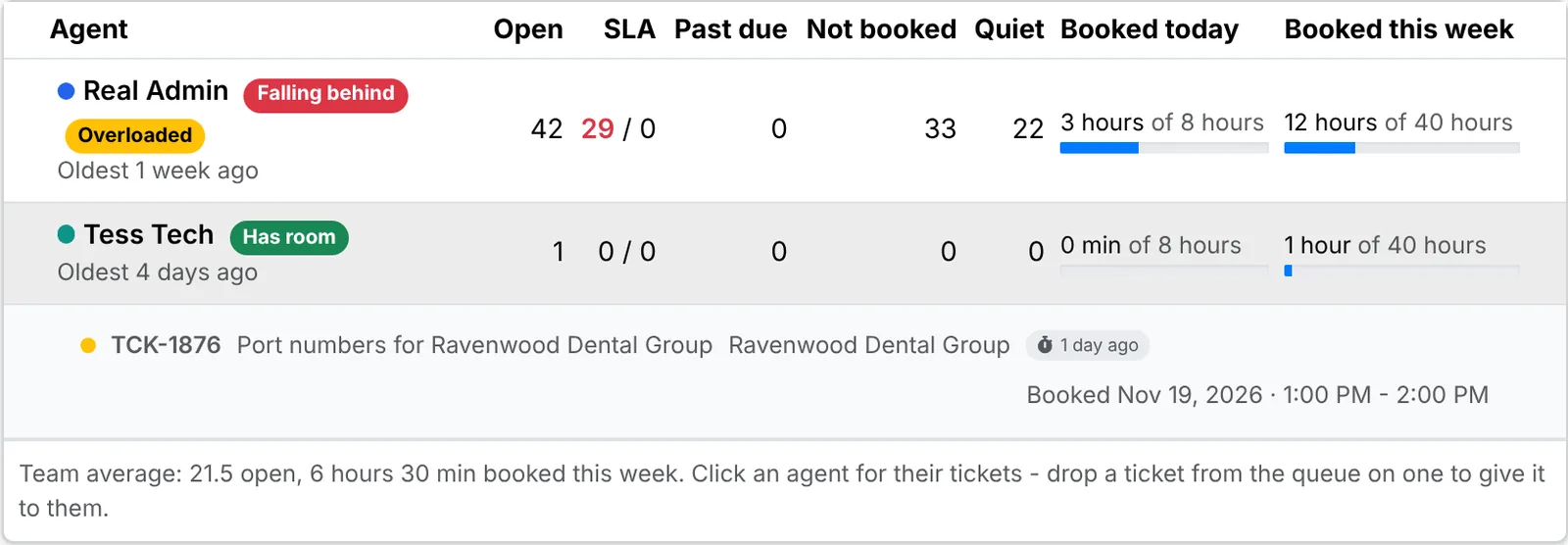
Each technician is flagged against the rest of the team: Falling behind (an SLA breached or a ticket past due), Watch (close to an SLA), Overloaded (well above the team's average in open tickets or booked hours, or booked past their working week) or Has room (well below it). Hover over a flag to see why.
Click a technician to see their tickets, most urgent first. Drop a ticket from the queue on a technician to give it to them without booking a time. A booked ticket is moved on Day or Week instead, so the new technician gets the calendar file.
This week
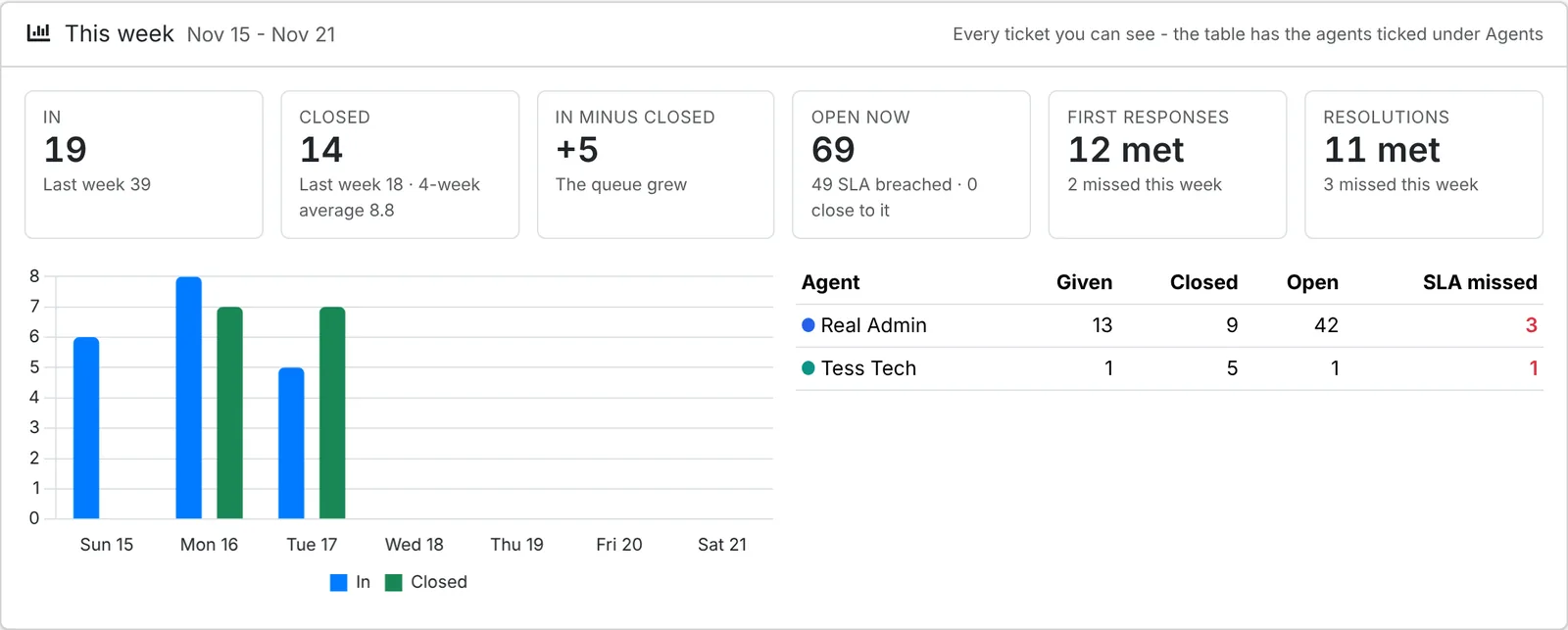
This week, under the board, covers every ticket you can see; its table has the technicians ticked under Agents:
- In, Closed and In minus closed - tickets raised and closed this week, against last week (and, for closed, the average of the four weeks before). When more came in than were closed, the queue grew.
- Open now - all open tickets, with how many are past their SLA or close to it.
- First responses and Resolutions - this week's SLA results: met and missed.
- A chart of tickets in and closed each day, and a table of each technician's share - tickets Given to them this week, Closed, Open and SLA missed.
Who can use it
Anyone whose role has Support can open Dispatch. Booking and moving work from it takes Support at Modify - with less, it's marked View only. Only technicians who can work tickets (admins, and roles with Support at Modify) are on the board.