Settings
Where ITFlow is set up for everyone - your company details, language and currency, theme, defaults, which parts of ITFlow are in use, and custom links.
Everything under Admin is for admins - agents whose role has the Admin switch on. Your own preferences, such as dark mode and your signature, are under your name instead - see Your account.
Admin > Settings shows every settings page at a glance, grouped into Your company, Work, Email and notifications, Sign-in and access and System, each with how it's set now. Anything that needs looking at - such as card payments still in test mode - is at the top.
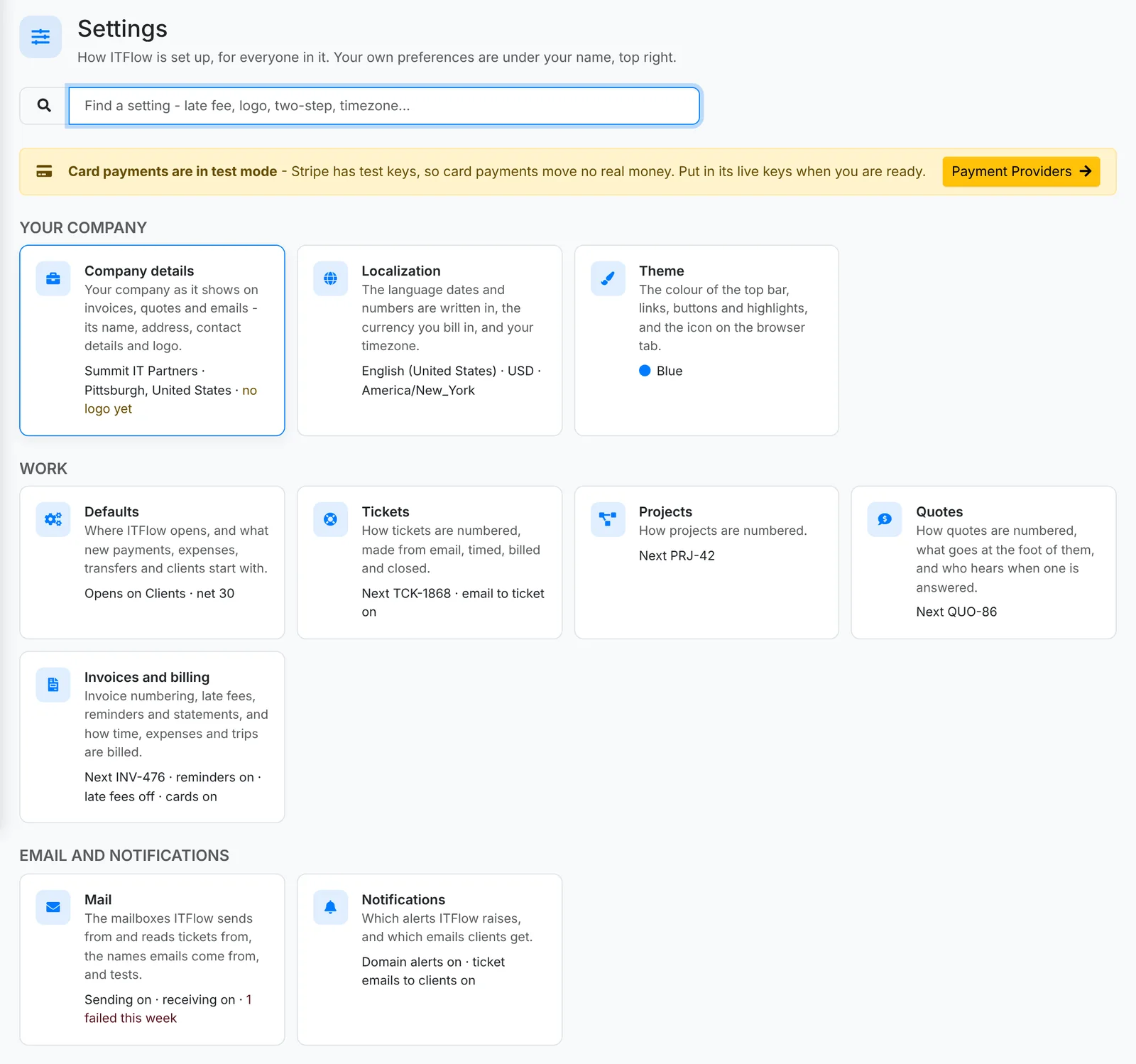
Don't know where something lives? Type in Find a setting - "late fee", "logo", "two-step", "timezone" - and pick it to go straight there.
Each settings page saves on its own. Undo changes puts back what was there before you started.
Your company
Company details
Your company as it appears on invoices, quotes, statements, emails and the client portal: its Company name and Tax ID, address, Phone (with its country code), Email, Website and Logo.
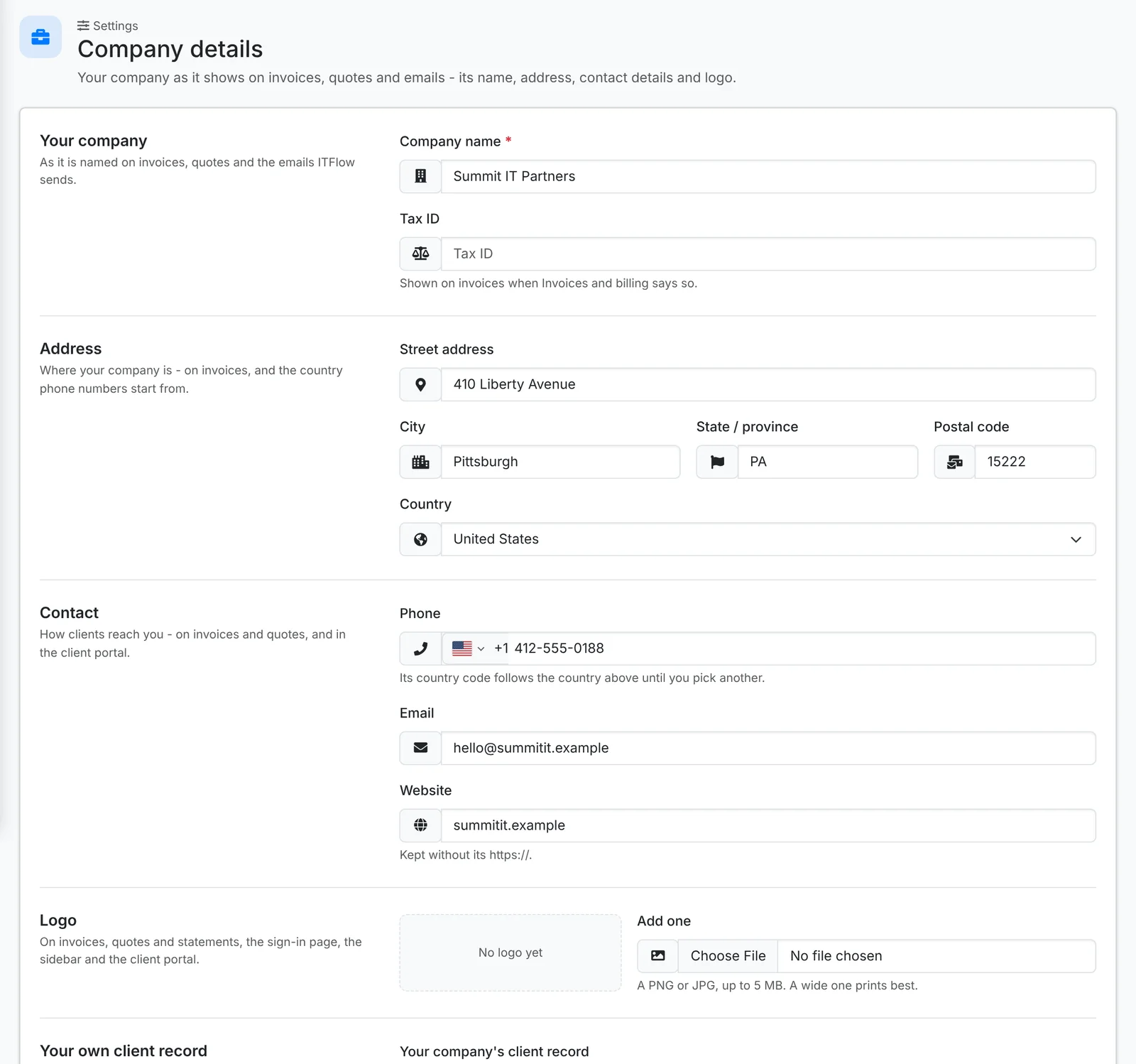
A wide logo prints best. Your own client record links your company to a client in ITFlow, so your own internal tickets, assets and documentation have a home.
Localization
The Language dates and numbers are written in, the Currency you bill in, and the Timezone ITFlow keeps time in. The page shows how money and the time now will look as you pick them.
Theme
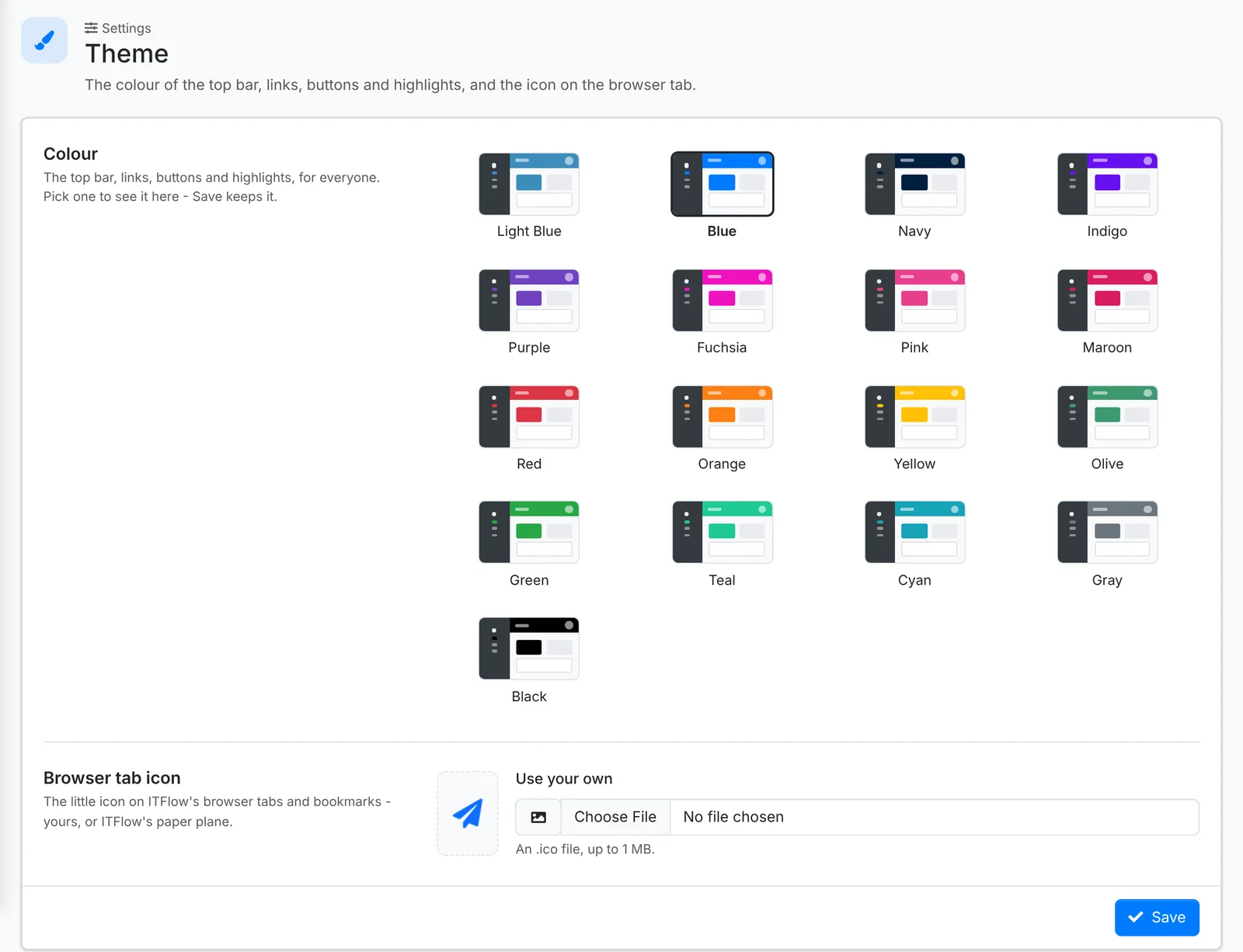
The colour of the top bar, links, buttons and highlights, and the icon on the browser tab - ITFlow's own, or your own.
Defaults
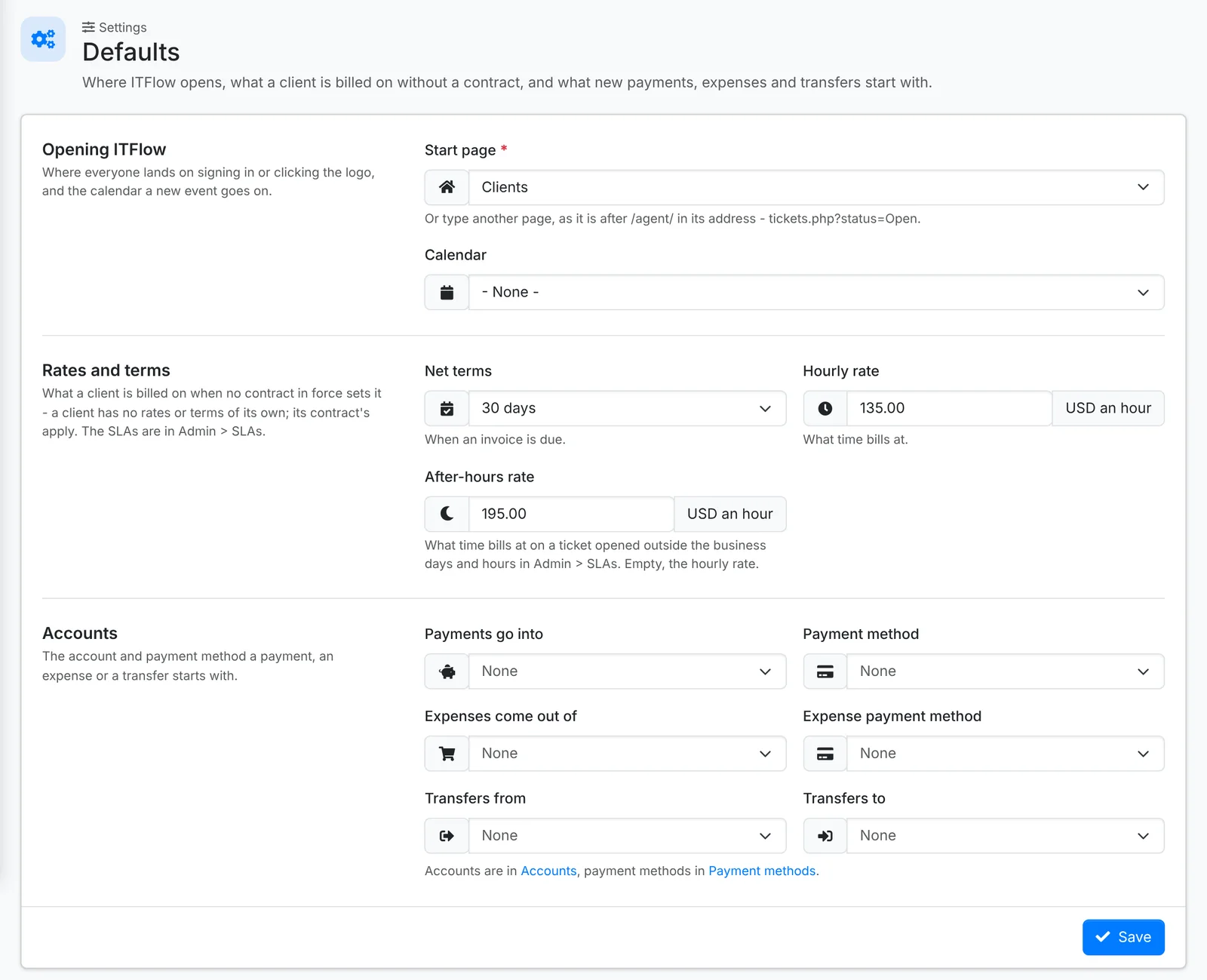
What forms start with - each can still be changed on the form:
- Start page - the page ITFlow opens on after signing in, and the Calendar new events go on
- Rates and terms - the Net terms, Hourly rate and After-hours rate a client is billed on when no contract in force sets them. A client has none of its own. The after-hours rate is for tickets opened outside the business days and hours in Admin > SLAs; leave it empty and that time bills at the hourly rate. The SLAs are in Admin > SLAs.
- Accounts - the account Payments go into, the one Expenses come out of, the usual payment methods, and where transfers start from and go to
Modules
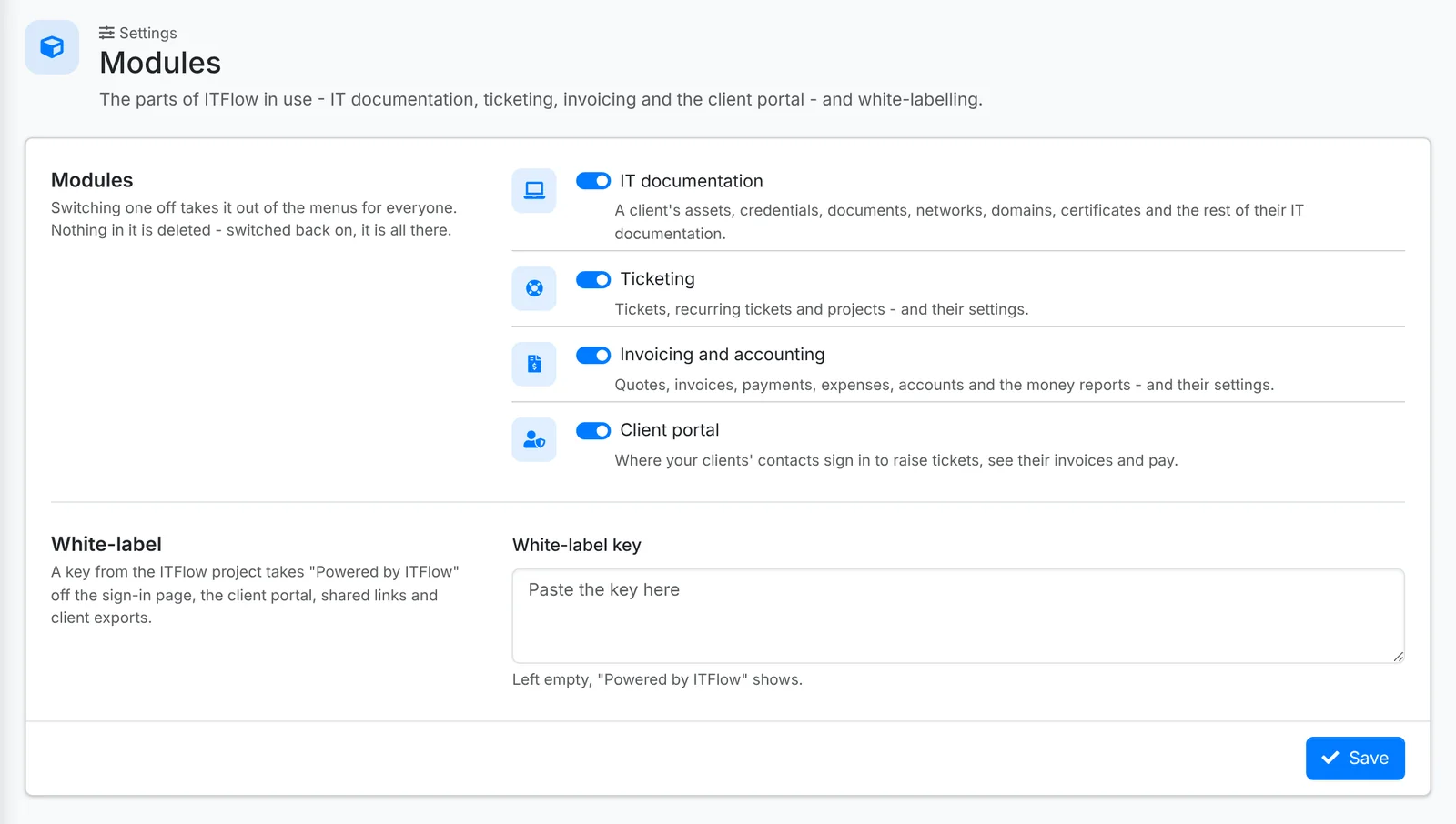
Switch off the parts of ITFlow you don't use - IT documentation, Ticketing, Invoicing and accounting or Client portal - and they're hidden from everyone. Nothing is deleted: switch a module back on and everything is still there.
White-label key takes "Powered by ITFlow" off the client portal. Left empty, it shows.
Custom links
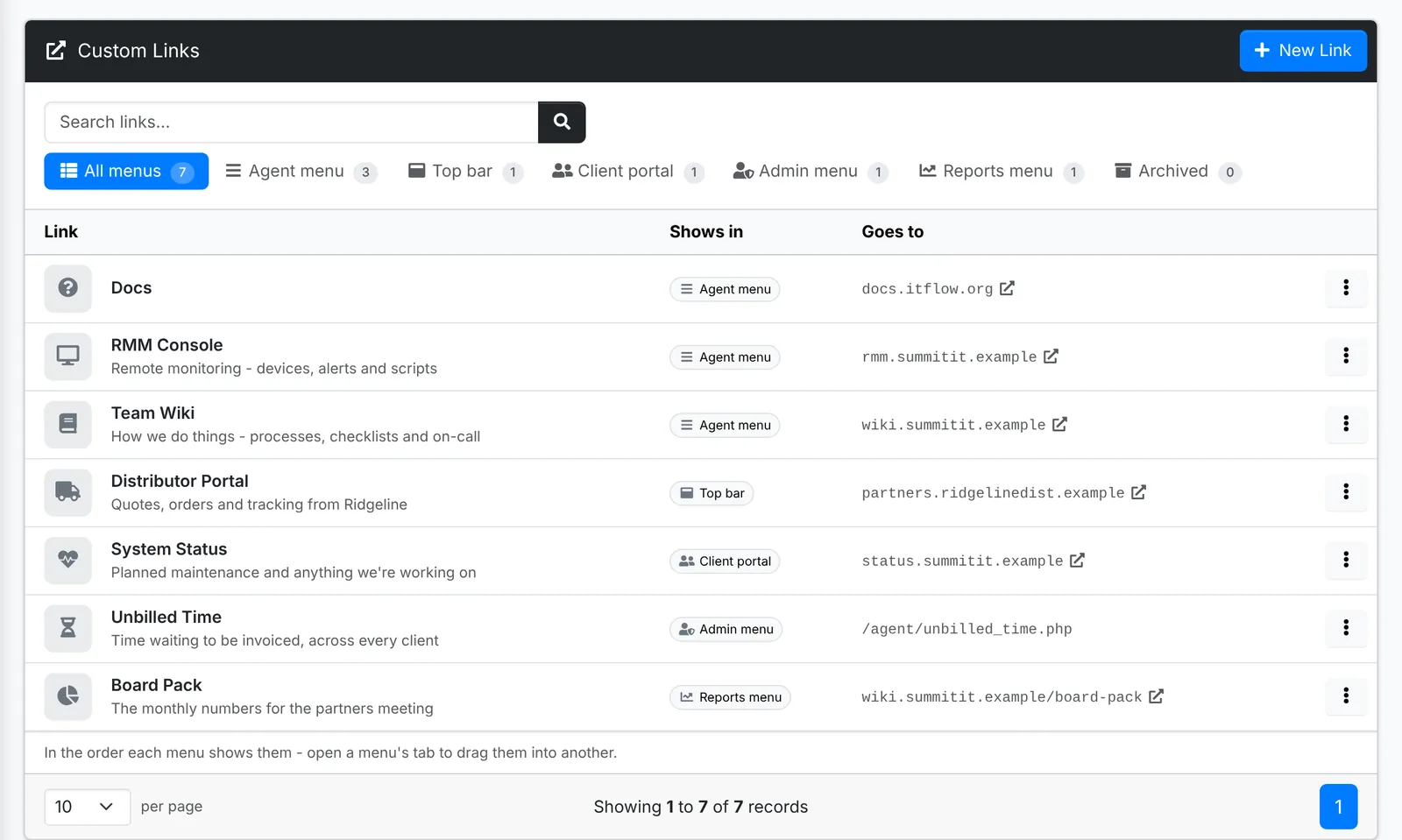
Admin > Custom Links adds your own links to ITFlow's menus - your RMM, your team's wiki, a distributor's portal. There's a tab for each menu a link can show in, with how many it holds, plus All menus and Archived. Each link shows its icon, what it's for, where it shows and where it goes. A link whose address can't work is flagged.
Click New Link, or Edit on a link's menu:
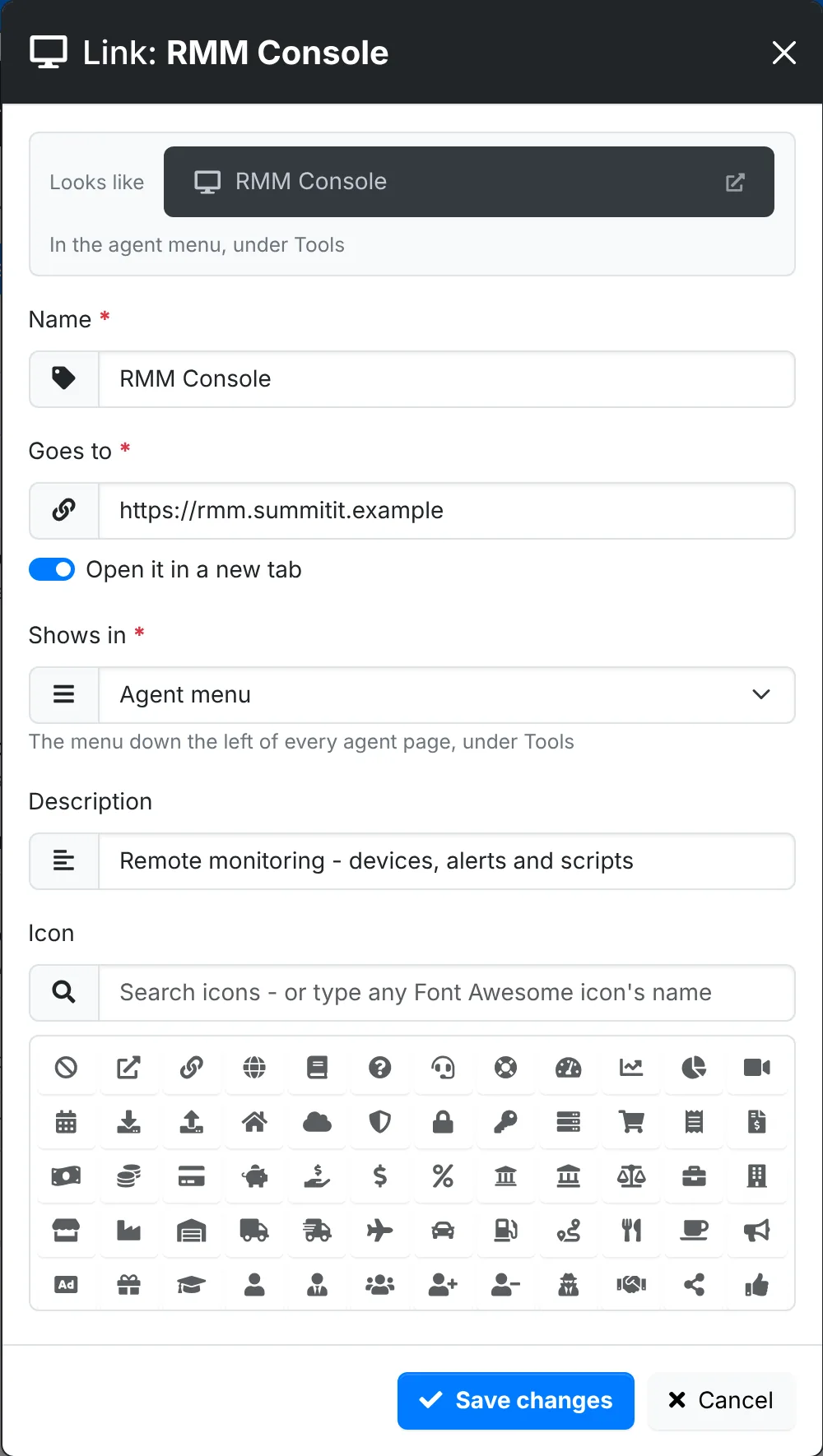
- Looks like shows the link in its menu as it will be.
- Name, and Goes to - a web address, a page of ITFlow such as
/agent/unbilled_time.php,mailto:,tel:, or a remote tool such asrdp:orssh:. Ajavascript:ordata:address isn't allowed. - Open it in a new tab switches itself on for another site and off for a page of ITFlow, until you change it.
- Shows in - the Agent menu (under Tools), the Top bar (as an icon, with its name when pointed at), the Client portal, the Admin menu (under Links) or the Reports menu.
- Description - shown when someone points at the link.
- Icon - search the icons, or type any Font Awesome icon's name.
On a menu's tab, drag the links into the order the menu shows them in, or use Move up and Move down. A new link goes at the end of its menu. Copy makes the same link again, to put it in a second menu too. Archive hides a link without losing it, Restore brings it back, and Open tries it.
Numbering
Tickets, projects, quotes, invoices and recurring invoices each have a Prefix and a Next number, on their own settings pages. Each page shows what the next one will be called, and the last one made, so you don't reuse a number by mistake.
Telemetry
Send the ITFlow project a nightly report shares how your install is used - how many of each thing, and which features are switched on - to help the project decide what to work on. It holds no names of clients or contacts, no email addresses and nothing anyone wrote, and the page shows exactly what goes.