Knowledge Base
How-tos, fixes and policies written once for every client, shared in their client portal or on a public help center, offered on tickets, with reviews, readers' feedback and versions to keep them right.
The Knowledge Base is for what your team explains again and again - setting up email on a phone, the printer that shows offline, what to do with a phishing email. You write each one once, as an article, and it's there for every client. Share the ones your clients can use, and they read them in their client portal - or on a public help center that anyone can open.
A client's own documentation still goes in their Files and documents. The Knowledge Base is for what isn't any one client's.
Write an article
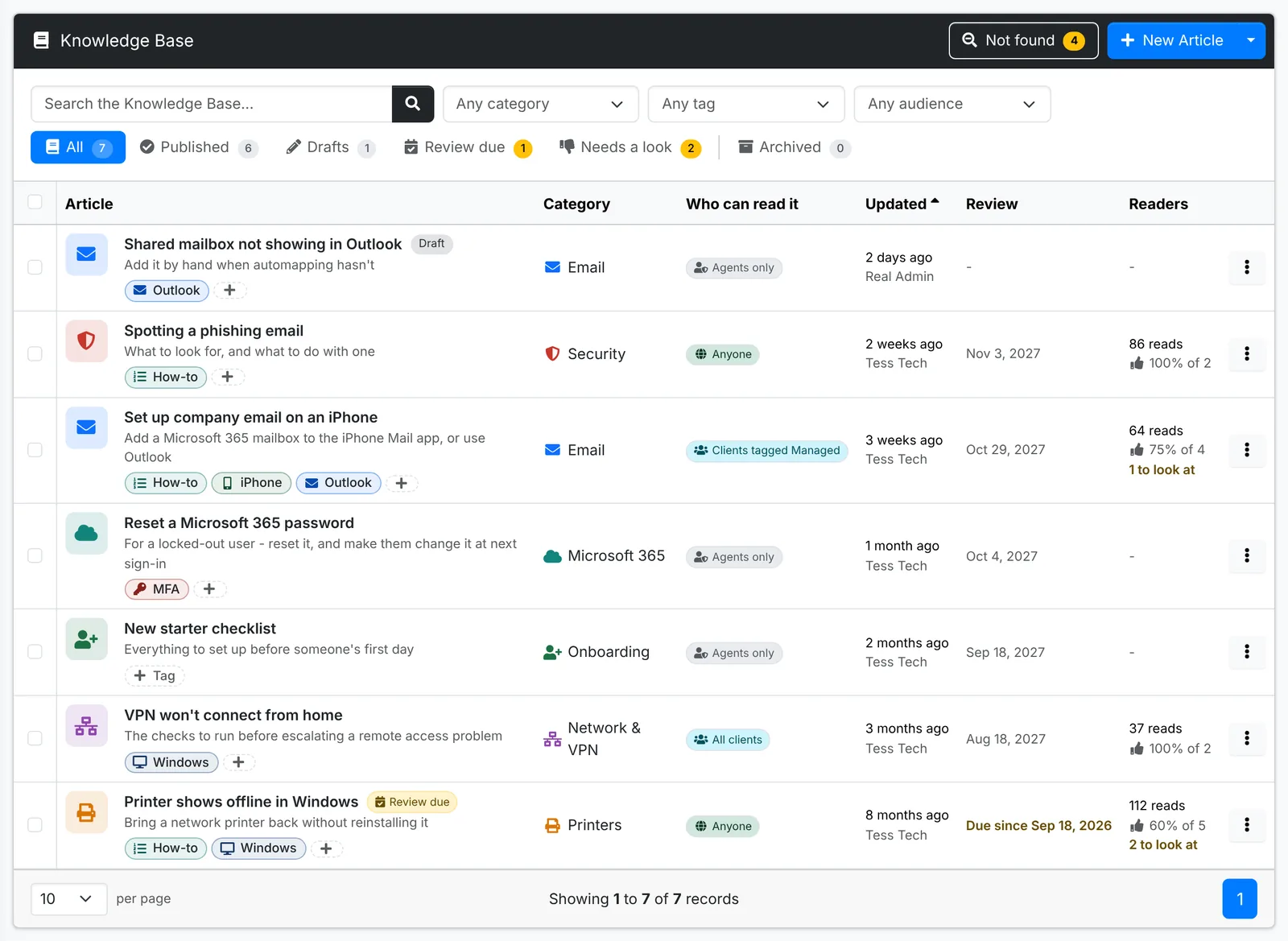
- Open Knowledge Base in the main menu and click New Article.
- Give it a Title, and a Summary - one line on what it helps with. The summary shows under the title in the list and in search.
- Pick a Category, add Tags if you like, and choose how often it's reviewed under Review.
- Under Who can read it, choose who it's for - see Share an article. New articles start at Agents only.
- Write the article in the editor. Headings, lists, tables, links and pictures all work - paste a screenshot straight in.
- Leave Published on if it's finished, or turn it off to keep it as a draft.
- Click Create Article.
A draft is marked Draft until it's published. Publish one from its page, or from its ⋮ menu in the list.
Find an article
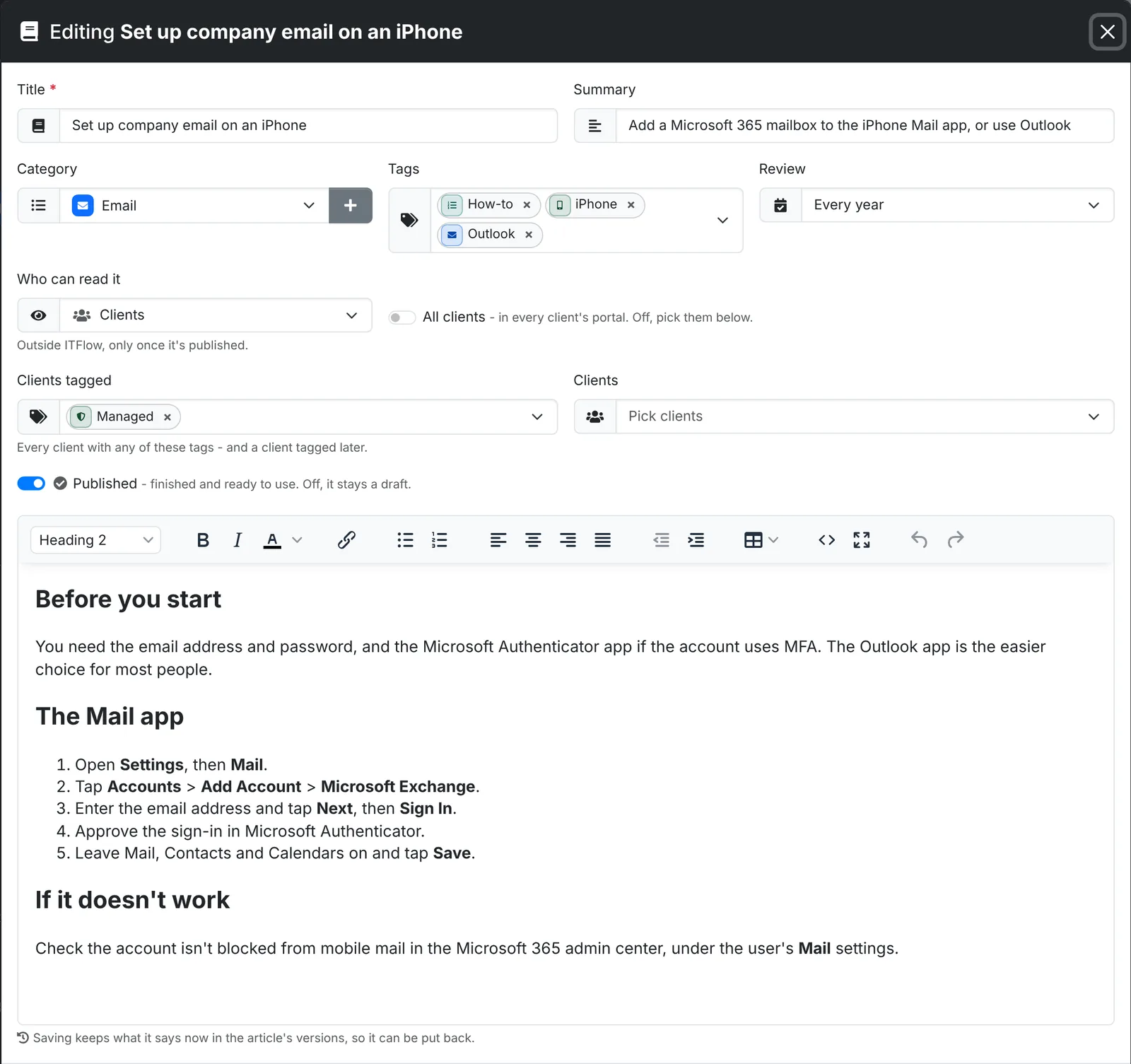
The list searches titles, summaries, the words in the articles and their tags. Narrow it with Any category, Any tag and Any audience, or pick a view along the top:
- All - every article that isn't archived
- Published - the finished ones
- Drafts - the ones still being written
- Review due - the ones due for a read-through (see below)
- Needs a look - the ones readers said didn't help, that nobody has dealt with yet - see What readers think
- Archived - kept, but out of the way
The Readers column shows how many times each article was read by your clients, and the share of them who said it helped. Click its heading to put the most read first.
Search everywhere in the top bar finds articles too, in their own Knowledge Base group, and the full results page also looks through the words inside them.
Tick articles in the list to change several at once: Set category, Publish, Make drafts, Archive, Restore or Delete.
Read an article
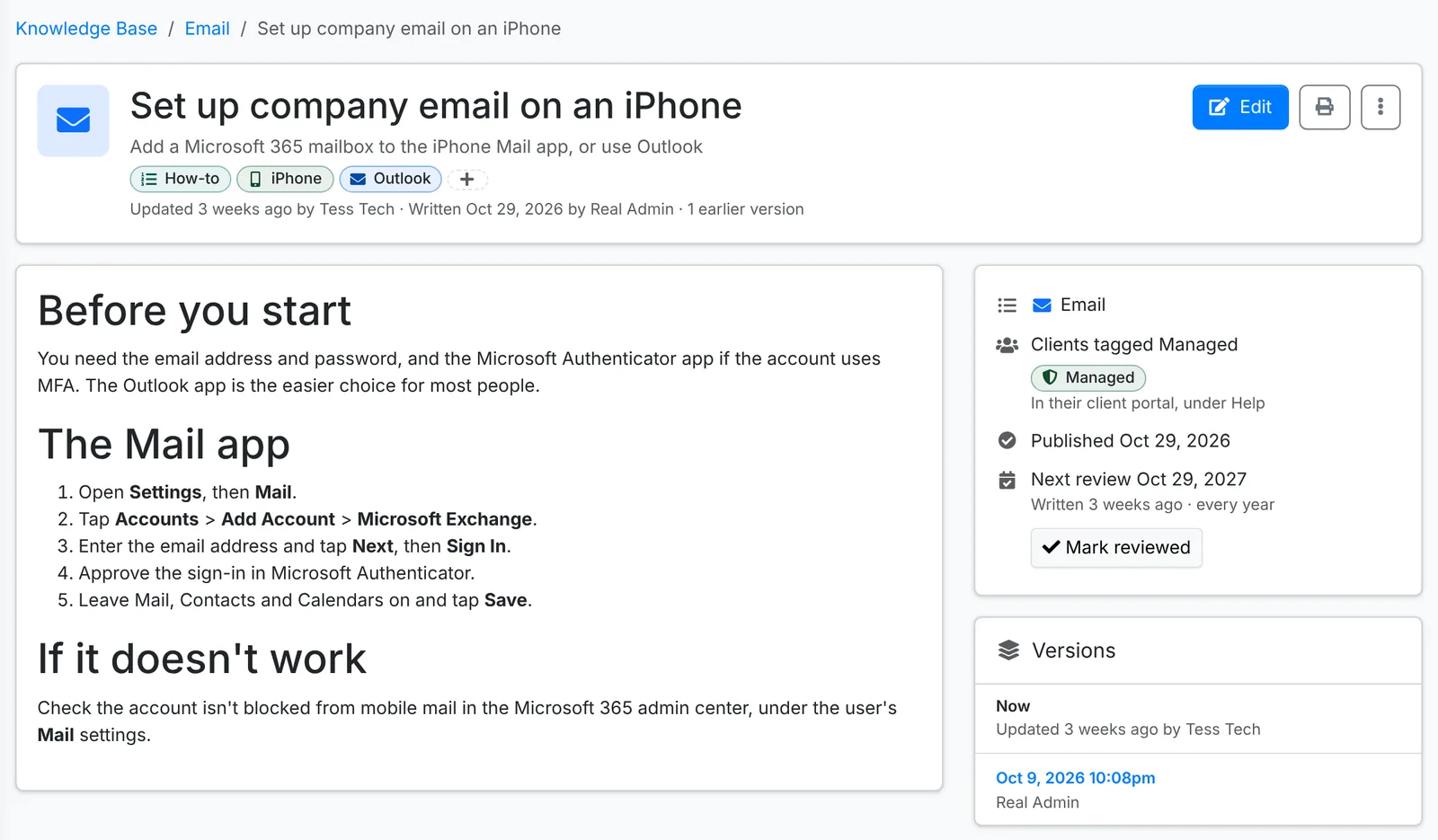
Click an article's title to open it. Along the top are Edit, Publish for a draft, Review with AI when AI is set up, print, PDF, and the ⋮ menu with Make draft, Mark reviewed, Copy, Archive and Delete. Its files are under it. The column on the right shows its category, who can read it, whether it's published, when it's next reviewed and its earlier versions.
Versions
Every edit keeps what the article said before. Click a version under Versions to read it, and Restore this version to put it back - what the article says now is kept as a version in turn.
Files
Files go with an article - a script, a form, a vendor's setup guide. Under the article, choose them in Files and click Add. An article can have up to 20, of the same kinds the client Files take.
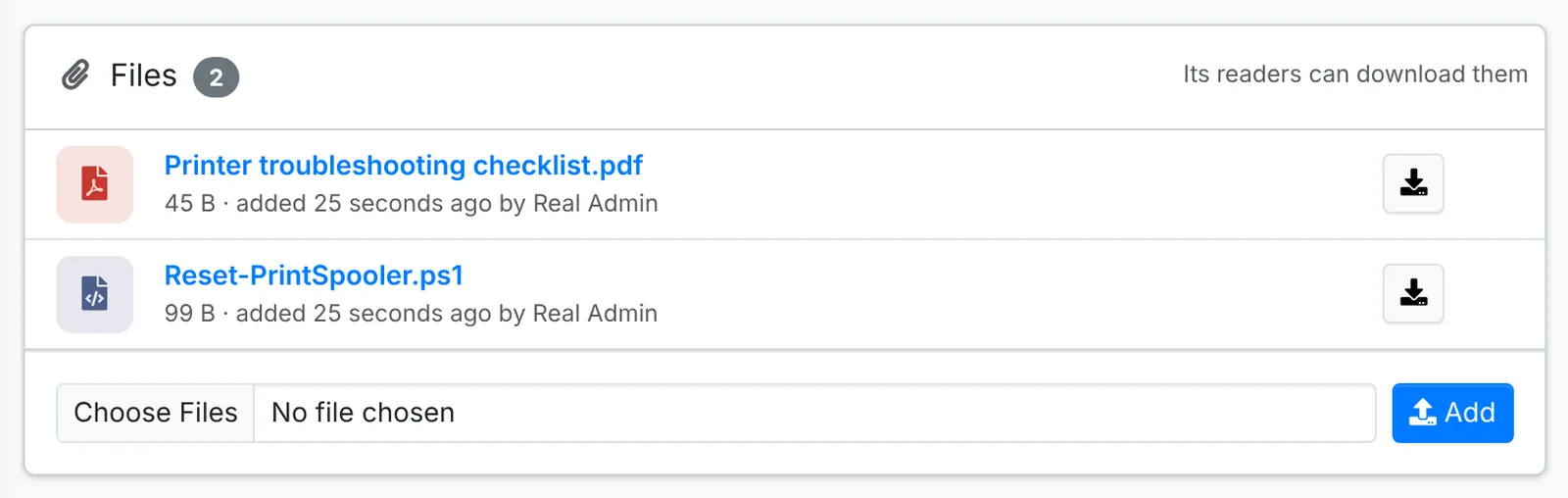
Whoever can read the article can download them - your team here, and the readers it's shared with in the client portal or on the public help center. Click a file's name to open it, or the download button to save it. The bin takes one off. Copy copies them with the article.
Keeping articles up to date
Review says how often an article should be read through to check it's still right: Every 3 months, Every 6 months, Every year or Every 2 years - or Never. New articles start at Every year.
Once that long has passed since the article was written, edited or last reviewed, it's marked Review due, and it shows in the Review due view. Read it through, fix anything that's changed, and either save your edit or click Mark reviewed. Drafts and archived articles aren't reviewed.
The number beside Knowledge Base in the main menu counts the articles due for review and the ones readers said didn't help.
Review with AI
With AI set up, Review with AI reads an article as a senior engineer would and says whether it Looks good, Needs work or is Out of date - what's unclear, missing or risky to follow, and what's old. For an article clients or anyone can read, it also points out anything about one client - a name, a person, a server - that shouldn't be in it, and steps written for a technician rather than for them.
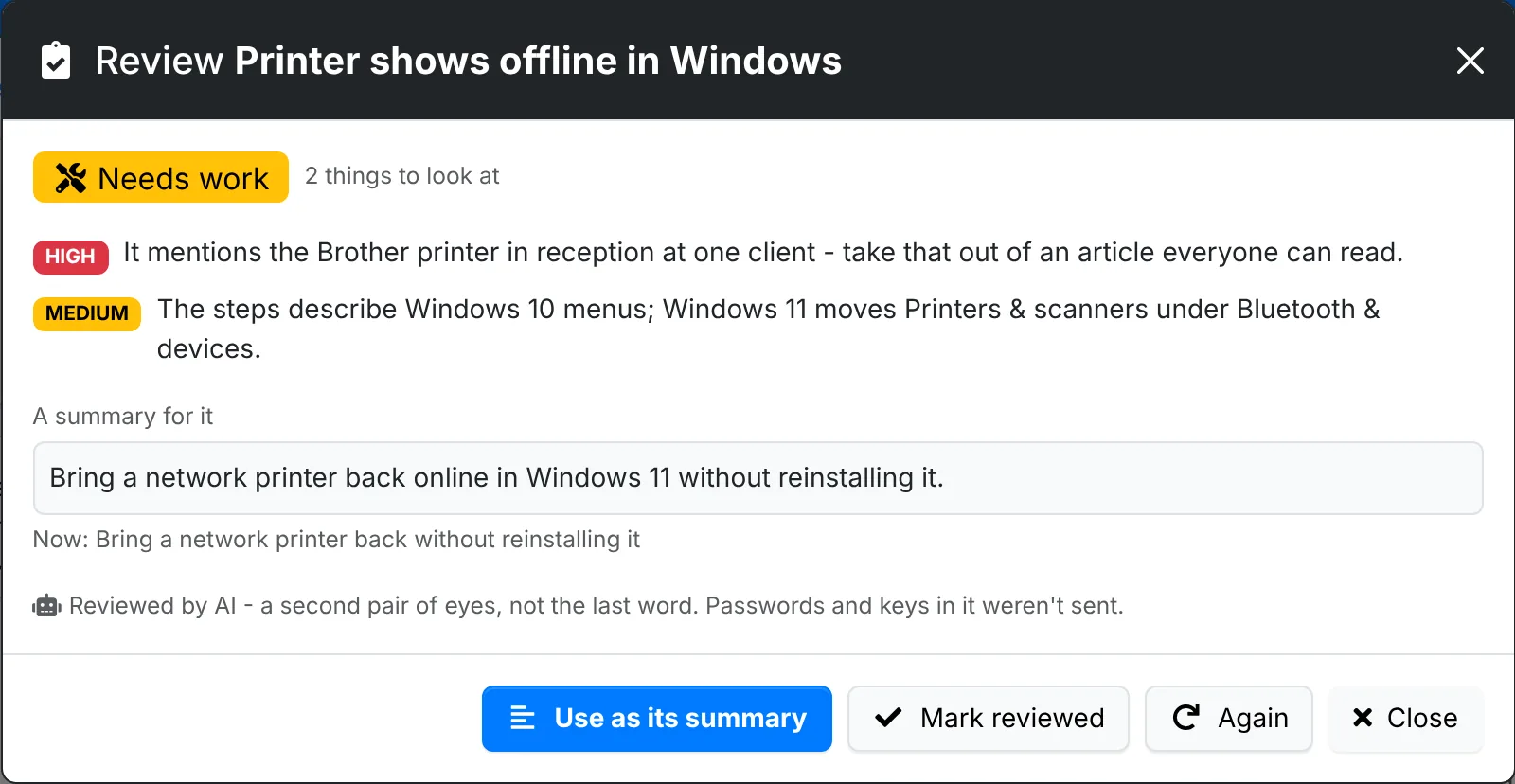
It suggests a summary too - Use as its summary saves it. Mark reviewed is there when the article is reviewed on a schedule. Passwords and keys in the article aren't sent. See Using AI.
Copy an article
Copy makes a new draft from an article, with its pictures, its tags and who can read it - to start a similar one without rewriting it.
Share an article
Who can read it, in an article's window, says who it's for:
- Agents only - your team, here in ITFlow. Every new article starts here.
- Clients - your clients' contacts, in their client portal under Help. Then say which clients:
- All clients - every client
- Clients tagged - every client with any of the client tags you pick, such as Managed. A client given the tag later can read it too, and one whose tag is taken off no longer can.
- Clients - some clients by name
Tags and names can be picked together: a client that matches either can read it.
- Anyone - every client's portal, and the public help center while it's on.

Only published articles are shown outside ITFlow. A draft or an archived article stays with your team, whoever it's set for.
The list's Who can read it column shows each article's, and Any audience filters by it. On an article's page, the right-hand column says who can read it and where they find it.
Keep anything about one client - names, addresses, passwords - out of an article you share.
What clients see
Once a client has an article to read, their contacts see Help in the client portal's top bar. It lists the articles shared with their company, by category, with a search box. Each article has Print, Still stuck? Ask us, which starts a ticket about it, its files to download, and Was this helpful? under it - see What readers think. Every contact with portal access can read them, whatever their roles.
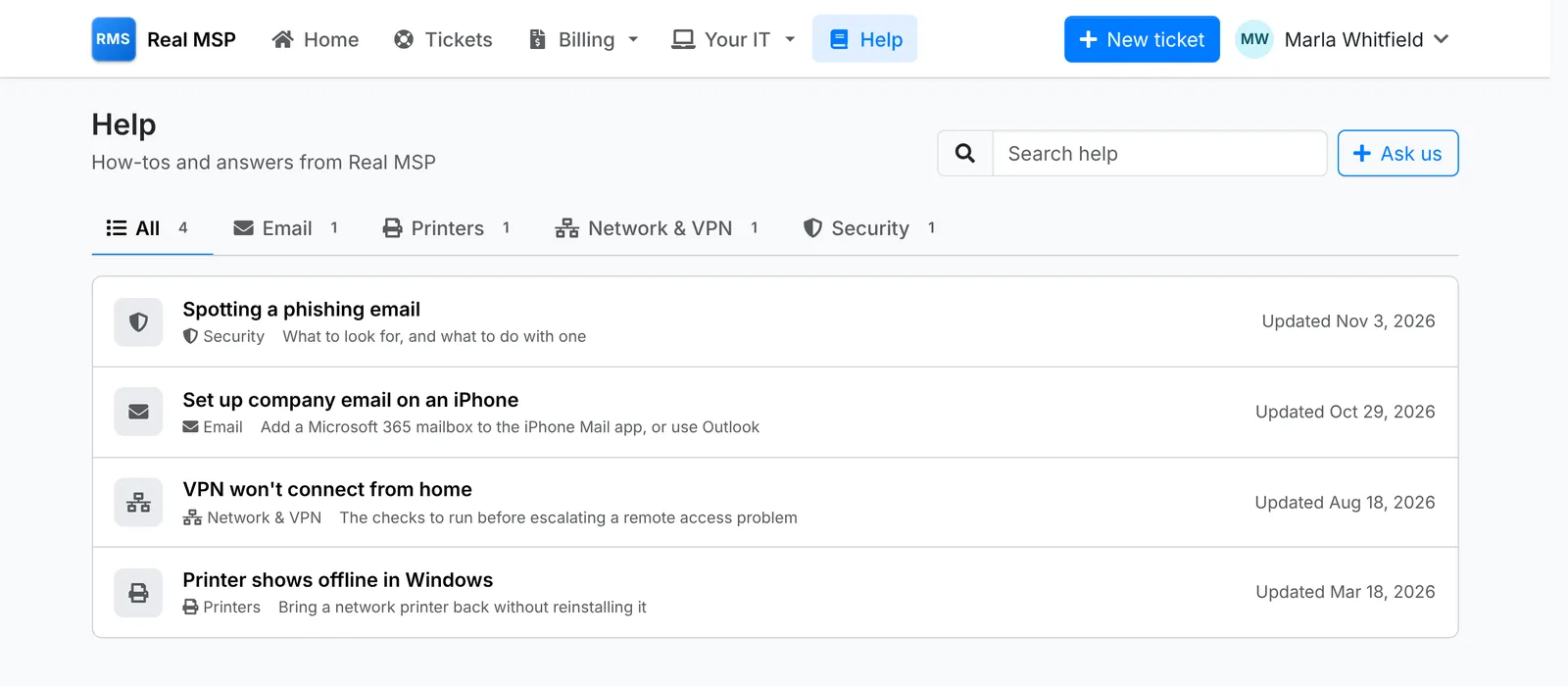
To see what one contact sees, use View portal as them on their page - see What clients see.
The public help center
Articles for Anyone can also go on a public help center: a page of its own, with your logo, that anyone with the link can read without signing in. Put it on your website, or in your email signature. It has the same categories and search as the portal.
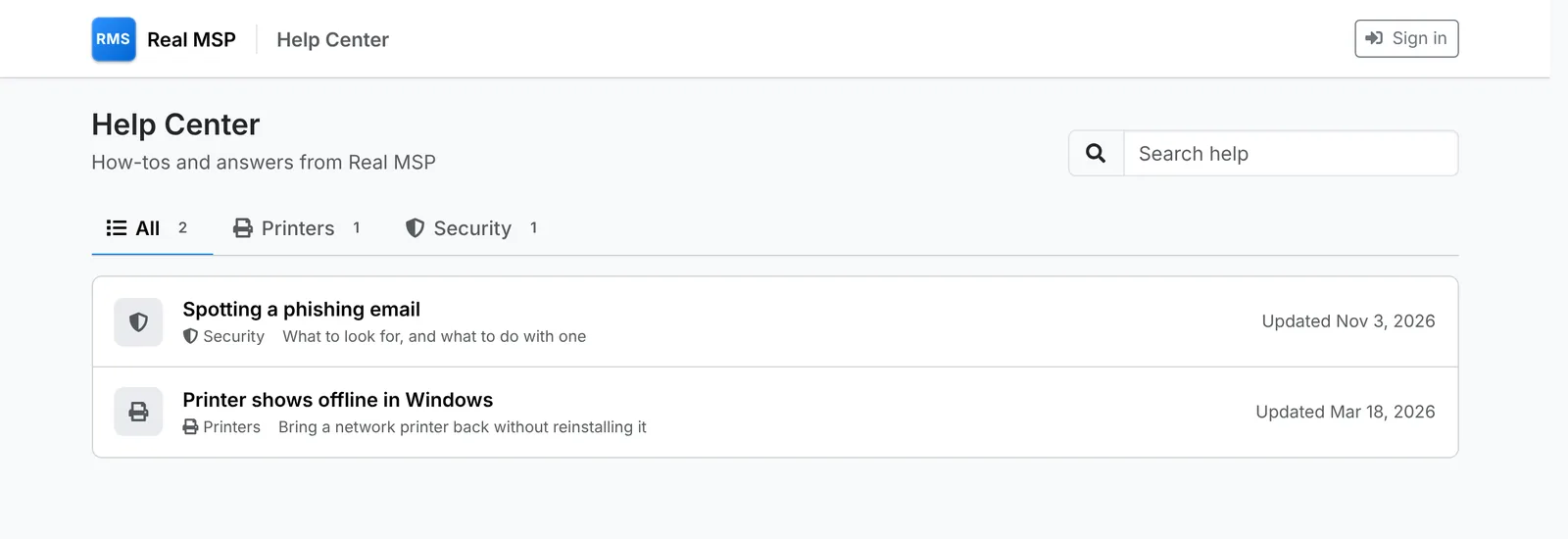
It's off to start with. An admin switches it on in Admin > Settings > Knowledge Base, which also has its link to copy. While it's on:
- the client portal's sign-in page links to it, as Help center
- an article for anyone shows its own public link on its page, to copy and send
Search engines are asked not to list it. While it's off, its link says there's nothing there, and articles for anyone are only in your clients' portals.
On tickets
Send an article in a reply
Above a ticket's reply box, beside Canned response, Knowledge Base opens the published articles that look like they answer the ticket, going by its subject and what was asked. The number on the button is how many there are. Type in the search box to find any other article.
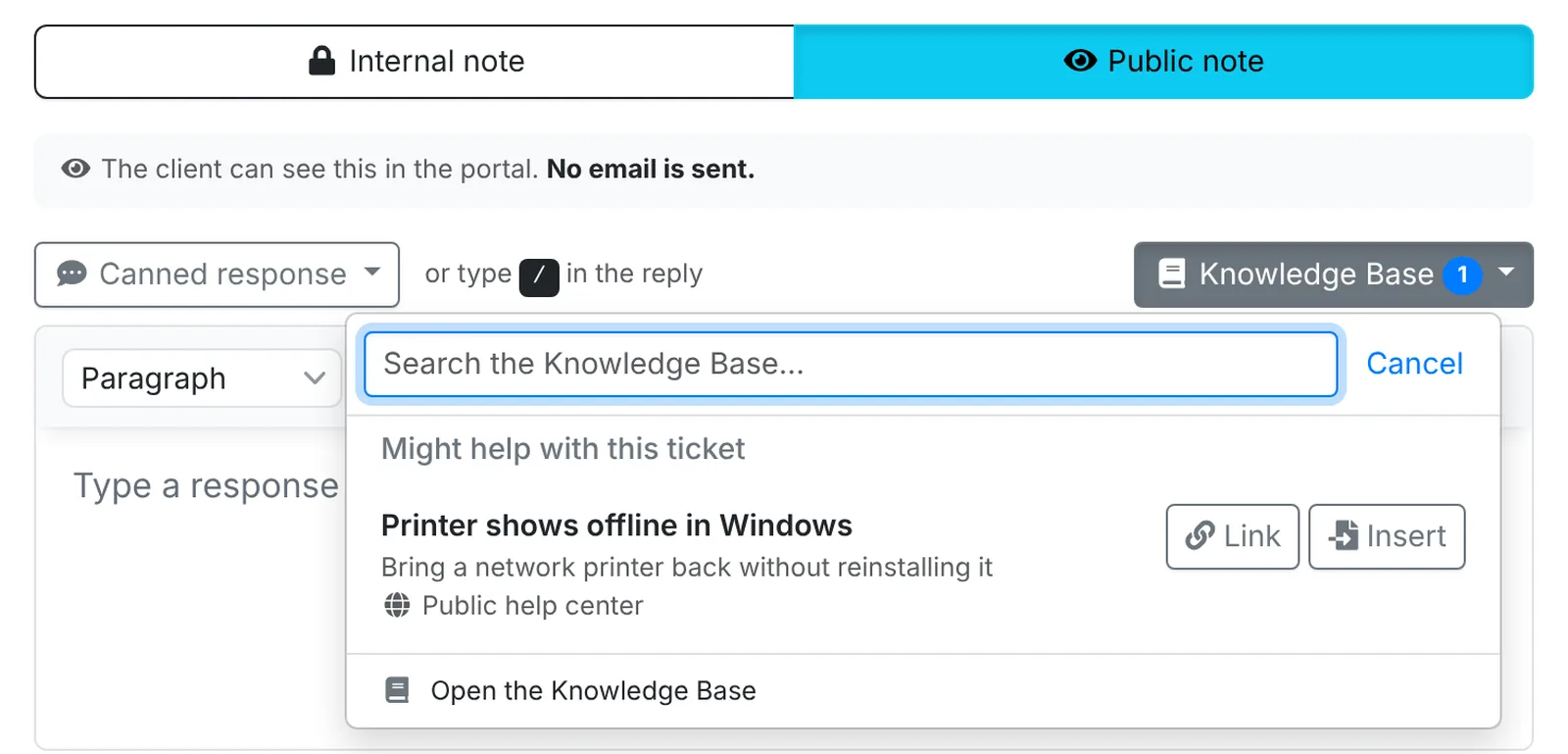
Each article says how the ticket's client could read it - on the Public help center, In their portal, or not at all (Agents only, or Not shared with them):
- Link puts a link to the article in your reply where the cursor is - to the public help center while it's on and the article is for anyone, otherwise to their portal, where they sign in to read it. It's only there when the client can read the article.
- Insert puts what the article says in your reply, pictures and all - for an article they can't read, or when the steps are better in the reply itself. Read it through for this ticket before you send it.
Click an article's title to read it first, in a new tab.
Write up a ticket
A solved ticket often makes a good article. In the ticket's ⋮ menu, click Write up for the Knowledge Base. It opens a new article, as a draft for Agents only:
- With AI set up, AI writes it from the ticket as a how-to for any client - symptoms, cause and the steps that put it right - leaving out the client, its people, and the names and addresses of its systems. Passwords and keys are always left out. See Using AI.
- Without AI, it starts with the ticket's subject and what was asked, for you to write the steps.
Read it through, change what you like, and click Create Article. The ticket's history says it was written up. Share it once you're happy with it.
Write up as a document, in the same menu, is for a how-to about one client's own systems. It goes in their documents instead.
When clients raise a ticket
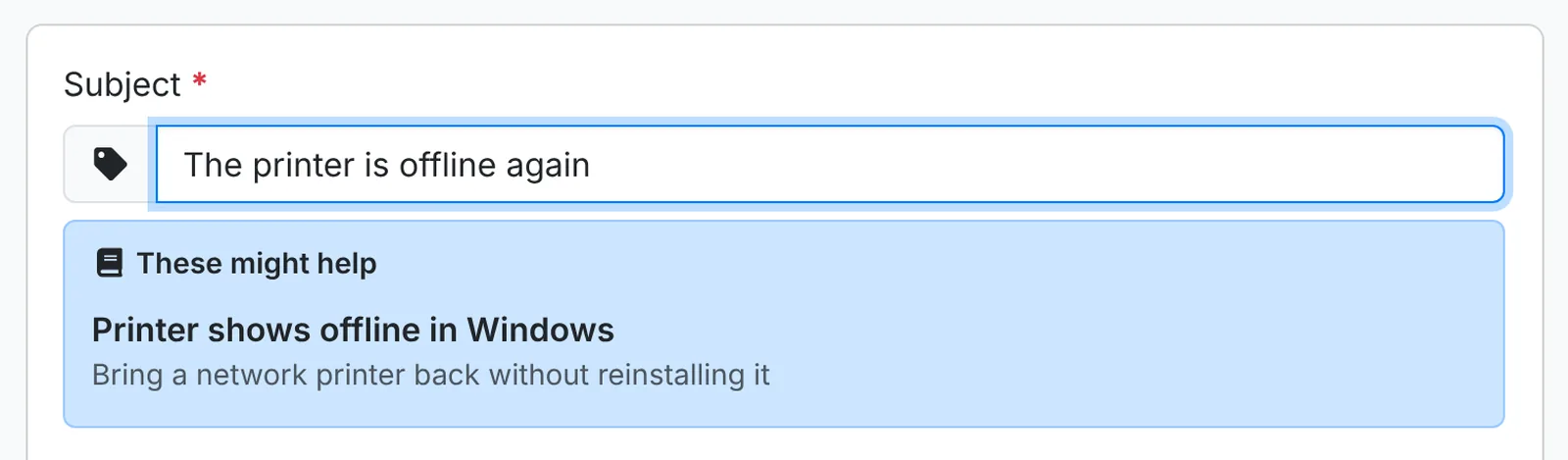
In the client portal, as a contact types a new ticket's subject, the Help articles that might answer it show under it. Each opens in a new tab, so the ticket they're writing stays put. Only the articles shared with their company are offered.
What readers think
Was this helpful?
Under each article in the client portal and on the public help center, readers are asked Was this helpful? Yes thanks them. No asks what they were looking for, and in the portal offers a ticket instead.
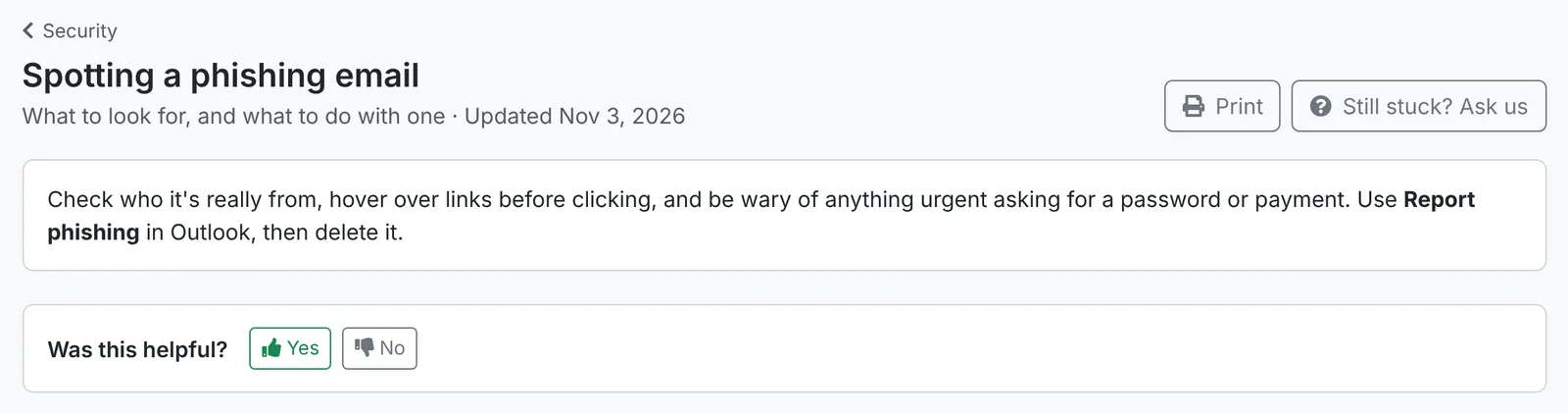
A contact has one answer an article - if they answer again, it replaces the first. On the public help center it's one answer a visit.
Each article also counts how many times it was read in the portal and on the help center, once a visit. View portal as them doesn't count, and nor does reading it here.
Deal with feedback
On an article's page, the right-hand column says how many times it was read and how many said it helped. Below it, Feedback lists what readers said didn't help: what they were looking for, who said it - the contact and their client, or someone on the public help center - and when.
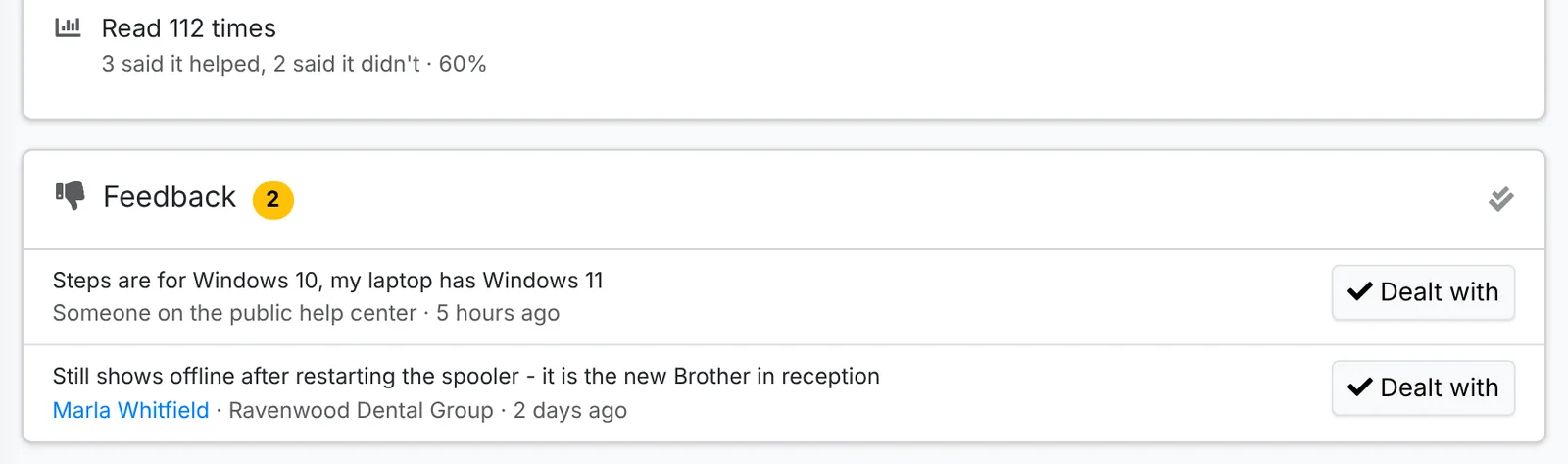
Fix the article if it needs it, then click Dealt with. It stays on the list, faded, with who dealt with it, and the article leaves Needs a look. With more than one, the ✓✓ button at the top deals with them all.
Searches that found nothing
Not found, at the top of the Knowledge Base list, shows what readers searched Help and the public help center for in the last 90 days and didn't find - where, and how many times. It's only there when there's something on it.
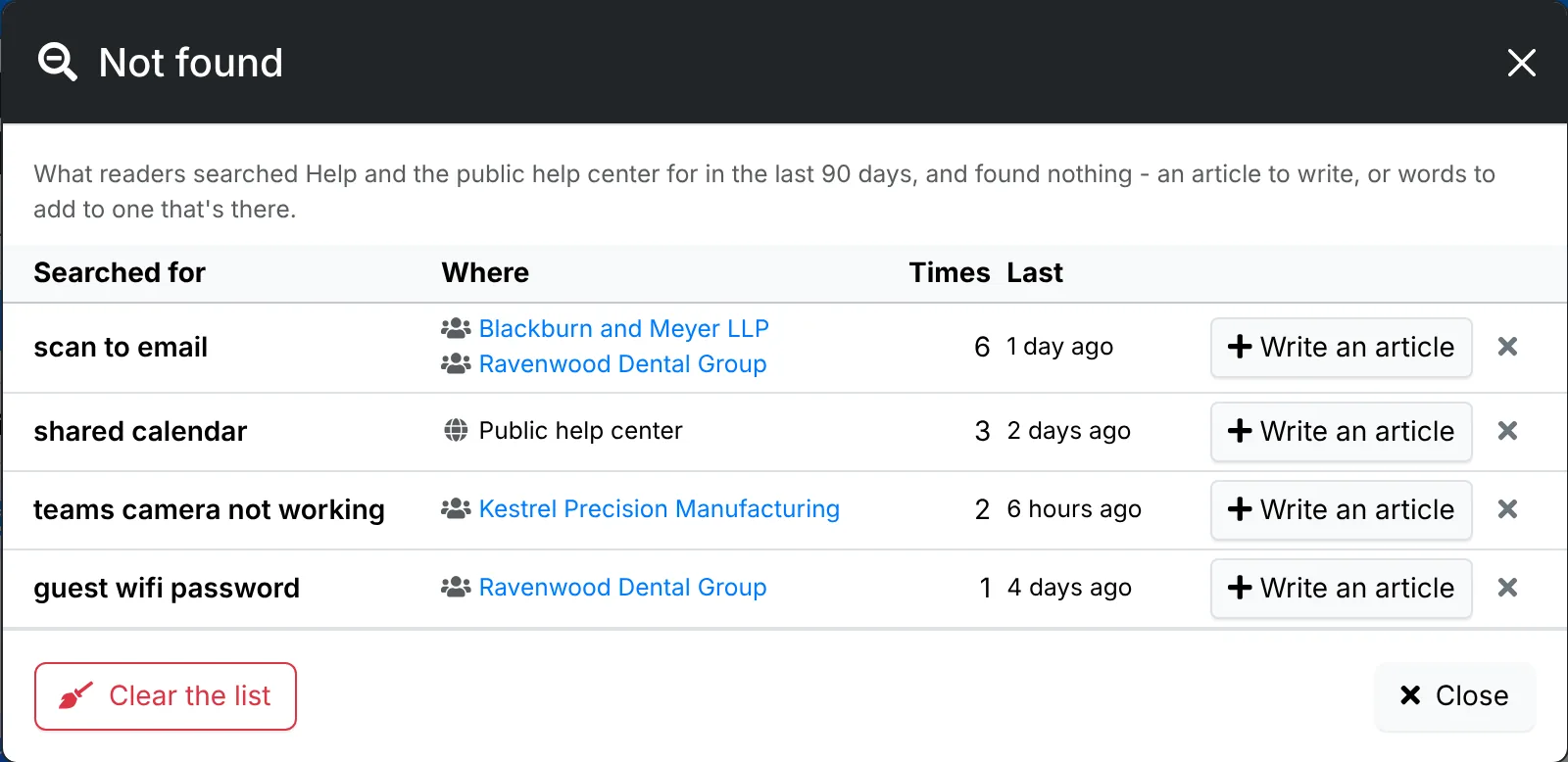
Each one is an article to write, or words to add to one that's there:
- Write an article starts a new one with the words they searched for as its title.
- The × takes a search off the list, and Clear the list all of them. A search made again comes back.
Start from a client's document
A how-to written for one client can often help everyone. On the document's page, open the ⋮ menu and click Copy to Knowledge Base. It becomes a draft article, pictures and all. Take out anything that's only about that client - names, addresses, passwords - before you publish it.
Categories and tags
Admins set up the categories in Admin > Categories > Knowledge Base, each with an icon and a colour. An article's icon in the list is its category's. The tags are in Admin > Tags, as Article tags. Both are also in the menu beside New Article. See Categories and tags.
Admins can also add a category or a tag straight from an article's form.
Who can use it
Reading the Knowledge Base takes Support in an agent's role. Writing and changing articles takes Edit, and deleting them Full. See Roles and permissions.
The Knowledge Base can be switched off in Admin > Settings > Modules. Its articles are kept, and they're all there again when it's switched back on. While it's off, clients don't see Help in their portal, and the public help center is closed.