Sending a contract to sign
A contract as the client sees it, with its placeholders filled in - send it to sign by email or in the portal, countersign it, and keep the copy signed by both.
Every contract is also a document: who it's between, the agreement in a few lines, the response times for each priority, its terms, and a place for both sides to sign. Send it to the client to sign online - from a link in an email, or in the client portal - then countersign it, and they get a PDF signed by both of you.
The document
Document, on a contract's page, shows it as the client would see it today, with the placeholders in its terms filled in. Download PDF saves it, and the printer button prints it.
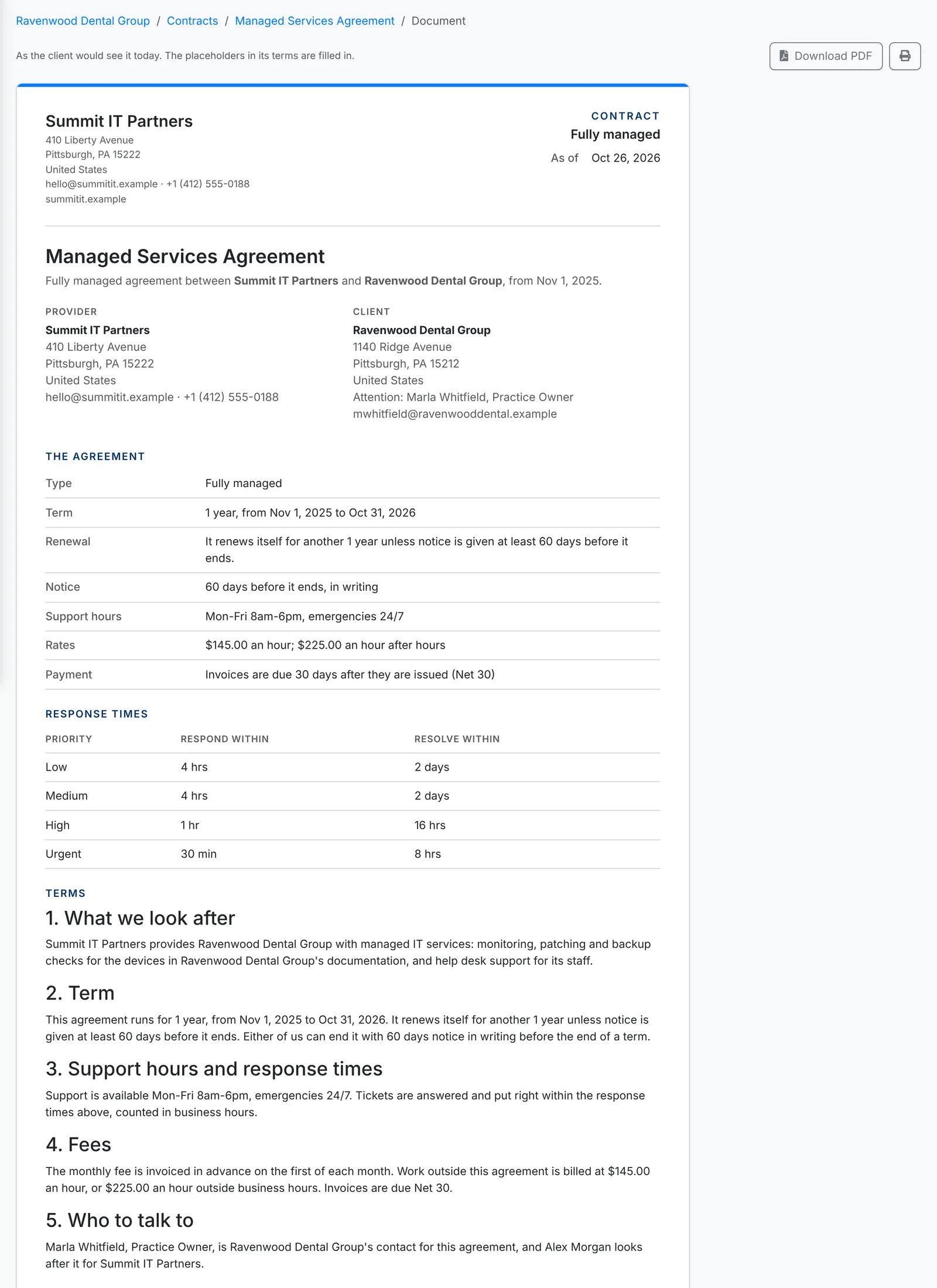
The agreement sums the contract up: its type, term, renewal, notice, support hours, rates and when invoices are due. Response times lists the SLA for each priority. Its Terms come next, then a place for each side to sign.
Placeholders
A contract's terms - and a template's - can use placeholders that fill in from the contract. They're listed under the terms editor, in the contract and template windows; click one to put it where the cursor is.
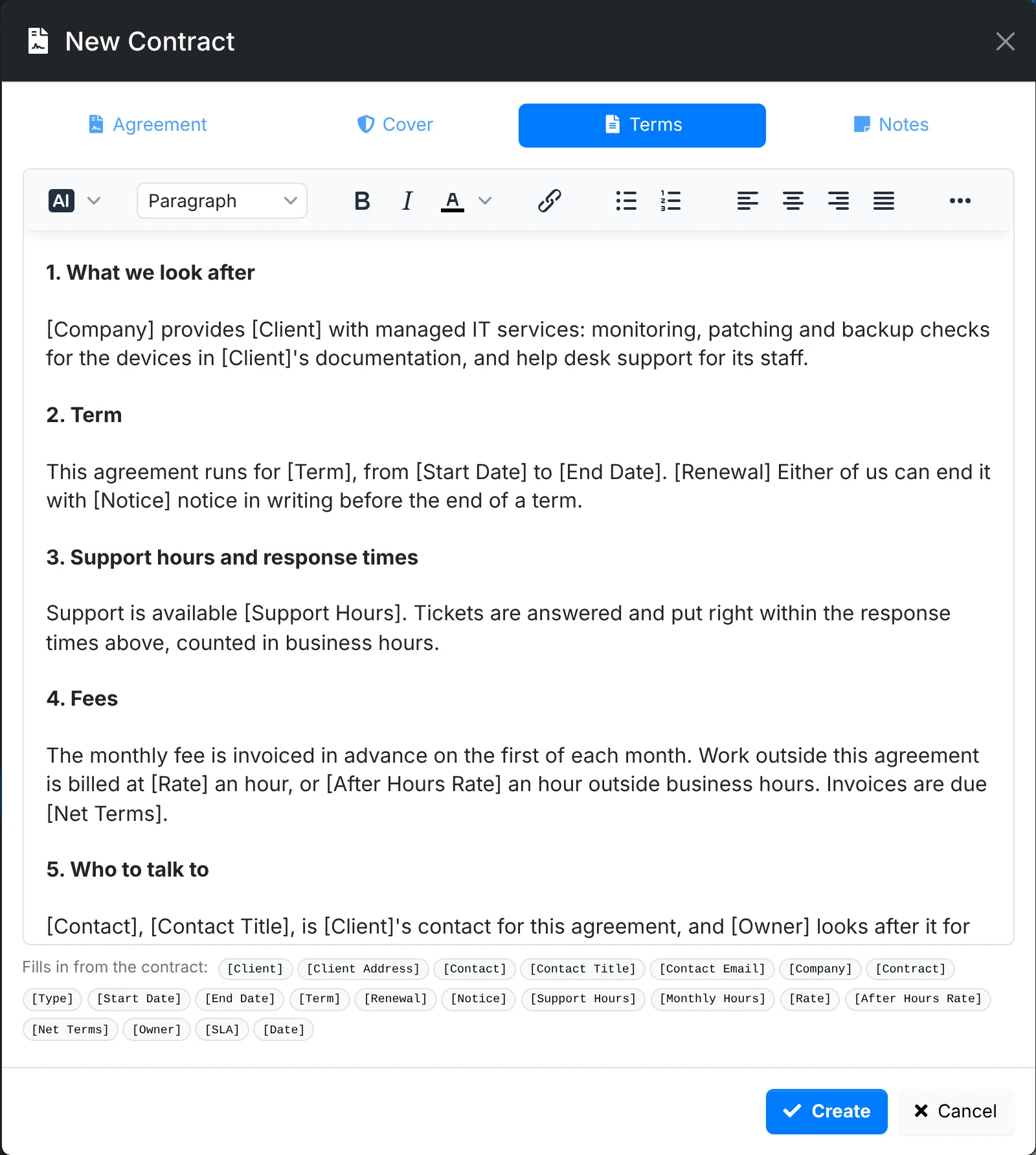
| Placeholder | Becomes |
|---|---|
[Client], [Client Address] | The client's name, and its main address on one line |
[Contact], [Contact Title], [Contact Email] | The contact on the contract |
[Company] | Your company |
[Contract], [Type] | The contract's name, and what kind it is - Fully managed |
[Start Date], [End Date], [Term] | The day it starts, its last day, and how long it runs - 1 year |
[Renewal], [Notice] | Whether it renews itself, in a sentence, and the notice to end it - 30 days |
[Support Hours], [Monthly Hours] | Its support hours, and the hours included each month - 10 hours |
[Rate], [After Hours Rate], [Net Terms] | The hourly rates, and when invoices are due - Net 30 |
[Owner] | Who looks after it for you |
[SLA] | On a line of its own, the response times for each priority, as a table |
[Date] | The day it's sent |
Anything nothing fills in - a contract with no contact, say - is pointed out before the contract goes out.
Send it to sign
- On the contract's page, click Send to sign.
- Pick Who signs - one of the client's contacts - or type a name and their email.
- Add A note for them, if you like. It goes in the email.
- Click Send. Preview shows the document first.
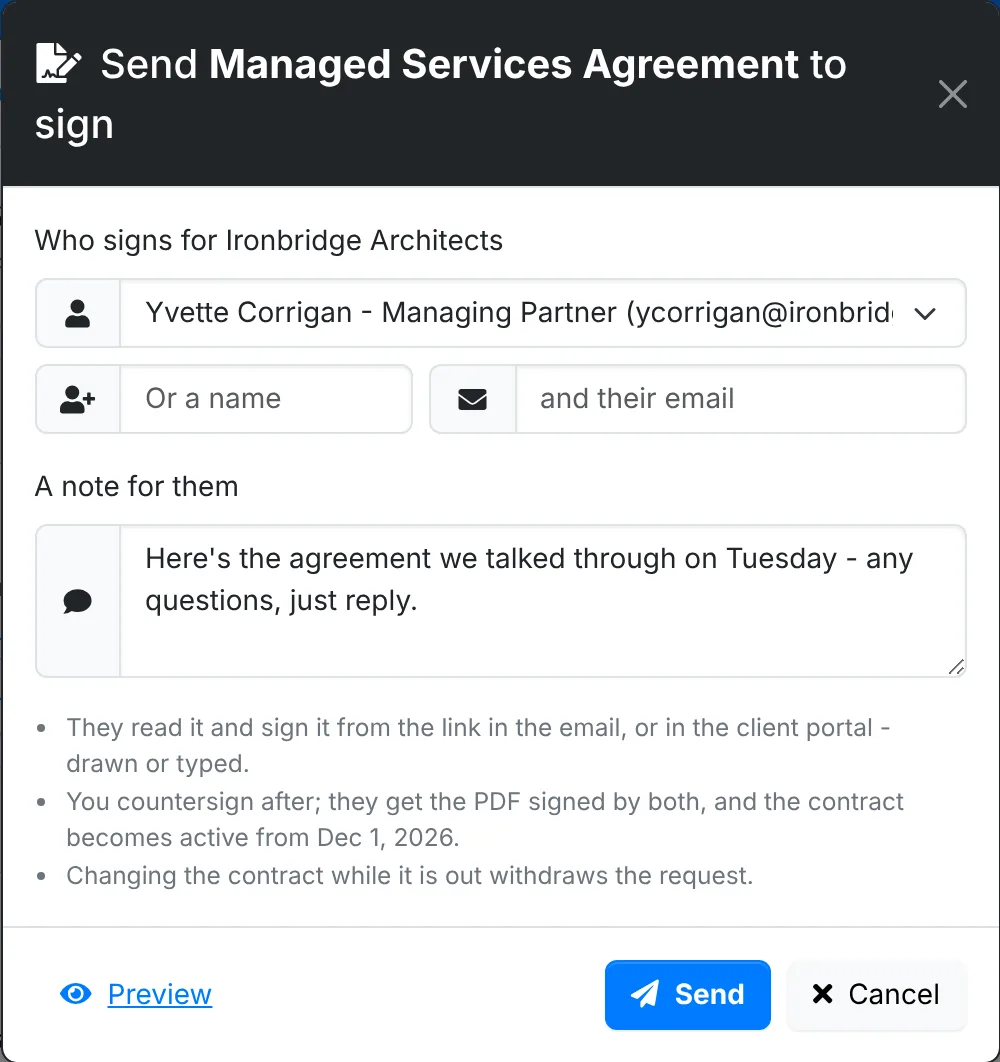
They're emailed a link to read and sign it. They can sign from the link, or in the client portal, where Billing > Contracts lists their contracts and the home page shows the ones waiting for their signature.
What the client sees
The link opens the contract with a signing panel alongside it, in your portal's look.
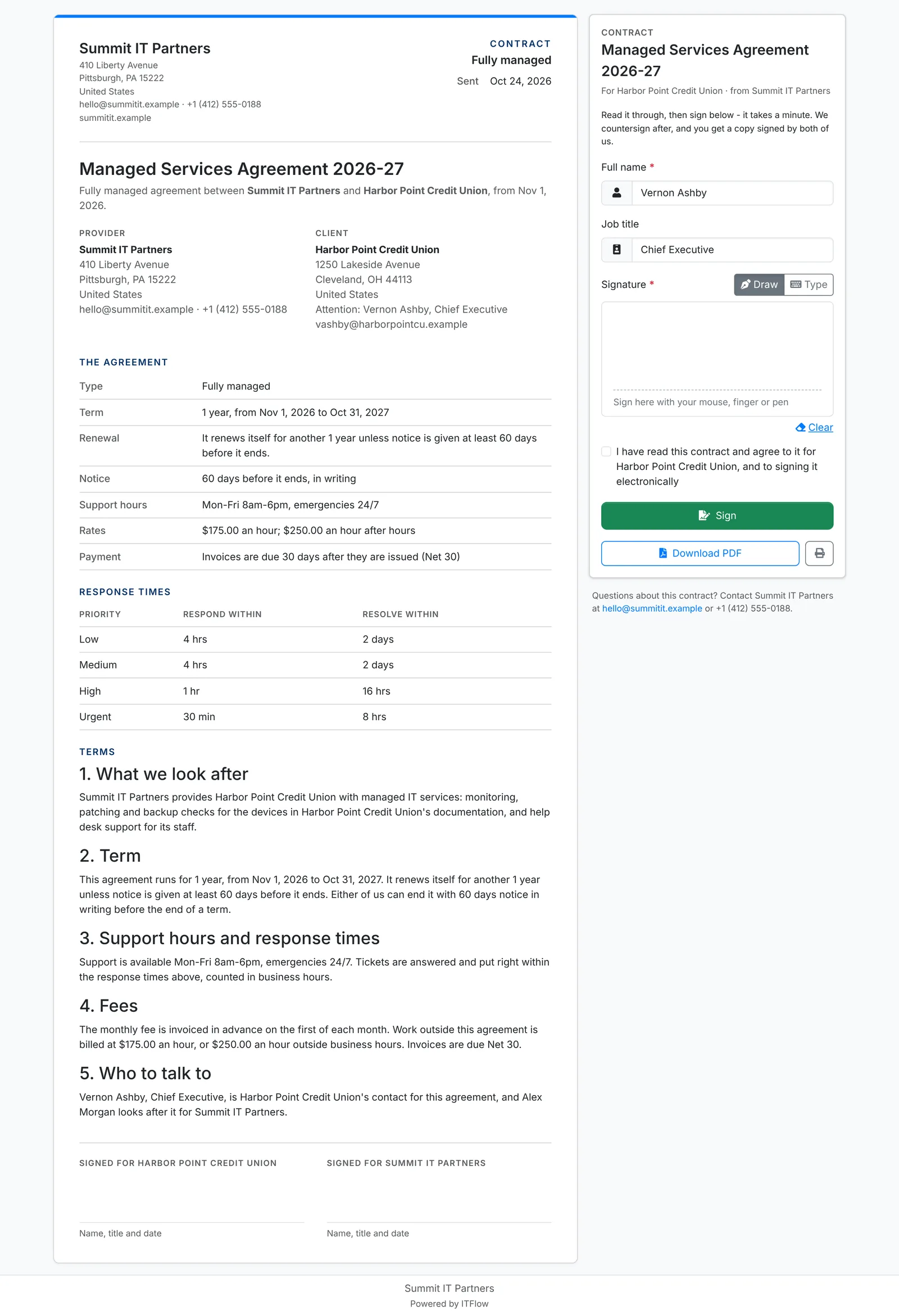
They put in their Full name and Job title, and sign: Draw their signature with a mouse, finger or pen, or Type their name. Then they tick that they've read it and agree to sign electronically, and click Sign. They can also download it as a PDF, or print it.
Countersign
When they've signed, the contract's owner is emailed and agents are notified in ITFlow. The contract shows on the Signing tab of the contracts list until you countersign it.
- On the contract's page, click Countersign.
- Sign for your side, the same way: your name, job title and signature.
The client is then emailed the PDF signed by both of you. A draft becomes active from its start date - or from that day, when it has none.
The Signing card
The Signing card on the contract's page says where it stands - sent, opened, signed or countersigned - with when, and for a signature, from where.
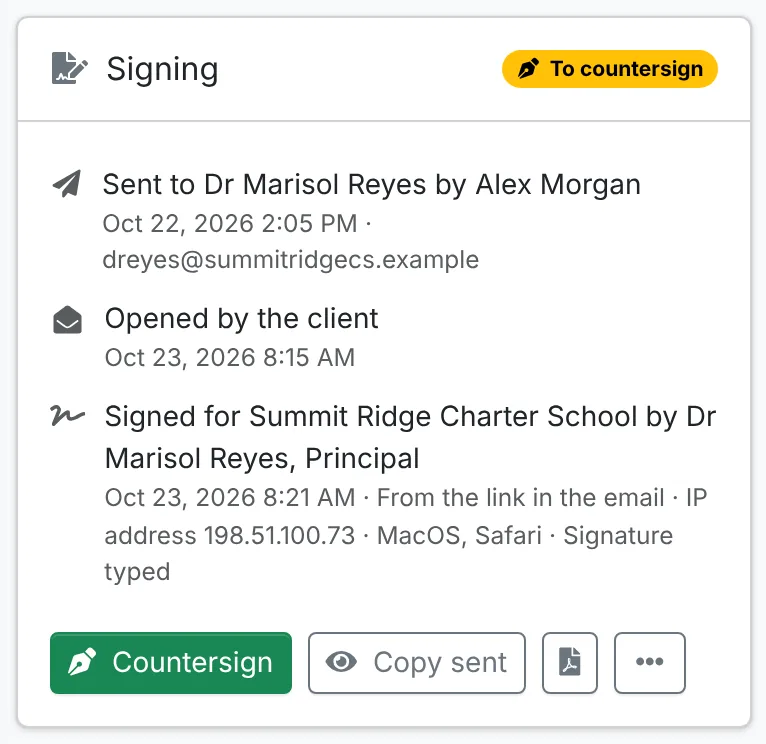
It also has the signing link to copy, Send the link again, Withdraw, the copy sent or signed - Copy sent or Signed copy - to view or download, and the requests before this one.
The signed PDF ends with how it was signed: when it was sent and opened, who signed it, when and from which IP address, and the document's SHA-256 fingerprint.
Changing a contract while it's out for signature withdraws the request when what it says has changed, so no one signs an old version. Send it again for the new one. A signed contract that no longer matches the copy signed says so on its page.
Nothing is signed on a contract that was cancelled or has ended, or whose client was archived. A request still out - or waiting for you to countersign - is withdrawn when you cancel the contract or archive the client, and overnight when the contract ends. The link, the client portal and Countersign then refuse it. An archived client's contracts aren't sent to sign.
The contract emails - Please sign, Signed by the client, the signed copy, the reminder before the notice date and Prepaid hours running low - are in Admin > Mail > Previews with the rest.