Importing from a spreadsheet
Bring clients, contacts, locations, vendors, credentials, networks, assets, domains, certificates, licenses, services and products into ITFlow from a CSV file, and see what every row will do before anything goes in.
Clients, contacts, locations, vendors, credentials, networks, assets, domains, certificates, licenses, services and products can all come in from a spreadsheet, through the same Import window. It's under the arrow beside the list's New button. Everything but clients and products belongs to a client, so open the client first - except vendors, which can also be your own: import them from your own Vendors list.
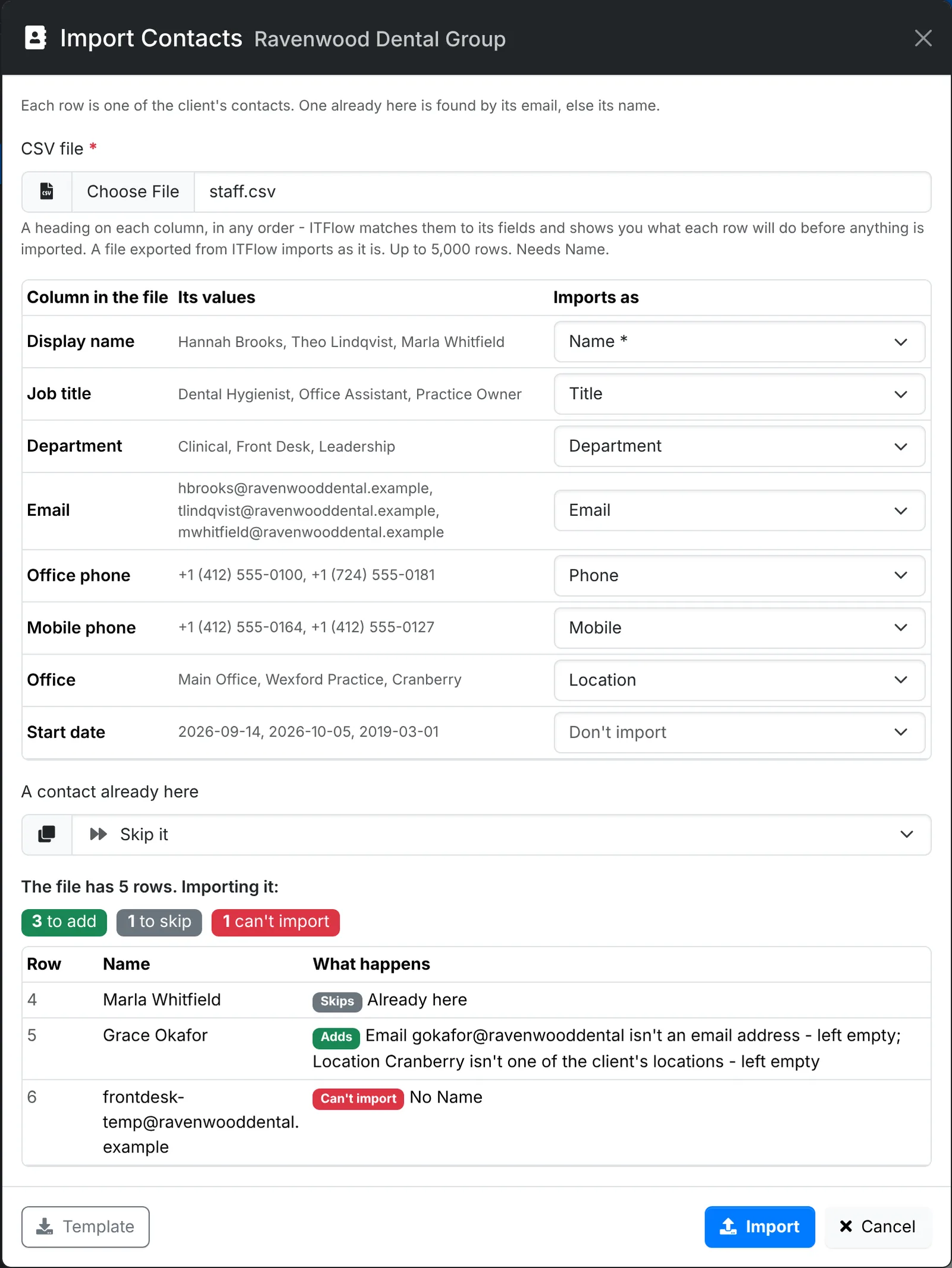
Import a file
- Save the spreadsheet as a CSV file, with the headings in its first row. In Excel, that's File > Save As and CSV UTF-8.
- Open the list and use Import, under the arrow beside New.
- Choose the file. ITFlow reads it straight away - nothing is imported yet.
- Check what each column Imports as. ITFlow matches the columns to its fields by their headings, in any order. A column it doesn't recognise is set to Don't import - pick a field for it if it should go in. Picking a field another column has takes it off that column.
- Choose what happens to one that's already here: Skip it, or Update it with the file's values. When updating, an empty cell leaves what is there.
- Read what the rows will do: how many will be added, updated and skipped, and which can't be imported and why. It changes as you change the columns.
- Click Import.
When it's done, the window says what happened to each row. Rows not imported downloads the rows that didn't go in, just as they were, with the reason in a last column. Fix them in your spreadsheet and import that file.
Template downloads a file with every heading and an example row. A file exported from the same list imports as it is - so to change many records at once, export them, change the file and import it with Update it.
How the cells are read
- Columns that are yes or no - Primary, Lead, Tax Exempt, Track Stock and the like - take Yes. Leave them empty for no.
- Dates are written YYYY-MM-DD.
- Tags are separated by commas. A tag you don't have yet is added when an admin imports. Otherwise it's left off.
- A phone number with + and its country code in front, such as +1 (412) 555-0100, keeps its country code.
- A contact, location, vendor, network, asset, tax rate or category is found by its name among the ones you have. One that isn't there is left out, and the row says so.
- A file separated by semicolons works too. A file can have up to 5,000 rows.
What each list takes
| List | Needs | Found already here by |
|---|---|---|
| Clients | Client Name | Its name |
| Contacts | Name | Its email, else its name |
| Locations | Name | Its name |
| Credentials | Name | Its name |
| Networks | Name and Network (CIDR) | Its name and subnet |
| Vendors | Name | Its name |
| Assets | Name | Its name |
| Domains | Domain | Its name |
| Certificates | Name or Host | Its name, else its host |
| Licenses | Name | Its name |
| Services | Service | Its name |
| Products | Name | Its code, else its name |
A product already here can be updated from a file with just Code and Price - a new price list, say.
Some things to know:
- A row for the same record as a row above it is skipped.
- An archived record is never changed. Restore it first.
- A network's subnet, gateway, DNS servers and DHCP range are checked as the network form checks them.
- Credentials' usernames and passwords are encrypted as they go in. The file has them in plain text, so delete it when you're done.
- The first location a client gets becomes its primary location.
- Imported domains aren't looked up as they go in. ITFlow's background checks look up their DNS records and registration, and check imported certificates that have a host, a batch at a time.
- A license's Assets and Contacts give it seats, and a service's Runs On, Vendors, People and Domains link it to them. Each is the client's own, by name, separated by commas - added to what it already has, never taken away.
- A certificate's issuer, dates and names are read from the Certificate column when it has the PEM. Without one, Issuer and Expiration Date are what's kept.