Onboarding a client
Take a new client on a step at a time - the company, its sites and people, the agreement and billing, their domains, vendors and licenses, and the onboarding project.
New Client adds a client in one window. When you are taking a client on properly, Onboard a client walks you through everything they need, a step at a time, on a page of its own:
- The company - who they are
- Locations - where they work
- People - who you deal with, and their client portal access
- Agreement - the contract you look after them on, sent to sign
- Billing - who gets the invoices, their tax, and the recurring invoice
- IT basics - their domains, vendors and licenses
- Kickoff - the onboarding project and its tickets
Each step saves as you go, and the first one makes the client - so you can stop part way and carry on later from the client's overview. Every step after the first has Skip for now, and the steps along the top go back to any of them.
Start onboarding
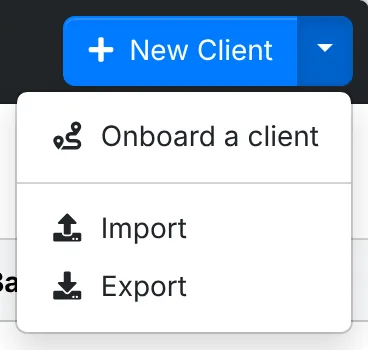
- A new client - on Clients, click the arrow beside New Client, then Onboard a client.
- A lead, or a client you already have - click Onboard in the ⋮ menu of the client's header. A lead has it in the ⋮ at the end of its row on the leads list too, and its Edit window offers it under the name.
- Your first client - on a new install, Get started's last step has Or onboard them step by step. See After installing.
Onboarding a client needs Clients at Modify, as adding one does. You only see the steps your role can do - see Who sees which steps.
The company
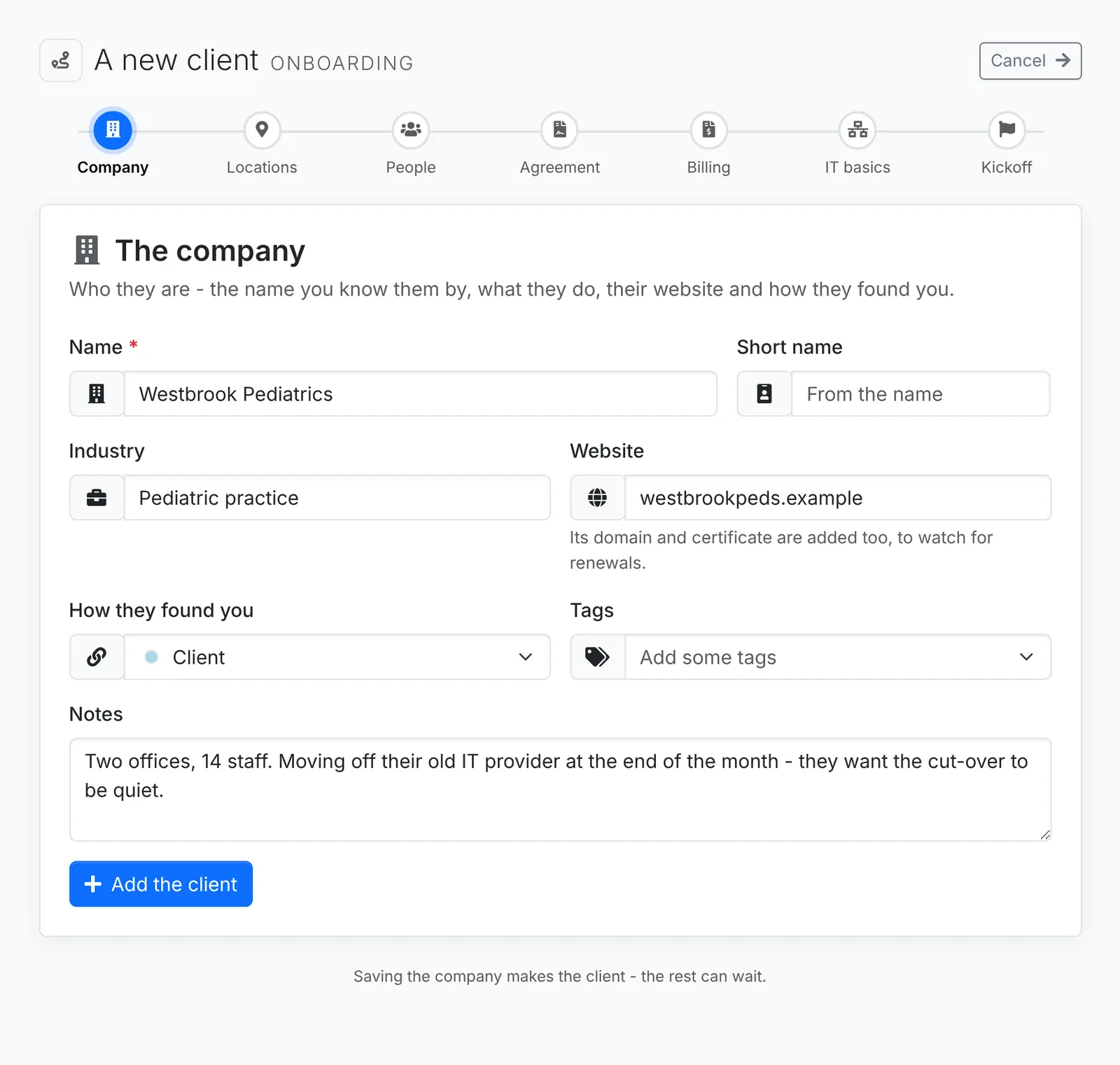
Give the client's Name and, if you like, a Short name (up to 6 letters - without one, ITFlow makes one from the name), their Industry, Website, How they found you, Tags and Notes. Then click Add the client.
The client is made as New Client makes it, and the website's domain is added and looked up, with its certificate, to watch for renewals. For a lead, saving this step makes them a client.
Locations
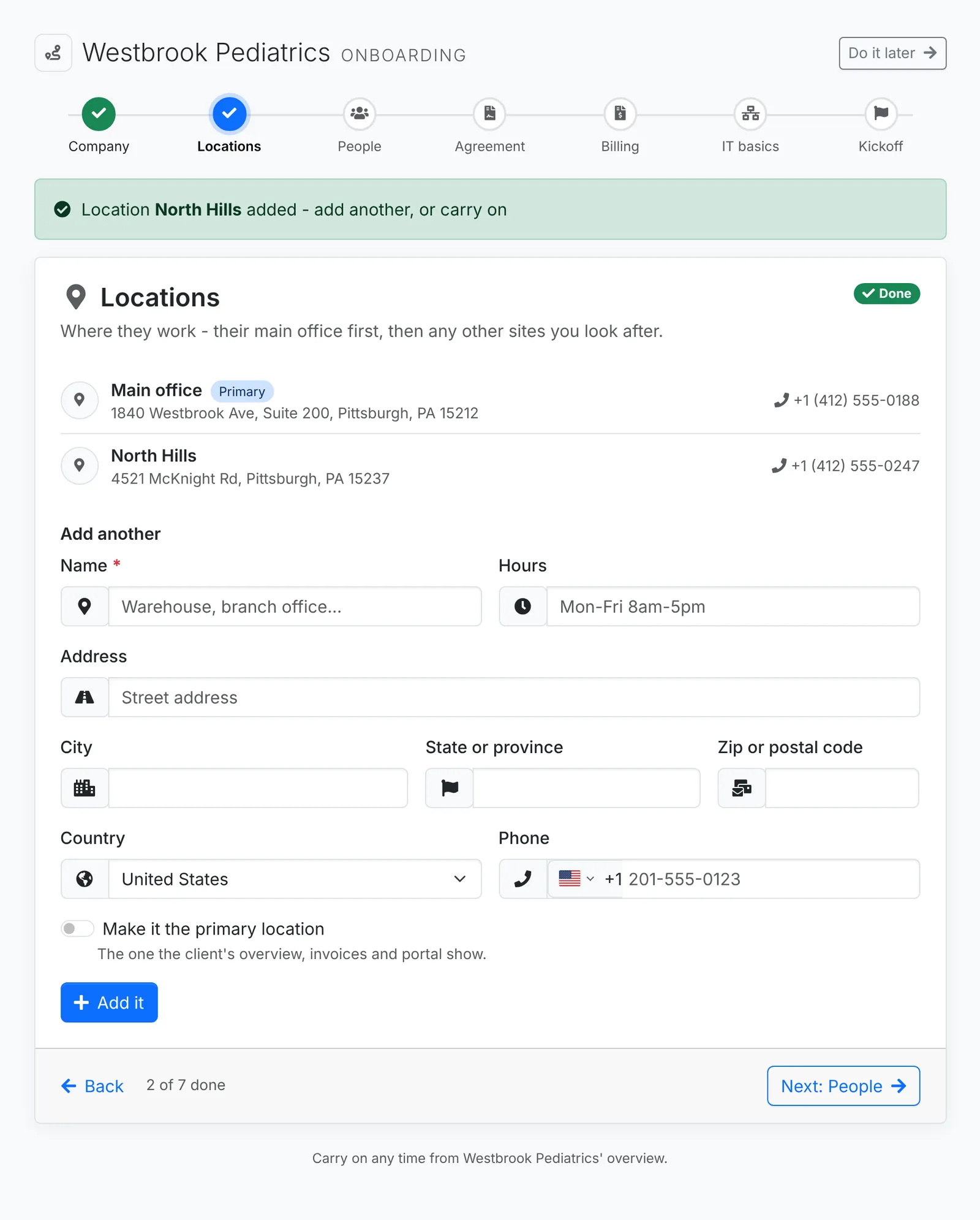
Add their main office first - its name, hours, address and phone - and click Add it. The first location is the primary one, the one the overview, invoices and portal show. Add as many more sites as you look after; switch on Make it the primary location to make a later one the primary instead.
The step stays open so you can add another. Click Next when you're done.
People
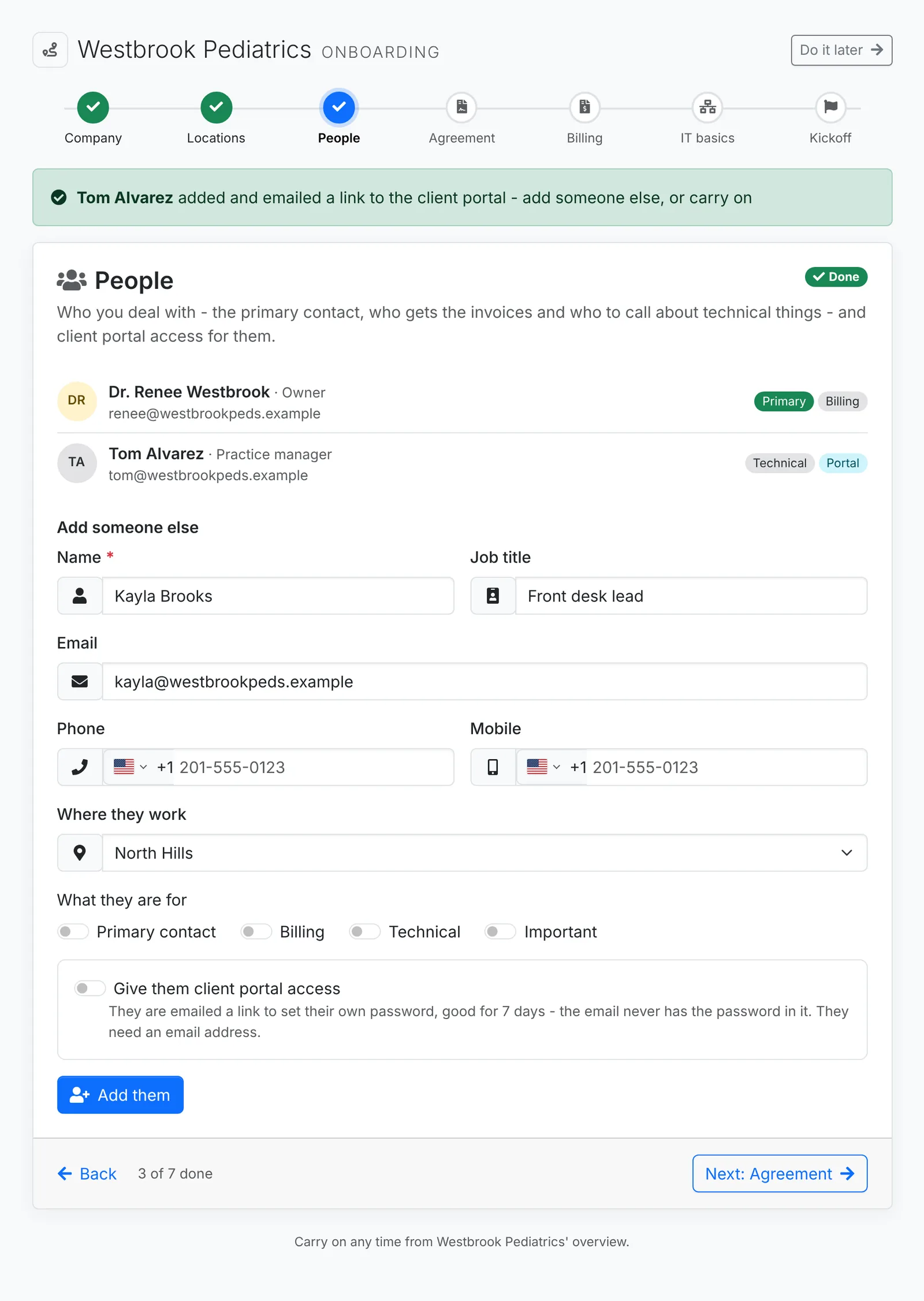
Add the people you deal with one at a time - their name, job title, email, phone, mobile and Where they work - and what they are for:
- Primary contact - who you go to first. The first person you add is the primary contact.
- Billing - gets the invoices, quotes and statements.
- Technical - who to call about technical things.
- Important - kept at the top of their contacts.
Give them client portal access emails them a link to set their own password, good for 7 days. It needs their email address, and mail set up in Admin > Mail. An address that signs in to ITFlow already - an agent's, or another client's contact's - can't be given access here. See Give a contact client portal access.
Agreement
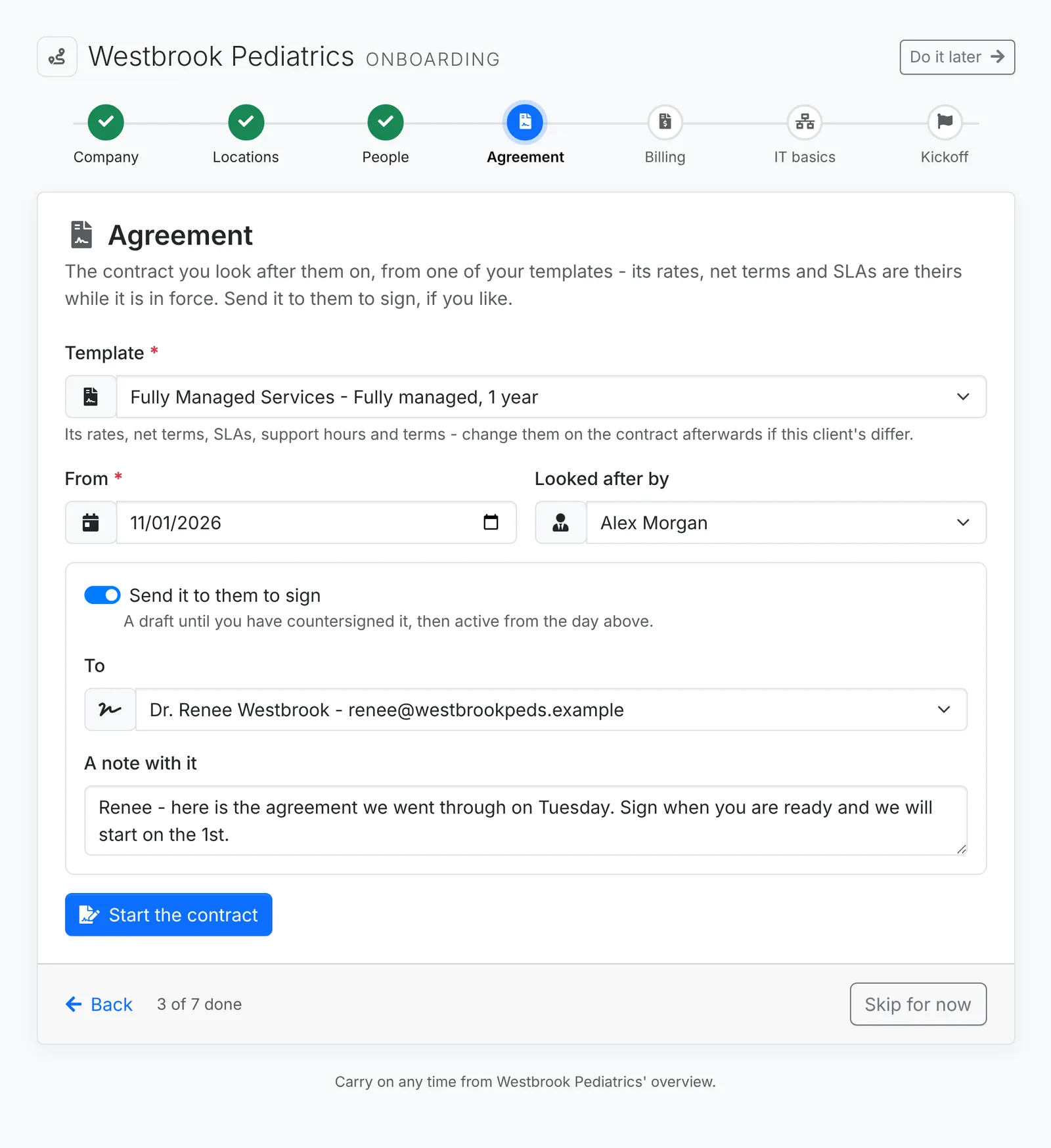
The contract you look after them on, from one of your contract templates. A fully managed template is picked to start with. Its rates, net terms and SLAs are the client's while it is in force - see While a contract is in force.
- Pick the Template, the day it runs From and who it is Looked after by.
- Leave Send it to them to sign on to send it to one of their people, picked in To, with A note with it if you like. The contract stays a draft until you countersign it, then it is active from the day you picked. See Send it to sign.
- Click Start the contract.
Switch Send it to them to sign off to make the contract active straight away. With no contract templates yet, the step says where to make one.
Billing
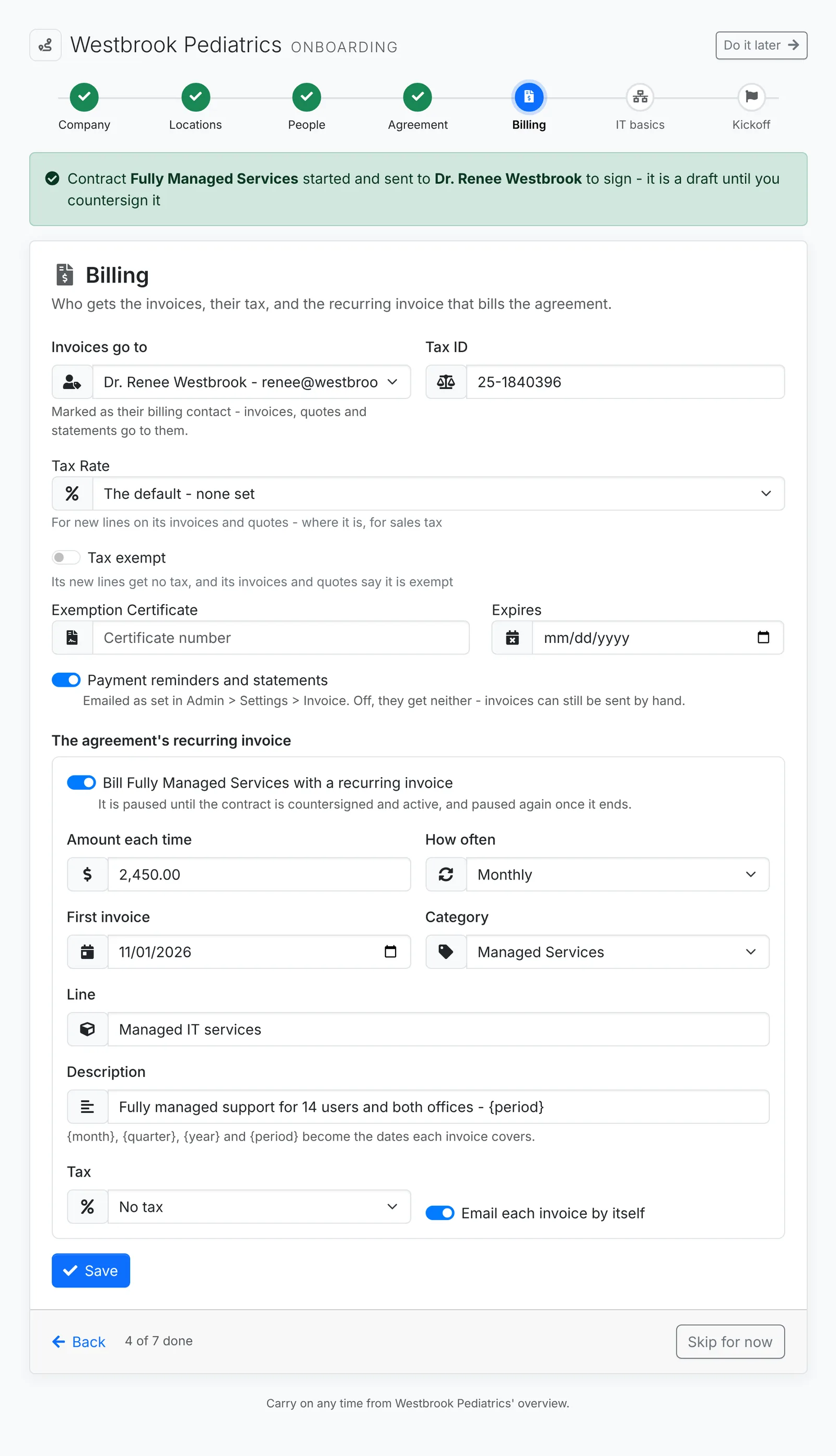
- Invoices go to - their billing contact.
- Tax ID, Tax Rate and Tax exempt - as on the client's own Billing tab. See Billing details.
- Payment reminders and statements - switch off to leave them out of the automatic ones.
- The agreement's recurring invoice - bills the contract from the Agreement step: Amount each time, How often, the First invoice, its Category, Line, Description, Tax, and whether to Email each invoice by itself. While the contract is out to sign, the recurring invoice waits, paused, and starts once it is countersigned. See The recurring invoice.
Click Save. If anything in the step needs putting right, nothing in it is saved until it is.
IT basics
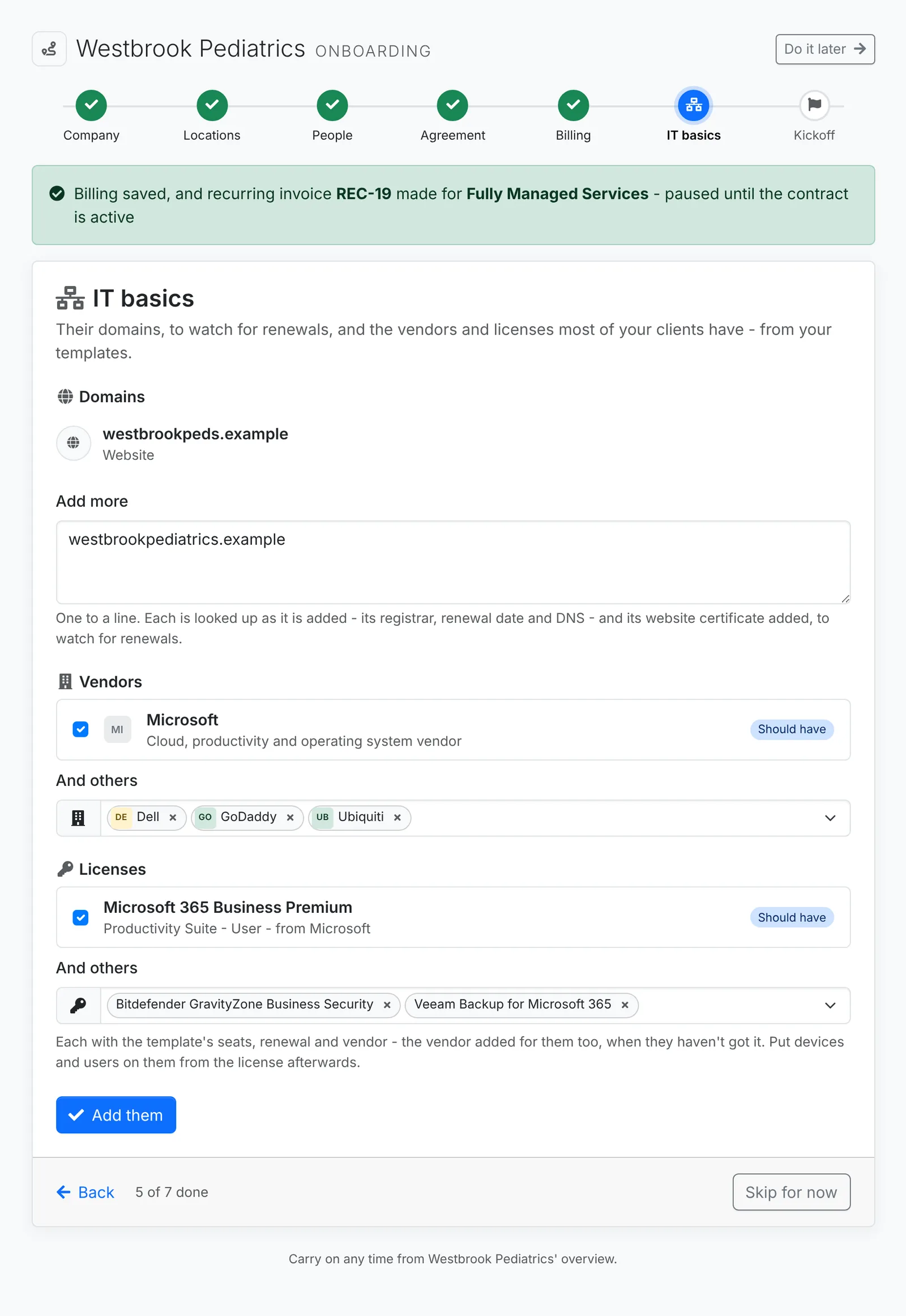
- Domains - one to a line. Each is looked up as it is added - its registrar, renewal date and DNS - and its website certificate added. See Domains.
- Vendors and Licenses - from your license and vendor templates. The ones your templates say every client, or clients with this one's tags, should have are listed and ticked, marked Should have. Pick any others in And others.
Click Add them. Each license comes with its template's seats, renewal and vendor - the vendor is added for the client too, when they haven't got it. Put devices and users on a license from its page afterwards. Anything the client has already is shown as They have it, and nothing is added twice.
Kickoff
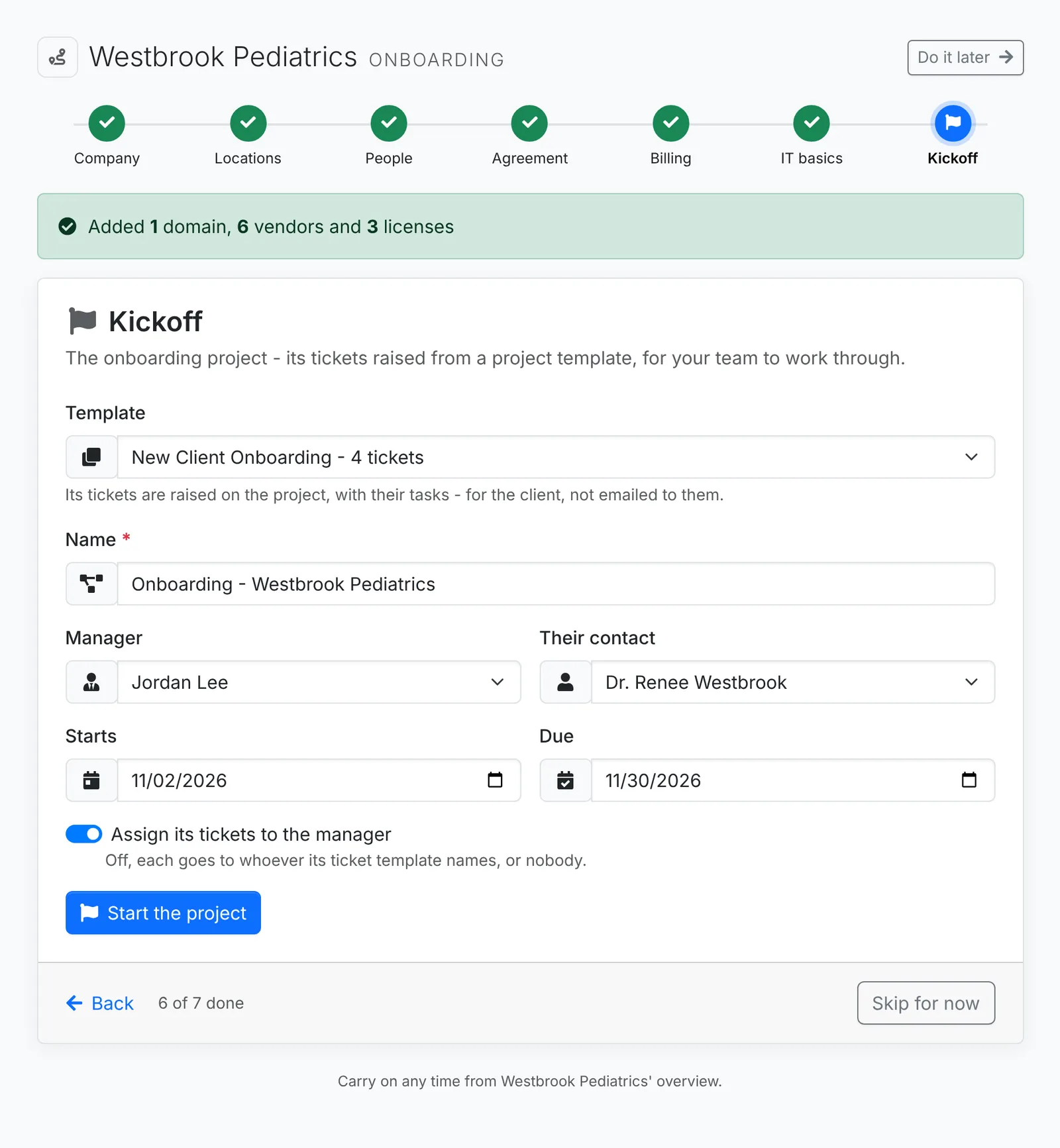
The onboarding project, with its tickets raised from a project template - one with onboarding in its name is picked to start with. Give it a Name, a Manager, Their contact, and when it Starts and is Due. Assign its tickets to the manager gives every ticket to them; off, each goes to whoever its ticket template names. Click Start the project.
Where it stands
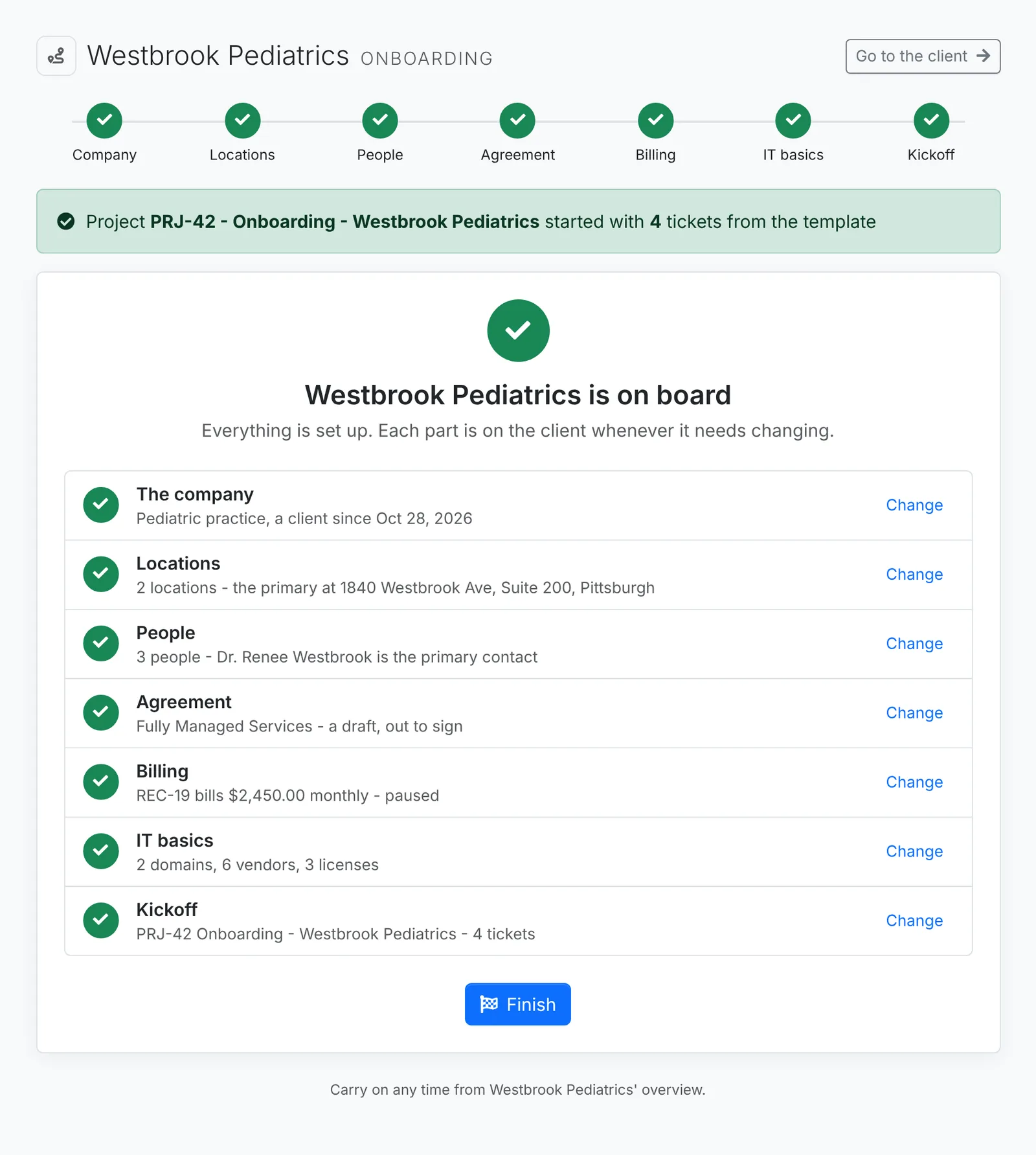
After the last step, the summary lists every step with where it stands, and Change or Do it now goes back to one. Click Finish when you're done.
A step ticks itself off however it was done - here, or anywhere else in ITFlow. Once the client has a location, a contact, a contract, a recurring invoice, a vendor or license, or a project, that step is done.
Carry on later

Until every step is done or skipped, the client's overview shows Finish onboarding, with how far it has got and what is next. Carry on opens the next step, and each chip goes straight to its step. Do it later, at the top of every step, takes you to the overview.
The card goes once you click Finish on the summary, or its ×. Onboarding stays in the client's ⋮ menu - Carry on onboarding while the card shows, and Onboarding after. The clients list has Carry on onboarding in the row's ⋮ until you click Finish or the card's ×. Starting onboarding and finishing it are in the client's audit log.
Who sees which steps
Onboarding needs Clients at Modify. The steps after the first follow the modules you use and the agent's role:
- Agreement - Sales at Modify, with the accounting module on
- Billing - the accounting module; the recurring invoice needs Sales at Modify too
- IT basics - the documentation module; domains and licenses need Support at Modify
- Kickoff - Support at Modify, with ticketing on
A step that isn't there for an agent doesn't count against how far onboarding has got for them.