Purchase orders
Buying from your vendors - the list of what to order, purchase orders with optional approval, tracking, receiving into stock or client assets, and recording the vendor's bill.
When you buy hardware for a client or restock your own shelf, Purchasing, under Billing in the menu, keeps it in one place - three pages, with tabs across the top to move between them:
- To Order - what needs buying, added by hand, from a product, or from what's low on stock.
- Purchase Orders - what you've asked each vendor for: made from the list, approved if you need that, sent as a PDF, and tracked until it arrives.
- Receiving - what's on its way. What comes in goes onto the shelf, or becomes the client's assets with their serial numbers.
Purchasing comes with invoicing - it's there when Invoicing and accounting is on in Admin > Settings > Modules. Admins can use all of it; for anyone else, give their role Purchasing in Roles and permissions:
| Level | What it allows |
|---|---|
| Read | See the list, purchase orders and what's on its way |
| Modify | Add items, make and send purchase orders, add tracking and receive |
| Full | Also approve and cancel purchase orders, and undo a receipt |
An agent who can only see some clients only sees the purchase orders whose lines are all for clients they can see.
To Order
To Order is the list of what needs buying, with who it's for, the vendor, how many and what it should cost.
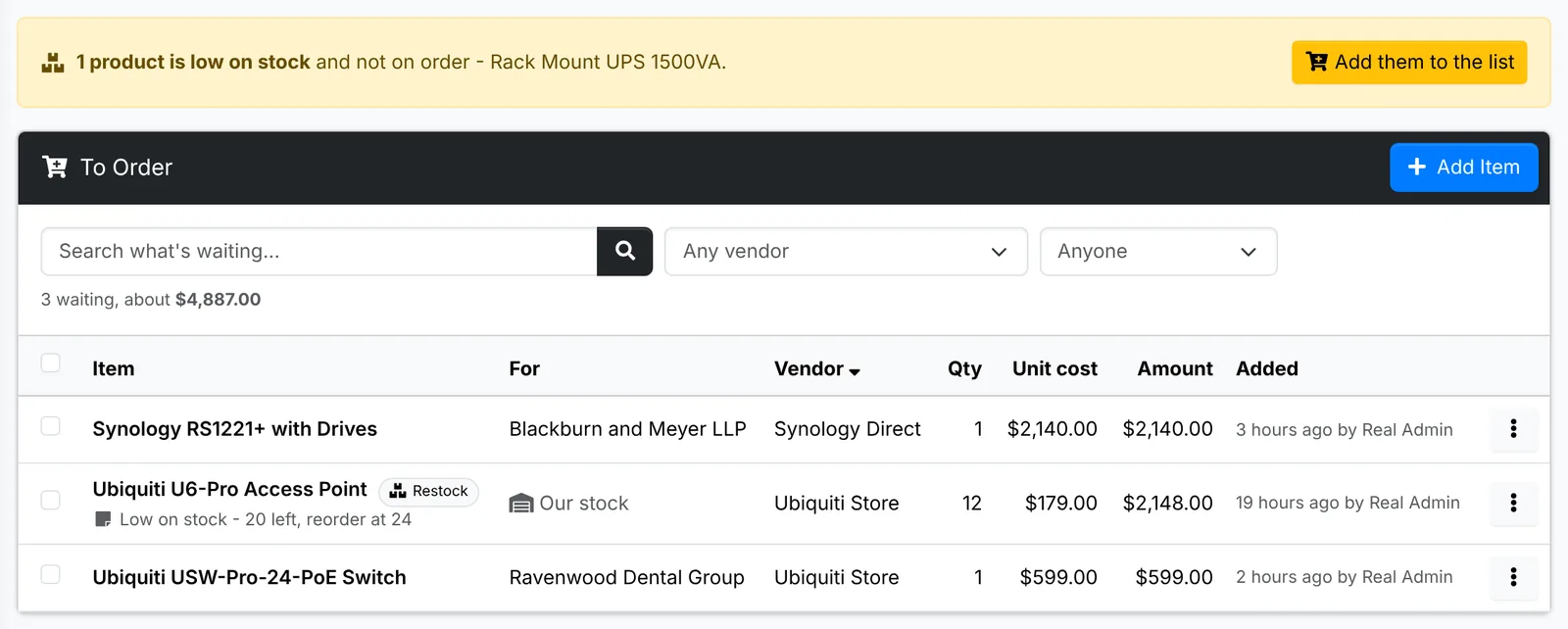
There are three ways onto the list:
- Add Item - type what it is, or pick a Product to fill in its name, cost and vendor. Set How many, the Unit cost, the Vendor and who it's For: a client, or your own stock. A Note is for your team.
- Order on a product's page - the same window, with the product already picked. It says Order More when the product is low on stock.
- Add them to the list - when products you track stock for are at or under their reorder level and not already on order, an alert at the top names them. One click adds each with its reorder quantity, marked Restock. Set the level on the product (see Keep track of stock).
Narrow the list by vendor or by who it's for, or search it. Edit in an item's ⋮ menu changes it, and Take Off the List removes it - nothing is ordered.
Make a purchase order
- Tick the items to order together, then pick Make a Purchase Order from the bulk menu. One item can also be ordered from its own ⋮ menu.
- Pick the Vendor - it starts as the items' own vendor.
- Click Make Draft.
The draft is numbered PO-1, PO-2 and so on, and its items leave the list. To add more items to a draft you've already started, tick them and pick Put on a Draft instead. You can also start an empty one with New Purchase Order on the Purchase Orders list, and add lines to it.
While it's a draft:
- Add Line adds a line by hand or from a product, and From To Order adds items still on the list. The edit button on a line changes its Item, Their part number, How many, Unit cost or who it's For, and the × takes it off - an item taken off goes back to the list.
- Edit Details changes the Vendor, where it ships to - your main office, another of your offices, or any address you type - the Shipping and a Note for the vendor, which is printed on it.
- PDF downloads it, stamped DRAFT - or NOT YET APPROVED while it waits for approval.
The Purchase Orders list shows the open ones, with tabs for Drafts, Awaiting approval, Approved, Ordered, Received, Cancelled and All.
Order it
When the draft is ready, place the order one of two ways:
- Email to Vendor - it goes to the vendor's contact with the PDF attached. Change the To and the Message if you like. Leave Mark it ordered today ticked to mark it ordered as it's sent.
- Mark Ordered - for an order placed by phone or on the vendor's website. Give the date it was Ordered on and Their order number, if they gave you one.
Either way, its lines appear on Receiving. If approval is on (below) and the purchase order needs it, these wait until it's approved.
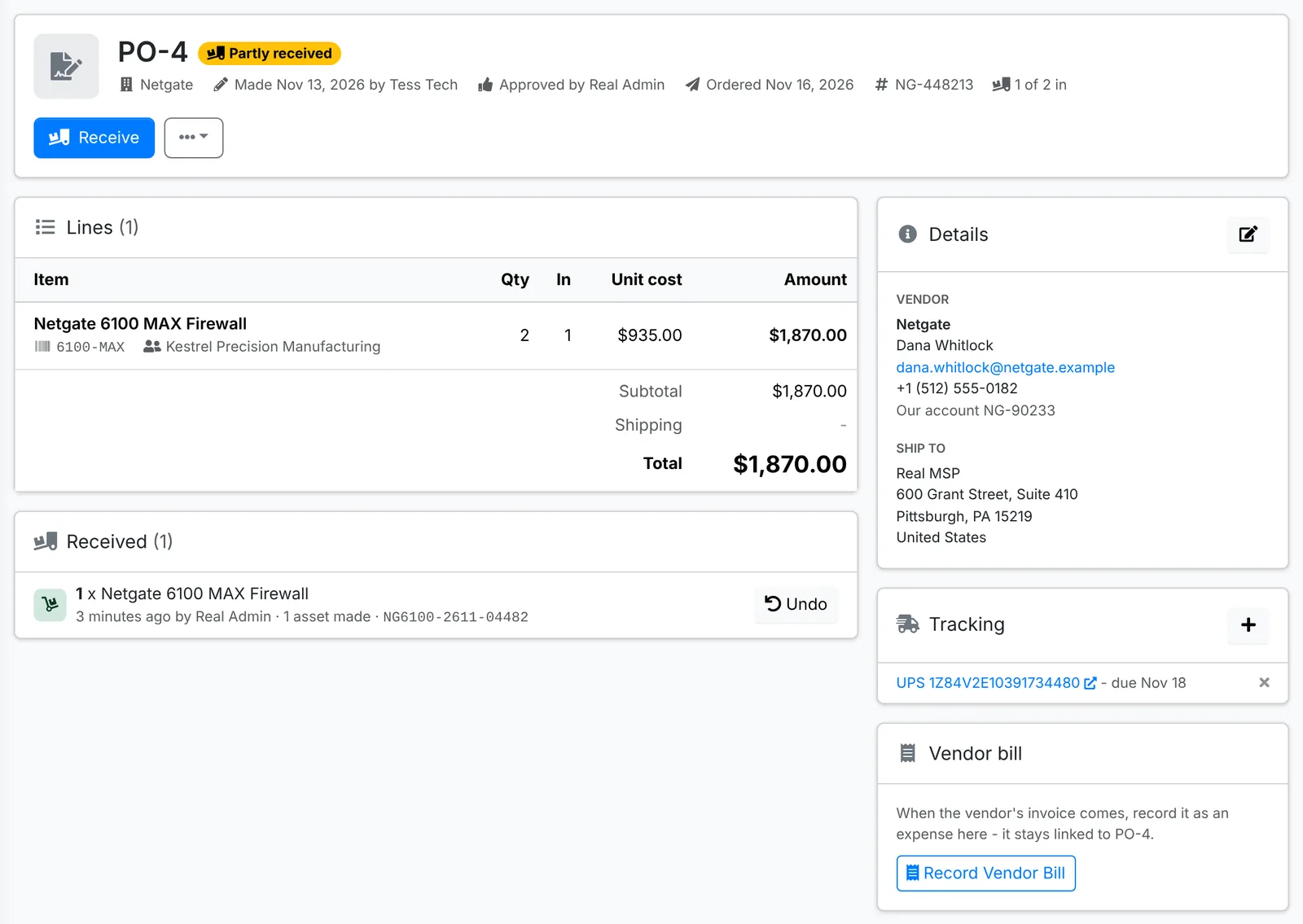
Cancel, in the ⋮ menu, cancels a purchase order before anything on it has come in, and puts its items back on To Order. Cancelling a draft needs Modify; cancelling one that's been sent for approval or ordered needs Full.
Approval
Approval is off to start with: anyone with Modify can order straight from a draft. To have purchase orders approved first, go to Admin > Settings > Purchase orders:
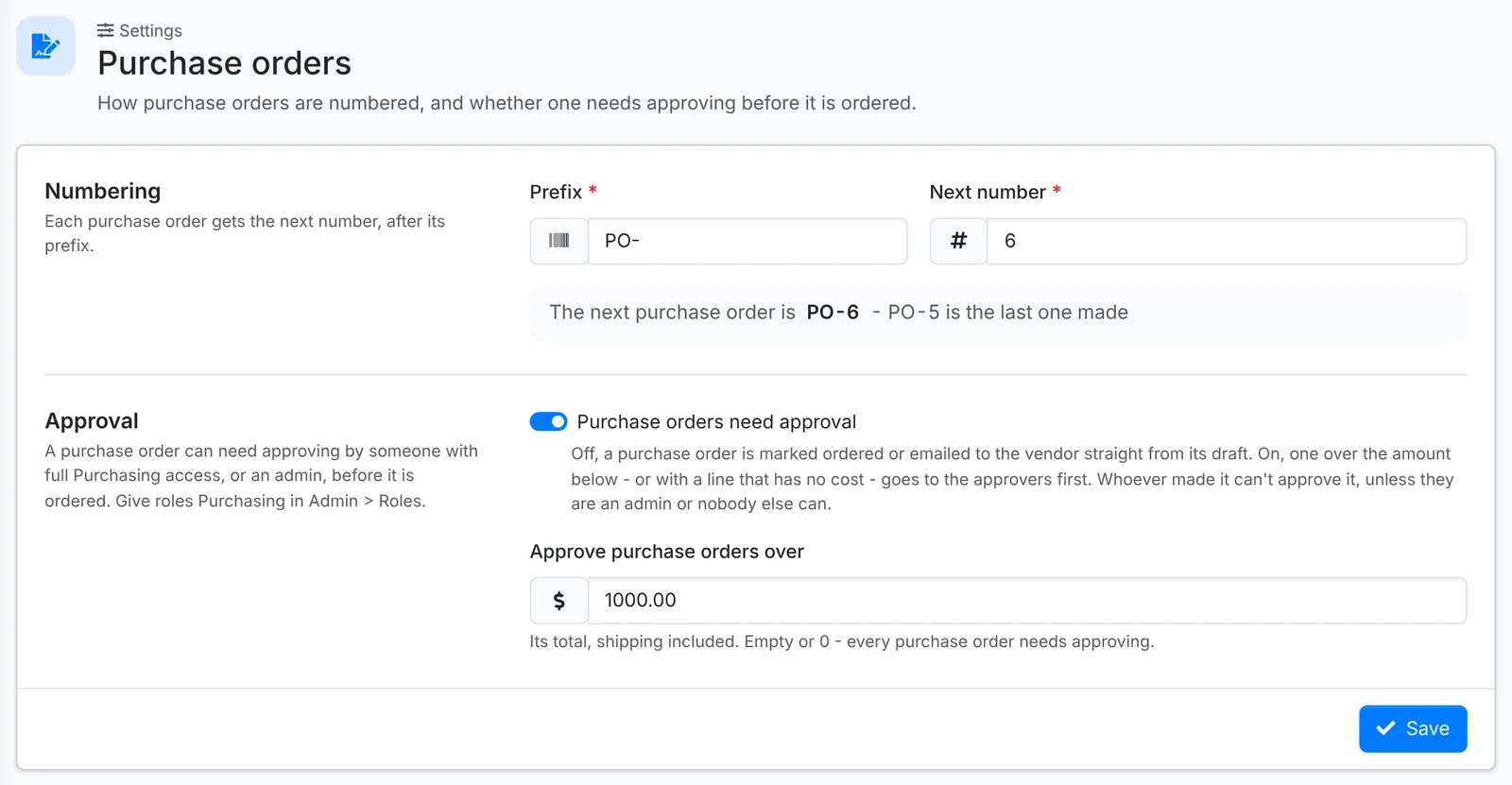
- Prefix and Next number set how they're numbered. The next number can't be one that's already used.
- Switch on Purchase orders need approval, and set Approve purchase orders over - its total, shipping included. A purchase order over that amount, or with a line that has no cost yet, needs approving. Leave the amount empty to have every purchase order approved.
A draft that needs approving shows Send for Approval instead of the ordering buttons. Sending it tells the approvers - the admins and the agents with Full Purchasing who can see every client on it - in their notifications and by email. One of them opens it and clicks:
- Approve - it can then be emailed or marked ordered. Add a Note if you like.
- Send Back - it goes back to draft with a Note saying why, which is shown at the top.
Whoever made it is told either way. Nobody approves their own purchase order, unless they're an admin or there's nobody else who could. To change a purchase order that's waiting or approved, use Back to Draft in the ⋮ menu - it then needs approving again.
Track it
Click + on the Tracking card to add a tracking number, with the Carrier and when it's Due. A purchase order can have several - one for each box. UPS, FedEx, USPS, DHL, Canada Post and Royal Mail numbers link straight to the carrier's tracking page, here and on Receiving.
Receive what came in
Receiving lists every line still to come in, grouped by purchase order, with its tracking. Receive on a purchase order opens it for just that one.
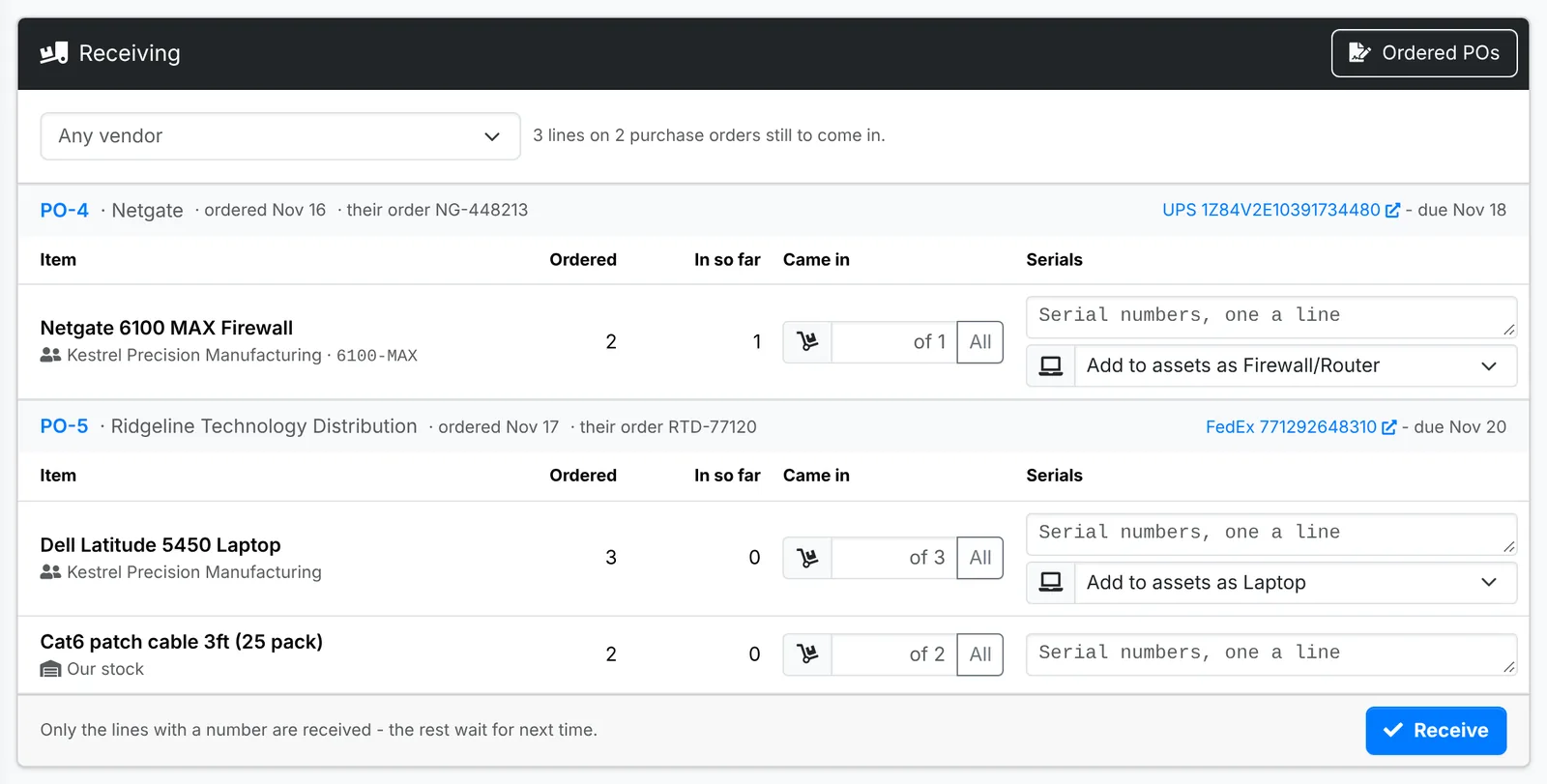
- Under Came in, type how many arrived, or click All. Leave a line empty if nothing came for it - it waits for next time.
- For hardware that's for a client, type the Serials, one a line - the box grows as you go - and check the asset type under Add to assets as. Pick Don't add to assets for anything that shouldn't become one.
- Click Receive.
What happens to each line:
- For your own stock, a product you track stock for goes onto the shelf at the line's cost - it's on the product's Stock tab, received on the purchase order. This needs Modify on Sales.
- For a client, each unit becomes one of the client's assets - with its serial number, the make, model and vendor, the purchase order as its purchase reference, and the warranty from the product counted from today. This needs Modify on Support. Up to 50 at a time; add more by hand.
- Anything else is simply marked as received.
A short delivery leaves the purchase order Partly received until the rest comes in; once everything has, it's Received. Each delivery is listed on the purchase order's Received card. If one was entered wrongly, Undo takes it back: the stock comes back off the shelf and the assets it made are deleted, so you can receive it again. Undoing needs Full Purchasing - and Full on Support when it made assets, or Modify on Sales when it put stock on the shelf.
Record the vendor's bill
When the vendor's invoice arrives, click Record Vendor Bill on the purchase order. The amount, vendor and description come from the purchase order. Set the Date, Category, Paid from and Paid by, and type Their invoice number, then click Record.
It's saved as an expense, linked to the purchase order - and the stock it put on the shelf is linked to the same expense. Recording it needs Modify on Financial.
A purchase order's History card shows who made it, sent it for approval, approved it, ordered it, received it and recorded the bill - and all of it is in the audit log.