Tickets, statuses and SLAs
How tickets are numbered, made from email and texts, billed and closed; your own ticket statuses; and SLA targets with business hours and holidays.
Ticket settings
Admin > Settings > Tickets sets how tickets work for everyone.
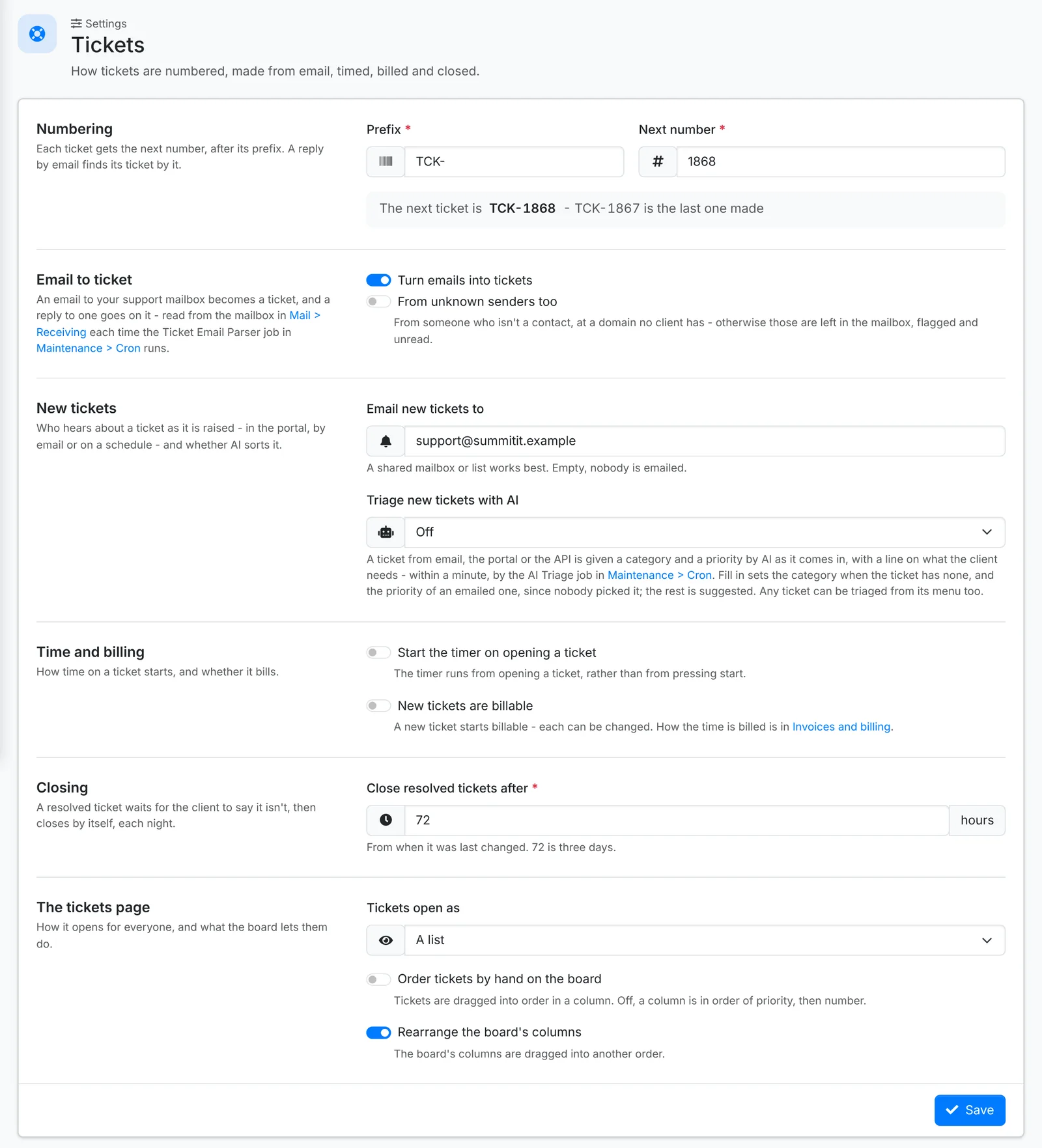
- Numbering - the Prefix, such as
TCK-, and the Next number. - New tickets - Email new tickets to a shared mailbox or list, so someone always sees them come in. Triage new tickets with AI gives tickets from email, the portal and the API a category and priority as they arrive - see AI.
- Time and billing - Start the timer on opening a ticket, and whether New tickets are billable. How the time is billed is in Invoices and billing.
- Closing - Close resolved tickets after so many hours. A resolved ticket waits for the client to say it isn't fixed, then closes itself overnight. 72 hours is three days.
- The tickets page - whether Tickets open as a list or the board, and whether agents can order tickets by hand on the board and rearrange its columns.
Email to ticket
Switch on Turn emails into tickets, and an email to your support mailbox becomes a ticket, and a reply goes onto its ticket. The mailbox is set up in Mail.
Email from someone who isn't a contact, at a domain no client has, is left in the mailbox, flagged and unread - unless you switch on From unknown senders too.
Text to ticket
Once text messaging is set up, a text from one of your contacts - from their mobile or phone number - opens a ticket for them. What they text next goes on it as their reply, with any photos attached, and opens it again if it was resolved. A text about a ticket that's being texted on goes on that ticket for two weeks after the last text, while it's open.
- Turn texts into tickets - on to start with. Off, every text waits in Texts for an agent. STOP, START and HELP are still answered.
- From unknown numbers too - a text from a number that isn't a contact's opens a ticket with no client. Off, those wait in Texts, where an agent opens a ticket from one. Verification codes and spam wait there either way.
- Text back the ticket number - the first text of a new ticket is answered with its number, so they know it landed and that replying adds to it.
Ticket statuses
Tickets move through New, Open, On Hold, Resolved and Closed. Under Admin > Ticket Statuses you can add your own between them - "Waiting on Vendor", "Scheduled", "Parts on Order".
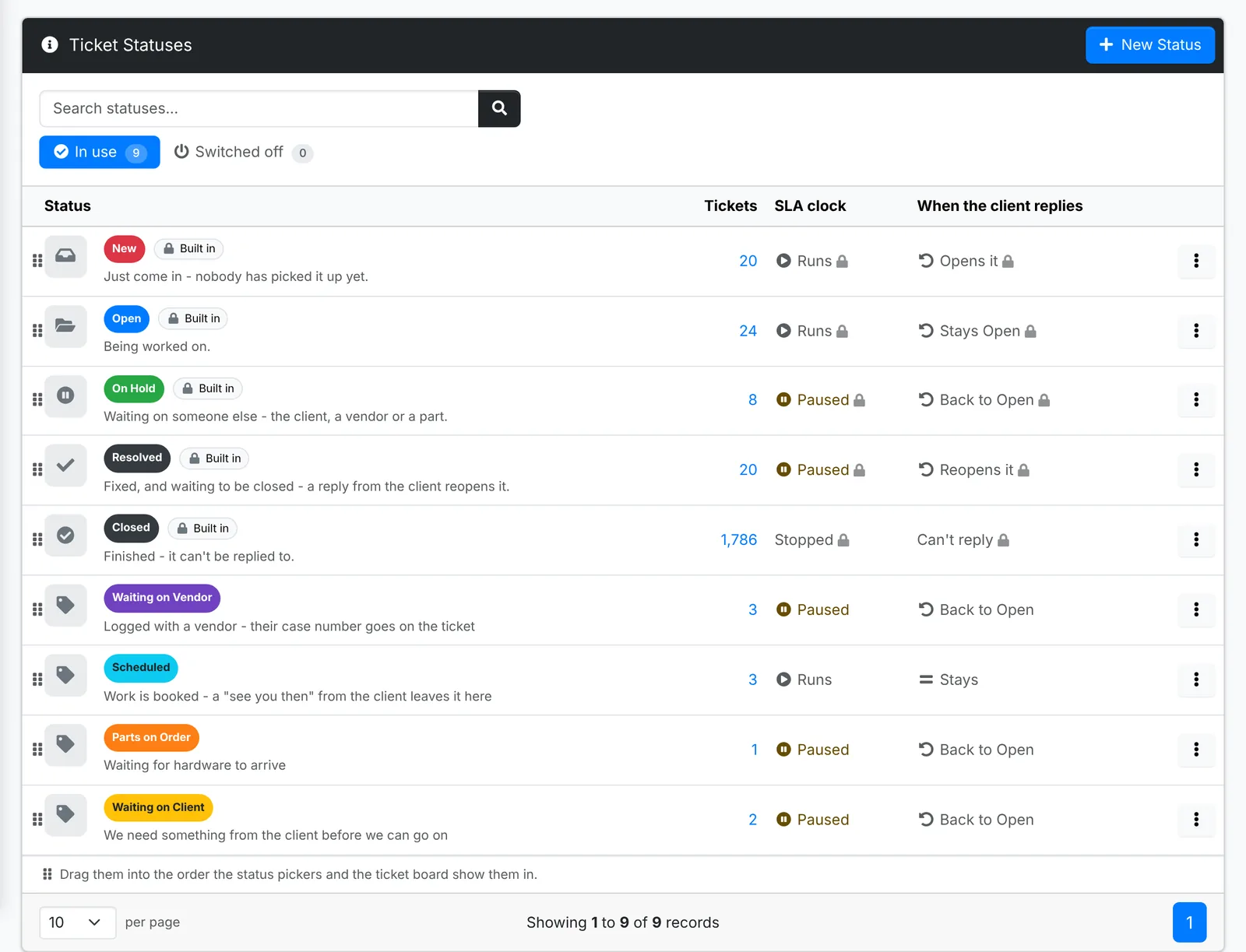
Each status shows as its badge, with what it's for, how many tickets are in it (click to see them), whether the SLA clock runs or pauses in it, and what a client's reply does. Drag the statuses into the order the status pickers and the ticket board show them in, or use Move up and Move down on a status's menu.
ITFlow's five are marked Built in. They keep their names and stay switched on, and their SLA clock and what a reply does are fixed - their window says what each does and when ITFlow sets it. Their colour and description can change.
Add or change a status
Click New Status, or Edit on a status's menu.
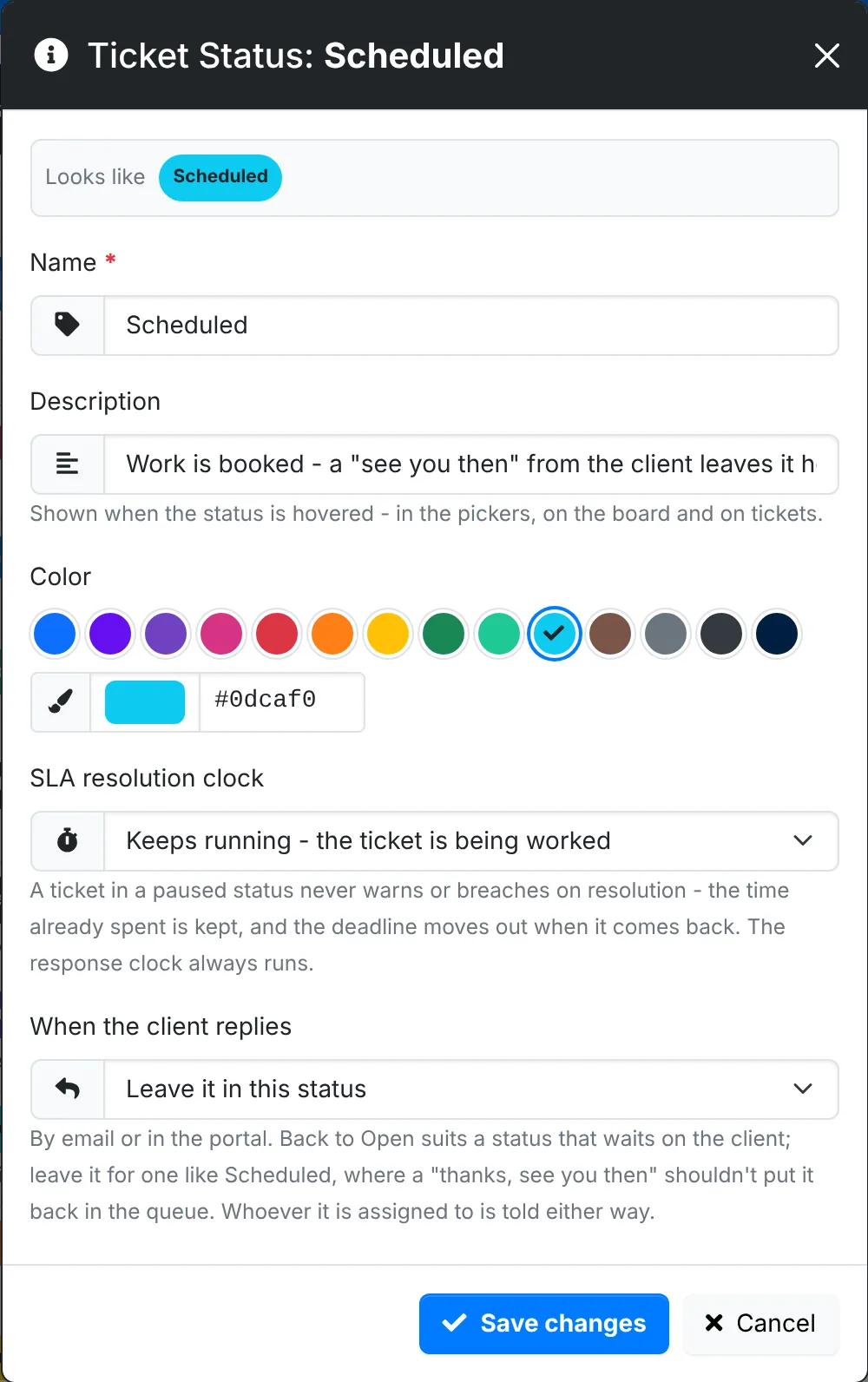
- Name, and a Description that shows when someone points at the status - in the pickers, on the board and on tickets.
- Color - pick a swatch or any colour. Looks like shows the badge; its text turns dark or white, whichever reads on the colour.
- SLA resolution clock - Keeps running, or paused. A ticket in a paused status never warns or breaches on resolution; the time already spent is kept, and the deadline moves out when the ticket comes back. Pause it for statuses where you're waiting on someone else. The response clock always runs.
- When the client replies - Move it back to Open, as a reply always has, or Leave it in this status. Leave it for a status like Scheduled, where "thanks, see you then" shouldn't put the ticket back in the queue. It's the same by email or in the portal, and whoever the ticket is assigned to is told either way.
Switch off or delete a status
Switch off takes a status out of the pickers and off the board, but keeps it. Its tickets can be moved to another status first, or left where they are. Switch it on again from the Switched off tab.
Delete moves its tickets to the status you pick first. Each ticket's history says so, and its SLA clock follows the new status. Canned responses that set the deleted status leave the status as it is instead.
SLAs
SLAs are optional. With none assigned, tickets have no targets. Admin > SLAs has three parts.
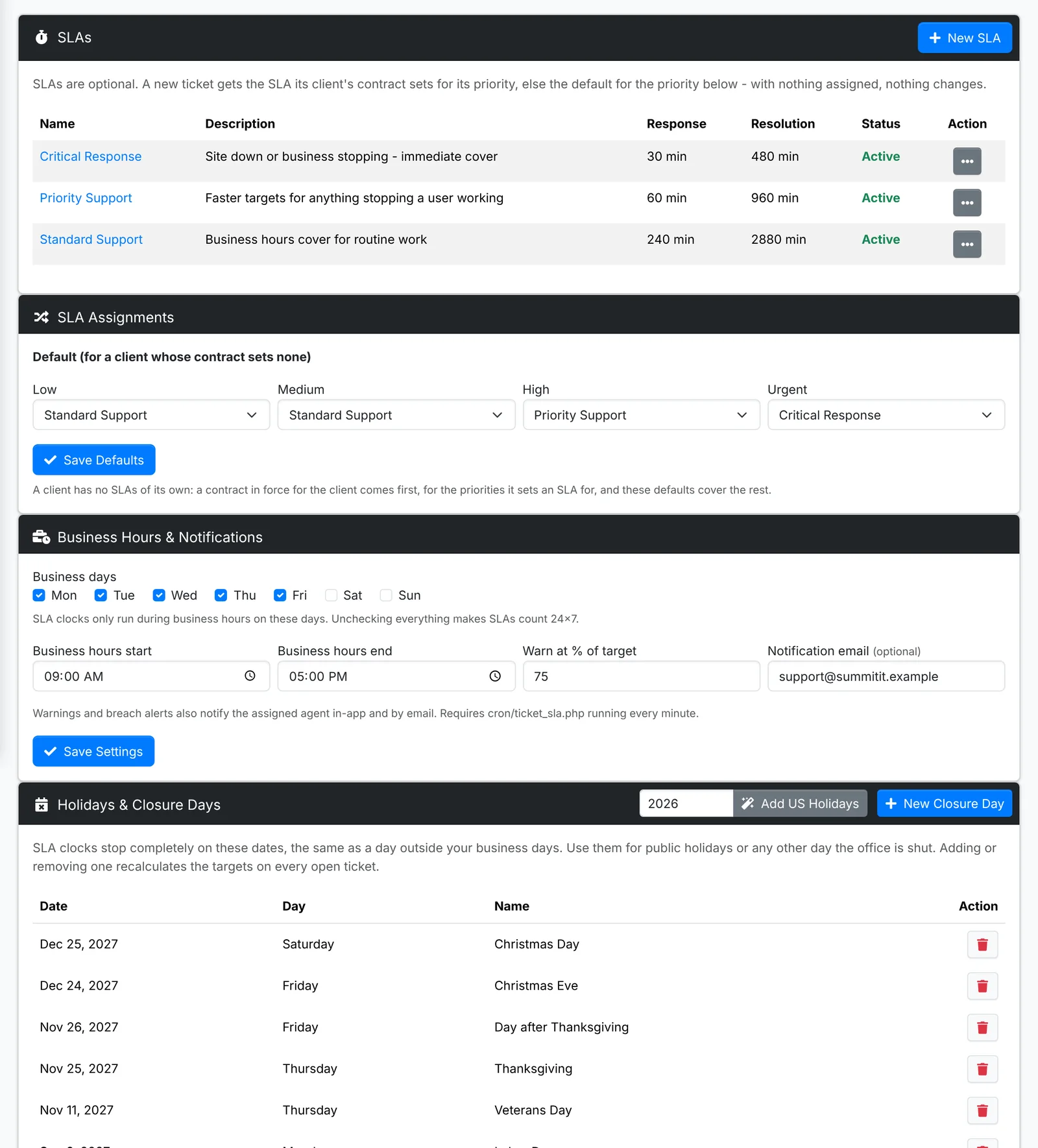
The SLAs - each has a Response target and a Resolution target, in business minutes: "Standard Support - 4 hours to respond, 2 days to resolve", "Critical Response - 30 minutes to respond".
SLA assignments - the default SLA for each priority: Low, Medium, High and Urgent. A client has no SLAs of its own: a new ticket gets the SLA its client's contract sets for its priority, and the default for a priority the contract leaves empty, or when the client has no contract in force.
Business hours and notifications - your Business days, and when the working day starts and ends. SLA clocks only run in business hours. Warn at % of target sends a warning before a target is missed, and Notification email sends warnings and breaches to a shared address as well as the assigned agent.
Holidays and closure days - days the office is shut, when SLA clocks stop. Add US Holidays adds a year's US public holidays in one go.
On a ticket, the SLA shows how long is left to respond and to resolve. See Working a ticket. The SLA reports show how well you're keeping to them.