Asset types
Every kind of asset ITFlow knows, your own types with details of their own - a badge reader, a vehicle, a hypervisor - and switching off the ones you never use.
Admin > Asset Types lists every kind of asset: ITFlow's own - laptops, servers, switches, UPSs and the rest - and any you add yourself. It's under Lists, with the IT documentation module on.
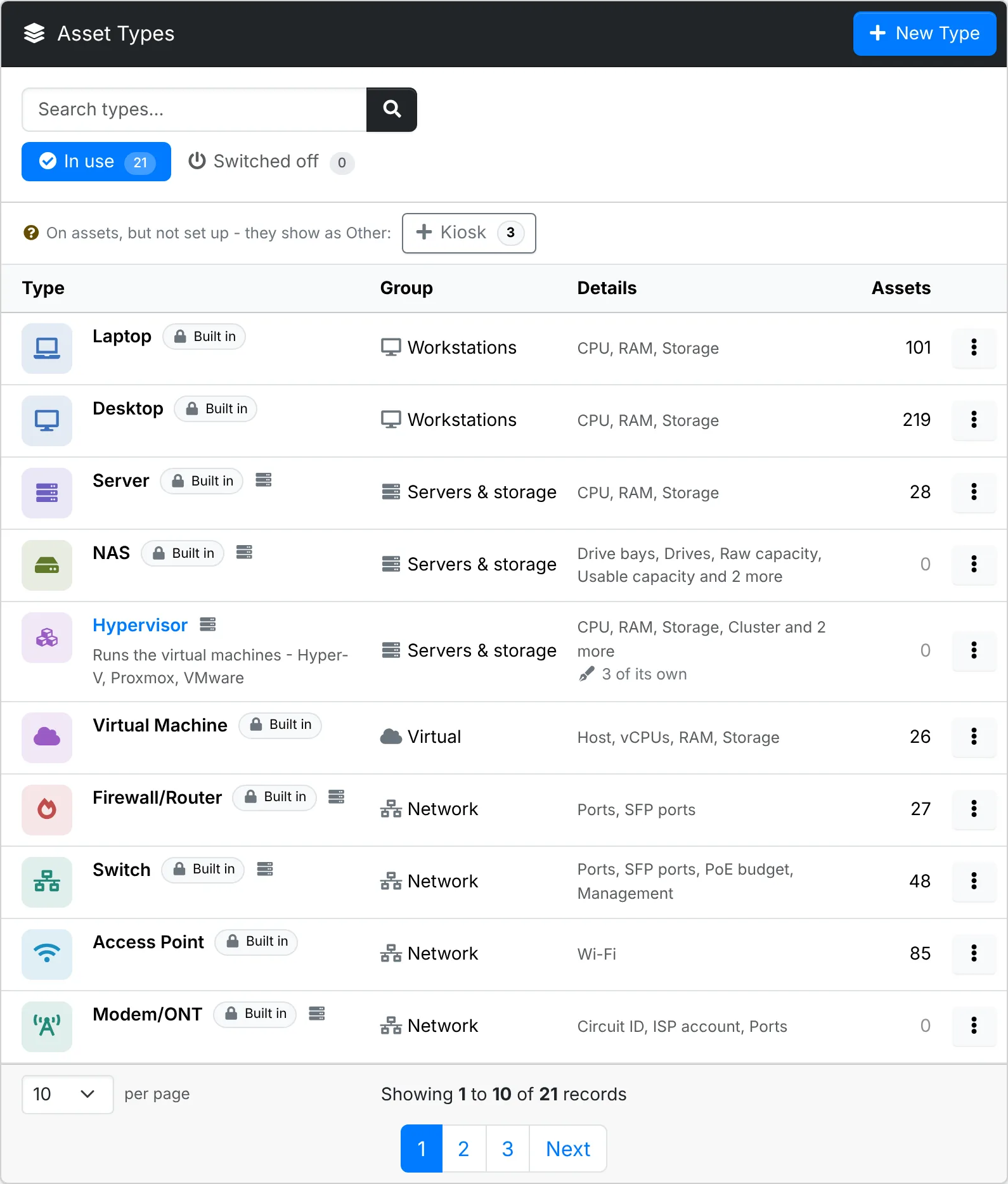
Each type shows its icon in its colour, the group it's counted in, its details and how many assets have it - hover the count to see how many more are archived. ITFlow's own are marked Built in, and a rack icon marks the types that go in a rack. They're in the order the type pickers offer them, and the headings sort the list by name, group or count. Search finds a type by its name, description, group or one of its details.
Your own types
Add a type for anything ITFlow doesn't have one for - a badge reader, a kiosk, a vehicle, a hypervisor - with the facts you want to keep on each one.
- Click New Type.
- On Type, pick what to Start from: one of ITFlow's types. Its group, colour, icon, fields, details and rack setting fill in, and its examples show on the asset form. Change any of them after.
- Give it a Name and pick its Group - its tab on the assets list, and how the client overview, the portal and client exports count it. A hypervisor in Servers & storage shows on the Servers & NAS tab. Add a Description if it helps.
- Pick its Color and Icon. Search the icons, or type the name of any Font Awesome icon that isn't shown.
- On Fields, tick the standard fields it asks for - Assigned to, Operating system or firmware, Network, NAT address, Links, Serial number, Purchase and Warranty - and whether its operating system field is called Operating system or Firmware. Turn on Goes in a rack to offer it first when racking an asset.
- On Details, tick ITFlow's details it has - CPU and RAM, ports, a battery date - and add its own (see below).
- Click Create.
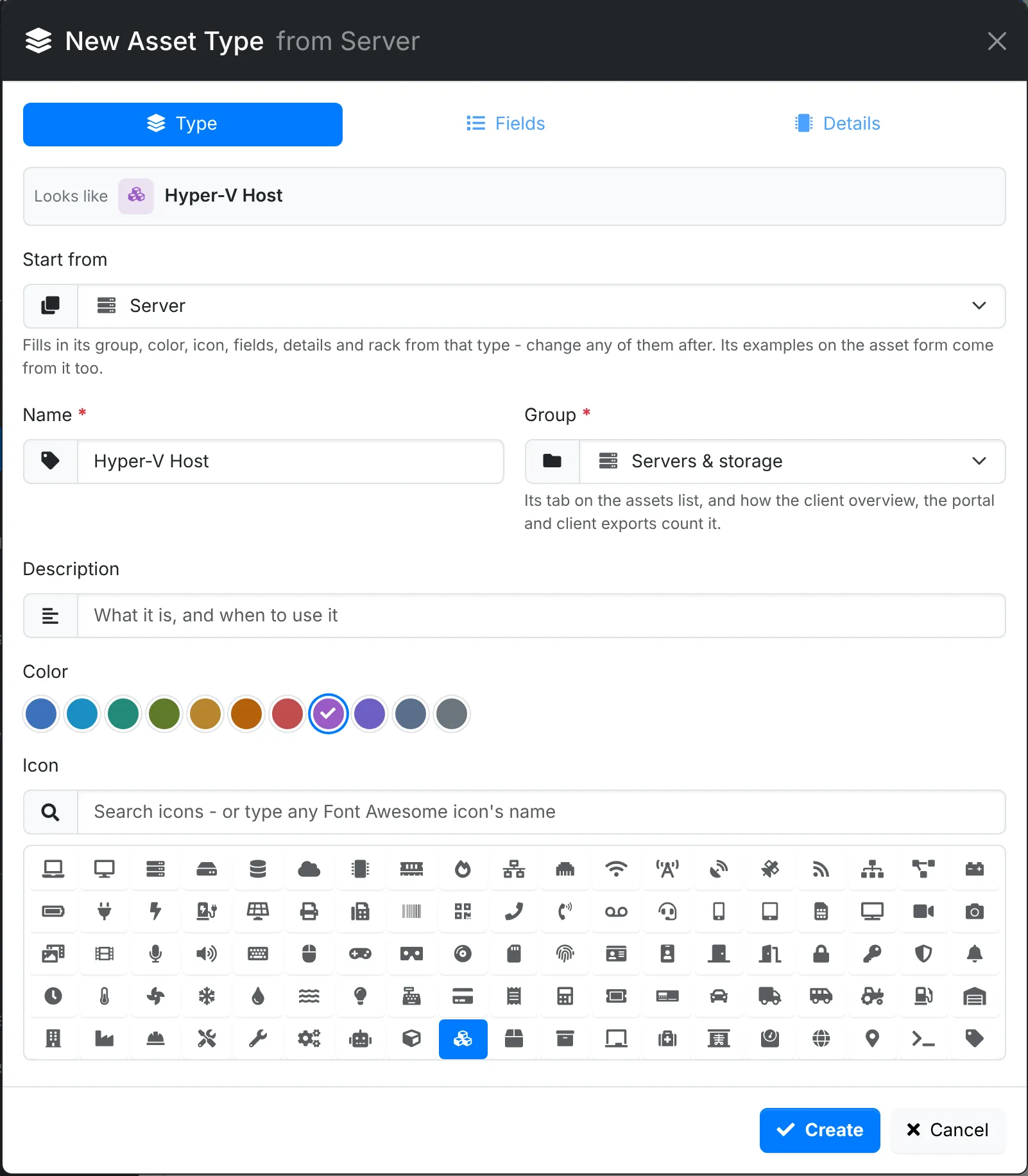
A new type comes after ITFlow's in its group in the type pickers - after Server and NAS for a hypervisor - and it works everywhere theirs do: the asset form and page, the quick look, the Details column on the assets list, exports and imports, products and receiving, racks and the API. A type with Ports or SFP ports gets a port map on its page, like a switch.
New Type From It, in a built-in type's menu, starts one from that type. Copy, in one of yours, starts a new one from it, its own details and all.
Its own details
Under Its own details on Details, click Add a Detail for each fact to keep on every asset of the type, give it a name and pick what it holds:
- Text - a door, a VIN, a cluster name
- Number - with a Unit, such as
coresorkg - Date - turn on Flag as it nears to flag it like a warranty, on the asset's page and with a badge on the assets list, and notify agents 45, 7 and 1 days before
- List - type its choices with commas between, such as
Card, Fob, Keypad
Tick Only this one has it for a detail that belongs to the one asset, such as a serial or a plate, so it isn't copied when the asset is copied.
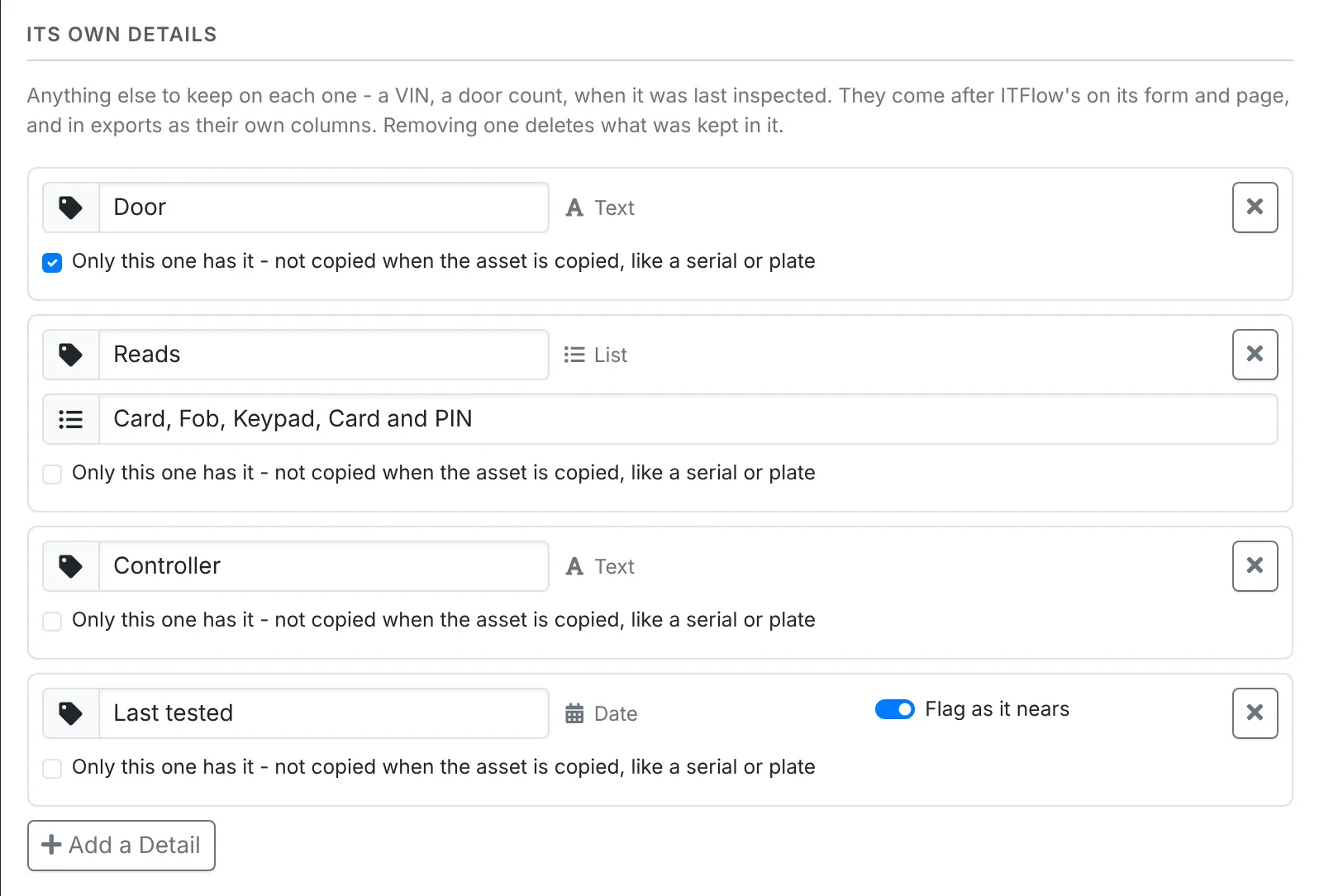
They come after ITFlow's details on the asset form and page, and are columns of their own in an asset export, headed with the type - Badge Reader: Door. An import matches them by that heading.
A detail keeps what it holds once it's saved - add another for a different kind. Removing one deletes what was kept in it on every asset of the type, so ITFlow asks first when any asset has it filled in.
Change, switch off or delete a type
Click one of your types to change it. Renaming it renames it on its assets, on products that become one and on recurring invoice lines that count its assets. ITFlow's own types can't be changed.
Switch Off, in a type's menu, takes it out of the type pickers - for the ones you never use, such as Camera or PDU. Its assets keep it, and so does an asset's form while it has it. Switched off lists them, and Switch On puts one back. Any type can be switched off but Other.
Delete, in one of your types' menu, says what has it - assets, archived ones too, products and recurring invoice lines - and moves them all to another type you pick first. Each asset keeps the details that type has, and its own details go with the type you delete. To keep a type on its assets, switch it off instead.
Types that aren't set up
An import, the API or an older version of ITFlow can put a type on assets that isn't one ITFlow knows. Those assets show as Other, and the types are listed above the table, each with how many assets have it. Click one to set it up: its name is filled in, and its assets - spelt any way - take the new type as you name it.