Exporting a client's data
Hand a client their documentation as a printable runbook, or take everything you hold for them out of ITFlow in one zip.
There are two ways to export a client, both from Export Data in the ⋮ menu of the client's header:
- Documentation PDF - a printable runbook of their IT, to hand over or keep on file. You can download it, or send it as a secure link.
- Full export - one zip with everything you hold for the client, for a handover, when they leave you, or for your own records.
Each export, downloaded or shared, is recorded in the client's audit log, including whether passwords went out.
Documentation PDF
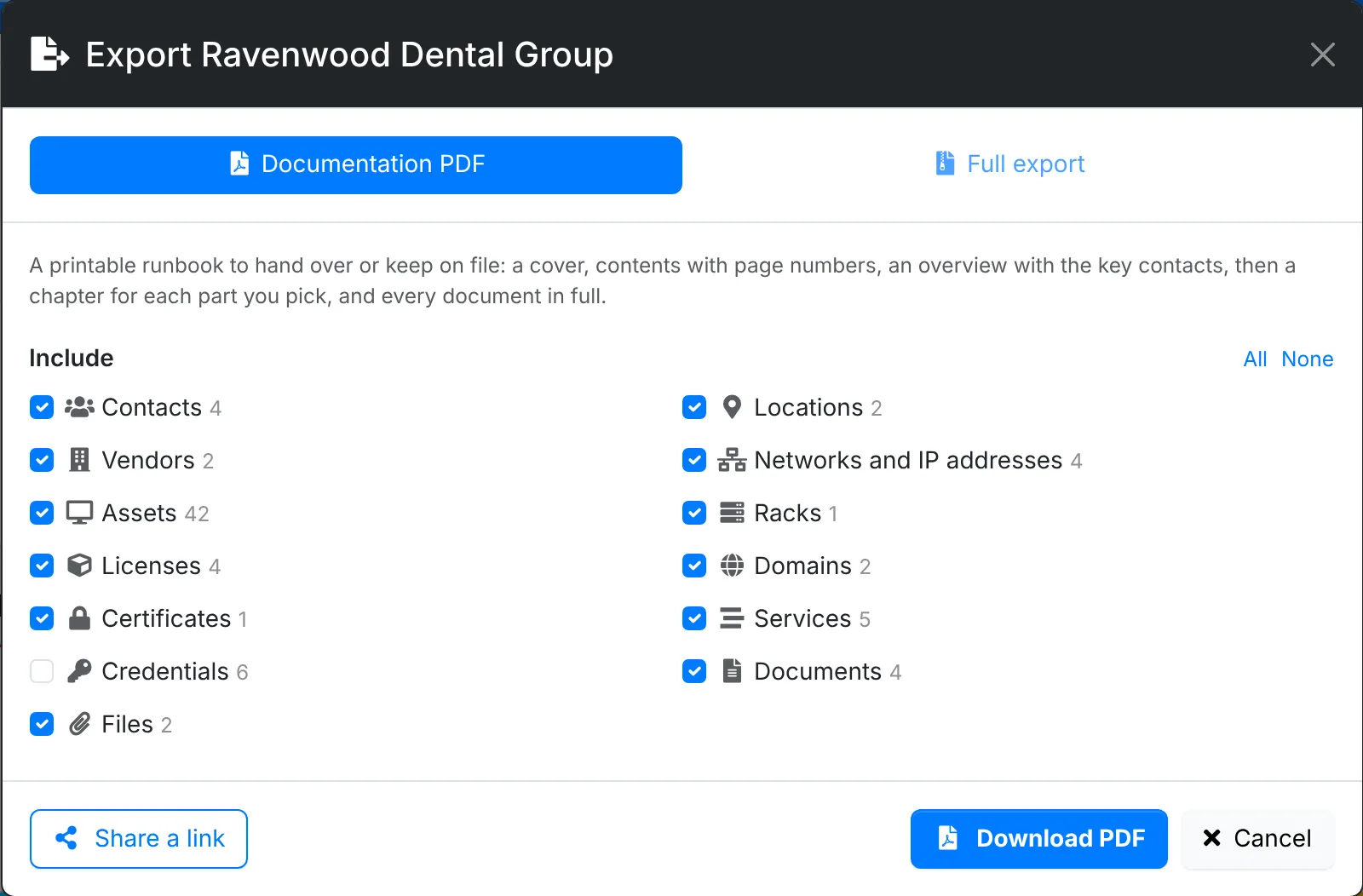
The PDF has a cover, a contents page with page numbers, and an overview with the client's key contacts, service levels and how to reach you. Then comes a chapter for each part you tick: contacts, locations, vendors, networks with their IP addresses, assets by type, racks, licenses with their keys and who holds them, domains, certificates, services, credentials, files, and every document in full with its images.
- Open the client and click ⋮ > Export Data.
- Leave Documentation PDF picked, and tick the parts to include. All and None tick or untick the lot.
- Click Download PDF - or Share a link to send it to someone securely instead.
Share it as a link
Rather than downloading the PDF and attaching it to an email, you can send it as a shared link: one that only works for as long and as many times as you set, can ask for a passphrase or an emailed code first, and tells you when it's downloaded.
- In Export Data, tick the parts to include and click Share a link. Or, on the client's Shared Links, use the arrow beside Secure Note and pick Share the IT documentation.
- The share window opens with the same parts ticked - change them here if you like.
- Pick who it's for, how long it Works for, how many times it Can be opened and what it asks for Before it opens, as for any shared link.
- Click Make the link. Copy the link, and the passphrase if it has one - they're shown once.
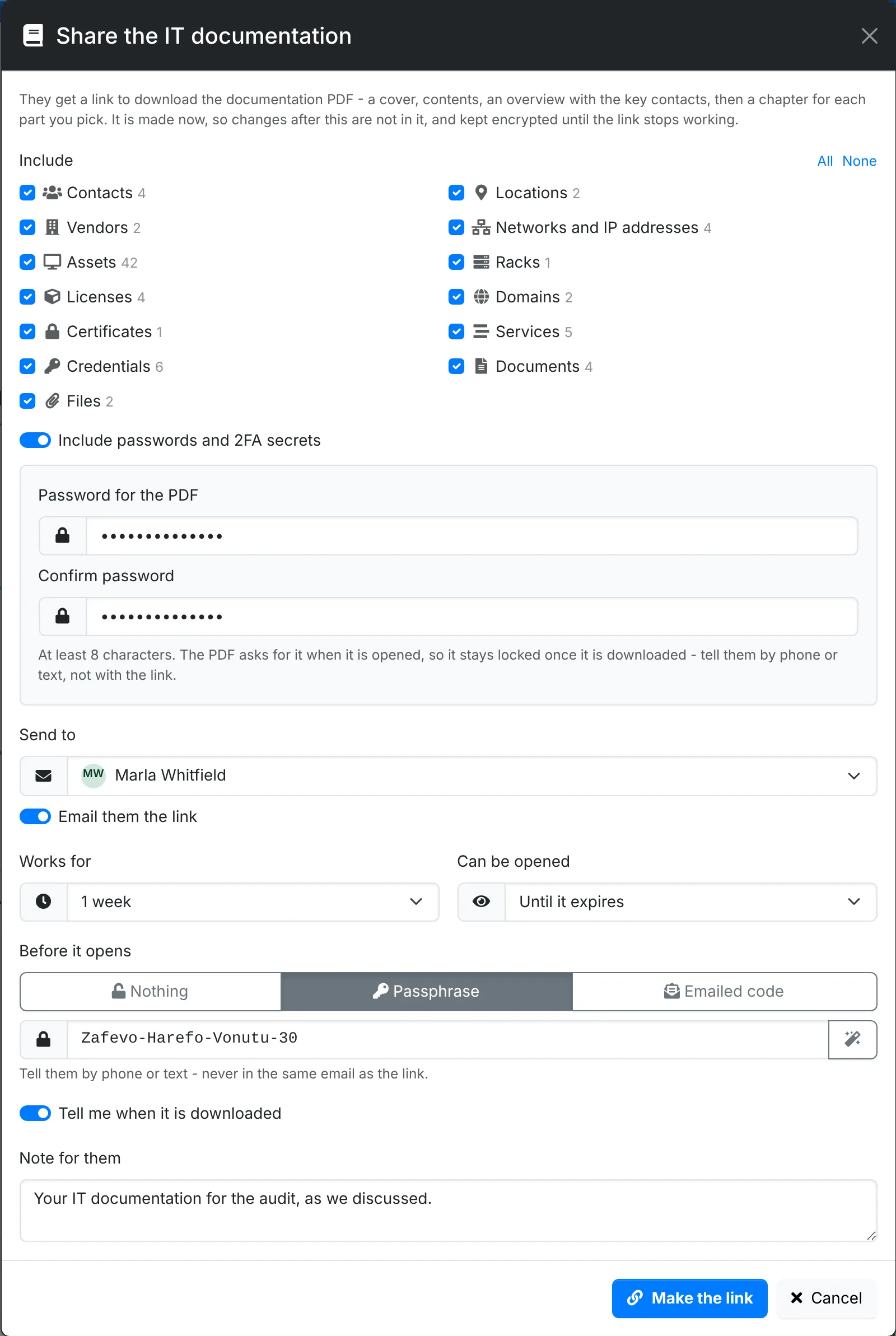
The PDF is made when you make the link, from what you can see - changes to the client after that aren't in it. It's kept encrypted with the link's own key until the link stops working, and then deleted, so neither the server's disk nor its database can open it without the link.
They see who sent it, how big it is and when it was made, and download it from there:
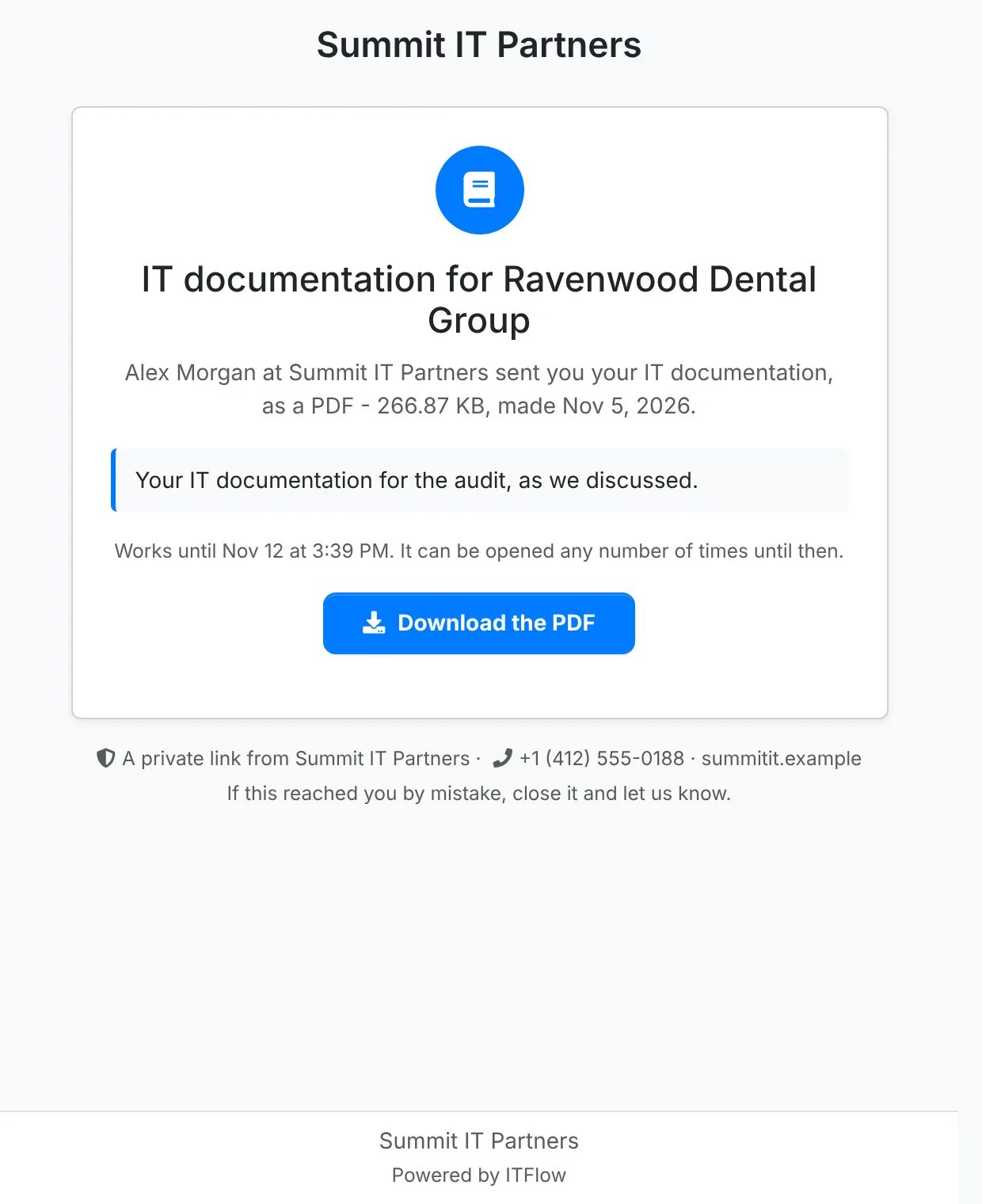
With Include passwords and 2FA secrets switched on, you set a password for the PDF too, just as for a download, and the page tells them the PDF will ask for it. Give them that password, and the link's passphrase, by phone or text - not with the link. If your admin requires a passphrase or code on shared passwords, sharing the documentation with passwords in it needs one too.
What the PDF looks like
It opens with a cover, named for the client and who prepared it, and a contents page:
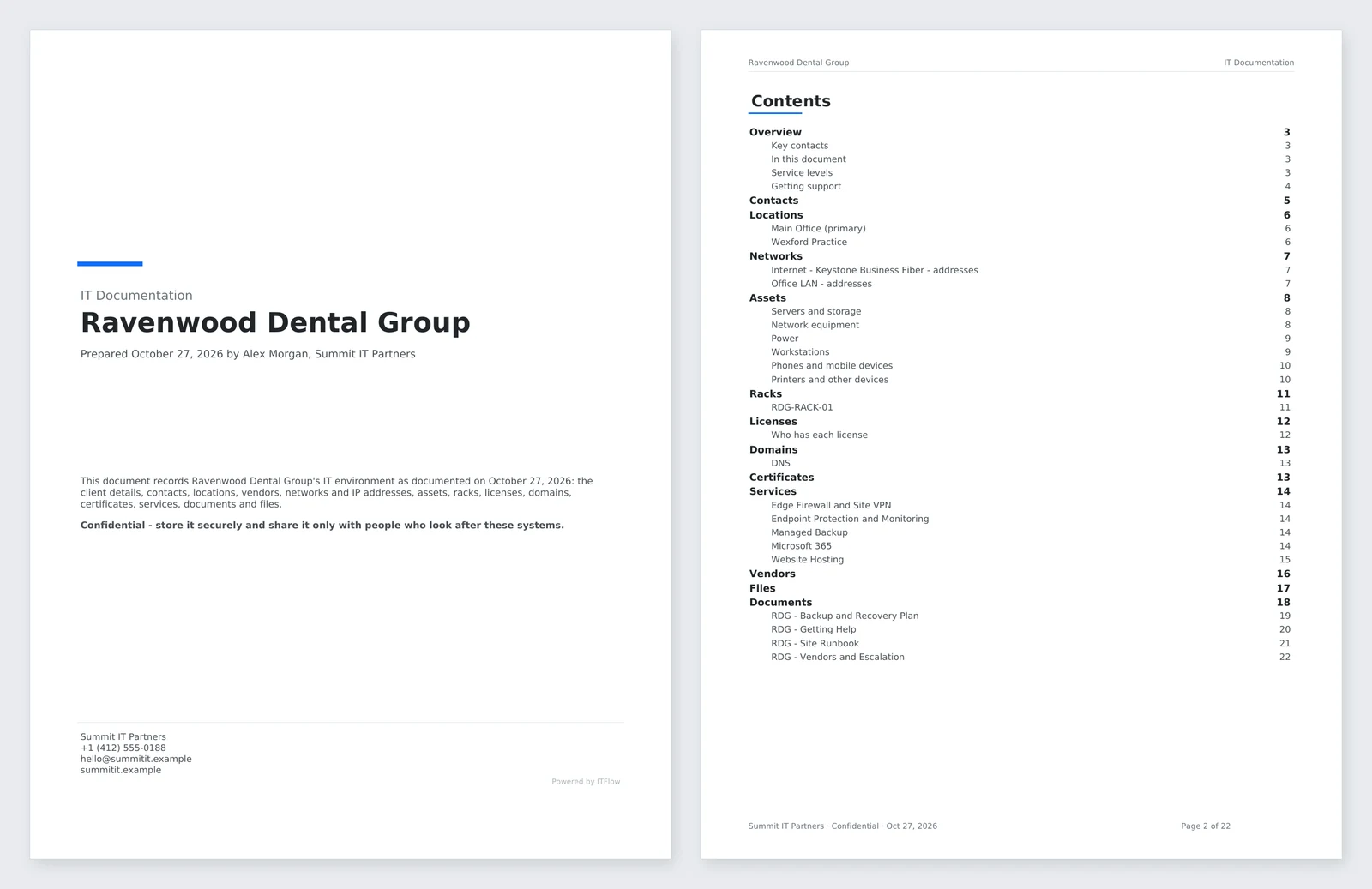
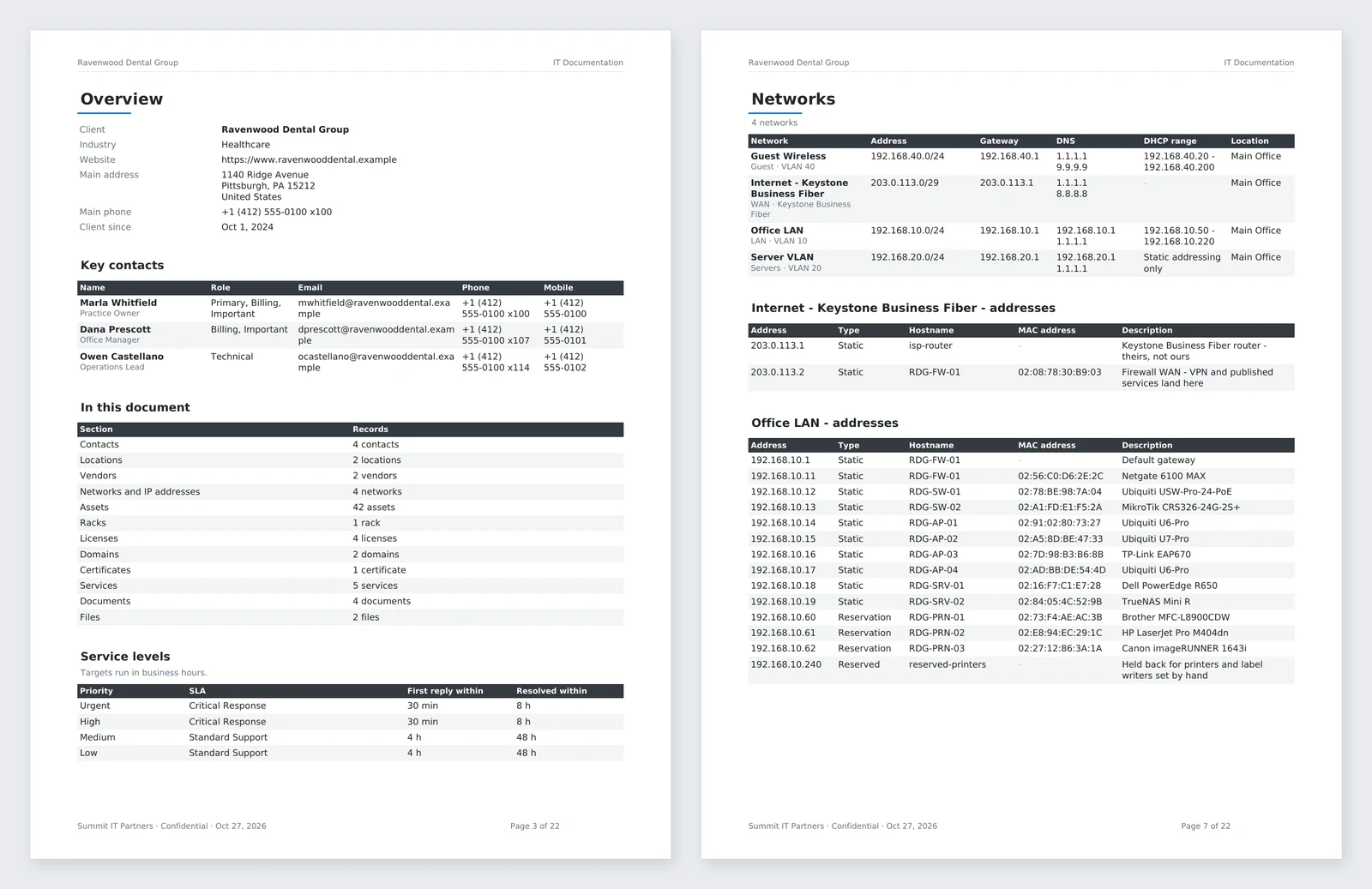
The overview has the client's details, key contacts, what is in the document and the service levels you work to, with how to reach you on the next page. Then each part you picked has a chapter of its own - here the networks, with every IP address on each:
Assets come grouped by kind - servers and storage, network equipment, power, workstations, phones, printers - each with its make and model, serial number, operating system or firmware, IP address, location and warranty. Every document follows in full, on its own pages:
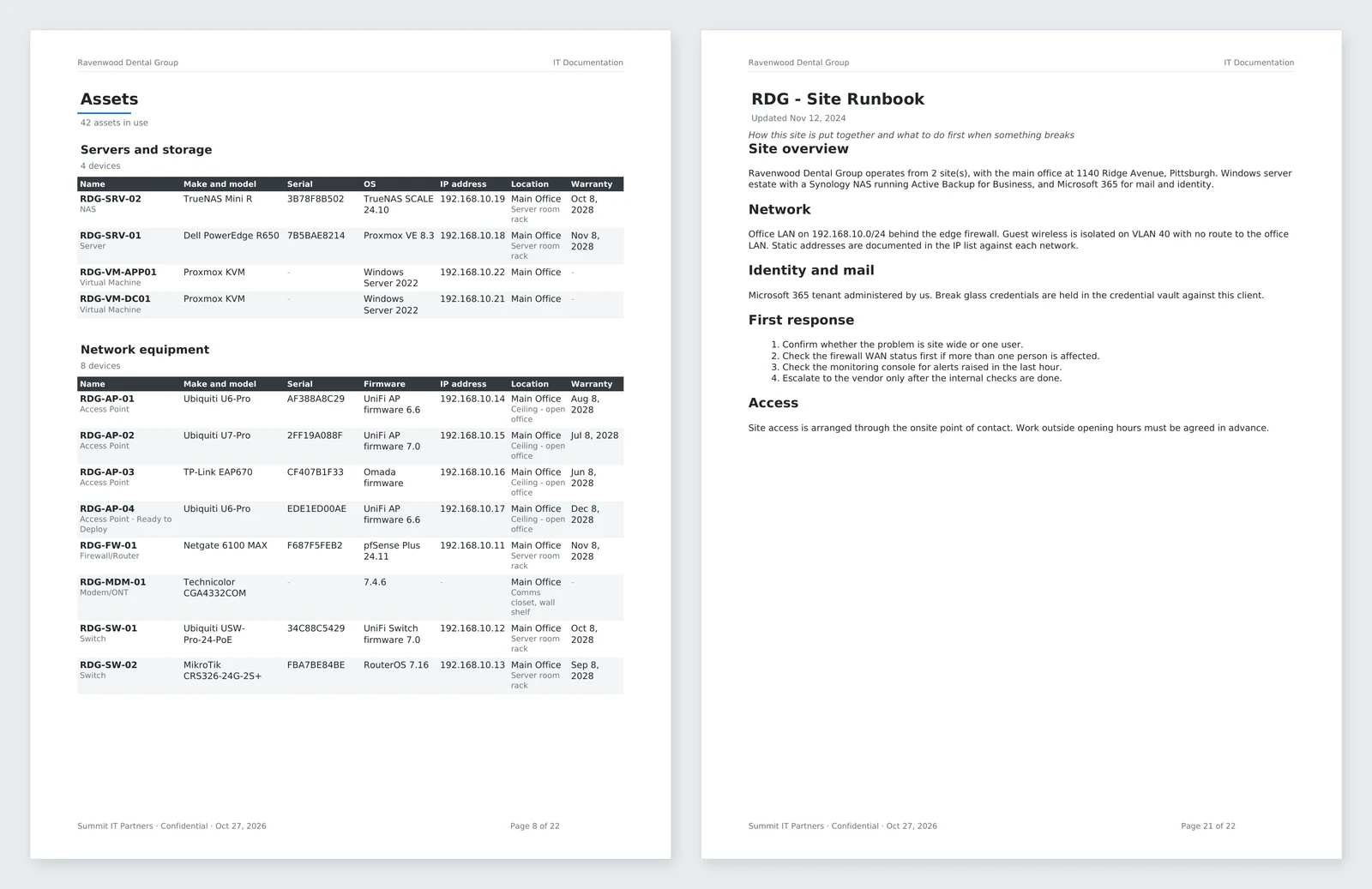
After the cover, every page has the client's name at the top, and your company, Confidential, the date and the page number at the bottom.
Full export
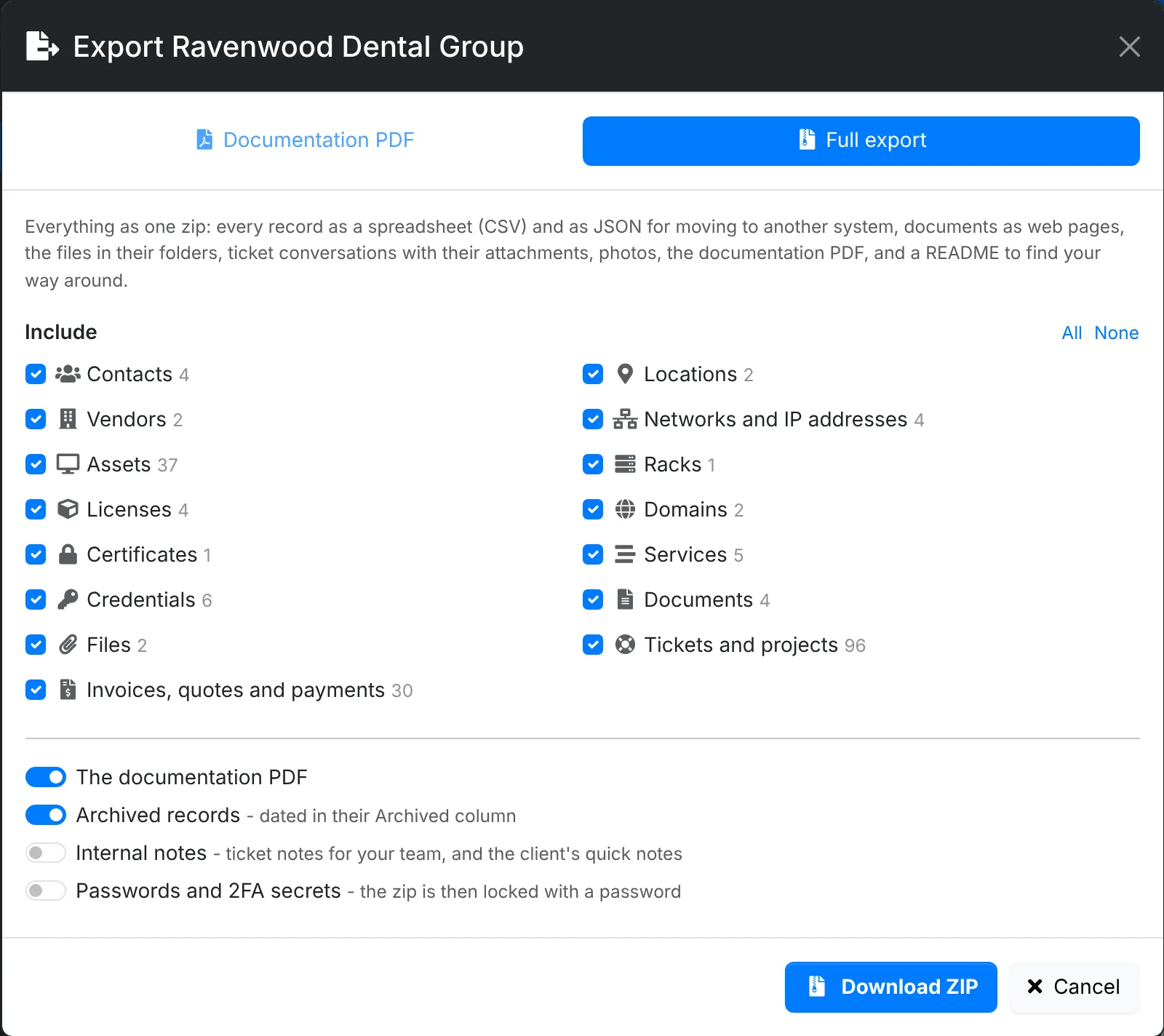
The zip has:
- every record as a CSV spreadsheet, and as JSON for moving to another system
- documents as web pages in their folders, and files in their folders under their own names
- tickets and projects, with the ticket conversations and their attachments
- invoices, quotes and payments
- photos, the documentation PDF, and a README.html that links it all together
What is in the zip
Unzipped, it is one folder named for the client and the day. For Ravenwood Dental Group it looks like this - a folder marked (if any) is only there when the client has something to put in it:
Ravenwood Dental Group - Export 2026-10-27/
├── README.html
├── Ravenwood Dental Group - IT Documentation - 2026-10-27.pdf
├── data/
│   ├── export.json
│   ├── csv/
│   │   ├── assets.csv
│   │   ├── asset_interfaces.csv
│   │   ├── contacts.csv
│   │   ├── credentials.csv
│   │   ├── invoices.csv
│   │   ├── networks.csv
│   │   ├── tickets.csv
│   │   ├── ticket_replies.csv
│   │   └── ...             one for each kind of record
│   └── json/
│       └── ...             the same records, as .json
├── documents/
│   ├── RDG - Backup and Recovery Plan.html
│   ├── RDG - Getting Help.html
│   ├── RDG - Site Runbook.html
│   ├── RDG - Vendors and Escalation.html
│   └── _images/            the documents' images (if any)
├── files/
│   ├── Main Office network.png
│   └── Contracts/
│       └── Managed Services Agreement - signed.pdf
├── tickets/
│   ├── TCK-93 - Site internet dropping intermittently.html
│   ├── TCK-94 - New starter setup - workstation, mailbox and access.html
│   ├── ...                 one for each ticket
│   └── attachments/        a folder for each ticket (if any)
└── photos/                 (if any)
    ├── assets/
    ├── contacts/
    ├── locations/
└── racks/| In the zip | What it holds |
|---|---|
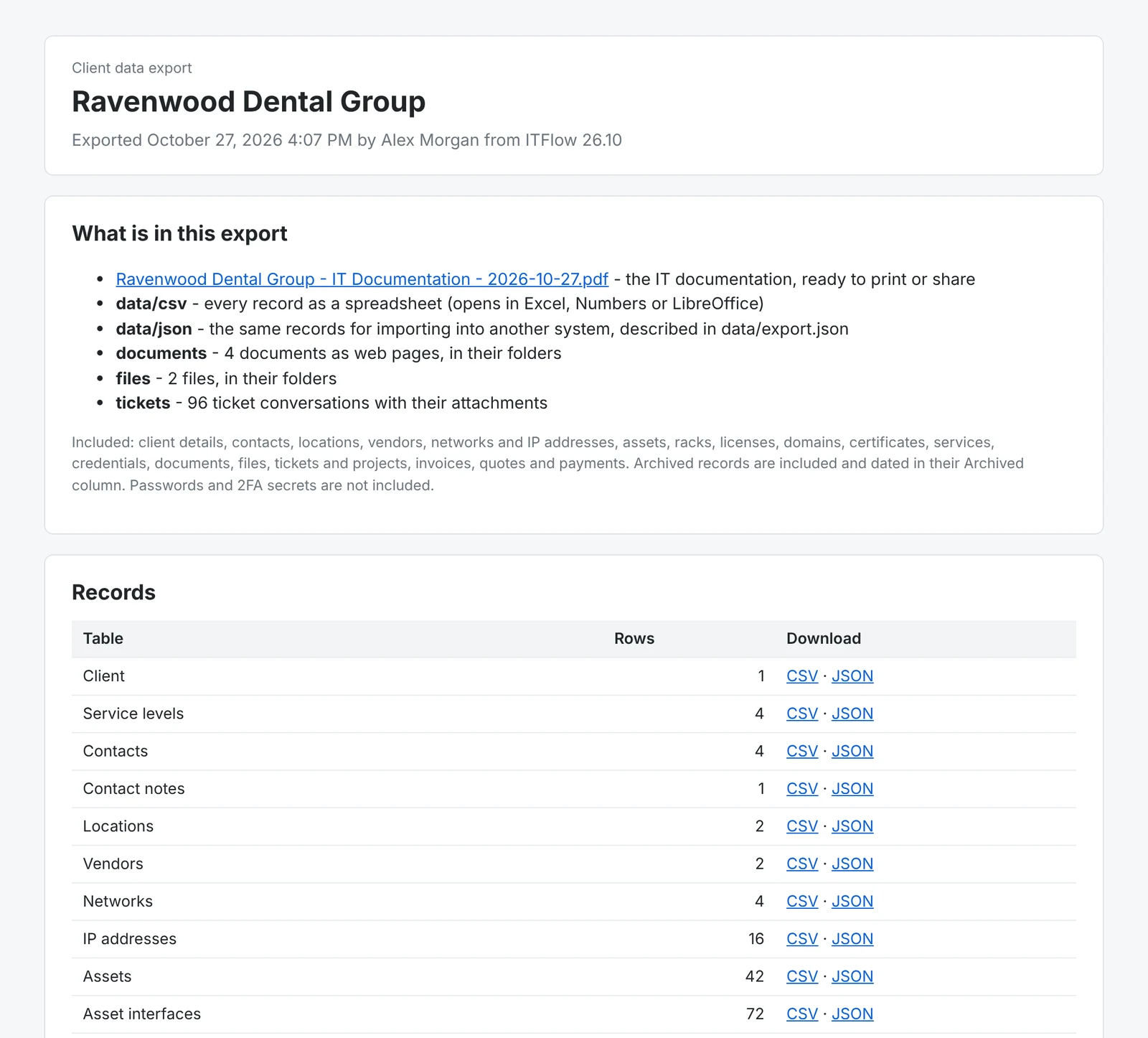
| README.html | Start here. It says when the export was made, by whom and what is in it, and links every part: each set of records with how many rows it has, and every document, file and ticket. |
| The PDF | The documentation PDF, when The documentation PDF is switched on. |
| data/csv | One spreadsheet for each kind of record - assets, contacts, tickets and their replies, invoices and so on - that opens in Excel, Numbers or LibreOffice. Linked records are named, not numbered: an asset's location and who uses it, a ticket's contact. |
| data/json | The same records as JSON, for moving them into another system. data/export.json describes the export: when and by whom it was made, what is in it and what isn't, and the columns of each set. |
| documents | Each document as a web page, in the same folders as in ITFlow, with its images in _images. |
| files | The client's files, in their folders, under their own names. |
| tickets | Each ticket as a web page - its details and the whole conversation - with its attachments in attachments, a folder for each ticket. Your team's internal notes are only there when Internal notes is switched on. |
| photos | Photos of the client's contacts, locations, assets and racks, named for each. |
README.html opens in any browser, so the client can find their way around without ITFlow:
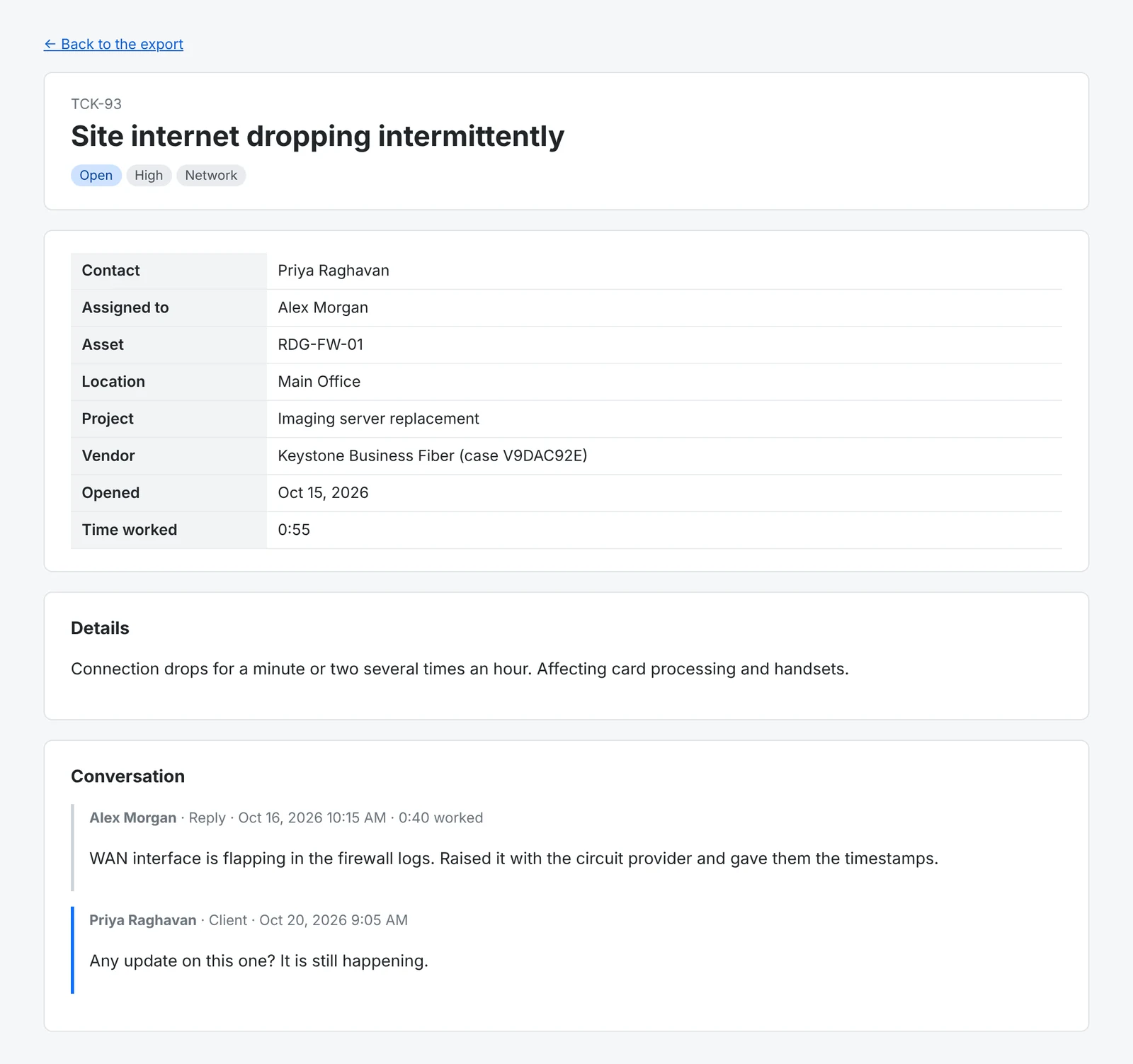
Each ticket opens as a page of its own, with its details and conversation:
Under the parts to include are switches for The documentation PDF, Archived records (marked with when they were archived), Internal notes (your team's ticket notes and the client's quick notes) and Passwords and 2FA secrets.
- Open the client and click ⋮ > Export Data, then Full export.
- Tick the parts and set the switches.
- Click Download ZIP.
Passwords
Passwords and 2FA secrets are left out unless you ask for them. When you include them, you set a password for the file, and the PDF or zip is locked with it (AES-256 encryption) - a PDF sent as a link as well. Give the client the password separately - by phone, say - not in the same email as the file.
An encrypted zip opens with 7-Zip, WinRAR, Keka or The Unarchiver. The zip tools built into Windows and macOS can't open it.