Contracts
Every agreement with a client in one place - its type, term and renewal, what it covers, and the rates, payment terms and SLAs that apply while it's in force.
A contract is an agreement with a client: a year of managed services, a co-managed arrangement, a block of hours, a project. ITFlow keeps its term and renewal, the notice needed to end it, and what it covers - support hours, rates, payment terms and an SLA for each ticket priority. While a contract is in force, those terms are the ones ITFlow uses for the client's tickets and invoices.
Contracts are under Billing in the menu, and in each client's menu, for roles with Sales. A contract can also be sent to the client to sign, and can hold prepaid hours.
The contracts list
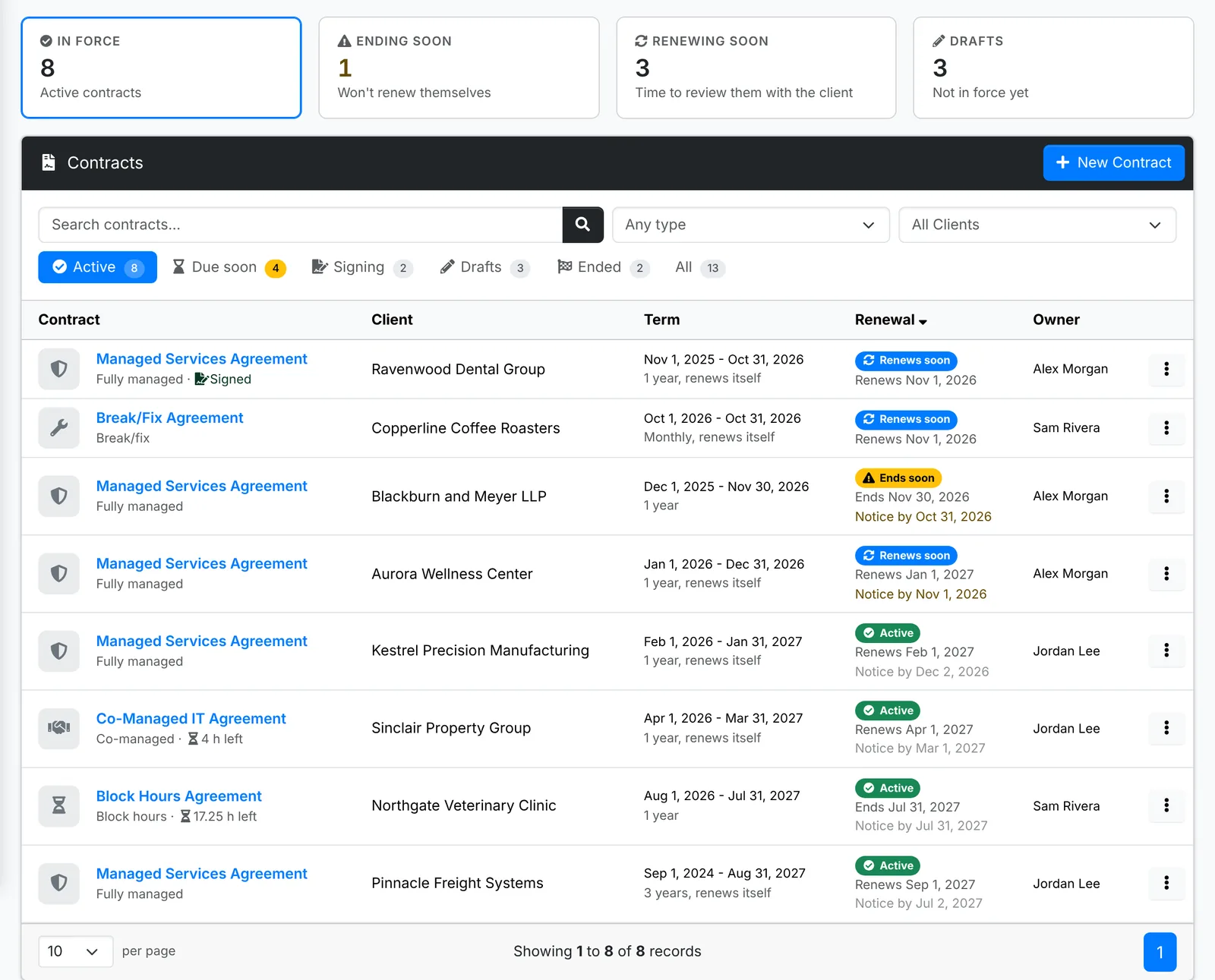
Along the top:
- In force - contracts active now
- Ending soon - ones that won't renew themselves
- Renewing soon - a good time to review them with the client
- Drafts - not in force yet
The tabs are Active, Due soon, Signing (out for signature, or waiting for you to countersign), Drafts, Ended and All. Search, filter by type and client, and sort by name, client, type, start, end or owner. Each row says when the contract renews or ends, when notice is due, and where its signing stands. The menu shows how many are due soon.
Due soon is within a month of a contract's notice date, when there's something to do: it ends, or it renews itself and notice is given during its term. One with no notice to give, like Standard terms, or with notice as long as its term - a monthly contract with 30 days' notice - just renews, so it isn't listed.
Across every client, an archived client's contracts are left out. They're still on the client's own Contracts.
Add a contract
- Click New Contract - on the list, or on a client's Contracts.
- Pick a template under Start from a template, if you have one. It fills in the type, term, renewal, notice, cover and terms, and any of them can be changed after. See Contract templates.
- Fill in the Agreement tab, then Cover, Terms and Notes.
- Click Create.
You can also start one from a template on the client itself: Contract on the Billing tab of New Client, or New contract when you edit one, makes it active from the day you pick. Start Contract, in the Action menu of the clients list, does it for every client you tick. A client with none in force shows Start a contract on the list, which opens New Contract for it.
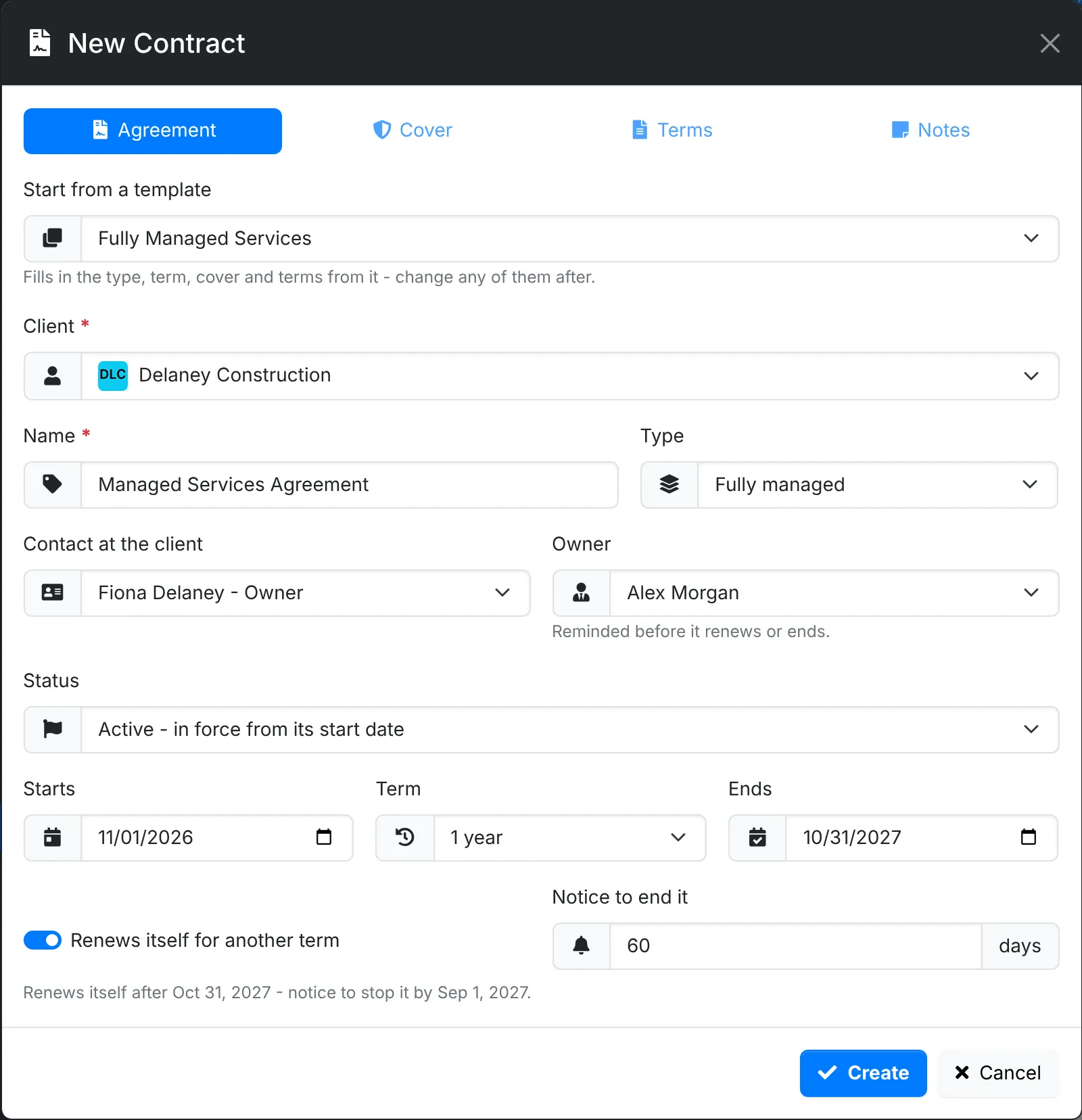
Agreement
- Client, Name and Type - Fully managed, Co-managed, Block hours, Time and materials, Break/fix, Project or Other
- Contact at the client - the client's primary contact to start with
- Owner - who looks after it for you. They're reminded before it renews or ends.
- Status - Active, in force from its start date, or Draft, not in force yet. A draft sent to sign becomes active once both sides have signed.
- Starts, Term and Ends - the end follows the start and term until you change it. A term keeps to the day of the month it starts on, or the last day of a shorter month: a monthly contract from January 31 runs to February 27, then March 30.
- Renews itself for another term, and the Notice to end it in days. The window says when notice is due.
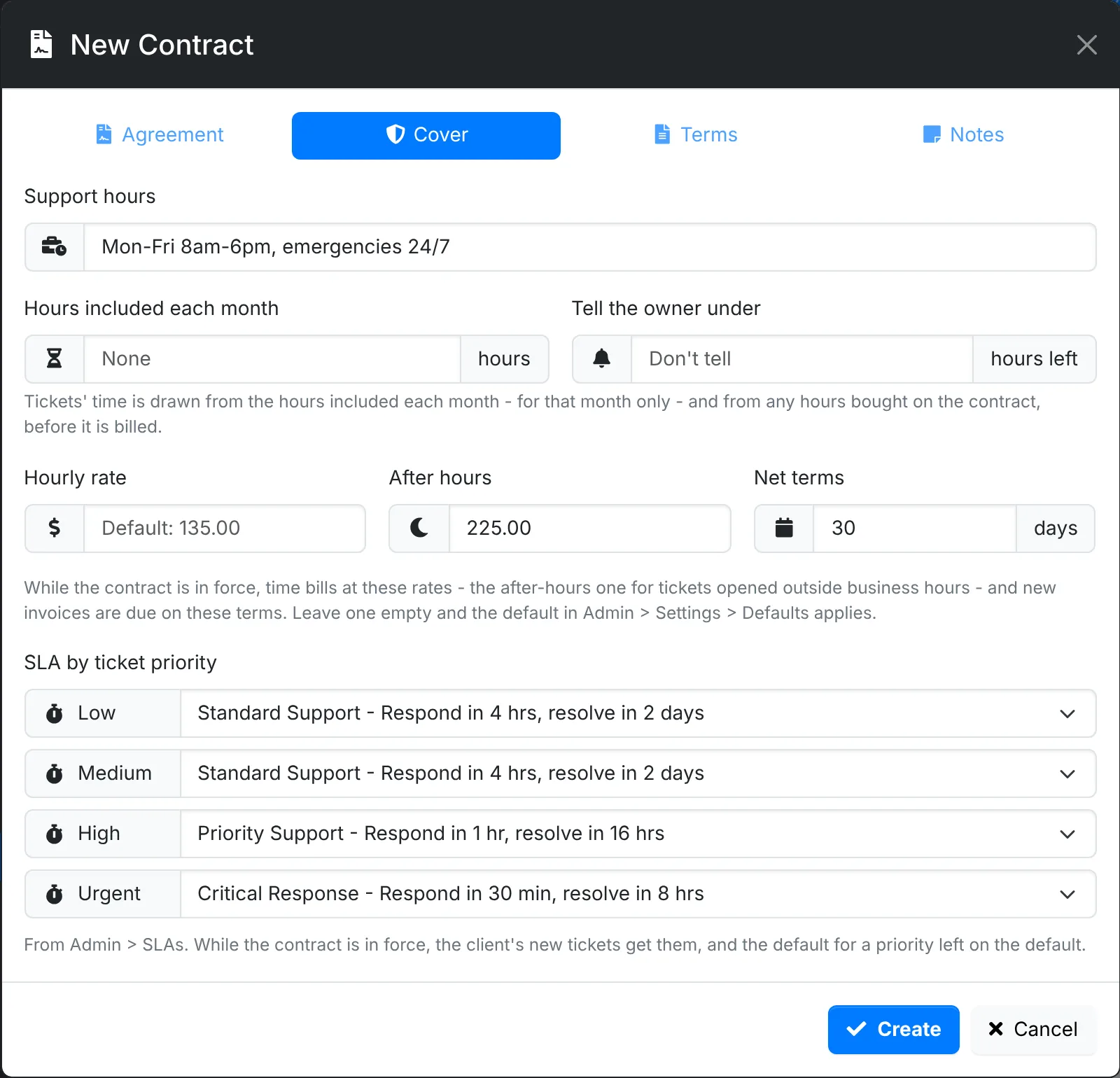
Cover
- Support hours - as it should read on the contract, such as "Mon-Fri 8am-6pm, emergencies 24/7"
- Hours included each month and Tell the owner under - see Prepaid hours
- Hourly rate, After hours rate and Net terms
- SLA by ticket priority - an SLA from Admin > SLAs for Low, Medium, High and Urgent
Leave a rate, the net terms or an SLA empty and what applies without it does - another contract in force for the client that sets it, else your default from Admin > Settings > Defaults and Admin > SLAs. The empty fields show the default.
Terms is the agreement itself, in an editor, with placeholders that fill in from the contract - see Sending a contract to sign. Notes are for your team only - what was agreed, who to talk to about renewing.
Copy, on a contract's page, starts a new contract from it.
A contract's page
Click a contract to open it. The header says where it stands - draft, starts soon, active, renews soon, ends soon, ended or cancelled - and how far through its term it is.
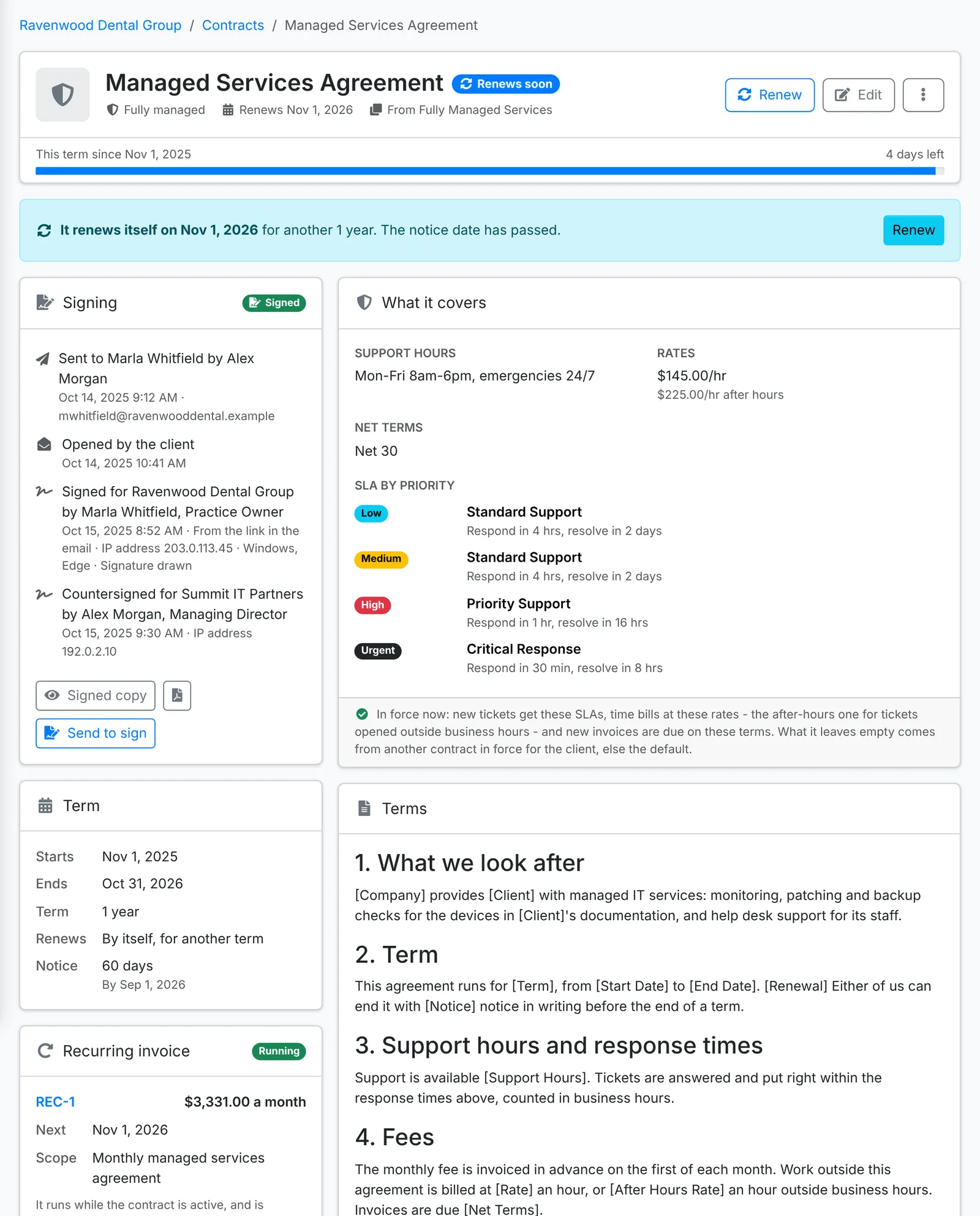
- Signing - who it was sent to and where that stands. See Sending a contract to sign.
- Term - when it starts and ends, how it renews, and the notice, with the day notice is due
- Recurring invoice - the invoice that bills it. See below.
- People - the client, contact and owner, and when it was added
- History - everything done to it
- What it covers - the support hours, rates and net terms, and the SLA for each priority, and whether the contract is in force now
- Terms and Notes
- Prepaid hours, when it has some - see Prepaid hours
Document shows the contract as the client sees it, and Download PDF saves it.
Renew, cancel or make active
- Renew sets a new last day - a term on, to start with.
- Cancel takes the last day it's in force and why. It doesn't renew after that, and a request to sign it that's still out - or waiting for you to countersign - is withdrawn.
- Make active, on a draft, takes the day it starts and sets its end a term later.
You don't have to renew a contract that renews itself. Every night, ITFlow renews each one for another term once it ends - on the day of the month it started, unless you set its end to another day - and marks one that doesn't renew as ended.
A month before a contract's notice date, when there's something to do - it ends, or it renews itself and notice is given during its term - its owner is emailed what it is, when notice is due and a link to it, and agents are notified in ITFlow. That happens once a term. Nothing is sent for a contract with no notice to give, or with notice as long as its term.
An archived client's contracts are left as they are - not renewed, ended or reminded of - until the client is restored. The client's overview lists contracts ending or renewing soon under Needs attention, and shows the contract in force in its Financial row.
While a contract is in force
A client has no rates, net terms or SLAs of its own - they come from its contract. From its first day to its last - and while one that renews itself waits for the night's renewal - a contract sets the client's terms:
- SLAs - a new ticket gets the contract's SLA for its priority, ahead of your default from Admin > SLAs.
- Rates - time bills at the contract's rate, and at its after-hours rate for a ticket opened outside the business days and hours in Admin > SLAs. ITFlow goes by the contract in force on the day the work was done.
- Net terms - new invoices are due on the contract's terms.
When two contracts are in force, the one that started last comes first, and what it leaves empty comes from the other. Whatever no contract in force sets, your defaults apply: the hourly rate, after-hours rate and net terms in Admin > Settings > Defaults, and the SLAs in Admin > SLAs. With no after-hours rate anywhere, after-hours time bills at the hourly rate. What it covers, on the contract's page, says whether it's in force now, and where each thing it leaves empty comes from - another contract, by name, or the default.
Unbilled time bills each ticket at its own rate and says when a contract's rate or terms are the ones used - and so do the ticket's Invoice window, a quote from a ticket, the New Invoice window's due date and the Unbilled Work report. The client's overview and the Billing tab of its Edit window show the terms it's billed on, and whether they're a contract's or your defaults.
Standard terms
A client that had its own hourly rate, net terms or SLAs before the 26.11 update - different from your defaults - was given a contract called Standard terms that sets just those. It's active, renews itself every year with no notice - so no one is reminded of it - and starts the day the client was added, so any other contract the client has still comes first. Change it, or end it once the client's other contract covers everything. The client import and the API make one the same way for a client whose rate or terms aren't your defaults.
The recurring invoice
The recurring invoice that bills a contract goes on the contract's page. Click Recurring invoice:
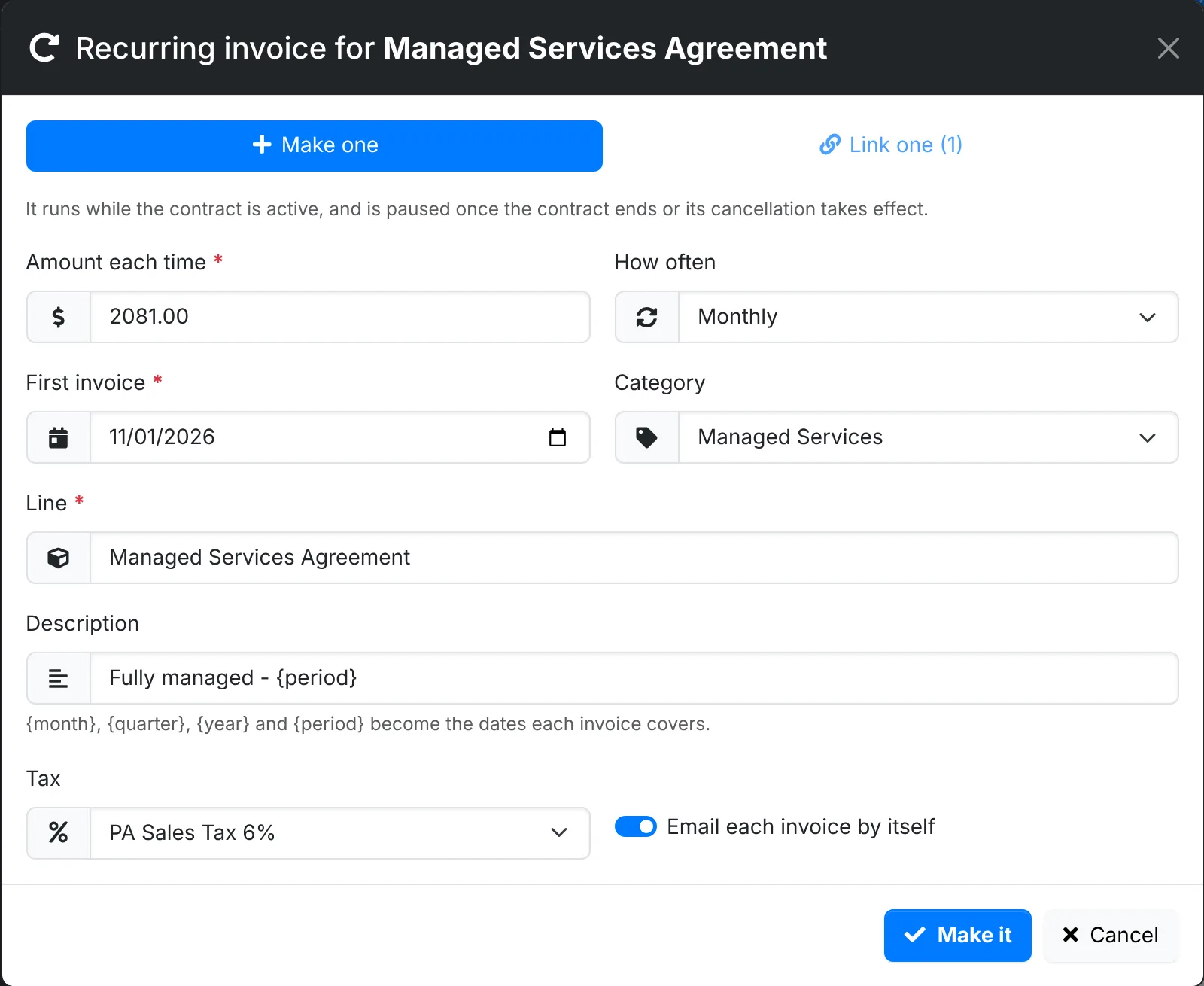
- Make one - the Amount each time, How often, the First invoice, the Line, its Category and Description, the Tax, and whether to Email each invoice by itself.
{month},{quarter},{year}and{period}in the description become the dates each invoice covers. - Link one - one of the client's recurring invoices already made
It's paused while the contract is a draft, starts when the contract is made active or renewed - runs missed in the meantime are skipped, not billed - and is paused once the contract ends or its cancellation takes effect. That happens once, so one you start again by hand is left alone. The recurring invoice and its list show the contract. Unlink lets it carry on as it is.
See Recurring invoices.
Delete a contract
Delete is on a contract's menu, for a contract made by mistake. Any prepaid hours and signing requests on it go with it.
A contract stays, and its menu says why in place of Delete, once:
- tickets' time was drawn from its prepaid hours - deleting it would send them back to bill. Put them back first, or cancel it.
- it was signed by both of you - it's the record of what was agreed. Cancel it instead.
Deleting a client deletes its contracts too.