Invoices and billing
Invoice and quote numbering and footers, late fees, payment reminders and statements, how ticket time, expenses and trips are billed, and payment methods.
Admin > Settings > Invoices and billing decides how billing works for everyone. Quotes have a smaller page of their own, Admin > Settings > Quotes.
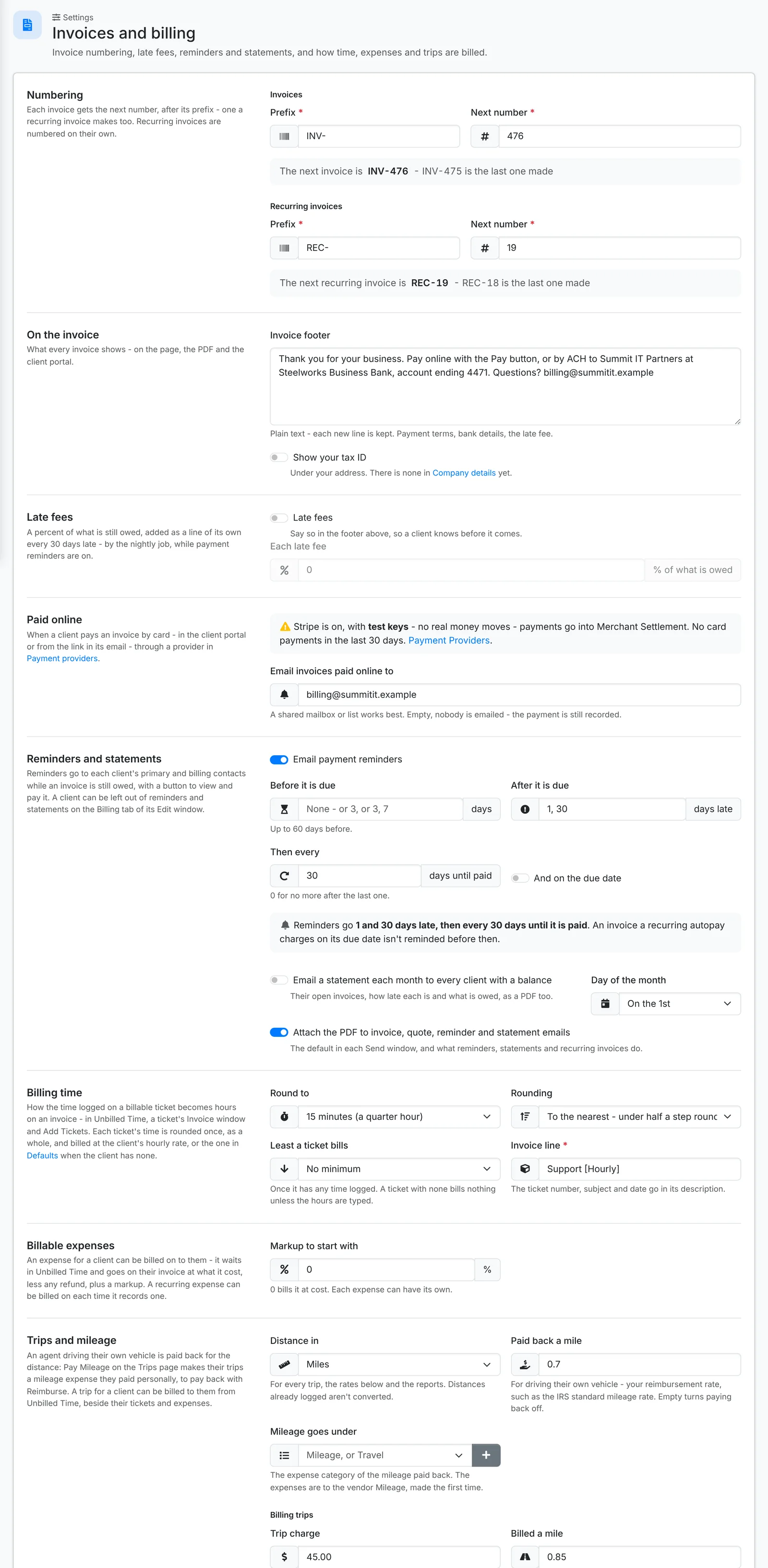
Numbering and the invoice
- Numbering - the Prefix and Next number for invoices, and separately for recurring invoices.
- Invoice footer - printed at the foot of every invoice, on the page, the PDF and in the portal: payment terms, bank details, the late fee. Each new line is kept.
- Show your tax ID - prints the tax ID from Company details under your address.
Late fees
Switch on Late fees and set Each late fee as a percent of what's still owed. It's added to an overdue invoice as a line of its own every 30 days late, by the nightly job, while payment reminders are on. Say so in your invoice footer, so clients know before it comes.
Paid online
When a client pays by card, through a payment provider, an email goes to Email invoices paid online to - a shared mailbox or list works best. The payment is recorded either way.
A lead that pays an invoice becomes a client - on unless you turn it off. However an invoice is paid in full - online, by autopay or a payment you record - a lead it's for becomes a client by itself, and the tickets waiting on it hear that it's paid.
Reminders and statements
Switch on Email payment reminders and set the schedule:
- Before it is due - such as 3, or 3, 7 (days before)
- And on the due date
- After it is due - such as 7, 14, 30 (days late)
- Then every so many days until it's paid - 0 for no more after the last one
The page writes the schedule out in plain words as you set it. Reminders go to each client's primary and billing contacts, with a button to view and pay. A client can be left out on the Billing tab of their Edit window.
Email a statement each month to every client with a balance sends statements on the Day of the month you pick.
Attach the PDF to invoice, quote, reminder and statement emails - the default in each Send window, and what automatic emails do.
See Reminders and statements for what your team and clients see.
Billing time
How ticket time becomes hours on an invoice:
- Round to - such as 15 minutes, and the Rounding: to the nearest, or always up
- Least a ticket bills - such as 30 minutes, once a ticket has any time logged
- Invoice line - the name of the line, such as "Support [Hourly]". The ticket number, subject and date go in its description.
Billable expenses and trips
- Markup to start with - the markup a billable expense starts with. 0 bills it at cost.
- Distance in - miles or kilometers
- Paid back a mile - your reimbursement rate for driving their own vehicle, and the expense category it goes under
- Trip charge, Billed a mile and The charge covers the first so many miles - what a billable trip bills
Quotes
Admin > Settings > Quotes has the quote Prefix and Next number, the Quote footer printed on every quote, and Email quote answers to - who's told when a client accepts or declines a quote online.
Payment methods
Admin > Payment Methods lists the ways money comes in and goes out - Cash, Check, Bank Transfer, Credit Card, and your own, such as ACH or the company card. Each shows what it's for, what it has been used on - "138 payments · 38 income", each a link to them in Transactions - and when it was last used.
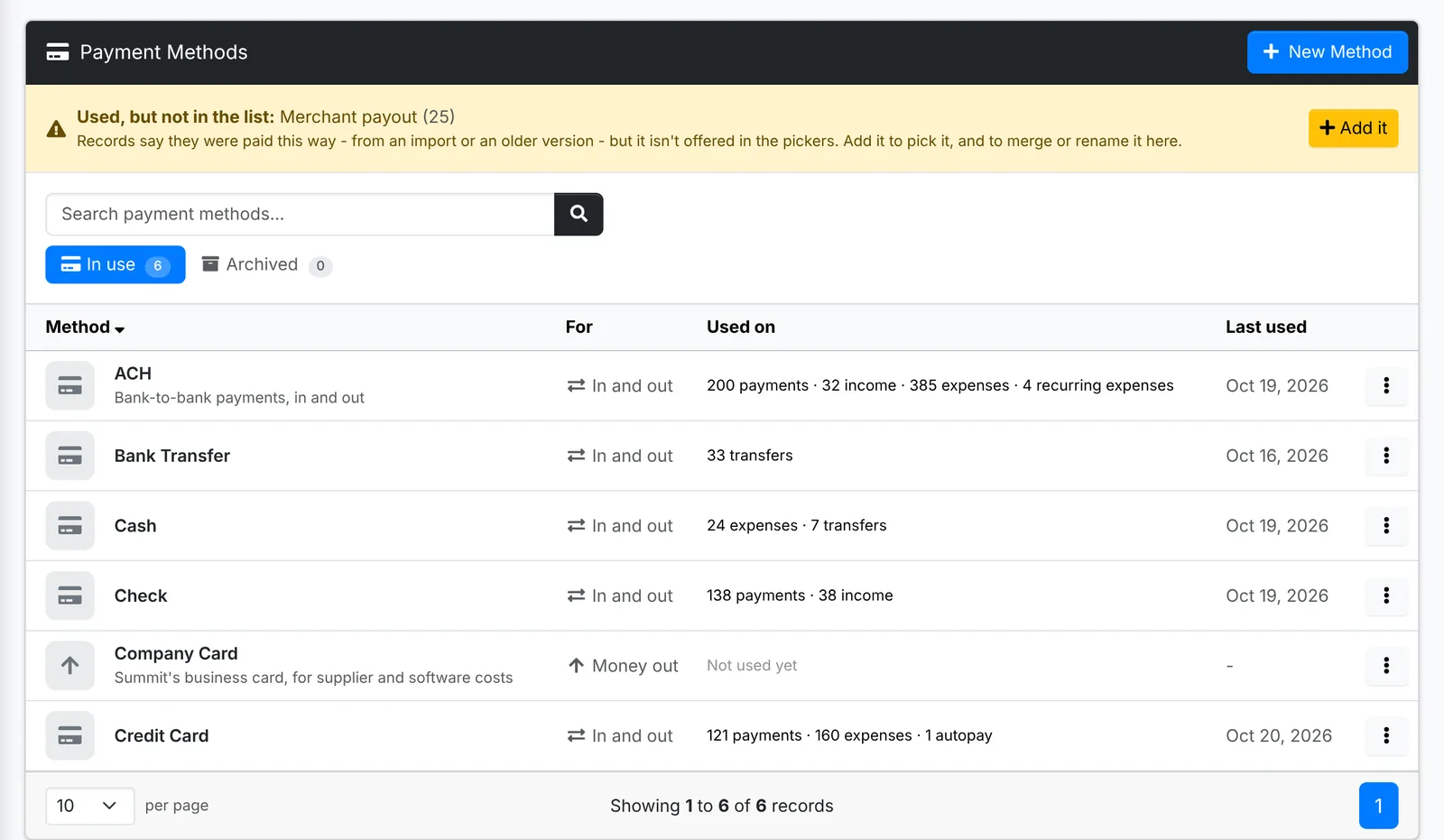
Click New Method, or Edit on a method's menu, for its Name, a description and what it's offered for:
- Money in - payments from clients and other income
- Money out - expenses, recurring expenses, reimbursements and mileage claims
- Money in and out - both
Each picker only offers the methods that fit, so the company card isn't offered on a client's payment. Transfers between accounts offer every method.
- Renaming a method renames it on every payment, income, expense, transfer and autopay that used it, and in the defaults.
- Defaults - the default for payments and the default for expenses are marked on the list. Make the default for payments (or expenses) on a method's menu sets one - the same settings as Admin > Settings > Defaults.
- Archive a method you no longer take. It's no longer offered or a default, and the records that used it keep it. Restore brings it back.
- Delete a method nothing used. One that was used is merged into another instead: its records change to the method you pick, which also takes its place as a default. Good for two names for one thing, such as "Card" and "Credit Card".
Methods your records were paid with that aren't in the list - from a bank import, an older version or demo data - are named at the top with how often they were used. Add it adds one, so it can be picked, renamed or merged.
Taxes have a page of their own - see Taxes.